
1. Introduction
The UNIWA V909T 4G Flip Phone is designed for ease of use, particularly for seniors. It features large buttons, a clear display, and essential functions to ensure reliable communication. This manual provides detailed instructions for setting up, operating, and maintaining your device.
2. What's in the Box
Please check the contents of your package to ensure all items are present:
- UNIWA V909T 4G Flip Phone
- Charging Dock
- Adapter
- USB Cable
- Battery (pre-installed or separate)
3. Product Overview
The UNIWA V909T is equipped with features designed for convenience and accessibility.
Key Features:
- Dual Screens: A 2.8-inch QVGA main screen and a 1.77-inch QVGA outer screen for quick information display.
- Large Buttons & Display: Oversized buttons and a large font for easy dialing and menu navigation.
- SOS Emergency Button: A dedicated button on the back for quick access to emergency contacts.
- Hearing Aid Compatible (HAC): Designed to work seamlessly with hearing aid devices (M4/T4 compatibility).
- Loud Speaker & Ringtones: High-quality speaker and loud ringtones to prevent missed calls.
- Charging Dock: Convenient charging solution, eliminating the need to plug in cables directly.
- FM Radio: Enjoy listening to news and music.
- 4G Connectivity: Supports 2G(GSM)/3G(WCDMA)/4G(FDD-LTE) global network bands.

The phone features a dual-screen design, with a 2.8-inch main screen and a 1.77-inch outer screen for checking time, date, calls, and messages without opening the phone.

Large, easy-to-press buttons with clear numbering and big font for improved readability and navigation.

A dedicated SOS button on the back of the phone allows for quick contact with pre-set emergency numbers.

The phone is Hearing Aid Compatible (HAC), ensuring clear call quality for users with hearing aids.
Product Overview Video
This video provides a general overview of the UNIWA 4G Unlocked Flip Phone, highlighting its key features and benefits for elderly users.
4. Setup
4.1. SIM Card Installation
To use your phone for calls and messages, you must install a SIM card. Ensure the phone is powered off before installation.
- Remove the back cover of the phone.
- Locate the SIM card slot.
- Unlock the SIM card clip by sliding it to the left or lifting it, depending on the mechanism.
- Carefully insert your SIM card into the slot, ensuring the gold contacts face downwards and the cut corner aligns correctly.
- Close the SIM card clip and slide it to the right to lock it in place.
- Replace the back cover.
SIM Card Installation Video
This video demonstrates the correct procedure for installing the SIM card slot cover on the UNIWA V909T 4G Flip Senior Phone.
4.2. Charging the Phone
The phone comes with a convenient charging dock. To charge:
- Connect the USB cable to the adapter, then plug the adapter into a power outlet.
- Connect the other end of the USB cable to the charging dock.
- Place the UNIWA V909T phone into the charging dock. Ensure it is seated correctly and the charging indicator light illuminates.
- A full charge typically takes approximately 8 hours.

The UNIWA V909T phone placed in its charging dock, indicating a convenient way to recharge the device.
5. Operation
5.1. Power On/Off
- To power on: Press and hold the red power button until the screen lights up.
- To power off: Press and hold the red power button, then confirm power off on the screen.
5.2. Making and Receiving Calls
- To make a call: Open the phone, dial the number using the large keypad, and press the green call button.
- To answer a call: Open the phone when it rings, or press the green call button.
- To end a call: Close the phone or press the red hang-up button.
- Speed Dial: Numbers 2-9 can be set as speed dial buttons. Refer to the phone's menu for speed dial setup.
5.3. Sending and Receiving Messages
- Navigate to the 'Messages' menu using the navigation buttons.
- Select 'Write message' to compose a new text.
- Enter the recipient's number and your message.
- Press 'Send'.
5.4. SOS Emergency Function
The SOS button provides a quick way to contact emergency numbers.
- Setting up SOS contacts: Access the SOS settings in the phone's menu. You can preset up to 5 contacts to be called or sent a text message during an emergency.
- Using the SOS button: In an emergency, press and hold the SOS button on the back of the phone. The phone will automatically call and/or send a pre-written text message to your designated emergency contacts.
5.5. FM Radio
To use the FM radio:
- Navigate to the 'FM Radio' icon in the menu.
- Select to open the radio application.
- Use the navigation buttons to scan for stations or adjust the volume.
6. Network Compatibility
The UNIWA V909T is an unlocked 4G phone supporting 2G(GSM)/3G(WCDMA)/4G(FDD-LTE) global network bands. Please verify your carrier's compatibility before use.
Supported Carriers:
- T-Mobile & T-Mobile MVNOs (Mint, Metro, Ultra, Boost, Tello)
Not Supported Carriers:
- AT&T
- Verizon
- Sprint
- US Cellular
- GCI Wireless
- Google Project Fi
- FreedomPop
- C Spire
- Cricket Network
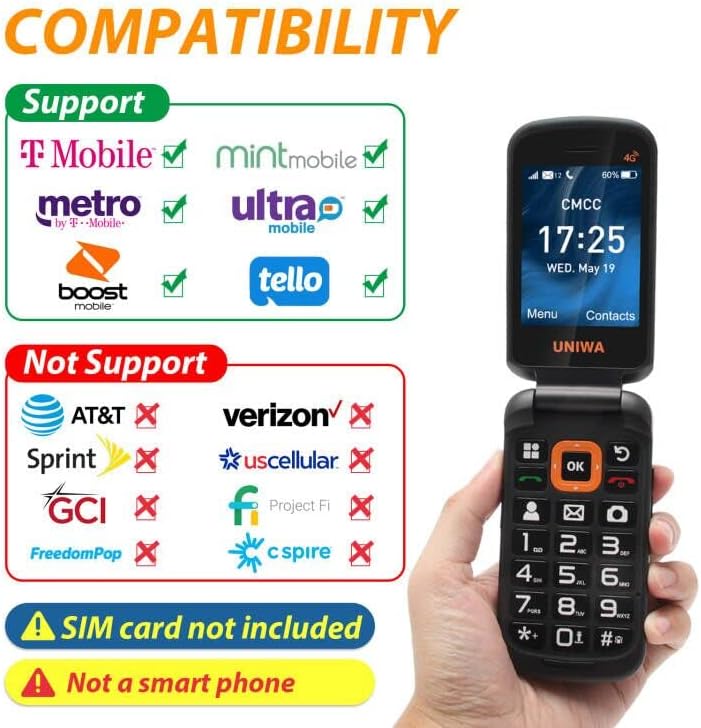
A visual guide to network compatibility for the UNIWA V909T phone, showing supported and unsupported carriers.
7. Specifications
| Feature | Specification |
|---|---|
| Product Dimensions | 2.2 x 0.88 x 4.33 inches |
| Item Weight | 9.9 ounces |
| Item Model Number | V909T |
| Batteries | 1 Lithium Ion battery (included) |
| Operating System | RTOS |
| RAM | 48 MB |
| Wireless Communication Technologies | Cellular |
| Connectivity Technologies | Wi-Fi |
| Special Features | Basic Phone, Camera, LTE |
| Human Interface Input | Buttons, Microphone |
| Audio Jack | No headphone jack |
| Form Factor | Foldable Screen |
| Battery Power Rating | 2250 Milliamp Hours |
| Phone Talk Time | 6 Hours |
| Memory Storage Capacity | 48 MB |
| Standing Screen Display Size | 2.8 Inches |
| Charging Time | 8 Hours |
| Cellular Technology | LTE |
8. Troubleshooting
If you encounter issues with your UNIWA V909T phone, try the following basic troubleshooting steps:
- Phone not turning on: Ensure the battery is charged. Connect the phone to the charging dock and wait a few minutes before attempting to power on again.
- No network signal: Check if the SIM card is correctly inserted and locked. Ensure you are within your carrier's service area.
- Cannot make/receive calls: Verify that your SIM card is active and has sufficient credit/plan. Check network signal strength.
- Sound issues: Ensure the volume is adjusted correctly. If using a hearing aid, confirm HAC settings are enabled if available.
- SOS button not working: Confirm that emergency contacts are correctly set up in the SOS settings menu.
For more complex issues, please refer to the manufacturer's support resources or contact customer service.
9. Maintenance
To ensure the longevity and optimal performance of your UNIWA V909T phone, follow these maintenance guidelines:
- Cleaning: Use a soft, dry cloth to clean the phone's exterior. Avoid using liquid cleaners or abrasive materials.
- Battery Care: Avoid extreme temperatures. Do not leave the phone fully discharged for extended periods. Use only the provided charger and battery.
- Storage: Store the phone in a cool, dry place away from direct sunlight and moisture when not in use.
- Protection: Consider using a protective case to prevent scratches and damage from accidental drops.
10. Warranty and Support
For information regarding warranty coverage, technical support, or service, please refer to the warranty card included with your product or visit the official UNIWA website. Keep your purchase receipt as proof of purchase.


