
Introduction
Welcome to the InAndOn 15.6-inch Capacitive KTV System. This manual provides essential information for setting up, operating, and maintaining your karaoke system. Please read these instructions carefully to ensure proper use and to maximize your entertainment experience.
Product Overview
The InAndOn KTV System is a versatile entertainment device featuring a 15.6-inch capacitive touchscreen, wireless microphones, and access to a vast cloud music library. It is designed for home and business use, offering a comprehensive karaoke experience.
Package Contents
- InAndOn 15.6-inch KTV System Unit
- Wireless Microphones (Quantity: 2)
- Power Adapter
- User Manual (this document)
Device Components

Image description: The InAndOn 15.6-inch capacitive KTV system with two wireless microphones.

Image description: Rear view of the karaoke system showing various input/output ports including Power, Optical, Mic In, Audio In, Audio Out, DC 12V, Coaxial, TF, USB, HDMI Out, and LAN.
Setup Instructions
Step 1: Power Connection
Connect the provided power adapter to the DC 12V port on the rear of the karaoke system. Plug the adapter into a standard electrical outlet.
Step 2: Audio Output Connection
The karaoke system requires an external amplifier and speakers for sound output. Connect the system to your amplifier using one of the following methods:
- RCA Audio Out: Use RCA cables (red and white) to connect the AUDIO OUT ports on the karaoke system to the corresponding audio input ports on your amplifier.
- Optical Audio Out: If your amplifier supports it, connect an optical cable from the OPTICAL port on the karaoke system to your amplifier's optical input.
- Coaxial Audio Out: If your amplifier supports it, connect a coaxial cable from the COAXIAL port on the karaoke system to your amplifier's coaxial input.
Note: This package does not include a speaker or amplifier. An external amplifier and speakers are required for sound output.
Step 3: Video Output Connection
Connect an HDMI cable from the HDMI OUT port on the karaoke system to an available HDMI input port on your television or display. Ensure your TV's input source is set to the correct HDMI channel.
Step 4: Network Connection
To access cloud song updates and online features, connect the system to the internet:
- Wired Connection: Connect an Ethernet cable from your router to the LAN port on the rear of the system.
- Wireless Connection: Navigate to the system's settings menu on the touchscreen to connect to your Wi-Fi network.
Step 5: Microphone Setup
Insert the required batteries into the wireless microphones. The microphones are designed to automatically pair with the karaoke system upon power-on. If pairing issues occur, refer to the Troubleshooting section.
Operating Instructions
Powering On/Off
Locate the POWER ON/OFF switch on the rear panel of the system. Flip the switch to the 'ON' position to power on the device. Flip it to 'OFF' to power down.
Song Selection
The InAndOn KTV System offers multiple convenient methods for selecting songs:
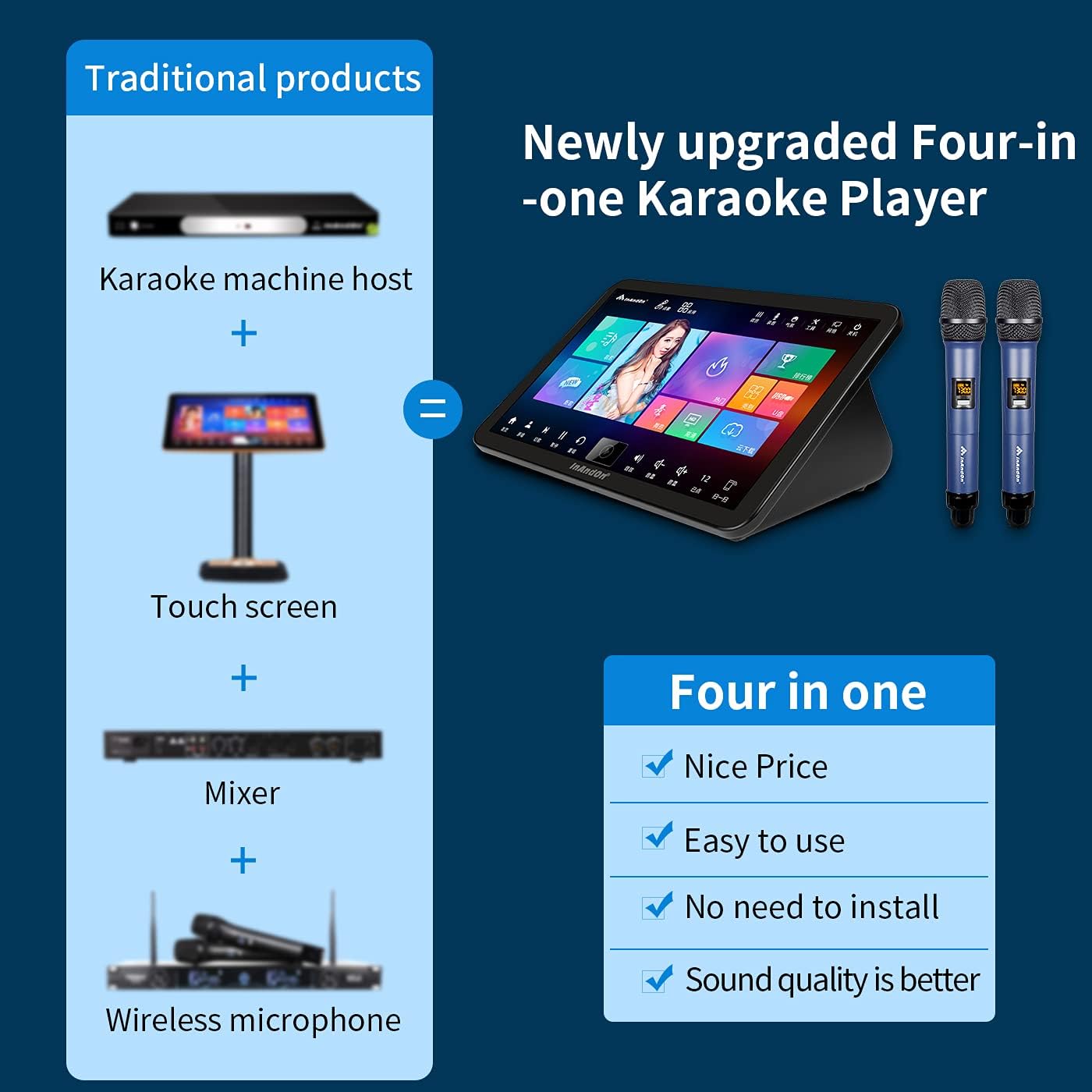
Image description: The main interface of the karaoke system, displaying various categories and options for song selection.
- Touchscreen: Directly browse and select songs using the responsive 15.6-inch capacitive touchscreen display.
- Mobile App: Download and install the dedicated InAndOn mobile application on your smartphone or tablet. The app allows you to control song selection, adjust settings, and manage original accompaniment wirelessly.
- WeChat Scan Code: If a QR code is displayed on the screen, scan it with the WeChat application on your mobile device to access remote control functions.
- Intelligent Voice Assistant: Utilize the built-in voice assistant for hands-free song ordering. The system supports voice commands in Mandarin and Cantonese.
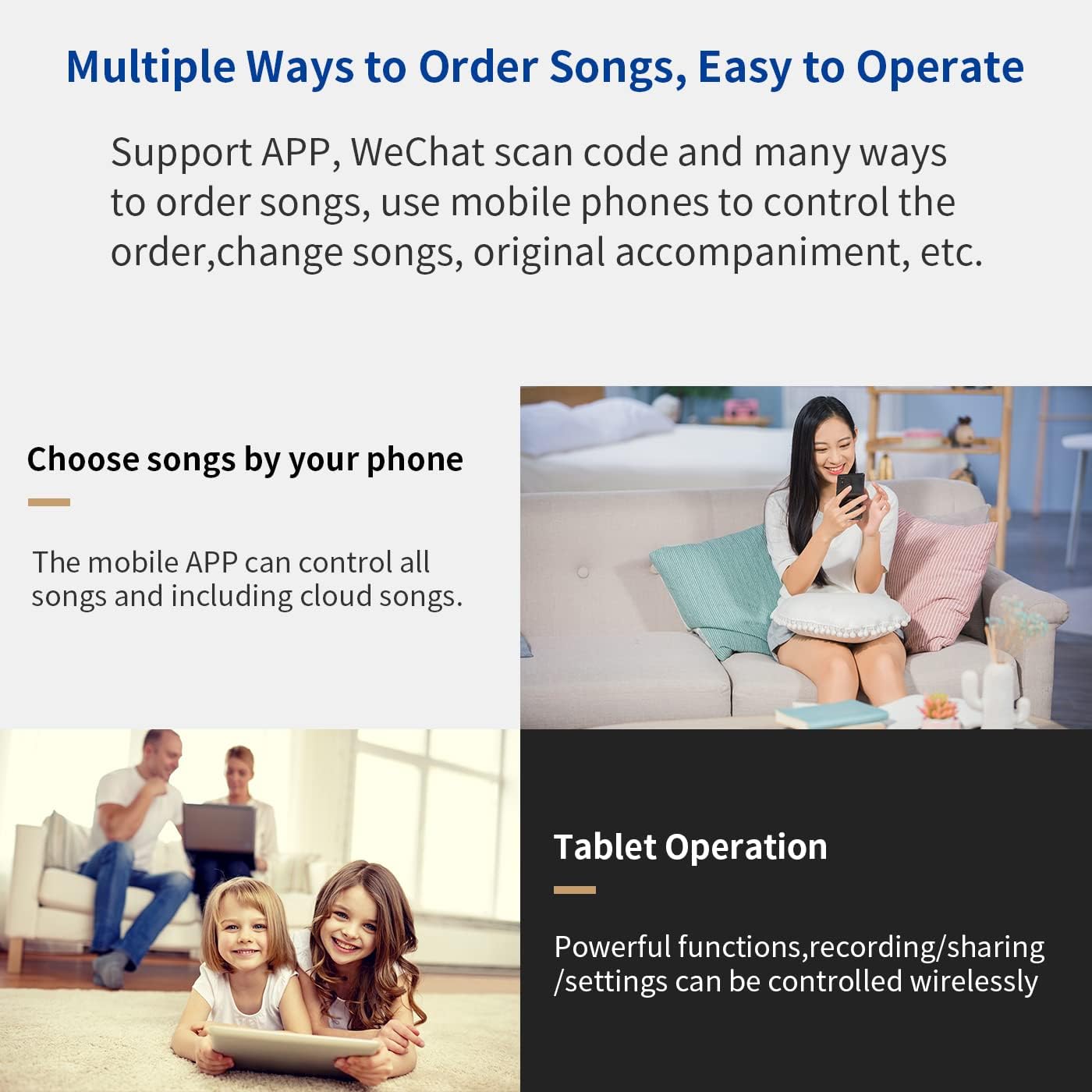
Image description: A user interacting with the karaoke system via its touchscreen and a separate mobile phone app for song selection.

Image description: Two individuals using voice commands to select songs on the karaoke system, which is connected to a large screen display.
Cloud Music Library
The system provides access to a cloud music library with over 420,000 songs available for free download. The library is regularly updated with new and popular tracks. If a specific song is not found in the cloud library, you can utilize the system's YouTube integration to play songs online.

Image description: The cloud music library interface, displaying various song categories and options for downloading.
KTV Intelligent Scoring System
Enhance your singing practice with the intelligent scoring system. This feature provides real-time feedback on your performance, helping you improve your vocal skills and enjoy a competitive karaoke experience.

Image description: A family enjoying karaoke with the intelligent scoring system displayed on a large television screen.
Sound Effects Adjustment
Customize your audio experience with adjustable sound effects and multiple scene modes. Access the sound settings through the touchscreen interface to fine-tune equalizer settings, microphone volume, and apply various audio presets like KTV, Music Hall, Recording Studio, and Piano Room.

Image description: The sound effects adjustment interface, showing an equalizer, various scene modes (KTV, Music Hall, Recording Studio, Piano Room), and microphone settings.
Wireless Microphones
The included wireless microphones are designed for optimal performance. They feature high-fidelity sound effects, imported microphone cores for clear audio, UHF high frequencies for stable transmission, professional noise control, and a durable metal mesh cover.

Image description: A close-up of one of the wireless microphones, highlighting its key features.
Additional Features
Beyond karaoke, the system offers various entertainment modes and applications:
- Movie Mode: Enjoy movies and videos on your connected display.
- Android Applications: Access and use various Android applications.
- Live Online TV: Stream live television content.
- Music Apps: Listen to music through integrated music applications.
- Cast Screen TV: Mirror your device screen to the TV for gaming or other content.

Image description: The system's interface displaying options for Movie Mode, KTV Mode, Android Applications, YouTube, Music Apps, Live Online TV, and screen casting for games.
Troubleshooting
This section addresses common issues you might encounter with your InAndOn KTV System.
Microphones Not Connecting
- Ensure batteries are correctly inserted and charged in both microphones.
- Verify that the microphones are within the operating range of the karaoke system.
- If issues persist, consult the system's on-screen settings for manual microphone pairing instructions or contact customer support.
No Sound Output
- Confirm that the karaoke system is correctly connected to an external amplifier and speakers as described in the Setup Instructions.
- Check all audio cable connections (RCA, Optical, Coaxial) for secure fit.
- Ensure your amplifier and speakers are powered on and their volume levels are adequately adjusted.
- Check the system's internal volume settings on the touchscreen.
No Video Output
- Verify that the HDMI cable is securely connected between the karaoke system's HDMI OUT port and your TV/display's HDMI input.
- Ensure your television or display's input source is set to the correct HDMI port.
Network Connection Issues
- For wired connections, check the Ethernet cable for damage and ensure it is properly connected to both the system and your router.
- For Wi-Fi connections, confirm that the correct Wi-Fi password has been entered and the system is within range of your wireless router.
- Restarting your internet router and the karaoke system may resolve temporary connectivity problems.
Specifications
| Feature | Detail |
|---|---|
| Model | B09D3MPBBY |
| Screen Size | 15.6 inch |
| Screen Type | Capacitive |
| Brand | Inandon |
| Connectivity | Wireless (Microphone), LAN, HDMI, USB, TF, Optical, Coaxial, RCA Audio |
| Power Source | 12 Volts (DC) |
| Included Components | Microphone |
| Recommended Uses | Business, Home, KTV |
Warranty and Support
For detailed warranty information and technical assistance, please refer to the official Inandon website or contact your authorized retailer. Support availability may vary based on your region and purchase location.
You can also visit the official Inandon Store on Amazon for more product information and support resources: Inandon Store


