
1. Introduction
The Cooler Master SK653 hybrid wireless mechanical keyboard is designed for versatile use, offering both wired and wireless connectivity. Its full-size layout and brushed aluminum body provide a sleek, professional aesthetic suitable for any setup. Featuring low-profile mechanical switches and ergonomic keycaps, it delivers a satisfying typing experience. The keyboard supports wired USB-C and Bluetooth 4.0, allowing connection to up to three devices.

Figure 1: Cooler Master SK653 Wireless Mechanical Keyboard with customizable RGB lighting.
2. What's in the Box
Your Cooler Master SK653 package includes the following items:
- Cooler Master SK653 Wireless Mechanical Keyboard
- USB Cable (Type-A to Type-C)
- Quick Start Guide (multi-language)
- Bluetooth Instructions (multi-language)
- Keycap Removal Tool

Figure 2: All items included in the Cooler Master SK653 product package.
3. Setup
3.1 Wired Connection
To use the keyboard in wired mode, connect the provided USB Type-A to Type-C cable from your computer's USB port to the Type-C port on the keyboard. The keyboard will automatically detect the wired connection.
3.2 Wireless Bluetooth Connection
The SK653 supports Bluetooth 4.0 and can connect to up to 3 devices. Refer to the dedicated Bluetooth instructions manual for detailed pairing steps for Windows, Mac OS X, iOS, and Android devices. You can easily switch between connected devices using a simple key combination.
3.3 Adjustable Feet
The keyboard features adjustable feet on its underside, allowing you to modify the typing angle for improved ergonomics and comfort. Simply flip out the feet to raise the keyboard's rear.
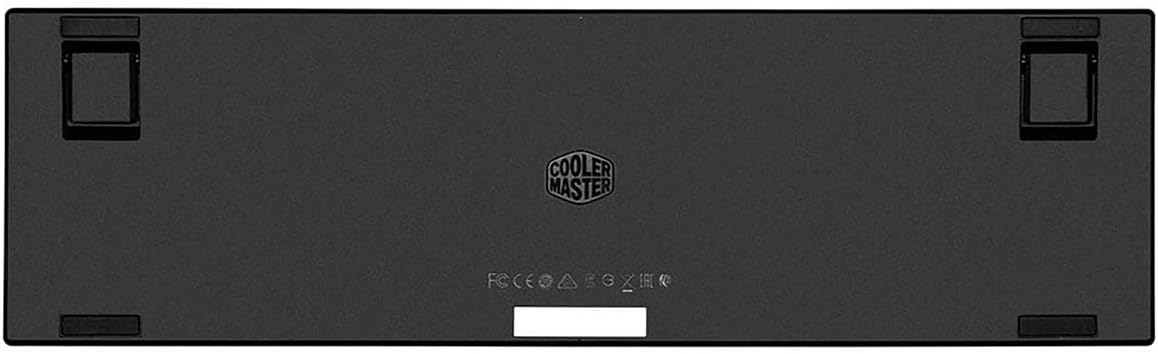
Figure 3: Side view of the keyboard illustrating the adjustable feet for ergonomic positioning.
4. Operating the Keyboard
The Cooler Master SK653 offers extensive customization through the Cooler Master MasterPlus software, compatible with Windows and Mac devices. This software allows you to manage wireless settings, lighting effects, key mapping, and macros.
4.1 Wireless Settings
Within the MasterPlus software, navigate to the 'Wireless' tab to adjust LED brightness and sleep settings for the keyboard. You can also reset these settings to factory defaults.
4.2 Lighting Customization
The 'Lighting' tab provides comprehensive control over the keyboard's RGB illumination. You can select from a wide spectrum of colors, adjust brightness values, and choose from various lighting modes and effects. Some effects allow for speed and direction adjustments.

Figure 4: The SK653 keyboard showcasing its dynamic RGB lighting capabilities.
4.3 Key Mapping and Macros
The 'Key Mapping' and 'Macros' tabs in the MasterPlus software enable you to personalize your keyboard's functionality. You can remap individual keys, create custom macros for complex commands, and assign them to available keys. The software also supports multiple user profiles to save different configurations.
5. Maintenance
5.1 Cleaning
To clean your keyboard, use a soft, lint-free cloth. For deeper cleaning, you may remove the keycaps using the provided keycap removal tool. Avoid using harsh chemicals or abrasive materials.
5.2 Keycap Removal
Gently use the keycap removal tool to pull keycaps straight up from the switch. This allows for cleaning underneath the keycaps or replacing them if desired. Ensure to align the keycap correctly when pressing it back onto the switch.
Figure 5: The keycap removal tool for easy maintenance.
6. Troubleshooting
6.1 Connectivity Issues
If the keyboard is not connecting via Bluetooth, ensure it is in pairing mode and within range of your device. For wired connections, try a different USB port or cable. Verify that the keyboard's drivers are up to date on your computer.
6.2 Lighting Malfunctions
If the RGB lighting is not functioning correctly, check the lighting settings in the MasterPlus software. Ensure brightness is not set to zero and try resetting the lighting profile. If issues persist, try reinstalling the software.
6.3 Key Response Problems
For unresponsive keys, ensure the keycap is properly seated. If the issue continues, consider removing the keycap and checking for any debris or obstruction around the switch. If necessary, consult the full user manual or Cooler Master support.
7. Specifications
| Feature | Detail |
|---|---|
| Brand | Cooler Master |
| Series | SK653 Full Mechanical Wireless Keyboard |
| Item Model Number | SK-653-GKTR1-US |
| Hardware Platform | Android, Laptop, Windows |
| Operating System | Windows 8, Mac OS X |
| Item Weight | 1.62 pounds |
| Product Dimensions | 16.93 x 4.92 x 0.98 inches |
| Color | Red Switch |
| Power Source | Rechargeable Battery |
| Connectivity Technology | Bluetooth, USB-A |
| Keyboard Description | Gaming |
| Special Feature | Braided Cable, Ergonomic, Low-Profile Key, RGB Lighting, Removable Cable |
| Number of Keys | 104 |
| Keyboard Backlighting Color Support | RGB |
| Style | SK653 Gunmetal |
8. Warranty and Support
Cooler Master products come with a limited warranty. For detailed warranty information, technical support, or service inquiries, please visit the official Cooler Master website or refer to the full user manual.
You can also download the complete User Manual (PDF) for the Cooler Master SK653 keyboard here.
Note: Official product videos from the seller are not available for this product.


