
1. Introduction
This manual provides essential information for the safe and efficient use of your HP Envy x360 13.3-inch 2-in-1 laptop. Please read this manual thoroughly before operating your device to ensure optimal performance and longevity. This device combines the functionality of a traditional laptop with the versatility of a tablet, featuring a responsive touchscreen and a 360-degree hinge.
2. Product Features
- 13.3-inch Full HD IPS Touch-Screen Display: Experience vibrant visuals and intuitive interaction with the responsive touch display.
- 11th Generation Intel Core i5-1135G7 Processor: Delivers efficient performance for multitasking, productivity, and entertainment.
- 8GB DDR4 RAM: Provides substantial memory for smooth operation of multiple applications.
- 256GB PCIe NVMe SSD: Offers fast boot-up times and quick data access with solid-state storage.
- Backlit Keyboard: Enables comfortable typing in various lighting conditions.
- Fingerprint Reader: Enhances security and provides quick, convenient login.
- Windows 10 Home Operating System: Pre-installed for a familiar and productive user experience.
- 360-degree Hinge: Allows the device to transform between laptop, tent, stand, and tablet modes.
- Intel Iris Xe Graphics: Integrated graphics for clear visuals and light creative tasks.
- Bang & Olufsen Audio with Three Speakers: Delivers rich and immersive sound.
- HP Wide Vision HD Camera with Camera Shutter: For video calls and privacy.
3. Physical Overview
Familiarize yourself with the various components and ports of your HP Envy x360 laptop.

Figure 3.1: Angled view of the HP Envy x360 laptop in traditional laptop mode, displaying the keyboard and screen.
Ports and Connectors:
- USB 3.0 Type-A Ports (x2): For connecting external devices such as USB drives, mice, or keyboards.
- HDMI Port (x1): For connecting to external displays or projectors.
- Micro SD Card Reader (x1): For reading and writing data to Micro SD cards.
- Headphone/Microphone Combo Jack (x1): For connecting headphones or an external microphone.
- USB-C Port (x1): For data transfer, charging, and display output (Thunderbolt compatible).
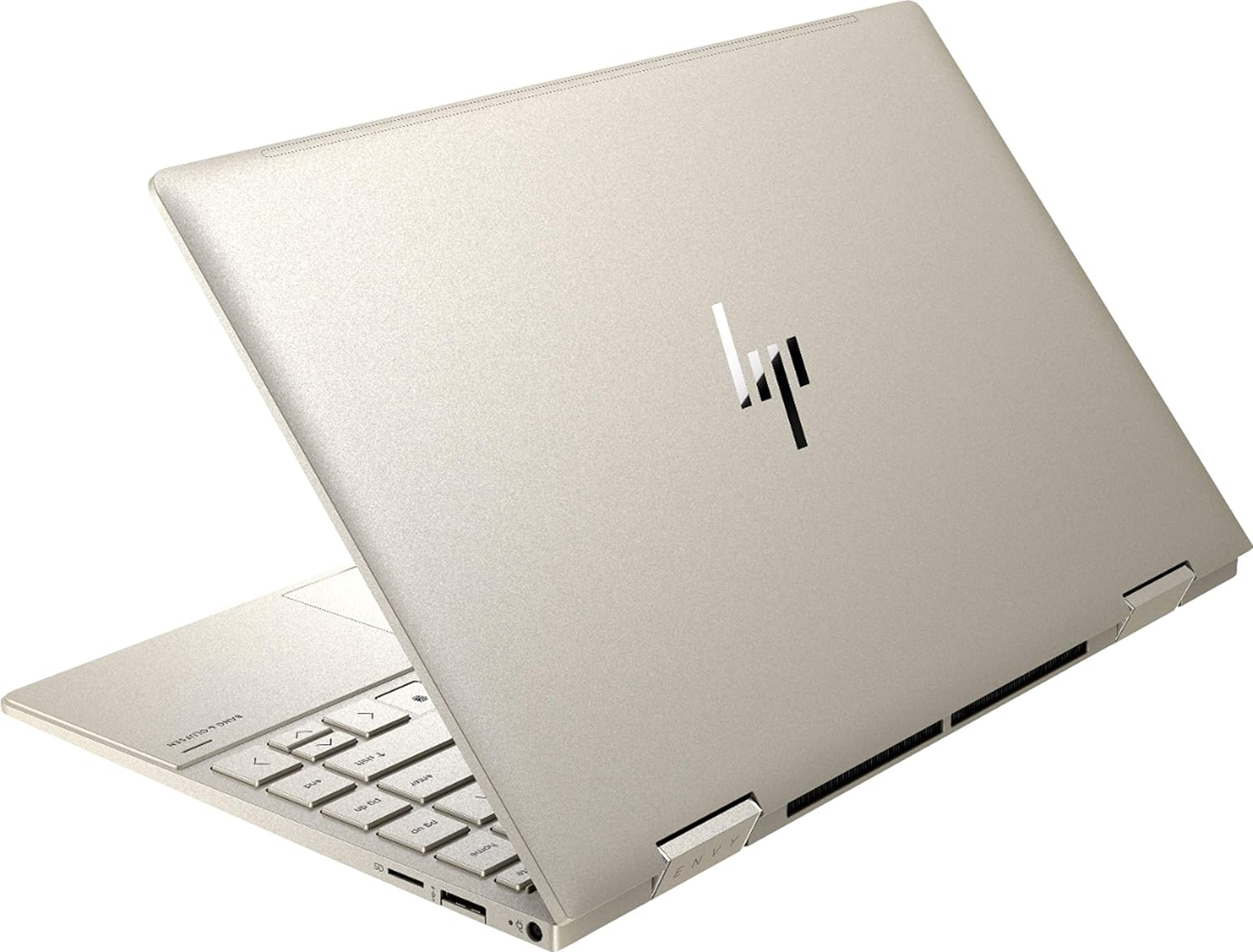
Figure 3.2: Rear view of the HP Envy x360 laptop, highlighting the sleek design and port placement on the sides.
4. Setup
4.1 Initial Power-On
- Unpack your HP Envy x360 laptop and included accessories.
- Connect the power adapter to the laptop's charging port and then to a power outlet.
- Press the power button, typically located on the side or keyboard deck, to turn on the laptop.
- Follow the on-screen instructions to complete the Windows 10 Home setup, including language selection, network connection, and user account creation.
4.2 Connecting Peripherals
Connect your mouse, external display, or other USB devices to the available ports as described in Section 3. For wireless devices, enable Bluetooth in Windows settings and pair your devices.
5. Operating Instructions
5.1 Using the 2-in-1 Modes
Your HP Envy x360 features a versatile 360-degree hinge, allowing for multiple usage modes:
- Laptop Mode: Traditional laptop orientation for typing and productivity.
- Tent Mode: Fold the screen back to form an inverted 'V' shape, ideal for watching videos or presentations in confined spaces.
- Stand Mode: Fold the screen back further, resting the keyboard face down, to use the display for media consumption or touch-based applications.
- Tablet Mode: Fold the screen completely back against the base, transforming the device into a tablet for touch interaction.

Figure 5.1: The HP Envy x360 laptop configured in tent mode, suitable for media viewing.

Figure 5.2: The HP Envy x360 laptop fully folded into tablet mode, ready for touch input.
5.2 Touchscreen and Keyboard Usage
- Touchscreen: Use gestures similar to a smartphone or tablet for navigation, zooming, and interaction with applications.
- Backlit Keyboard: Press the function key (Fn) and the appropriate F-key (usually F5 or F4, check keyboard icons) to toggle the keyboard backlight on/off or adjust brightness.
- Fingerprint Reader: Enroll your fingerprint through Windows Hello settings for secure and fast login.
6. Maintenance
Regular maintenance helps prolong the life of your laptop.
- Cleaning: Use a soft, lint-free cloth to clean the screen and chassis. For stubborn smudges, dampen the cloth with water or a screen-safe cleaner. Avoid harsh chemicals.
- Software Updates: Regularly update Windows and HP drivers to ensure optimal performance and security.
- Battery Care: Avoid fully discharging the battery frequently. For long-term storage, charge the battery to about 50-70%.
- Ventilation: Ensure the laptop's vents are not obstructed to prevent overheating. Use on a hard, flat surface when possible.
7. Troubleshooting
This section addresses common issues you might encounter.
7.1 Power Issues
- Laptop does not turn on: Ensure the power adapter is securely connected and the outlet is functional. Try a different outlet or power adapter if available.
- Battery not charging: Verify the power adapter connection. Check for any damage to the cable or port.
7.2 Display Issues
- Screen is blank: Connect an external monitor to check if the issue is with the laptop's display. Try restarting the laptop.
- Touchscreen unresponsive: Restart the laptop. Ensure all drivers are up to date via Windows Update or HP Support Assistant.
7.3 Performance Issues
- Slow performance: Close unnecessary applications. Check Task Manager for resource-intensive processes. Ensure sufficient free space on the SSD.
- Overheating: Clean vents. Ensure proper airflow. Reduce workload if consistently hot.
8. Specifications
| Feature | Detail |
|---|---|
| Brand | HP |
| Model Name | HP Envy x360 |
| Screen Size | 13.3 Inches |
| Display Resolution | 1920 x 1080 (Full HD) |
| Display Type | LED IPS Touch Screen |
| Processor | 11th Generation Intel Core i5-1135G7 (2.4 GHz, up to 4.2 GHz with Turbo Boost) |
| RAM Memory | 8 GB DDR4 |
| Storage | 256 GB SSD |
| Operating System | Windows 10 Home |
| Graphics | Intel Iris Xe Graphics (Integrated) |
| Special Features | Backlit Keyboard, Fingerprint Reader |
| Audio | Bang & Olufsen Audio with Three speakers |
| Connectivity | Wireless-AX, Bluetooth, USB, HDMI |
| Ports | 2x USB 3.0 Type-A, 1x HDMI, 1x Micro SD Card Reader, 1x Headphone/Microphone Combo, 1x USB-C |
| Dimensions (L x W x H) | 12.07" x 7.66" x 0.65" |
| Weight | 2.92 Lbs |
| Color | Pale Gold |
9. What's in the Box
The following items are included with your HP Envy x360 laptop:
- HP Envy x360 13.3-inch 2-in-1 Laptop
- Power Adapter
- Mouse Pad

Figure 9.1: The HP Envy x360 laptop shown alongside the included mouse pad.
10. Warranty and Support
Your HP Envy x360 laptop comes with a standard manufacturer's warranty. For detailed warranty information, please refer to the warranty card included in your product packaging or visit the official HP support website. For technical assistance, driver downloads, or service requests, please contact HP Customer Support.
HP Support Website: support.hp.com


