
HOCO M8
Timoom M8 32GB MP3 Player User Manual
Model: M8
1. Product Overview
The Timoom M8 is a versatile 32GB MP3 player designed for a wide range of audio and multimedia functions. It features a 2.4-inch touchscreen, Bluetooth 5.0 connectivity, and expandable storage up to 128GB. This device is ideal for music playback, video viewing, e-book reading, and various utility functions.
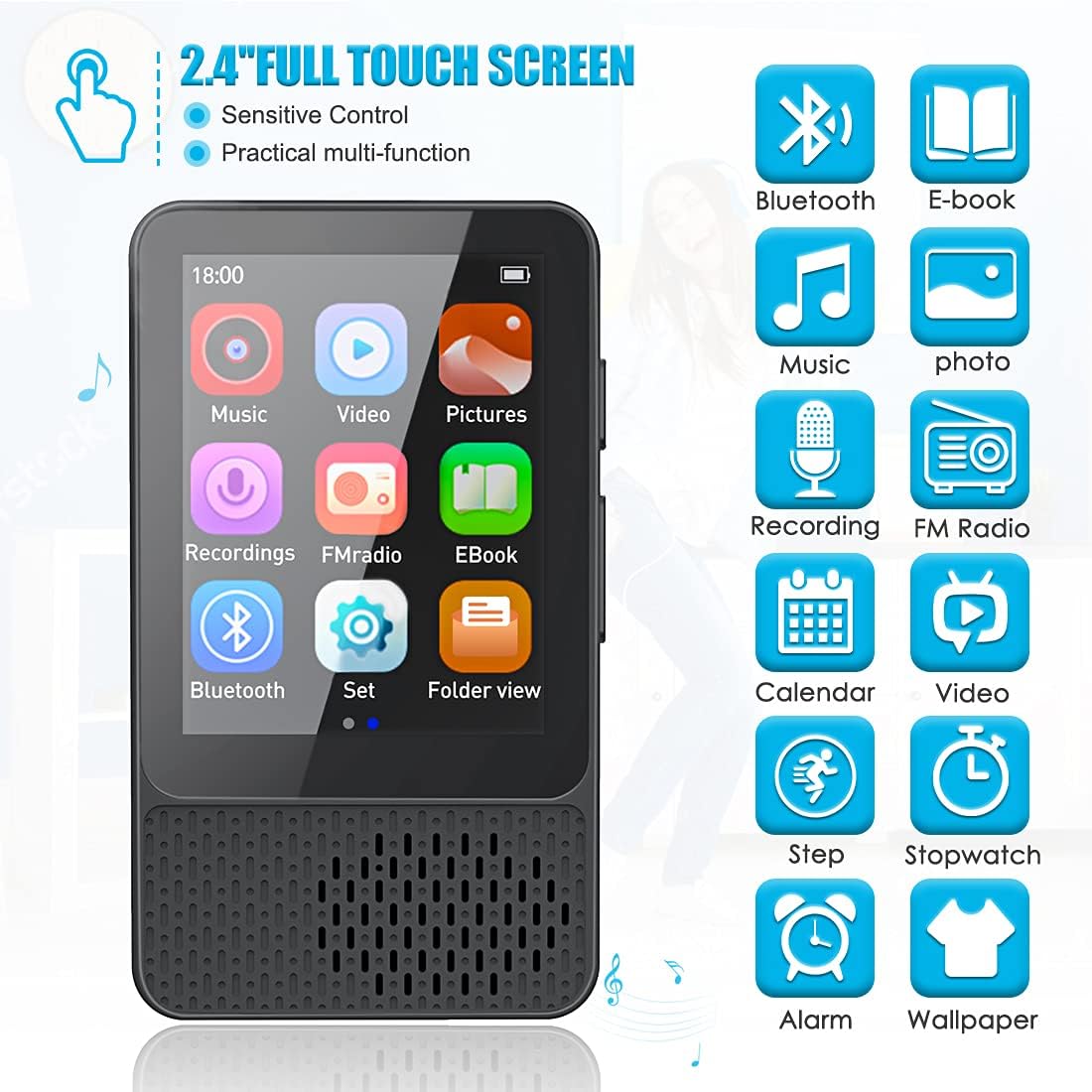
Figure 1: Timoom M8 MP3 Player User Interface. The 2.4-inch full touchscreen provides sensitive control and multi-functional access to various features including music, video, pictures, recordings, FM radio, e-book, Bluetooth, settings, and folder view.
Key Features:
- Bluetooth 5.0 Technology: Offers higher transmission speed and stable connection for wireless audio streaming to headphones or speakers.
- Large Storage Capacity: 32GB internal storage, expandable up to 128GB via Micro SD card (not included), allowing storage of thousands of songs, videos, photos, and e-books.
- High Fidelity Sound Quality: Utilizes professional intelligent digital sound reduction chips for clear audio, supporting popular formats like MP3, WMA, APE, FLAC, WAV, DRM, and ACELP.
- Multimedia Playback: Supports music, video (720p, 1080p HD playback without format conversion for AVI, MKV, MPG, MPEG, RM, RMVB, VOB, MOV, FLV, ASF, DAT, MP4, 3GP), image browsing, and e-book reading.
- FM Radio & Voice Recorder: Built-in FM radio tuner (requires wired headphones as antenna) and voice recording function.
- Additional Functions: Includes pedometer, alarm clock, stopwatch, calendar, and wallpaper changer.
- Long Battery Life: Equipped with a durable 400mAh battery, providing up to 16 hours of average use (music), 4 hours of video playback (wired), 8 hours of wired music playback, 12 hours of Bluetooth music, and 48 hours of recording. Fast charging via USB 2.0.
2. Package Contents
Please check the package contents upon unboxing to ensure all items are present and in good condition.

Figure 2: Included items in the Timoom M8 MP3 Player package. The package contains the M8 MP3 player, a USB charging cable, a user manual, and a pair of earphones.
- Timoom M8 MP3 Player
- USB Charging Cable
- User Manual
- Earphones
3. Setup
3.1. Charging the Device
Before first use, fully charge the Timoom M8 MP3 player. Use the provided USB cable to connect the device to a computer's USB port or a compatible USB wall adapter (5V, 0.5-1A). The charging indicator will show the charging status. A full charge typically takes about 3 hours.
3.2. Powering On/Off
- To Power On: Press and hold the power button (usually located on the side) until the screen illuminates.
- To Power Off: Press and hold the power button until a power-off option appears on the screen, then confirm. Alternatively, a long press may directly power off the device.
3.3. Expanding Storage (Optional)
The device comes with 32GB of internal storage. If more space is needed, you can insert a Micro SD (TF) card up to 128GB. Locate the Micro SD card slot on the device and gently insert the card until it clicks into place. Ensure the card is inserted in the correct orientation.

Figure 3: Memory expansion for the Timoom M8. The device features 32GB of internal memory and supports expandable memory up to 128GB via a TF (Micro SD) card, which is not included.
4. Operating Instructions
4.1. Navigating the Touchscreen Interface
The Timoom M8 features a full touchscreen for intuitive navigation. Tap icons to open applications, swipe to scroll through lists or pages, and use gestures as indicated on screen for specific functions.
4.2. Bluetooth Connectivity
The MP3 player supports Bluetooth 5.0 for connecting to wireless headphones or speakers.
- From the main menu, tap the "Bluetooth" icon.
- Turn on Bluetooth.
- Ensure your Bluetooth headphones or speaker are in pairing mode.
- The player will scan for available devices. Select your device from the list to pair.
- Once paired, audio will be routed to the connected Bluetooth device.

Figure 4: Bluetooth 5.0 connectivity. The Timoom M8 MP3 player supports stable and fast transmission via Bluetooth 5.0, allowing connection to Bluetooth headsets, earphones, and speakers.
4.3. Music Playback
To play music, tap the "Music" icon from the main menu. You can browse by artist, album, genre, or all songs. The player supports MP3, WMA, APE, FLAC, WAV, DRM, and ACELP formats.

Figure 5: Hi-Fi Sound experience. The Timoom M8 MP3 player delivers high-fidelity sound and supports various audio formats including MP3, WMA, APE, FLAC, and WAV.
4.4. Video Playback
Tap the "Video" icon to access video files. The player supports 720p and 1080p high-definition video playback for formats such as AVI, MKV, MPG, MPEG, RM, RMVB, VOB, MOV, FLV, ASF, DAT, MP4, and 3GP without the need for format conversion.
4.5. FM Radio
To use the FM Radio, connect wired earphones to the 3.5mm jack, as they serve as the antenna. Tap the "FM Radio" icon, then use the on-screen controls to scan for stations or tune manually.
4.6. Voice Recording
Select the "Recordings" icon to start a voice recording. The built-in microphone will capture audio. You can save and manage your recordings within this section.
4.7. E-book Reading
Tap the "EBook" icon to open text files. The player supports e-book formats, allowing you to read on the go.
4.8. Pedometer Function
The Timoom M8 includes a pedometer. Tap the "Step" or "Pedometer" icon to activate it. You can track your step count, distance, and time during physical activities.

Figure 6: Pedometer function in use. The Timoom M8 MP3 player allows users to check their step count, time, and distance, making it suitable for sports and fitness tracking.
4.9. Alarm Clock
Set alarms using the "Alarm" icon. You can configure multiple alarms with custom times and sounds. The device features a high-power speaker for audible alarms.

Figure 7: Alarm clock feature. The Timoom M8 MP3 player includes an alarm clock function and a high-power speaker for clear alerts.
4.10. Other Functions
Explore other utilities such as the stopwatch, calendar, and wallpaper changer available through the device's interface.
5. Maintenance
- Cleaning: Use a soft, dry cloth to clean the device. Do not use liquid cleaners or aerosols.
- Storage: Store the player in a cool, dry place away from direct sunlight and extreme temperatures.
- Battery Care: To prolong battery life, avoid fully discharging the battery frequently. Charge the device regularly, even if not in use for extended periods.
- Software Updates: Check the manufacturer's website periodically for any available firmware updates to ensure optimal performance.
6. Troubleshooting
| Problem | Possible Cause | Solution |
|---|---|---|
| Device does not power on. | Low battery; device frozen. | Charge the device for at least 30 minutes. If still unresponsive, perform a hard reset (refer to manual for specific reset method, usually holding power button for 10+ seconds). |
| Cannot connect to Bluetooth device. | Bluetooth not enabled; device not in pairing mode; interference. | Ensure Bluetooth is enabled on both devices and they are in pairing mode. Move closer to the device. Restart both devices. |
| No sound from earphones/speaker. | Volume too low; faulty earphones; incorrect output selected. | Increase volume. Test with another pair of earphones. Ensure correct audio output (e.g., wired vs. Bluetooth) is selected in settings. |
| Screen is unresponsive. | Software glitch; screen damage. | Restart the device. If the problem persists, contact customer support. |
| Files not recognized. | Unsupported file format; corrupted file. | Ensure files are in supported formats (e.g., MP3, WAV for audio; AVI, MP4 for video). Try re-transferring the files. |
7. Specifications
| Feature | Detail |
|---|---|
| Brand | HOCO |
| Model | M8 |
| Internal Storage | 32 GB |
| Expandable Storage | Up to 128 GB (Micro SD/TF card, not included) |
| Screen Size | 2.4 inches |
| Display Type | Touchscreen |
| Bluetooth Version | 5.0 |
| Battery Capacity | 400 mAh |
| Battery Life (Music Playback) | Up to 16 hours (average use), 8 hours (wired), 12 hours (Bluetooth) |
| Battery Life (Video Playback) | Up to 4 hours (wired) |
| Battery Life (Recording) | Up to 48 hours |
| Charging Time | Approx. 3 hours (full charge), 2 hours (5V, 0.5-1A) |
| Supported Audio Formats | MP3, WMA, APE, FLAC, WAV, DRM, ACELP |
| Supported Video Formats | AVI, MKV, MPG, MPEG, RM, RMVB, VOB, MOV, FLV, ASF, DAT, MP4, 3GP |
| Dimensions (L x W x H) | 9 x 3.7 x 12.5 cm |
| Weight | 170 g |
| Included Components | MP3 Player, USB Cable, Earphones, User Manual |
8. Warranty and Support
This product is covered by a standard manufacturer's warranty. Please refer to the warranty card included in your package for specific terms and conditions, including the warranty period and coverage details.
For technical support, troubleshooting assistance, or warranty claims, please contact HOCO customer service through their official website or the contact information provided in your product documentation. When contacting support, please have your product model (M8) and purchase details ready.
For the most up-to-date information and support resources, visit the official HOCO website.
Ask a question about this manual
Ask about setup, troubleshooting, compatibility, parts, safety, or missing instructions. Manuals+ will review the question and use this page’s manual context to help answer it.