
FL ESPORTS FL F12
FL ESPORTS F12 65% Three-Mode Wireless Mechanical Keyboard User Manual
Model: FL F12
Introduction
This manual provides comprehensive instructions for the setup, operation, and maintenance of your FL ESPORTS F12 65% Three-Mode Wireless Mechanical Keyboard. Please read this manual thoroughly before using the product to ensure optimal performance and longevity.
What's in the Box
- FL ESPORTS F12 Mechanical Keyboard
- USB Cable
- Keycap Puller
- User Manual (this document)
Key Features
- 65% Compact Form Factor: 68 keys layout for maximized desktop space utilization.
- Three-Mode Connectivity: Supports Bluetooth 5.0, 2.4Ghz wireless, and USB-C wired connections.
- Kailh Box White Switches: Light tactile, clicky switches for precise and fast inputs.
- Durable PBT Keycaps: Oil-resistant, doubleshot PBT keycaps in mixed colors for longevity and aesthetic appeal.
- Long-lasting Battery: Up to 100 hours without backlight, 20 hours with RGB backlight. Real-time battery monitoring available.
- RGB Backlighting: 16.8 million colors with 10 different lighting modes.
- Advanced Customization Software: Allows for extensive customization of lighting and key assignments.
- Hot-Swappable Switches: Supports 5-pin switches for easy DIY customization.
- Noise Absorber Foam: Innovative design for reduced noise and clear clicky sound.

Image: The FL ESPORTS F12 mechanical keyboard showcasing its compact 65% layout and vibrant RGB backlighting.

Image: The FL ESPORTS F12 keyboard highlighting its 2.4 GHz wireless, Bluetooth, and detachable USB-C wired connectivity options.

Image: A visual comparison demonstrating the space-saving advantage of the 65% compact layout (68 keys) of the FL ESPORTS F12 keyboard compared to a full-size keyboard.

Image: Detailed view of a Kailh Box White Switch, illustrating its internal structure and providing specifications such as 55g operation force, 1.8mm actuation travel, and 80 million click lifespan.

Image: A close-up shot of the mixed-color, oil-resistant PBT keycaps on the FL ESPORTS F12 keyboard, highlighting their durable textured finish.

Image: Information regarding the 2000 mAh battery capacity of the FL ESPORTS F12 keyboard, showing up to 100 hours duration with RGB backlight off and 20 hours with RGB backlight on.
Setup and Connection
Wired Connection (USB-C)
To use the keyboard in wired mode, connect the provided USB-C cable to the keyboard's USB-C port and the other end to an available USB port on your computer. The keyboard will be automatically recognized and ready for use. The keyboard will also charge in this mode.
2.4Ghz Wireless Connection
- Locate the 2.4Ghz USB dongle, usually stored in a compartment on the keyboard.
- Plug the USB dongle into an available USB port on your device.
- Slide the switch at the back of the keyboard to the right (2.4Ghz mode).
- If the keyboard is not connected automatically, long-press FN + R to remap the connection.
Bluetooth Connection
The keyboard supports connecting to up to three Bluetooth devices.
- Slide the switch at the back of the keyboard to the left (Bluetooth mode).
- Long-press FN + Q, FN + W, or FN + E (choose one for each device you want to save).
- The ESC key's white backlight will flash 3 times per second, indicating the keyboard is in pairing mode.
- On your device (laptop, tablet, phone), search for Bluetooth devices and select "BT5.0 KB" or "BT3.0 Keyboard" to connect.
- To switch between saved Bluetooth devices, short-press FN + Q, FN + W, or FN + E corresponding to the desired device.

Image: Diagram illustrating how the FL ESPORTS F12 keyboard can store and switch between three Bluetooth devices using FN + Q/W/E combinations.
Operating Instructions
Battery Monitoring
To check the battery capacity in real-time, press FN + Backspace. The number row keys will illuminate to indicate the approximate battery percentage. In wireless mode, the Backspace key will flash blue once per second while charging and turn off when fully charged.

Image: Visual representation of the battery level indicator on the FL ESPORTS F12 keyboard, showing how the number row lights up to display charge status when FN + Backspace is pressed.
Function Key Combinations
The FL ESPORTS F12 keyboard utilizes the FN key for accessing secondary functions printed on the keycaps. Some common combinations include:
- FN + I: Print Screen (PrtSc)
- FN + O: Scroll Lock (ScrLk)
- FN + P: Pause Break (Pause)
- FN + J: Insert (Ins)
- FN + K: Home
- FN + L: End
- FN + Right Alt (APP key): Functions as the right mouse button.
- FN + ESC: Restores keyboard to default settings.
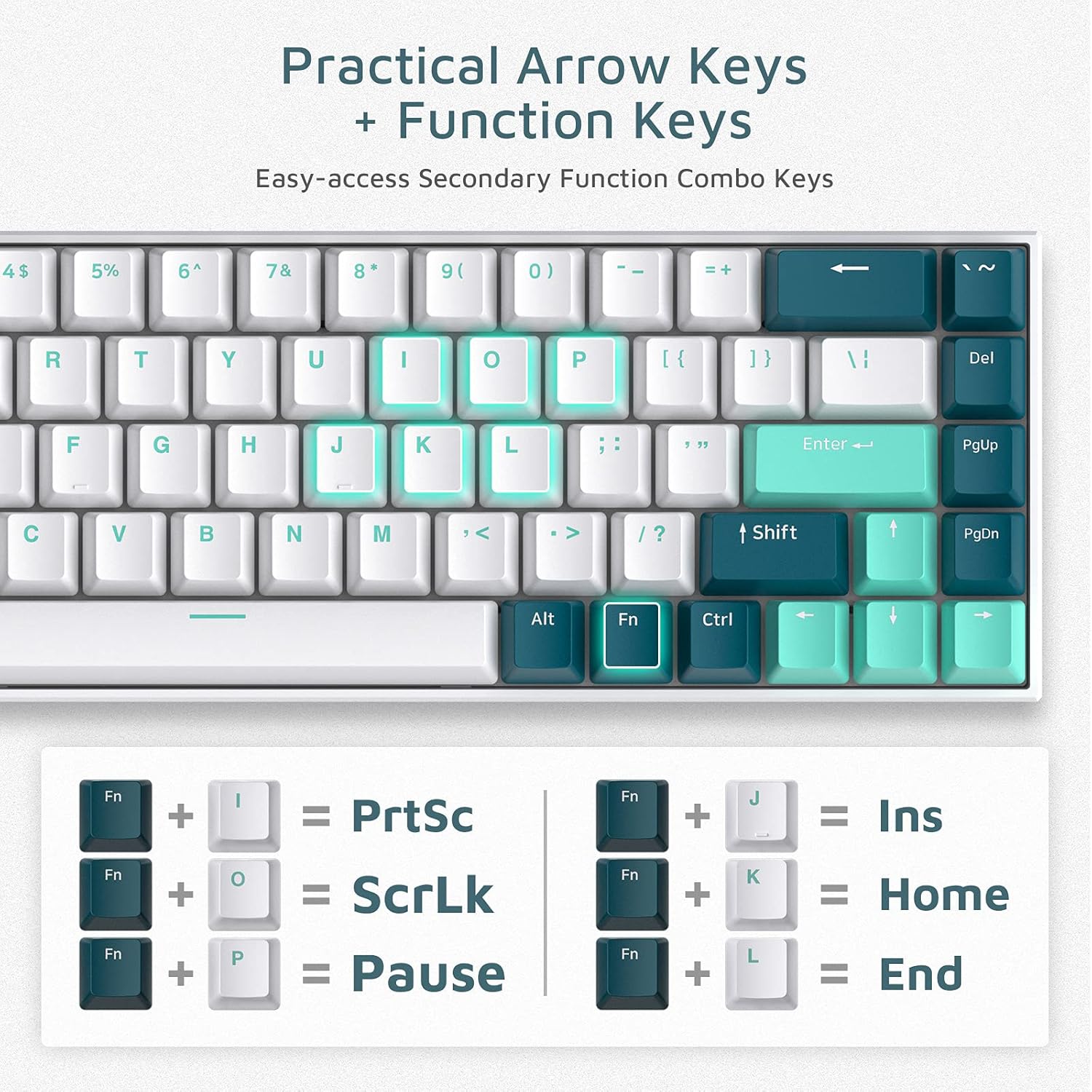
Image: A visual guide to practical arrow keys and function key combinations on the FL ESPORTS F12 keyboard, showing FN key pairings for various secondary functions.
RGB Backlight Customization
The keyboard features 16.8 million colors and 10 different styled modes. For advanced customization and key assignment, download the official software/driver from the manufacturer's website. The software allows for near-infinite personalization of lighting effects and macros.
Software/Driver download: bit.ly/FLSOFTWARE (F12 RGB Three mode keyboard Driver V1.0.5)

Image: Screenshot of the FL ESPORTS keyboard customization software interface, demonstrating options for lighting control and key remapping.
Maintenance and Care
- Cleaning: Use a soft, dry cloth to wipe the keyboard surface. For deeper cleaning, use a can of compressed air to remove dust and debris from between the keycaps.
- Keycap Removal: Use the provided keycap puller to carefully remove keycaps for cleaning or switch replacement. Pull straight up to avoid damaging the switch stem.
- Switch Replacement: The keyboard supports hot-swappable 5-pin switches. Use a switch puller (not included, but often comes with replacement switches) to remove switches. Align new switches carefully before pressing them into place.
- Storage: Store the keyboard in a cool, dry place away from direct sunlight and extreme temperatures.
- Liquid Exposure: Avoid exposing the keyboard to liquids. In case of accidental spills, immediately disconnect the keyboard and allow it to dry completely before reconnecting.

Image: A close-up view of the keyboard's stabilizers, which help ensure consistent key presses, particularly for larger keys like the spacebar.

Image: A detailed view of the hot-swappable switch sockets on the keyboard, showing how switches can be easily removed and replaced without soldering.
Troubleshooting
Keyboard Not Responding / Connection Issues
- Wired Mode: Ensure the USB-C cable is securely connected to both the keyboard and the computer. Try a different USB port or cable.
- 2.4Ghz Mode: Ensure the USB dongle is properly inserted and the keyboard switch is set to 2.4Ghz mode. Try re-pairing by long-pressing FN + R. Ensure the dongle is not too far from the keyboard.
- Bluetooth Mode: Ensure the keyboard switch is set to Bluetooth mode. Check your device's Bluetooth settings to ensure it's enabled and the keyboard is paired. If issues persist, unpair the keyboard from your device and re-pair it using FN + Q/W/E.
- Battery: Check the battery level (FN + Backspace) and charge the keyboard if the battery is low.
Keys Not Registering or Malfunctioning
- Individual Keys: If a specific key is not working, carefully remove the keycap using the keycap puller. Inspect the switch for any visible damage or debris. If the switch is damaged, it may need to be replaced (hot-swappable design allows for this).
- Spacebar Wobble: Ensure the spacebar keycap is properly seated on both the switch and the stabilizers. If the issue persists, the stabilizer might be misaligned or damaged.
- CapsLock Key Function (macOS): Some users have reported issues with the CapsLock key on macOS. Ensure your keyboard firmware and software are up to date. If the issue persists, consider remapping the key using the customization software if possible.
RGB Backlight Issues
- Ensure the backlight is enabled.
- Use the customization software to check and adjust lighting modes and brightness.
- Perform a factory reset by pressing FN + ESC.
Specifications
| Feature | Detail |
|---|---|
| Model Number | FL F12 |
| Dimensions (L x W x H) | 11.81" x 3.94" x 2.56" (30 x 10 x 6.5 cm) |
| Item Weight | 1.87 pounds (0.85 kg) |
| Connectivity | Bluetooth 5.0, 2.4Ghz Wireless, USB-C Wired |
| Switch Type | Kailh Box White (Light Tactile, Clicky) |
| Keycap Material | Doubleshot PBT |
| Battery Capacity | 2000 mAh Lithium Polymer |
| Battery Life | Up to 100 hours (backlight off), 20 hours (RGB backlight on) |
| Backlighting | RGB (16.8 million colors, 10 modes) |
| Compatible Devices | Laptop, PC, Tablet |
| Manufacturer | FL ESPORTS |
| First Available Date | August 2, 2021 |
Warranty and Support
For detailed warranty information, please refer to the official FL ESPORTS website or contact their customer support directly.
A digital version of this user manual is available for download: User Manual (PDF)
For further assistance, please visit the FL ESPORTS Store on Amazon or contact their customer service.
Related documentsFL F12

Ask a question about this manual
Ask about setup, troubleshooting, compatibility, parts, safety, or missing instructions. Manuals+ will review the question and use this page’s manual context to help answer it.