
Introduction
This manual provides essential instructions for setting up, operating, maintaining, and troubleshooting your Nyko 86158 Core Wireless Controller for Xbox One. Please read this manual thoroughly before use to ensure optimal performance and longevity of your device.
Package Contents
Verify that all items listed below are included in your package:
- Nyko 86158 Core Wireless Controller
- USB Wireless Receiver Dongle
- USB Charging Cable
- User Manual (this document)
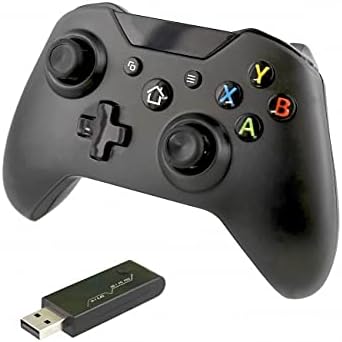
Image: Nyko 86158 Core Wireless Controller shown alongside its USB wireless receiver dongle. This illustrates the main components included in the package.

Image: Close-up view of the USB wireless receiver dongle. This dongle is essential for establishing a wireless connection between the controller and the Xbox One console or PC.

Image: The USB charging cable provided with the controller. This cable is used to recharge the controller's internal battery.
Controller Layout
Familiarize yourself with the buttons and features of your Nyko Core Wireless Controller.
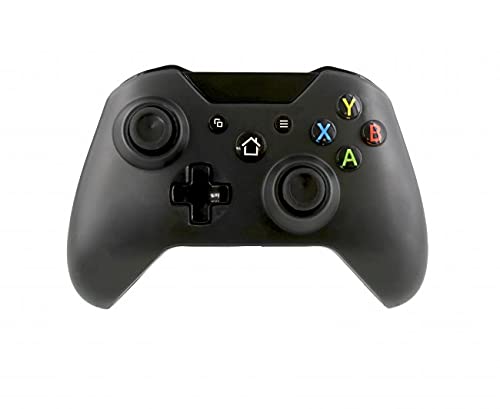
Image: Front view of the Nyko 86158 Core Wireless Controller, showing the two analog sticks, D-pad, A/B/X/Y buttons, View button, Menu button, Xbox button, and Share button.
- Left Analog Stick: For movement and camera control.
- Right Analog Stick: For camera control and aiming.
- D-Pad: Directional input for menu navigation and specific game actions.
- A/B/X/Y Buttons: Primary action buttons.
- View Button: Accesses additional in-game information or menus.
- Menu Button: Opens game menus or system options.
- Xbox Button: Powers on the controller, accesses the Xbox Guide, or returns to the home screen.
- Share Button: Captures screenshots or video clips (functionality may vary by console/game).

Image: Top view of the Nyko 86158 Core Wireless Controller, highlighting the Left and Right Bumpers (LB, RB), Left and Right Triggers (LT, RT), and the micro-USB charging port located at the front.
- Left Bumper (LB) / Right Bumper (RB): Shoulder buttons for various in-game actions.
- Left Trigger (LT) / Right Trigger (RT): Analog triggers for precise input, often used for acceleration or aiming.
- Micro-USB Port: Used for charging the controller.

Image: Back view of the Nyko 86158 Core Wireless Controller, showing the battery compartment cover. This is where the batteries are inserted or the rechargeable battery pack is housed.
Setup Instructions
1. Powering the Controller
The Nyko 86158 Core Wireless Controller requires batteries to operate wirelessly. It is compatible with standard AA batteries or a rechargeable battery pack (sold separately).
- Locate the battery compartment on the back of the controller.
- Press down on the tab and slide the battery cover off.
- Insert two (2) AA batteries, ensuring correct polarity (+/-). If using a rechargeable pack, insert it as directed by the pack's instructions.
- Replace the battery cover.
2. Connecting to Xbox One
To connect your wireless controller to an Xbox One console:
- Insert the USB Wireless Receiver Dongle into an available USB port on your Xbox One console.
- Turn on your Xbox One console.
- Press and hold the Xbox Button on the controller until it powers on. The Xbox button will flash.
- The controller will automatically attempt to pair with the USB receiver. Once connected, the Xbox button on the controller will glow solid.
- If the controller does not connect automatically, press the small pairing button on the USB receiver dongle, then press and hold the Xbox Button on the controller until it pairs.
3. Connecting to PC (Optional)
The controller can also be used with a PC. Ensure your PC has an available USB port for the wireless receiver.
- Insert the USB Wireless Receiver Dongle into an available USB port on your PC.
- The PC should automatically install the necessary drivers. This may take a few moments.
- Press and hold the Xbox Button on the controller until it powers on.
- The controller will connect to the receiver. The Xbox button will glow solid once connected.
Operating Instructions
Turning On/Off
- To Turn On: Press and hold the Xbox Button until the controller vibrates and the light turns on.
- To Turn Off: Press and hold the Xbox Button for 5-10 seconds until the controller powers down. The controller will also automatically turn off after a period of inactivity to conserve battery life.
Charging the Controller
If using a rechargeable battery pack (not included) or if the controller has a built-in rechargeable battery:
- Connect the small end of the USB Charging Cable to the micro-USB port on the front of the controller.
- Connect the larger end of the USB Charging Cable to an available USB port on your Xbox One console or a USB wall adapter (5V, 1A recommended).
- The indicator light on the controller (usually the Xbox button) will show charging status (e.g., flashing while charging, solid when fully charged).
- Disconnect the cable once charging is complete.
Maintenance
- Cleaning: Use a soft, dry cloth to clean the controller. Do not use harsh chemicals or abrasive materials.
- Storage: Store the controller in a cool, dry place away from direct sunlight and extreme temperatures.
- Battery Care: If not using the controller for an extended period, remove the AA batteries to prevent leakage.
- Avoid Drops: Protect the controller from drops and impacts, which can damage internal components.
Troubleshooting
Controller Not Turning On
- Ensure batteries are inserted correctly with the correct polarity.
- Replace old batteries with new ones, or fully charge the rechargeable battery pack.
Controller Not Connecting to Xbox One/PC
- Ensure the USB Wireless Receiver Dongle is securely plugged into an active USB port.
- Try a different USB port.
- Ensure the controller is powered on.
- Re-attempt the pairing process: press the pairing button on the dongle, then press and hold the Xbox button on the controller.
- Restart your Xbox One console or PC.
Input Lag or Disconnections
- Ensure the controller is within range of the USB receiver (typically up to 30 feet/9 meters).
- Minimize interference from other wireless devices (e.g., Wi-Fi routers, cordless phones).
- Ensure the controller has sufficient battery charge.
Specifications
| Brand | Nyko |
| Model Number | 86158 |
| Compatible Devices | Xbox One, PC |
| Controller Type | Wireless Game Controller |
| Connectivity Technology | Wireless (2.4GHz via USB dongle) |
| Power Source | Batteries (AA or rechargeable pack) |
| Dimensions (L x W x H) | 8.3 x 18.4 x 15.2 cm (approximately 3.27 x 7.24 x 5.98 inches) |
| UPC | 743840861584 |
| ASIN | B09BD8813T |
Warranty and Support
For warranty information or technical support, please refer to the documentation included with your purchase or visit the official Nyko website. Keep your proof of purchase for warranty claims.

