
TCL A215W
TCL Breeva A2 Smart Air Purifier User Manual
Model: A215W
1. Introduction
Thank you for choosing the TCL Breeva A2 Smart Air Purifier. This manual provides essential information for the safe and efficient operation, maintenance, and troubleshooting of your device. Please read this manual thoroughly before using the product and retain it for future reference.

Image: The TCL Breeva A2 Smart Air Purifier, a compact white cylindrical device, shown alongside a smartphone displaying its companion app. This illustrates the product's design and smart control capabilities.
2. Safety Information
To reduce the risk of fire, electric shock, or injury, please observe the following safety precautions:
- Always unplug the air purifier before moving, cleaning, or performing any maintenance.
- Do not operate the unit with a damaged cord or plug. If the cord or plug is damaged, contact customer support.
- Keep the air purifier away from water or other liquids. Do not immerse the unit in water.
- Do not block air inlets or outlets. Ensure at least 6 inches (15 cm) clearance from walls and furniture.
- This appliance is not intended for use by persons (including children) with reduced physical, sensory, or mental capabilities, or lack of experience and knowledge, unless they have been given supervision or instruction concerning use of the appliance by a person responsible for their safety.
- Do not use the air purifier in areas with high humidity, such as bathrooms, or near heat sources.
- Use only TCL authorized replacement filters.
3. Product Overview
The TCL Breeva A2 features a sleek design with 360-degree air intake and a multi-stage filtration system to ensure comprehensive air purification.

Image: An infographic highlighting the core functionalities of the Breeva A2, such as its 360-degree air intake, 4-stage filtration, smart controls, and quiet operation, emphasizing its efficiency in cleaning air up to 182 sq. ft. in 12 minutes.
Breeva Shield 4-Stage Filtration System
The Breeva A2 utilizes a robust 4-stage filtration system:
- Pre-Filter: Captures large particles such as dust, lint, and pet hair.
- True HEPA (H13) Filter: Eliminates at least 99.97% of airborne particles as small as 0.3 microns, including dust, pollen, mold spores, and bacteria.
- Activated Carbon Filter: Absorbs odors, smoke, and volatile organic compounds (VOCs) found in household cleaning supplies.
- Anion Technology: Releases negative ions to settle finer particles that might be missed by other filters, further enhancing air purity.

Image: A visual breakdown of the Breeva Shield 4-stage filtration process, detailing the function of each filter layer from pre-filter to anion technology, and the types of pollutants they target.
4. Setup
4.1 Unpacking and Filter Installation
Before first use, the filter must be removed from its protective packaging and installed correctly.
- Carefully remove the air purifier from its packaging.
- Turn the unit upside down and twist the base counter-clockwise to unlock and remove the filter cover.
- Remove the sealed filter from inside the unit.
- Remove all plastic packaging from the filter.
- Insert the unwrapped filter back into the unit.
- Replace the filter cover and twist clockwise to lock it securely in place.
4.2 Placement
Place the air purifier on a firm, level surface. For optimal performance, ensure there is adequate space around the unit for air circulation. Avoid placing it directly against walls or in corners.
4.3 Power Connection
Plug the power cord into a standard electrical outlet (120V AC, 60Hz). The unit will enter standby mode.
4.4 App & Voice Control Setup
The TCL Breeva A2 can be controlled via the TCL Home app and integrated with voice assistants like Amazon Alexa and Google Assistant.
- Download the TCL Home App: Search for "TCL Home" in your smartphone's app store (iOS or Android) and download the app.
- Create an Account: Follow the in-app instructions to create a new account or log in if you already have one.
- Add Device: In the app, select "Add Device" and follow the prompts to connect your Breeva A2 air purifier to your home Wi-Fi network. Ensure your phone is connected to a 2.4GHz Wi-Fi network during setup.
- Voice Control Integration: Once connected to the TCL Home app, you can link your account to Amazon Alexa or Google Assistant through their respective apps. Search for the "TCL Home" skill/action and enable it, then follow the instructions to discover your device.

Image: The TCL Breeva A2 in a kitchen setting, illustrating its seamless integration with smart home ecosystems like Alexa and Google Assistant for convenient voice control.
5. Operating Instructions
The control panel on top of the unit allows for easy manual operation. All functions are also accessible via the TCL Home app.

Image: A detailed view of the intuitive touch control panel on the top of the Breeva A2, showing the various function icons for easy manual operation.
5.1 Control Panel Functions
- Power Button (⏻): Press to turn the unit ON or OFF.
- Fan Speed Button (⏚): Cycles through fan speeds (1, 2, 3, 4) and Auto mode.
- Timer Button (⏱): Sets the operating time for 1, 2, 4, or 8 hours. The unit will automatically turn off after the set time.
- Filter Reset Indicator (🖫): Lights up when it's time to replace the filter. Press and hold for 3 seconds after filter replacement to reset.
- Air Quality Indicator (🍃): Changes color to indicate current air quality (Green: Excellent, Yellow: Good, Red: Poor).
- Child Lock Button (🔒): Press and hold for 3 seconds to activate/deactivate the child lock, preventing accidental changes to settings.
- Light Control Button (💡): Turns the display lights ON or OFF.
5.2 Auto Shield Mode
In Auto Shield mode, the air purifier automatically detects the air quality in your environment using advanced sensors and adjusts the fan speed accordingly to maintain optimal air purity.

Image: The Breeva A2 in a living room, demonstrating its Auto Shield mode with dual sensors that continuously monitor air quality and automatically adjust fan speed for optimal purification.
5.3 Sleep Mode
Sleep mode operates the air purifier at its lowest fan speed and dims all indicator lights, ensuring ultra-quiet operation (as low as 26 decibels) for an undisturbed night's sleep while maintaining air quality.
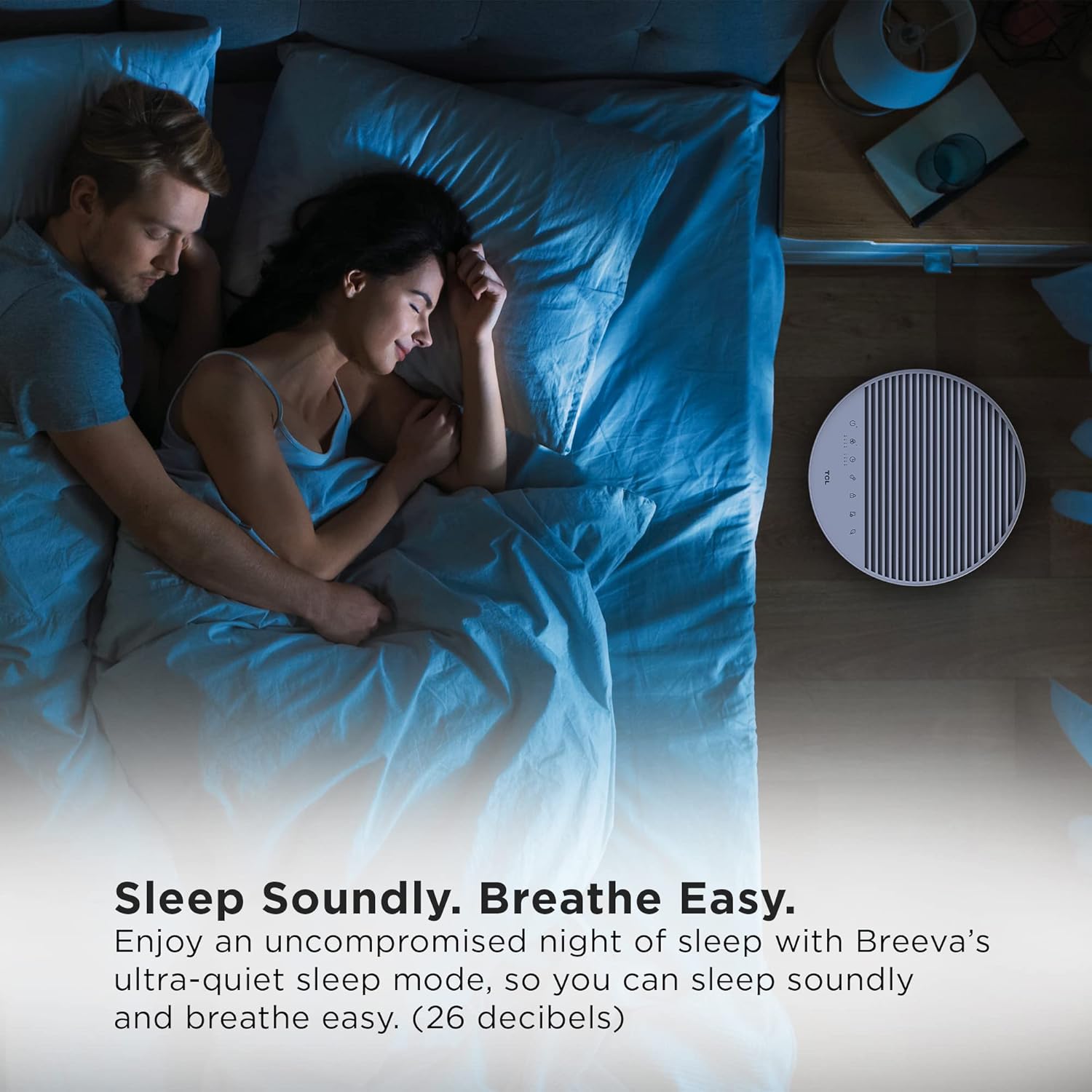
Image: The Breeva A2 positioned in a bedroom, illustrating its quiet sleep mode that allows for an undisturbed night while purifying the air.
6. Maintenance
Regular maintenance ensures the longevity and optimal performance of your TCL Breeva A2 air purifier.
6.1 Filter Replacement
The filter life is typically 3-6 months, depending on usage and air quality. The Filter Reset Indicator will illuminate when replacement is needed.
- Unplug the air purifier from the power outlet.
- Turn the unit upside down and twist the base counter-clockwise to remove the filter cover.
- Remove the old filter and dispose of it properly.
- Unpack the new TCL authorized replacement filter.
- Insert the new filter into the unit.
- Replace the filter cover and twist clockwise to lock it.
- Plug in the air purifier. Press and hold the Filter Reset button for 3 seconds until the indicator light turns off.
Note: The filter is not washable and must be replaced.
6.2 Cleaning the Unit
- Exterior: Wipe the exterior of the unit with a soft, dry cloth. Do not use abrasive cleaners or solvents.
- Air Quality Sensors: Periodically clean the air quality sensors located on the side of the unit with a dry cotton swab to ensure accurate readings.
- Pre-Filter: While the main filter is not washable, you can gently vacuum the pre-filter layer (visible when the filter is removed) once a month to extend the life of the inner filters.
6.3 Humidifier Chamber (if applicable)
Some models may include a humidifier chamber. If your model has this feature, use distilled water to prevent mineral buildup. Regularly clean the chamber to prevent mold or bacterial growth.
7. Troubleshooting
If you encounter issues with your air purifier, refer to the table below for common problems and solutions.
| Problem | Possible Cause | Solution |
|---|---|---|
| Unit does not turn on. | Not plugged in; Power outage; Filter not installed correctly. | Ensure power cord is securely plugged in; Check power supply; Reinstall filter and ensure cover is locked. |
| Airflow is weak. | Air inlets/outlets blocked; Filter is dirty; Fan speed is low. | Clear any obstructions; Replace filter if indicator is on; Increase fan speed. |
| Unusual noise. | Unit not on a flat surface; Foreign object inside; Filter not installed correctly. | Place on a flat, stable surface; Unplug and check for foreign objects; Reinstall filter. |
| Air quality indicator always red/yellow. | High pollution level; Sensor is dirty. | Allow unit to run longer; Clean the air quality sensor. |
| Cannot connect to Wi-Fi/App. | Incorrect Wi-Fi password; Router issues; Not 2.4GHz network. | Verify password; Restart router; Ensure connecting to 2.4GHz Wi-Fi. |
If the problem persists after trying these solutions, please contact TCL customer support.
8. Specifications
| Feature | Detail |
|---|---|
| Model Number | A215W |
| Product Dimensions | 1"D x 1"W x 1"H (Approx. 6.39 Pounds) |
| Color | White |
| Rated Power | 30 Watts |
| Coverage Area | Up to 182 sq. ft. (CADR certified) |
| Filtration System | 4-Stage (Pre-Filter, True HEPA H13, Activated Carbon, Anion) |
| Noise Level | As low as 26 dB (Sleep Mode) |
| Connectivity | Wi-Fi (2.4GHz), App Control (TCL Home), Voice Control (Alexa, Google Assistant) |
| Certifications | AHAM Certified |
9. Warranty and Support
TCL provides a limited warranty for this product. For detailed warranty information, including terms and conditions, please refer to the warranty card included with your purchase or visit the official TCL website. For technical support, troubleshooting assistance, or to order replacement parts/filters, please contact TCL customer service through the contact information provided on the TCL website or in your product documentation.
Please have your model number (A215W) and purchase date ready when contacting support.
Ask a question about this manual
Ask about setup, troubleshooting, compatibility, parts, safety, or missing instructions. Manuals+ will review the question and use this page’s manual context to help answer it.