
Ruko U11S
Ruko U11S Drone Instruction Manual
Model: U11S | Brand: Ruko
1. Introduction
The Ruko U11S is a foldable mini FPV quadcopter designed for both beginners and experienced users, featuring a 4K camera, GPS auto return, and extended flight time. This manual provides essential information for the safe and optimal operation of your drone.
Experience the Ruko U11S in action:
Official Ruko U11S Foldable Drone promotional video, showcasing its features and ease of use.

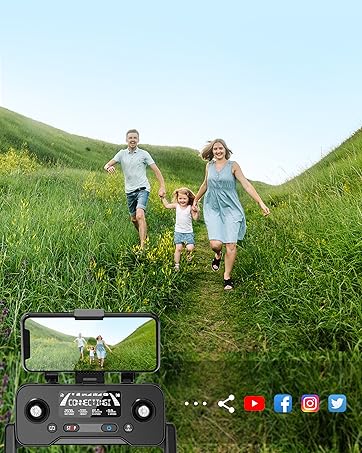
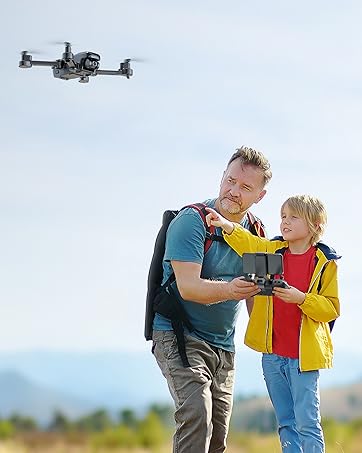
The Ruko U11S drone in flight, demonstrating its suitability for family activities and capturing memories.
2. What's in the Box
Upon opening your Ruko U11S package, please verify that all the following components are included:
- Ruko U11S Drone (with Transmitter & Phone Holder) ×1
- Rechargeable Battery ×2
- USB Type-C Cable ×2
- Extra Propeller Blade ×4
- Carrying Case ×1
- User Manual ×1
- Screwdriver ×1
- Screws ×10
Contents of the Ruko U11S drone package.
3. Safety Guidelines
Your Ruko U11S drone complies with FAA Declaration of Compliance for Remote ID. It is crucial to understand and adhere to all local regulations and safety guidelines before operating the drone. Registration may be required in your region. Always fly in open areas, away from people, animals, and obstacles.
For detailed safety information, please refer to the official Safety Information PDF: Safety Information (PDF).
The Ruko U11S drone features a built-in Remote ID module for FAA compliance.
4. Setup
4.1 Charging Batteries
Ensure both the drone batteries and the transmitter are fully charged before flight. Use the provided USB Type-C cables for charging. A full charge typically takes several hours.

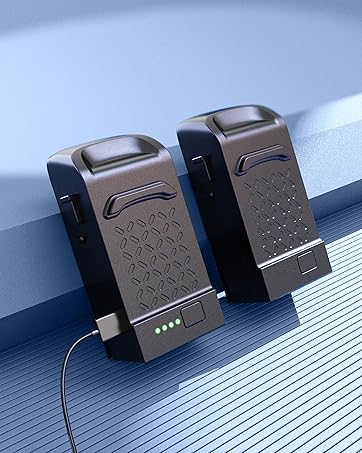
Ruko U11S drone batteries charging, providing up to 40 minutes of flight time with two batteries.

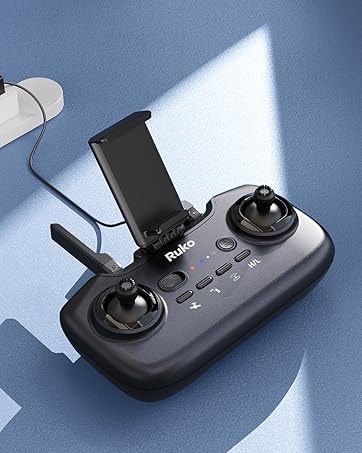
The rechargeable transmitter for the Ruko U11S drone, designed for easy operation.
4.2 Propeller Installation
Attach the propellers according to the markings (A and B) on the propellers and motor arms. Ensure they are securely fastened.
4.3 Controller Setup & App Connection
- Extend the phone holder on the transmitter and securely place your smartphone.
- Download and install the 'RUKO GPS' app from your device's app store.
- Turn on the drone and then the remote controller.
- Connect your phone to the drone's Wi-Fi network (appears after drone and remote are linked).
- Open the RUKO GPS app to view the live feed and access flight controls.
4.4 Pre-Flight Checks
Before each flight, perform the following checks:
- Ensure batteries are fully charged and securely inserted.
- Check propellers for any damage and ensure they are correctly installed.
- Verify GPS signal strength (for outdoor flight) or optical flow positioning (for indoor flight).
- Confirm a stable Wi-Fi connection between your phone and the drone.
5. Operating the Drone
5.1 Basic Flight Controls
The Ruko U11S features one-key functions for simplified operation:
- One-Key Takeoff: Press the designated button to automatically launch the drone and hover at a safe altitude.
- One-Key Landing: Press the designated button to initiate an automatic landing sequence.
- Hovering: The drone will automatically maintain its altitude and position using GPS (outdoor) or Optical Flow (indoor) positioning.

The Ruko U11S offers beginner-friendly flight modes for easier control.
5.2 Flight Modes
- GPS Positioning: For stable outdoor flight, the drone utilizes GPS to maintain precise position and altitude.
- Optical Flow Positioning: Provides safer and more stable flight indoors or in areas with weak GPS signals.
- Beginner Mode: Limits flight distance and altitude for new pilots, ensuring a safer learning experience.
5.3 Intelligent Flight Features
- Follow Me Mode: The drone will automatically follow the user, capturing dynamic footage.
- Point of Interest (Circle Fly): Set a point of interest, and the drone will autonomously circle around it, maintaining a set radius.
- Waypoint Fly: Draw a custom flight path on the app screen, and the drone will follow the designated route.
- One-Key Return (RTH): The drone will automatically return to its takeoff point. This feature also activates in case of low battery or signal loss.
Intelligent flight modes like Follow-me and Point of Interest enhance the drone's capabilities.
Waypoint Fly allows custom flight paths, and multiple RTH modes ensure drone safety.
5.4 Camera Operation
The Ruko U11S is equipped with a 4K UHD camera that can be adjusted 90 degrees for optimal viewing angles. Photos and videos are saved directly to your connected smartphone via the app.

The 4K UHD camera provides a broader vision and adjustable angle for capturing high-quality footage.
5.5 Live Transmission
The drone uses 5G Wi-Fi for live video transmission to your smartphone, providing a real-time view from the drone's perspective.
6. Maintenance
6.1 Battery Care
- Always use the Ruko charger for optimal performance.
- Avoid using chargers designed for other devices or those with an output higher than 12V.
- Do not overcharge or over-discharge batteries.
- Store batteries in a cool, dry place when not in use.
6.2 Cleaning
Regularly clean the drone body and camera lens with a soft, dry cloth. Avoid using harsh chemicals or abrasive materials.
6.3 Storage
When not in use, fold the drone and store it in its high-grade carrying case to protect it from dust and damage. Store in a cool, dry environment.

The Ruko U11S drone's compact, foldable design makes it easy to pack and transport.
6.4 Propeller Replacement
If propellers are damaged, replace them with the extra propeller blades provided in the kit. Use the included screwdriver for installation.
7. Troubleshooting
Here are some common issues and their potential solutions:
| Problem | Solution |
|---|---|
| Wi-Fi network not appearing. | Ensure the drone and remote controller are linked. It is recommended to connect your phone to Wi-Fi before entering the RUKO GPS app. |
| Difficulty refreshing Wi-Fi. | This may occur in environments with many Wi-Fi networks. Try moving to an area with less interference. |
| Wi-Fi disconnected during flight. | Turn on flight mode on your phone and turn off VPN. Disconnection can also be caused by surrounding signal interference or obstacles. Fly in an open environment. |
| Drone unstable or drifting. | Perform IMU calibration. Ensure you are flying in an open area with strong GPS signal (for outdoor flight) or clear ground for optical flow (for indoor flight). Check for propeller damage. |
| Poor camera image quality. | Ensure the camera lens is clean. Check lighting conditions. |
8. Specifications
| Feature | Detail |
|---|---|
| Brand | Ruko |
| Model Name | U11S |
| Video Capture Resolution | 4K UHD 2160p |
| Connectivity Technology | Wi-Fi (5G) |
| Flight Time | Up to 20 minutes per battery (40 minutes total with 2 batteries) |
| Battery Capacity | 1200 Milliamp Hours |
| Item Weight | 270 Grams (9.5 ounces) |
| Product Dimensions | 9.06"L x 7.68"W x 2.36"H |
| Skill Level | Beginner |
| Special Features | Extended Flight Time, Portable, Speed Adjustment, One-Button Return, Compliance with FAA Remote ID, Follow Me, Circle Fly |
| Material | High-strength ABS plastic and fiberglass |
9. Warranty and Support
Ruko products are designed for reliability and performance. For any operational difficulties or warranty inquiries, please contact the Ruko Customer Support team. Details regarding specific warranty periods and terms are typically provided with your purchase documentation.
Ruko Customer Support:
- Phone: +1 (888) 892-0155
- Email: service@rukotoy.com
- Operating Hours: Mon-Fri: 8 AM to 2 AM (next day) PST; Sat-Sun: 8 AM to 5 PM (PST)
Related documentsU11S


Ask a question about this manual
Ask about setup, troubleshooting, compatibility, parts, safety, or missing instructions. Manuals+ will review the question and use this page’s manual context to help answer it.