
Introduction
Thank you for purchasing the Tzumi 7796 GO Theater Wi-Fi LED Cinema Projector. This manual provides essential information for setting up, operating, and maintaining your projector. Please read it thoroughly before use to ensure proper functionality and to maximize your viewing experience. This projector is designed for versatile use, including home entertainment, outdoor movie nights, and business presentations, offering a portable solution with Wi-Fi and multiple connectivity options.
Important Safety Information
- Do not look directly into the projector lens when the lamp is on.
- Ensure proper ventilation around the projector to prevent overheating. Do not block ventilation openings.
- Keep the projector away from water or other liquids.
- Use only the power adapter supplied with the projector.
- Do not attempt to repair the projector yourself. Refer all servicing to qualified personnel.
- Place the projector on a stable, level surface to prevent damage from falling.
- Unplug the projector during lightning storms or when unused for long periods.
Package Contents
Please check to ensure all items are present:
- Tzumi 7796 GO Theater Wi-Fi LED Cinema Projector
- Remote Control
- Power Adapter
- User Manual (this document)
- AV Cable (if included)
Product Overview
Front View

Image: Front view of the Tzumi 7796 projector. This image displays the main projection lens on the left side and ventilation grilles along the front and right side of the device. The overall casing is white.
Side View with Ports
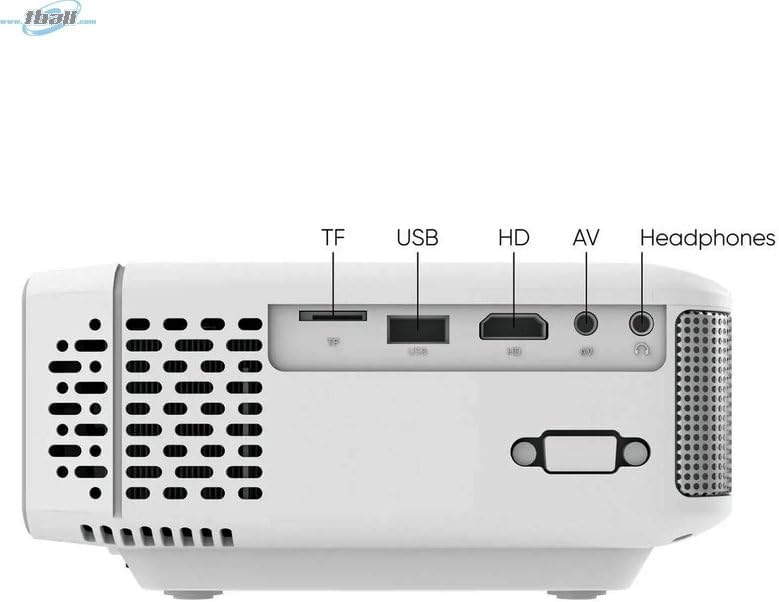
Image: Side view of the Tzumi 7796 projector highlighting its various input ports. From left to right, these include a TF card slot, a USB port, an HD (HDMI) port, an AV input, and a headphone jack. This side also features ventilation grilles.
Top View with Controls

Image: Top view of the Tzumi 7796 projector. This image shows the manual focus and keystone correction dials located near the lens. The central control panel features directional buttons (Up, Down, Left, Right), Home, Option, Back, Power, and Enter buttons for navigation and control.
Rear View with Power Input

Image: Rear view of the Tzumi 7796 projector. This view primarily shows the power input socket on the left side and additional ventilation grilles on the right side.
Setup Guide
1. Placement
Place the projector on a stable, flat surface. For optimal viewing, position the projector directly in front of your screen or wall. The ideal projection distance will vary based on the desired screen size. Ensure there is adequate space around the projector for ventilation.

Image: This image illustrates the versatility of the Tzumi 7796 projector, showing it being used in both an indoor home setting and an outdoor movie night environment. This highlights its suitability for various entertainment scenarios.
2. Power Connection
- Connect the power adapter to the projector's power input port (refer to "Rear View with Power Input" image).
- Plug the other end of the power adapter into a wall outlet.
- The power indicator light on the projector should illuminate.
3. Connecting Devices
The projector supports various input sources:
- HDMI: Connect your laptop, gaming console, or streaming device using an HDMI cable to the HD port.
- USB: Insert a USB flash drive into the USB port to play media files directly.
- AV: Use the provided AV cable to connect older devices like DVD players to the AV port.
- TF Card: Insert a TF (MicroSD) card into the TF card slot to play media files.
- Wi-Fi: For wireless screen mirroring or streaming, connect the projector to your Wi-Fi network (see "Operating Instructions - Wi-Fi Connectivity").
4. Focus and Keystone Adjustment
- Focus: Rotate the FOCUS ring near the lens until the projected image is clear and sharp.
- Keystone: If the image appears trapezoidal (wider at the top or bottom), adjust the KEYSTONE correction dial until the image is rectangular.
Operating Instructions
Powering On/Off
- Power On: Press the Power button on the projector's control panel or the remote control.
- Power Off: Press the Power button again. Confirm shutdown if prompted.
Input Source Selection
After powering on, the projector will display its main menu. To select an input source:
- Use the directional buttons on the projector or remote to navigate to the desired input (e.g., HDMI, USB, AV, TF Card, Wi-Fi).
- Press the Enter button to confirm your selection.
Wi-Fi Connectivity
To connect your projector to a Wi-Fi network for screen mirroring or online content:
- From the main menu, navigate to the Wi-Fi or Network Settings option.
- Select Wi-Fi Setup and choose your desired network from the list.
- Enter the Wi-Fi password using the on-screen keyboard and confirm.
- Once connected, you can use screen mirroring features (e.g., Miracast, AirPlay) or access built-in smart features if available.
Audio Settings
The projector features two built-in 3W speakers. You can also connect external audio devices:
- Built-in Speakers: Audio will play automatically through the projector's speakers. Adjust volume using the remote or control panel.
- Headphones/External Speakers: Connect headphones or external speakers to the 3.5mm headphone jack on the side of the projector. This will typically mute the built-in speakers.
Maintenance
Cleaning the Lens
To maintain optimal image quality, keep the projector lens clean.
- Use a soft, lint-free cloth specifically designed for optical lenses.
- Gently wipe the lens in a circular motion.
- Avoid using abrasive cleaners or excessive pressure, which can scratch the lens.
General Care and Storage
- Keep the projector in a cool, dry place when not in use.
- Protect the projector from dust and extreme temperatures.
- Do not expose the projector to direct sunlight for extended periods.
- Clean the exterior casing with a soft, damp cloth. Avoid harsh chemicals.
Troubleshooting
| Problem | Possible Cause | Solution |
|---|---|---|
| No image projected |
|
|
| Image is blurry |
|
|
| Image is trapezoidal |
|
|
| No sound |
|
|
| Wi-Fi connection issues |
|
|
Specifications
- Model: 7796
- Brand: Tzumi
- Display Resolution: 1920 x 1080 (Full HD)
- Brightness: 1600 Lumens
- Connectivity Technology: HDMI, Wi-Fi, USB, AV, TF Card
- Special Feature: Portable
- Recommended Uses: Home entertainment, Outdoor movie nights, Business presentations
- Item Weight: 3 pounds
- Package Dimensions: 11 x 9 x 5 inches
- Built-in Speakers: Two 3W speakers
Warranty and Support
For warranty information and technical support, please refer to the documentation included with your purchase or visit the official Tzumi website. Keep your proof of purchase for warranty claims.
Online Support: Visit the Tzumi Store on Amazon
