
Genesis NGK-1567
Genesis SEABORG 400 Multi-Platform Steering Wheel User Manual
Model: NGK-1567
1. Introduction
This manual provides essential instructions for the proper setup, operation, and maintenance of your Genesis SEABORG 400 Multi-Platform Steering Wheel. Please read this manual thoroughly before using the product to ensure optimal performance and safety. The SEABORG 400 is designed for an immersive gaming experience across multiple platforms, including PC, PlayStation 3, PlayStation 4, Xbox One, Xbox 360, and Nintendo Switch.
2. Safety Information
- Keep the device away from moisture, dust, and extreme temperatures.
- Do not attempt to disassemble or repair the device yourself. Refer all servicing to qualified personnel.
- Avoid strong impacts or dropping the device.
- Ensure proper ventilation around the device during use.
- Use only accessories specified by the manufacturer.
3. Package Contents
Verify that all items listed below are present in your package:
- Genesis SEABORG 400 Steering Wheel
- Pedal Set (Accelerator and Brake)
- Mounting Clamps (2 units)
- User Manual

Image: The retail packaging for the Genesis SEABORG 400 steering wheel, showing the wheel and pedal set.
4. Product Overview
4.1. Steering Wheel Components

Image: Front view of the Genesis SEABORG 400 steering wheel, highlighting the central Genesis logo, directional pad, action buttons (A, B, X, Y), and various function buttons.
- Steering Wheel Rim: Ergonomic grip for control.
- Directional Pad (D-Pad): For menu navigation and directional input.
- Action Buttons: Standard gaming buttons (A, B, X, Y, etc.).
- Function Buttons: Mode, Share, Options, Home, etc., depending on the platform.
- Paddle Shifters: Located behind the wheel for gear changes.
4.2. Pedal Set Components
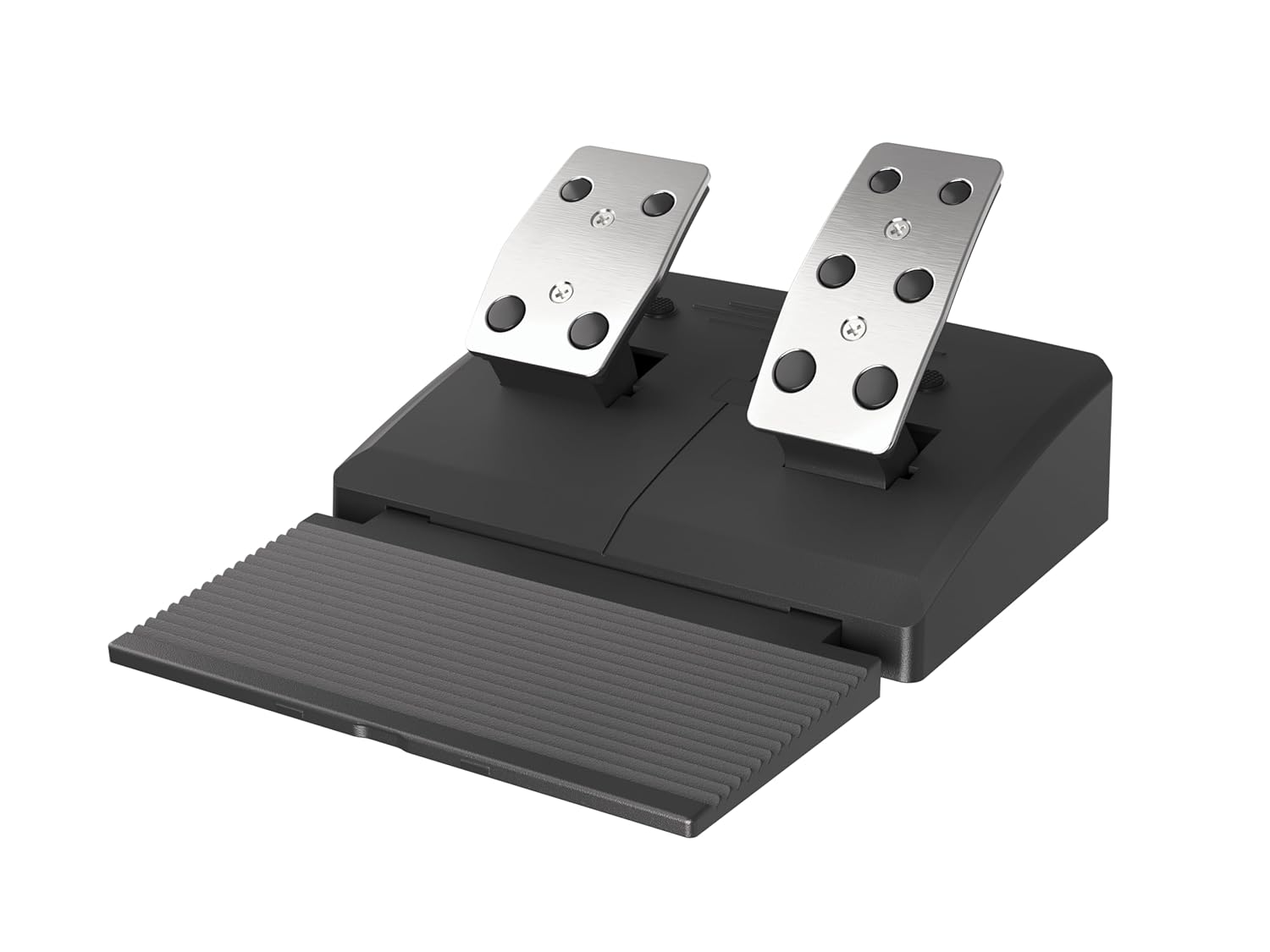
Image: The pedal set for the Genesis SEABORG 400, featuring a textured footrest and two metal-faced pedals for acceleration and braking.
- Accelerator Pedal: For increasing speed.
- Brake Pedal: For decreasing speed.
- Footrest: Provides stability during use.
5. Setup
5.1. Mounting the Steering Wheel
The SEABORG 400 offers two primary mounting methods: clamps for desks/tables and suction cups for smooth surfaces.

Image: The Genesis SEABORG 400 steering wheel securely attached to a surface using its two mounting clamps.
- Using Clamps:
- Attach the two mounting clamps to the designated slots on the underside of the steering wheel base.
- Place the steering wheel on a stable desk or table.
- Tighten the screws on the clamps until the wheel is firmly secured. Do not overtighten.
- Using Suction Cups:
- Ensure the surface is clean, dry, and smooth.
- Press the steering wheel base firmly onto the surface to engage the suction cups.
5.2. Connecting the Pedals

Image: Rear view of the Genesis SEABORG 400 steering wheel base, showing the USB connection port and the RJ11 port for the pedal unit.
Connect the pedal unit cable to the dedicated port (RJ11 connector) on the rear of the steering wheel base.
5.3. Connecting to Your Gaming Platform
Connect the USB cable from the steering wheel to an available USB port on your chosen gaming platform.
- PC: Connect the USB cable. Drivers should install automatically. If not, check the Genesis support website for manual drivers.
- PlayStation 3/4: Connect the USB cable. The steering wheel should be recognized automatically. For PS4, you may need to connect a standard PS4 controller to the steering wheel's USB port (if available, otherwise direct connection to console).
- Xbox One/360: Connect the USB cable. For Xbox One, you may need to connect a standard Xbox One controller to the steering wheel's USB port (if available, otherwise direct connection to console).
- Nintendo Switch: Connect the USB cable to the Switch dock. Ensure "Pro Controller Wired Communication" is enabled in the Switch system settings.
The steering wheel will typically calibrate itself upon connection. Follow any on-screen prompts.
6. Operating Instructions
6.1. Basic Controls
Once connected and recognized by your system, the steering wheel functions as a standard game controller for racing titles. The steering wheel provides 270 degrees of rotation.
- Steering: Rotate the wheel left or right.
- Acceleration: Press the right pedal (accelerator).
- Braking: Press the left pedal (brake).
- Gear Shifting: Use the paddle shifters located behind the steering wheel.
- Menu Navigation: Use the D-Pad and action buttons.
6.2. Vibration Feedback
The SEABORG 400 features vibration feedback to enhance realism. This function is automatically enabled when supported by the game and platform.
6.3. Mode Button
The "MODE" button on the steering wheel may be used to switch between different input modes (e.g., X-Input/D-Input on PC) or to adjust sensitivity settings. Refer to your game's control options for specific configurations.
7. Maintenance
- Cleaning: Use a soft, dry cloth to clean the steering wheel and pedals. Do not use abrasive cleaners or solvents.
- Storage: Store the device in a cool, dry place away from direct sunlight when not in use.
- Cable Care: Avoid bending or crimping cables excessively.
8. Troubleshooting
| Problem | Possible Solution |
|---|---|
| Steering wheel not recognized by the system. |
|
| No vibration feedback. |
|
| Pedals not responding. |
|
| Steering input is inaccurate or drifts. |
|
9. Specifications
| Feature | Detail |
|---|---|
| Model | NGK-1567 |
| Compatibility | PC, PS3, PS4, Xbox One, Xbox 360, Nintendo Switch |
| Steering Angle | 270 degrees |
| Feedback | Vibration feedback |
| Pedals | Accelerator, Brake |
| Mounting | Clamps, Suction Cups |
| Connectivity | USB |
| Product Dimensions | 59.06 x 1.97 x 1.97 inches (approximate, for wheel unit) |
| Item Weight | 1.1 pounds (approximate) |
| Manufacturer | GENESIS |
10. Warranty and Support
For warranty information, technical support, or service inquiries, please refer to the official Genesis website or contact their customer support directly. Keep your proof of purchase for warranty claims.
Manufacturer: GENESIS
Model: NGK-1567
Related documentsNGK-1567


Ask a question about this manual
Ask about setup, troubleshooting, compatibility, parts, safety, or missing instructions. Manuals+ will review the question and use this page’s manual context to help answer it.