
1. Product Overview
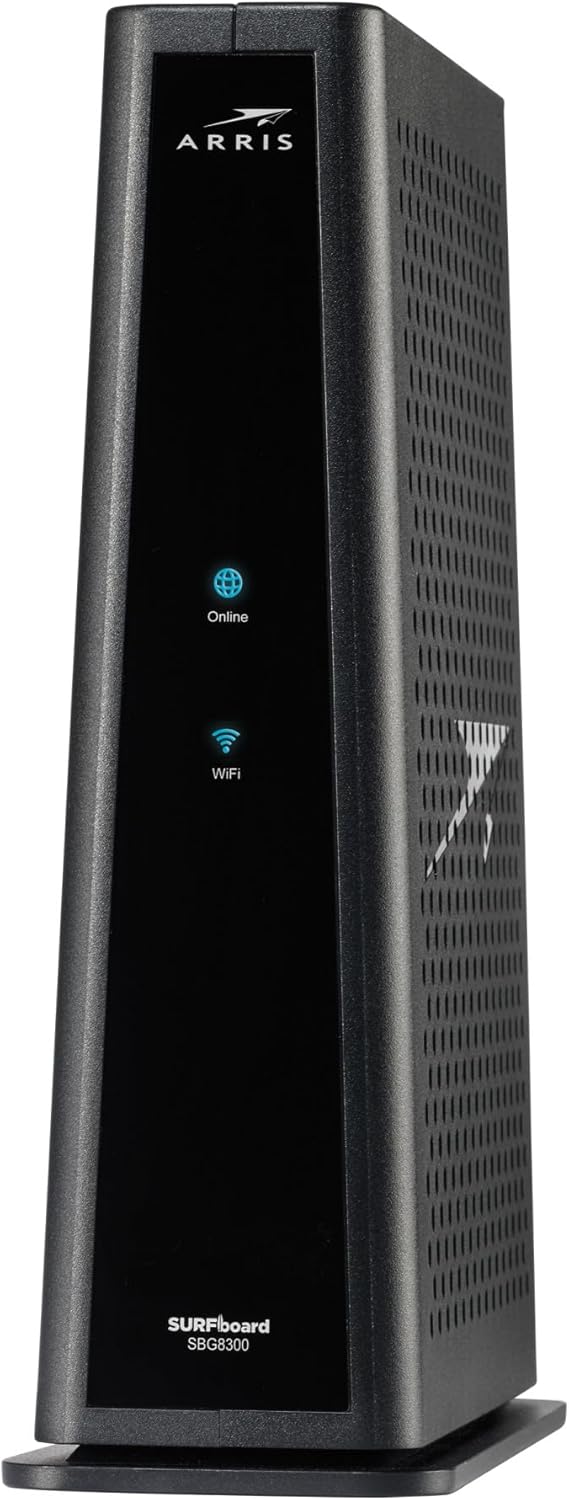
The ARRIS SURFboard SBG8300 is a DOCSIS 3.1 Wi-Fi cable modem and router combo designed to provide high-speed internet access. It integrates a DOCSIS 3.1 cable modem with an 802.11ac Wi-Fi router, featuring four Gigabit Ethernet ports. This device supports the latest DOCSIS 3.1 standard, offering increased bandwidth for gigabit-speed internet services.
Key Features:
- DOCSIS 3.1 Technology: Supports the latest cable internet standard for faster speeds and improved network efficiency.
- AC2350 Wi-Fi: Provides dual-band 802.11ac Wi-Fi for wireless connectivity across your home.
- Integrated Modem and Router: Combines two devices into one for simplified setup and reduced clutter.
- Gigabit Ethernet Ports: Includes four 1-Gigabit Ethernet ports for wired connections.
- ISP Compatibility: Approved for use with major U.S. cable internet providers such as Cox, Spectrum, and Xfinity.
What's in the Box:
- ARRIS SURFboard SBG8300-RB DOCSIS 3.1 Gigabit Cable Modem & AC2350 Dual Band Wi-Fi 5 Router
- Power Adapter
- Ethernet Cable
- Quick Start Guide (not included in this digital manual)

2. Setup and Activation
Follow these steps to set up your ARRIS SURFboard SBG8300-RB and activate your internet service.
Before You Begin:
- Contact your Internet Service Provider (ISP) to confirm compatibility and service requirements.
- Ensure you have an active cable internet connection.
- Disconnect any existing modem or router from your cable outlet.
Connection Steps:
- Connect Coaxial Cable: Connect one end of the coaxial cable to the cable wall outlet and the other end to the Cable port on the back of your SBG8300-RB.
- Connect Power: Connect the power adapter to the Power port on the back of your SBG8300-RB and then plug it into an electrical outlet.
- Power On: Wait for the modem to power on. The front panel lights will flash and then become solid, indicating a successful connection. This process may take several minutes.
- Connect Devices (Optional):
- Wired: Connect an Ethernet cable from one of the Gigabit Ethernet ports on the SBG8300-RB to your computer or other network device.
- Wireless: Locate the Wi-Fi Network Name (SSID) and Password printed on the label on the bottom of your SBG8300-RB. Connect your wireless devices to this network.

Activation:
After connecting your SBG8300-RB, you will need to activate it with your ISP. This typically involves:
- Opening a web browser on a connected device. Your ISP's activation page may automatically appear.
- Following the on-screen instructions to activate your service. You may need your account information.
- Alternatively, you may need to call your ISP's customer service line to provide them with the MAC address (HFC MAC ID) and Serial Number located on the label of your SBG8300-RB.
Note on Compatibility:
- This device is approved for Cox, Spectrum, and Xfinity internet.
- It is NOT compatible with AT&T, CenturyLink, Verizon, Frontier, or other Fiber Optic, DSL, or Satellite internet service providers.
- It does NOT support cable digital voice service.
3. Operating Your Device
Once activated, your ARRIS SURFboard SBG8300-RB will provide internet and Wi-Fi connectivity. Here's how to understand its operation.
Indicator Lights:
The front panel LEDs provide status information:
- Power: Solid green indicates the device is powered on.
- Online (Globe Icon): Solid blue indicates a successful internet connection. Flashing blue indicates scanning for a connection.
- Wi-Fi (Wave Icon): Solid blue indicates Wi-Fi is enabled and active. Flashing blue indicates Wi-Fi activity.
Connecting to Wi-Fi:
To connect a wireless device:
- On your device (smartphone, tablet, laptop), open your Wi-Fi settings.
- Select the Wi-Fi Network Name (SSID) found on the bottom label of your SBG8300-RB.
- Enter the Wi-Fi Password (also on the label) when prompted.
- Your device should now be connected to the internet.

Wi-Fi Coverage:
The SBG8300-RB provides Wi-Fi coverage up to approximately 2800 sq. ft. with speeds up to 2350 Mbps, depending on environmental factors and connected devices.

4. Maintenance
Proper maintenance ensures optimal performance and longevity of your SBG8300-RB.
General Care:
- Keep the device in a well-ventilated area, away from direct sunlight, heat sources, and moisture.
- Avoid placing objects on top of the device that could obstruct airflow.
- Clean the exterior with a soft, dry cloth. Do not use liquid cleaners or aerosols.
Restarting the Device:
If you experience connectivity issues, a simple restart can often resolve them:
- Unplug the power adapter from the back of the SBG8300-RB.
- Wait for at least 10 seconds.
- Plug the power adapter back into the device and the electrical outlet.
- Allow several minutes for the device to fully power on and re-establish connections.
Firmware Updates:
Firmware updates are typically managed automatically by your ISP. Ensure your device remains powered on and connected to the internet to receive these updates.
5. Troubleshooting
This section addresses common issues you might encounter with your SBG8300-RB.
No Internet Connection:
- Check Cables: Ensure all cables (coaxial, Ethernet, power) are securely connected.
- Check Indicator Lights: Verify that the Power, Online, and Wi-Fi lights are solid blue. If the Online light is flashing, the modem is still trying to establish a connection with your ISP.
- Restart Device: Perform a power cycle as described in the Maintenance section.
- Contact ISP: If the issue persists, contact your Internet Service Provider to confirm service status and modem activation.
Slow Internet Speeds:
- Restart Device: A power cycle can often improve performance.
- Check for Interference: Move the SBG8300-RB away from other electronic devices that might cause Wi-Fi interference.
- Test Wired Connection: Connect a computer directly to the modem via Ethernet to determine if the issue is with Wi-Fi or the internet service itself.
- Contact ISP: If wired speeds are also slow, contact your ISP.
Wi-Fi Connectivity Issues:
- Check Wi-Fi Light: Ensure the Wi-Fi light on the front panel is solid blue.
- Verify Password: Double-check that you are entering the correct Wi-Fi password.
- Device Distance: Ensure your wireless device is within the Wi-Fi coverage area.
- Restart Device: Power cycle the SBG8300-RB.
6. Specifications
| Feature | Detail |
|---|---|
| Model Number | SBG8300 |
| DOCSIS Standard | 3.1 |
| Wi-Fi Standard | 802.11ac (Wi-Fi 5) |
| Wireless Type | 802.11ac |
| Ethernet Ports | 4 x 1-Gigabit Ethernet |
| Downstream Channels | 32 DOCSIS 3.0 or 2 OFDM DOCSIS 3.1 |
| Upstream Channels | 8 DOCSIS 3.0 or 2 OFDMA DOCSIS 3.1 |
| Dimensions (LxWxH) | 2.87 x 8 x 9.33 inches |
| Item Weight | 2 pounds |
| Operating System | Linux |
| Color | Black |
| Manufacturer | CommScope |
7. Warranty Information
The ARRIS SURFboard SBG8300-RB typically comes with a 2-Year Limited Warranty. For specific terms and conditions, please refer to the warranty documentation included with your product or visit the official ARRIS support website.
8. Technical Support
If you require further assistance or encounter issues not covered in this manual, please contact ARRIS Technical Support or your Internet Service Provider.
ARRIS Support:
- Visit the official ARRIS SURFboard website for FAQs, documentation, and support contact information.
Internet Service Provider (ISP) Support:
- For activation issues, service outages, or billing inquiries, contact your specific ISP (e.g., Cox, Spectrum, Xfinity).


