
1. Product Overview
The ALLIMITY P3700 is a replacement voice command remote controller designed for NVIDIA SHIELD Android TV and SHIELD TV Pro models from 2015, 2017, and 2019. This remote offers enhanced control features including voice search, motion-activated functions, customizable menu buttons, and an IR blaster for comprehensive television control.
It provides a seamless user experience, allowing you to interact with your NVIDIA SHIELD device efficiently. To ensure full functionality, your NVIDIA SHIELD device must be updated to the latest SHIELD Experience software.
2. Setup Instructions
2.1 Battery Installation
The ALLIMITY P3700 remote requires two AAA batteries for operation. Insert the batteries into the battery compartment, ensuring correct polarity (+/-) as indicated inside the compartment.
2.2 Connecting and Pairing the Remote
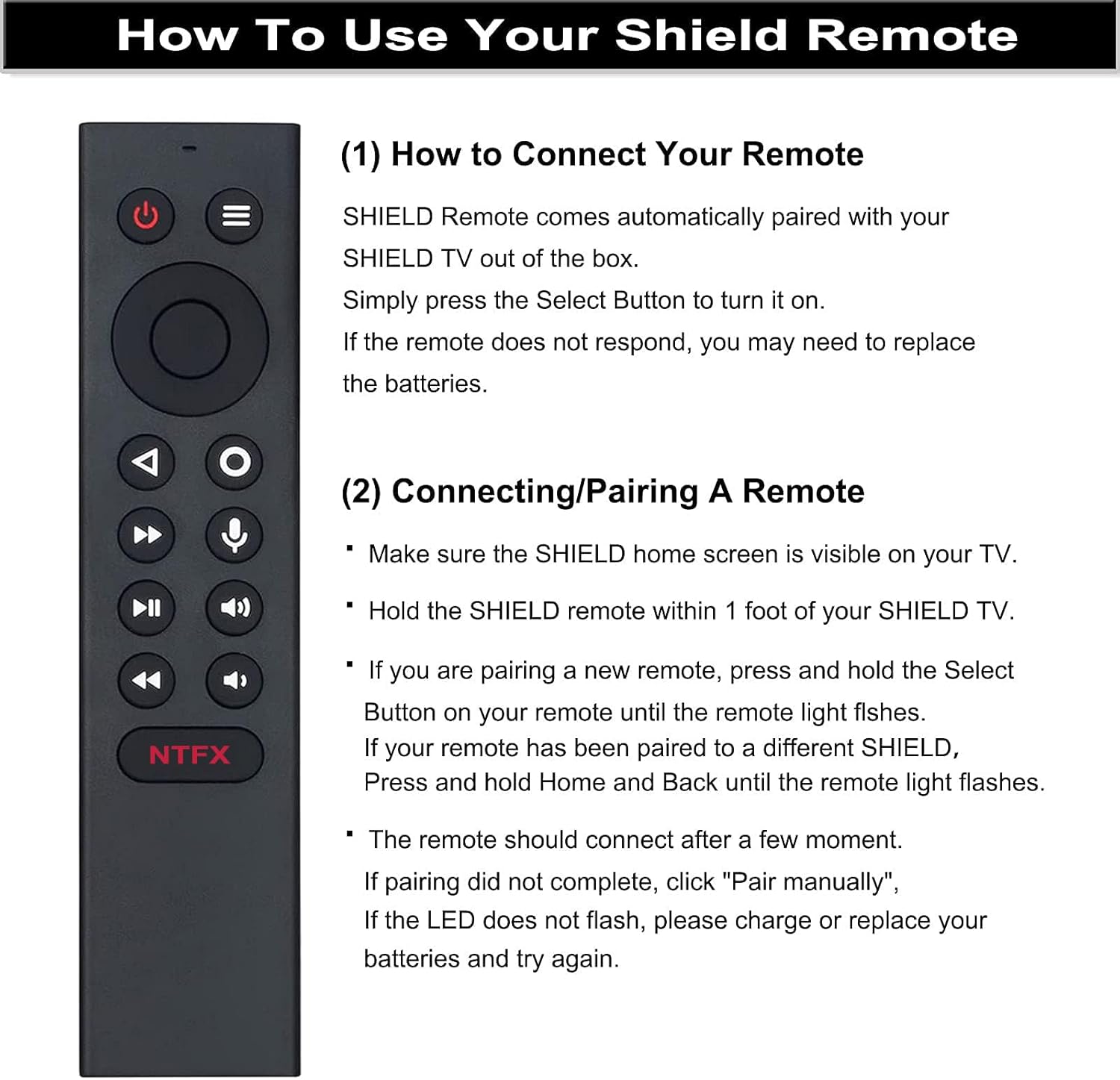
The SHIELD Remote is designed to automatically pair with your SHIELD TV out of the box. Simply press the Select Button to turn it on. If the remote does not respond, you may need to replace the batteries or perform a manual pairing process.
- Ensure the SHIELD home screen is visible on your television.
- Hold the SHIELD remote within 1 foot (approximately 30 cm) of your SHIELD TV.
- If you are pairing a new remote, press and hold the Select Button on your remote until the remote light flashes.
- If your remote has been previously paired to a different SHIELD device, press and hold the Home and Back buttons simultaneously until the remote light flashes.
- The remote should connect after a few moments. If pairing does not complete, select "Pair manually" on your SHIELD TV. If the LED does not flash, replace the batteries and try again.
3. Operating Instructions
3.1 Remote Control Layout and Functions

- Power Button: Turns the device on or off.
- Setting Button: Customizable in Settings > Device & Accessories > Customize Setting Button.
- Navigation Ring: Used for Up, Down, Right, and Left navigation within menus.
- Select Button: Confirms selections.
- Back Button: Returns to the previous screen.
- Home Button: Returns to the SHIELD TV home screen.
- Fast Forward Button: Skips forward in media playback.
- Voice Search Button: Activates the Google Assistant for voice commands.
- Play / Pause Button: Controls media playback.
- Increase Volume Button: Increases audio volume.
- Rewind Button: Skips backward in media playback.
- Decrease Volume Button: Decreases audio volume.
- NTFX Button: Directly opens the Netflix application.
3.2 Voice Function
To utilize the voice function, press the microphone button on the remote. This activates the Google Assistant on your Android TV, allowing you to search for content, control playback, and manage your SHIELD TV hands-free using voice commands.
3.3 Customizable Menu Buttons
The remote features customizable menu buttons, offering over 25 choices for personalized control. You can configure these buttons to launch your favorite applications, enable AI upscaling, mute sound, or perform other functions. Different actions can be assigned to a single press, double press, or long press of the customizable button.
3.4 Location Function
To quickly locate your remote if it is misplaced, you can activate the remote locator feature via the SHIELD remote application on your NVIDIA SHIELD device. This function helps prevent losing your remote control.
4. Maintenance
4.1 Cleaning
To clean the remote control, use a soft, dry cloth. For stubborn dirt, lightly dampen the cloth with water or a mild, non-abrasive cleaner. Avoid using harsh chemicals, solvents, or abrasive materials, as these can damage the remote's surface or internal components.
4.2 Battery Replacement
When the remote's performance degrades or the LED indicator does not flash during pairing attempts, it is likely time to replace the batteries. Always use two new AAA batteries and ensure they are inserted with the correct polarity. Dispose of old batteries responsibly according to local regulations.
5. Troubleshooting
5.1 Remote Not Responding
- Check Batteries: Ensure batteries are correctly installed and have sufficient charge. Replace with new AAA batteries if necessary.
- Re-pair Remote: Follow the pairing instructions in Section 2.2 to re-establish the connection with your SHIELD TV.
- Proximity: Ensure the remote is within 1 foot of your SHIELD TV during pairing.
5.2 Voice Function Not Working
- Microphone Button: Ensure you are pressing the dedicated microphone button for voice commands.
- SHIELD Experience Update: Verify that your NVIDIA SHIELD device is updated to the latest SHIELD Experience software, as this is required for full voice functionality.
- Internet Connection: Voice commands often require an active internet connection for processing.
5.3 Customizable Buttons Not Functioning
- Check Settings: Navigate to Settings > Device & Accessories > Customize Setting Button on your SHIELD TV to ensure the buttons are correctly configured.
- SHIELD Experience Update: Ensure your SHIELD device is running the latest software for optimal customization options.
6. Specifications
| Brand | ALLIMITY |
| Model Name | P3700 |
| Model Number | P3700 |
| Connectivity Technology | Infrared |
| Compatible Devices | NVIDIA SHIELD Android TV, NVIDIA SHIELD Android TV Pro, NVIDIA SHIELD TV (2015, 2017, 2019 models) |
| Maximum Range | 10 Meters |
| Battery Type | 2 AAA batteries (required) |
| Button Quantity | 16 |
| Item Weight | 1 Ounce |
| Item Dimensions (Length x Width) | 6.1 inches (15.5 cm) x 1.38 inches (3.5 cm) |

7. Warranty Information
The ALLIMITY P3700 Replacement Voice Remote comes with a 90-day warranty from the date of purchase. This warranty covers manufacturing defects and malfunctions under normal use. Please retain your proof of purchase for warranty claims. For further details or to initiate a warranty claim, please contact customer support.
8. Customer Support
If you encounter any issues with your ALLIMITY P3700 remote control or require assistance, please do not hesitate to contact our after-sale customer service. Our support team is available to help resolve any problems you may experience with the product.
Please refer to your purchase documentation or the seller's contact information for the most direct way to reach customer support.