
1. Introduction
This manual provides detailed instructions for the installation, operation, and maintenance of your AWESAFE Android 10.0 Car Radio. Please read this manual thoroughly before using the product to ensure proper function and safety. Keep this manual for future reference.
2. Safety Information
- Professional Installation Recommended: Due to the complexity of car electrical systems, professional installation is highly recommended to prevent damage to the unit or your vehicle.
- Vehicle Compatibility: Ensure this unit is compatible with your Nissan Qashqai J10 (2006-2013) before installation. Incorrect fitment may cause issues.
- Power Supply: Connect the unit only to a 12V DC power supply with a negative ground.
- Avoid Distractions: Do not operate the unit or view videos while driving, as this can lead to accidents.
- Temperature: Avoid exposing the unit to extreme temperatures or direct sunlight for prolonged periods.
3. Product Overview
The AWESAFE Android 10.0 Car Radio features a 9-inch touchscreen display and is designed to integrate seamlessly into Nissan Qashqai J10 models from 2006 to 2013. It offers advanced connectivity and entertainment options.
Key Features:
- Android 10.0 Operating System
- 9-inch Capacitive Touchscreen
- 2GB RAM + 32GB Internal Storage
- Integrated WiFi and GPS Navigation
- Bluetooth for Hands-Free Calling and Audio Streaming
- DSP (Digital Signal Processor) for enhanced audio
- RDS (Radio Data System) for FM/AM Radio
- USB Connectivity
- Support for MirrorLink, Wireless CarPlay, and Android Auto
- Steering Wheel Control Compatibility
- Parking Assistance (requires optional rear camera)

Image 3.1: Overview of the AWESAFE 9-inch car radio and its main functionalities including 2GB+32GB memory, Android 10.0, GPS, FM/AM/RDS, parking assistance, CarPlay/Android Auto, Bluetooth, USB, WiFi, and steering wheel controls.
4. Installation
This section provides general guidelines for installing your AWESAFE car radio. For specific wiring diagrams and detailed steps, refer to the separate installation guide provided with your unit or consult a professional installer.
4.1 Compatibility Check
Ensure your vehicle is a Nissan Qashqai J10 manufactured between 2006 and 2013. The unit is designed to fit the dashboard of these specific models.

Image 4.1: Visual representation of the car radio installed in a Nissan Qashqai J10 dashboard, showing the fitment.
4.2 Pre-Installation and Post-Installation View
The images below illustrate the appearance of the dashboard before and after the installation of the AWESAFE car radio.

Image 4.2: A split image showing the original car radio in a Nissan Qashqai J10 dashboard (Before installation) and the new AWESAFE Android 10.0 unit installed (After installation).
4.3 General Installation Steps (Summary):
- Disconnect Battery: Before starting, disconnect the vehicle's negative battery terminal to prevent electrical shorts.
- Remove Old Unit: Carefully remove the existing car radio and dashboard trim.
- Connect Wiring Harness: Connect the provided wiring harness to the vehicle's factory harness. Ensure all connections are secure.
- Connect Antennas: Attach the GPS antenna, WiFi antenna, and radio antenna. Position the GPS antenna in a location with a clear view of the sky.
- Install New Unit: Mount the AWESAFE car radio into the dashboard opening.
- Reconnect Battery: Reconnect the vehicle's battery and test the unit.
- Reassemble: Reinstall any removed trim pieces.
5. Operating Instructions
5.1 Power On/Off
- Power On: Turn on your vehicle's ignition. The unit should power on automatically. If not, press the power button on the unit.
- Power Off: Turn off your vehicle's ignition. The unit will power off automatically.
5.2 Touchscreen Interface
The unit features a responsive 9-inch touchscreen. Navigate through menus and applications by tapping, swiping, and pinching gestures, similar to a smartphone or tablet.
5.3 Initial Setup
- Language: Select your preferred language from the settings menu.
- Date and Time: Set the correct date and time. This can often be synchronized automatically via GPS or network connection.
- WiFi Connection: Connect to an available WiFi network to enable online features and software updates.
6. Key Features and Functions
6.1 GPS Navigation
The unit comes with built-in GPS navigation and pre-installed European maps. It supports both online and offline navigation applications.

Image 6.1: The GPS navigation interface displaying a map, with options to explore nearby, commute, save locations, and check for updates.
6.2 Bluetooth Connectivity
Connect your smartphone via Bluetooth for hands-free calling and wireless audio streaming.
- Pairing: Go to the Bluetooth settings on the unit and your phone. Search for available devices and select the car radio. Confirm the pairing code if prompted.
- Hands-Free Calling: Make and receive calls directly from the car radio screen.
- Audio Streaming: Play music from your phone through the car's speakers.

Image 6.2: The Bluetooth interface on the car radio screen, showing a dial pad and call options, alongside icons for WiFi and Bluetooth connectivity.
6.3 WiFi / WLAN
Connect the car radio to a WiFi hotspot (e.g., from your smartphone or a dedicated car hotspot) to access online services, stream media, and download apps.
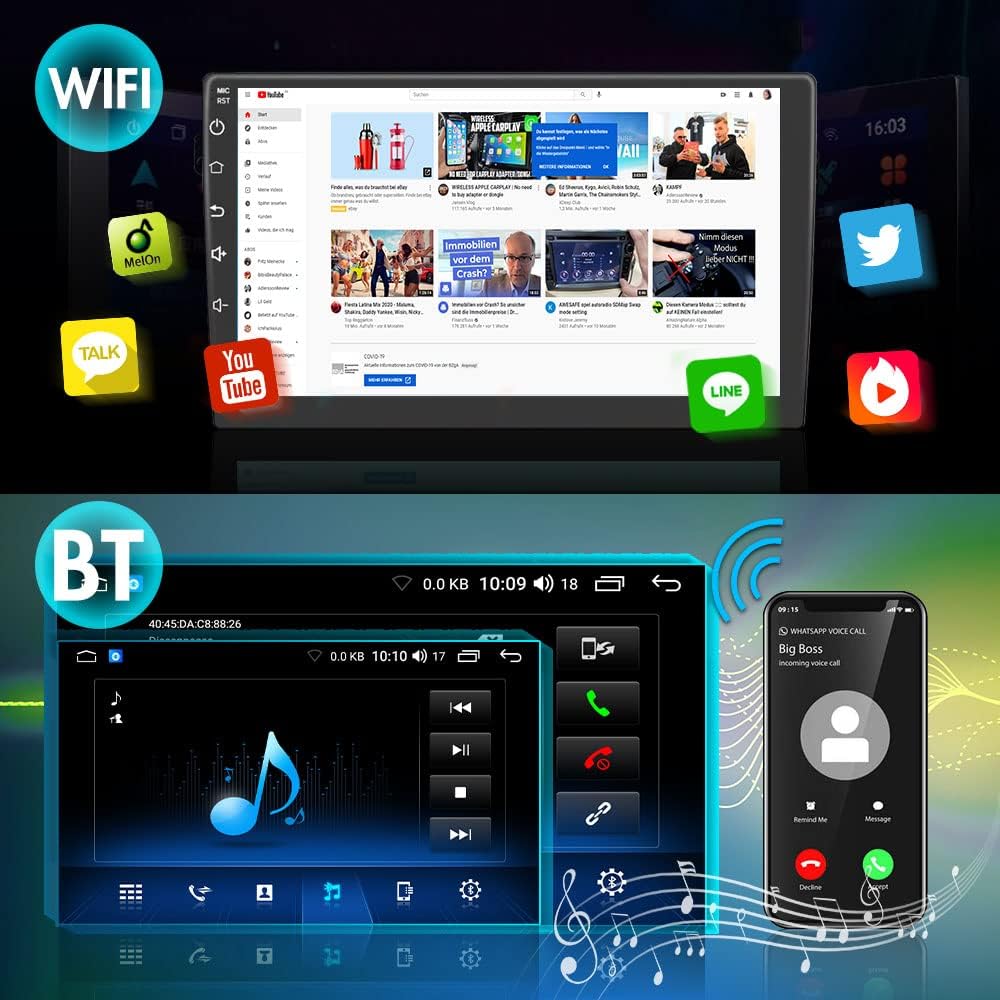
Image 6.3: The car radio display showing a web browser and various application icons, demonstrating WiFi connectivity for online content.
6.4 MirrorLink
MirrorLink allows you to display your smartphone's screen directly onto the car radio's display, enabling access to compatible apps and content.

Image 6.4: An illustration of the MirrorLink function, where a smartphone's display is duplicated on the car radio screen, showing a football match.
6.5 Wireless CarPlay and Android Auto
Enjoy seamless integration with your iPhone or Android device using Wireless CarPlay and Android Auto. These features support voice control (SIRI), real-time navigation, online music applications, phone calls, and screen mirroring.
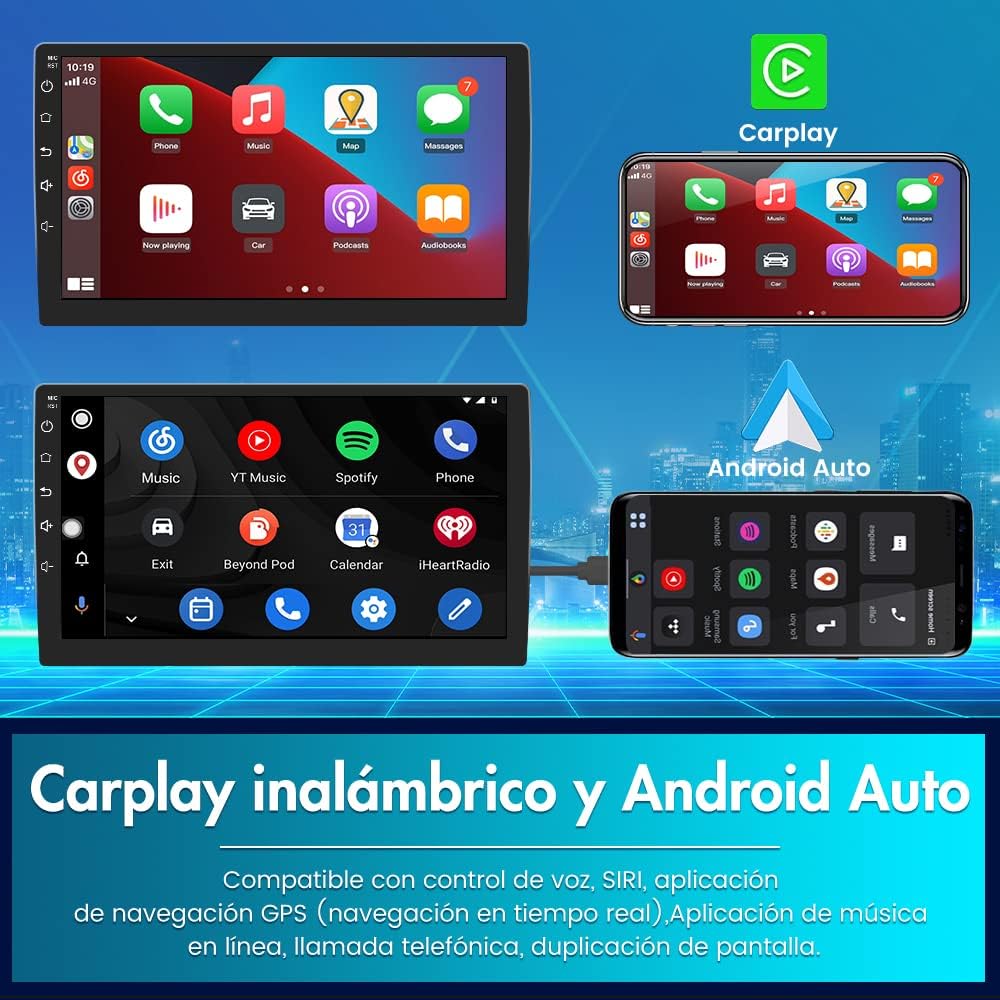
Image 6.5: Displays of both CarPlay and Android Auto interfaces on the car radio screen, along with a smartphone showing its mirrored content.
6.6 Steering Wheel Controls
The unit supports input from your vehicle's steering wheel controls, allowing you to manage the car radio's functions (e.g., volume, track change, answer/end calls) without taking your hands off the wheel.

Image 6.6: An illustration showing a vehicle's steering wheel with highlighted control buttons and their corresponding functions on the car radio display, such as call, hang up, previous track, next track, volume up, and volume down.
6.7 Parking Assistance
When a compatible rear camera (not included) is connected via an RCA connector, the unit will automatically display parking assistance lines on the screen when the vehicle is in reverse gear.

Image 6.7: The car radio screen showing a rear camera view of a parking garage with dynamic parking assistance lines overlaid.
6.8 DSP (Digital Signal Processor) and Multimedia
The integrated DSP allows for advanced audio customization, including equalizer settings, to optimize your listening experience. The unit supports various multimedia formats for audio and video playback.

Image 6.8: The car radio display showing an equalizer interface with various frequency bands and controls for sound adjustment, indicating DSP functionality.
7. Troubleshooting
If you encounter issues with your AWESAFE car radio, refer to the following common problems and solutions:
| Problem | Possible Cause | Solution |
|---|---|---|
| Unit does not power on. | Incorrect wiring; Blown fuse; Vehicle battery issue. | Check power connections and fuses. Ensure vehicle battery is charged. Consult a professional if unsure. |
| No sound. | Speaker wires disconnected; Volume too low; Mute activated. | Check speaker connections. Increase volume. Deactivate mute function. |
| GPS signal lost or inaccurate. | GPS antenna obstructed or improperly placed. | Ensure GPS antenna has a clear view of the sky. Check antenna connection. |
| Bluetooth connection issues. | Device not in pairing mode; Interference; Incorrect pairing process. | Ensure both devices are in pairing mode. Delete previous pairings and try again. Move closer to the unit. |
| Steering wheel controls not working. | Incorrect wiring; Not configured in settings. | Verify wiring connections for steering wheel controls. Access the unit's settings to configure the controls. |
| Clock shows incorrect time. | Time zone incorrect; GPS time sync off. | Adjust time zone settings. Ensure GPS is active for automatic time synchronization. |
If the problem persists after attempting these solutions, please contact AWESAFE customer support for further assistance.
8. Specifications
Technical specifications for the AWESAFE Android 10.0 Car Radio (Model B098L4YB1C):
- Brand: AWESAFE
- Operating System: Android 10.0
- Memory: 2GB RAM + 32GB Internal Storage
- Screen Size: 9 Inches
- Connectivity Technology: Bluetooth, USB, WiFi
- Control Method: Touch
- Compatible Devices: Smartphone
- Vehicle Service Type: Car (Nissan Qashqai J10 2006-2013)
- Mapping Type: Europe (Pre-installed)
- Package Dimensions: 48.9 x 27.4 x 19.9 cm
- Item Weight: 2.46 kg
- ASIN: B098L4YB1C
- UPC: 792119548985
9. Maintenance
9.1 Cleaning the Screen
To clean the touchscreen, gently wipe it with a soft, lint-free cloth. For stubborn smudges, slightly dampen the cloth with water or a screen-safe cleaner. Avoid harsh chemicals or abrasive materials.
9.2 Software Updates
Periodically check for software updates via the unit's settings menu when connected to WiFi. Updates can improve performance, add new features, and fix bugs.
9.3 General Care
- Avoid spilling liquids on the unit.
- Do not expose the unit to extreme heat or cold.
- Protect the screen from sharp objects to prevent scratches.
10. Warranty and Support
AWESAFE products are designed for quality and reliability. For warranty information, please refer to the warranty card included with your product or visit the official AWESAFE website. For technical support or assistance with any issues not covered in this manual, please contact AWESAFE customer service.


