
1. Introduction
This manual provides essential information for setting up, operating, maintaining, and troubleshooting your Lenovo ThinkPad P15s Gen 2 laptop. Please read these instructions carefully to ensure proper use and to maximize the performance and longevity of your device.
2. Product Overview
The Lenovo ThinkPad P15s Gen 2 is a high-performance mobile workstation designed for professionals. It features a 15.6-inch Full HD display, an Intel Core i7-1165G7 processor, 16GB of RAM, a 512GB SSD, and NVIDIA Quadro T500 dedicated graphics. Key features include a backlit keyboard, fingerprint reader, and a robust set of connectivity options.

Figure 1: The Lenovo ThinkPad P15s Gen 2 laptop in its closed state, showcasing its sleek black design and the ThinkPad logo on the lid.
3. Setup
3.1 Unpacking and Initial Inspection
Carefully remove all components from the packaging. Verify that all items listed in the 'What's in the Box' section are present and undamaged. If any items are missing or damaged, contact your vendor immediately.
3.2 Connecting the Power Adapter
- Connect the power adapter to the power connector on your laptop.
- Plug the power cord into an electrical outlet.
- Allow the battery to charge fully before initial use.
3.3 First Power On
- Open the laptop lid.
- Press the power button, typically located above the keyboard or on the side.
- Follow the on-screen instructions to complete the Windows 10 Pro setup process. This includes setting up your user account, network connection, and initial preferences.
4. Operating Instructions
4.1 Keyboard and Touchpad
The laptop features a full-sized backlit keyboard for comfortable typing in various lighting conditions. The integrated touchpad supports multi-touch gestures for navigation. A TrackPoint is also provided for precise cursor control.

Figure 2: The Lenovo ThinkPad P15s Gen 2 laptop opened, displaying its full-sized backlit keyboard, TrackPoint, touchpad, and the 15.6-inch display.
4.2 Fingerprint Reader
For enhanced security, your ThinkPad P15s Gen 2 includes a fingerprint reader. To set it up:
- Navigate to Windows Settings > Accounts > Sign-in options.
- Under 'Windows Hello Fingerprint', click 'Set up' and follow the on-screen prompts to register your fingerprints.
4.3 Connecting External Devices
Your laptop is equipped with various ports for connecting peripherals:
- USB Ports: Multiple USB-A and USB-C ports are available for connecting external storage, mice, keyboards, and other USB devices.
- HDMI Port: Connect an external monitor or projector using the HDMI port for extended display options.
- Audio Jack: A combined headphone/microphone jack allows for audio input and output.
- SD Card Reader: Insert an SD card to transfer files from cameras or other devices.

Figure 3: Left side of the laptop, showing USB-C, USB-A, and HDMI ports.
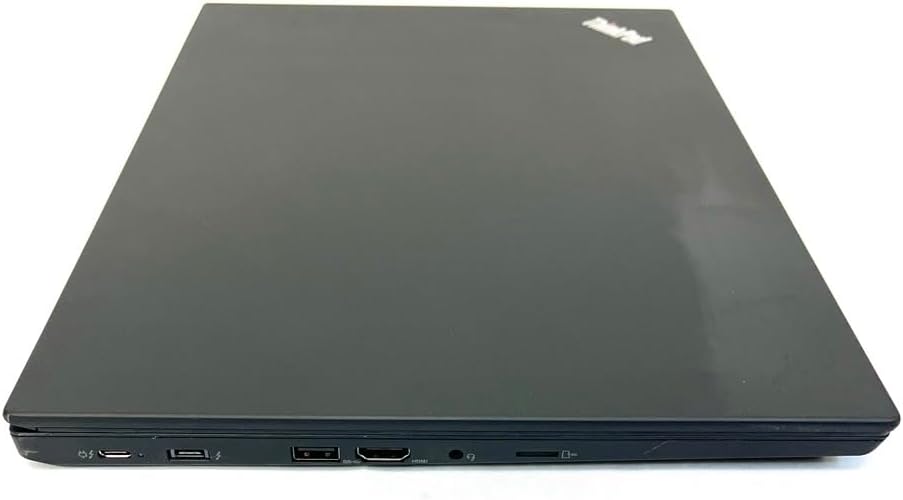
Figure 4: Right side of the laptop, showing USB-A, audio jack, and SD card reader.
5. Maintenance
5.1 Cleaning Your Laptop
- Use a soft, lint-free cloth slightly dampened with water or a screen cleaner to clean the display.
- For the keyboard and chassis, use a soft cloth. Avoid harsh chemicals or abrasive materials.
- Regularly clean the fan vents to prevent dust buildup, which can affect cooling performance.
5.2 Battery Care
- Avoid fully discharging the battery frequently.
- Store the laptop in a cool, dry place when not in use for extended periods.
- If storing for a long time, ensure the battery is charged to about 50-60%.
6. Troubleshooting
6.1 Power Issues
- Laptop does not turn on: Ensure the power adapter is securely connected and the outlet is functional. Try holding the power button for 10-15 seconds to perform a hard reset.
- Battery not charging: Check the power adapter and cable for damage. Ensure the power connector is clean.
6.2 Display Problems
- No display: Connect an external monitor to check if the issue is with the laptop's internal display. Try adjusting screen brightness.
- Flickering screen: Update your graphics drivers. Check for loose display cables if using an external monitor.
6.3 Performance Issues
- Slow performance: Close unnecessary applications. Check Task Manager for processes consuming high CPU or RAM. Ensure sufficient free space on your SSD.
- Overheating: Ensure fan vents are clear of obstructions. Use the laptop on a hard, flat surface to allow for proper airflow.
7. Specifications
| Feature | Detail |
|---|---|
| Brand | Lenovo |
| Model Name | ThinkPad P15s Gen 2 |
| Model Number | 20W6S00300 |
| Screen Size | 15.6 Inches |
| Display Resolution | 1920 x 1080 pixels (FHD) |
| Display Type | IPS, Anti-Glare, 300 nits |
| Processor | Intel Core i7-1165G7 (11th Gen, 2.8 GHz, max 4.7 GHz) |
| RAM Memory | 16 GB DDR4 (1 slot, max 16GB) |
| Hard Disk Size | 512 GB SSD |
| Graphics Coprocessor | NVIDIA® Quadro® T500 4GB GDDR6 |
| Operating System | Windows 10 Pro |
| Special Features | Backlit Keyboard, Fingerprint Recognition |
| Connectivity | Bluetooth, Wi-Fi (802.11ax / Wi-Fi 6) |
| Ports | Multiple USB (Type-A & Type-C), 1x HDMI, Headphone Jack, SD Card Reader |
| Battery Life (Approx.) | 2.85 Hours (57 Wh Lithium-Ion) |
| Item Weight | 3.9 Pounds |
| Dimensions (L x W x Th) | 15" x 10" x 1" |
8. Warranty and Support
Your Lenovo ThinkPad P15s Gen 2 comes with a manufacturer's warranty. For detailed warranty information, including terms and conditions, please refer to the documentation included with your product or visit the official Lenovo support website. For technical assistance, driver downloads, or service requests, please visit www.lenovo.com/support.


