1. Introduction
This manual provides essential information for the safe and efficient use of your Lenovo ThinkPad X1 Yoga Gen 5. Please read this manual thoroughly before using your device to ensure proper setup and operation. Keep this manual for future reference.

Figure 1: Lenovo ThinkPad X1 Yoga Gen 5 in laptop mode.
2. Setup
2.1 Unboxing and Initial Power On
Carefully remove your ThinkPad X1 Yoga Gen 5 and its accessories from the packaging. The box typically includes the laptop, a power adapter, and a stylus.
- Connect the power adapter to the laptop and a power outlet.
- Press the power button to turn on the device.
- Follow the on-screen instructions to complete the initial Windows 10 Pro setup.
2.2 Port Overview
The ThinkPad X1 Yoga Gen 5 features a variety of ports for connectivity.

Figure 2: Left side ports including Thunderbolt and HDMI.
- Left Side: Two Thunderbolt ports (USB-C compatible), one USB-A 3.2 Gen 1 port, and one HDMI 2.0 port.

Figure 3: Right side ports including USB-A and audio jack.
- Right Side: One USB-A 3.2 Gen 1 port and a combined headphone/microphone jack.
3. Operating Your Device
3.1 Convertible Modes
The ThinkPad X1 Yoga Gen 5 is a 2-in-1 convertible laptop, allowing it to be used in various modes:
- Laptop Mode: Standard laptop use with keyboard and touchpad.
- Tent Mode: Ideal for presentations or watching media.
- Stand Mode: Screen facing outwards, keyboard tucked away.
- Tablet Mode: Screen folded back completely for touch-only interaction.
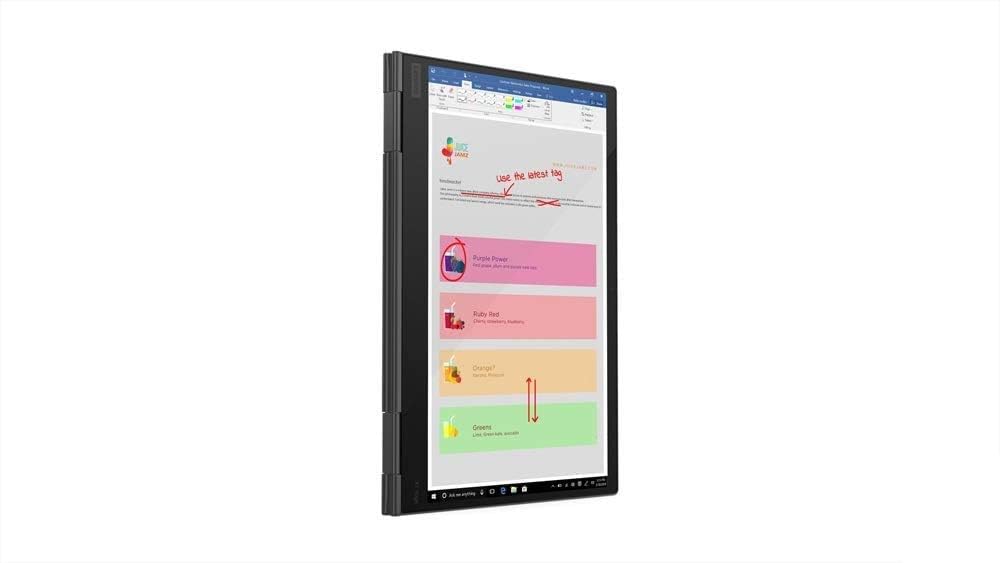
Figure 4: ThinkPad X1 Yoga Gen 5 in tablet mode.
3.2 Touchscreen and PenPro
The 14.0" FHD (1920 x 1080) touchscreen supports multi-touch gestures and input from the included PenPro stylus. The screen features Privacy Guard for enhanced visual security and an IR camera for facial recognition login.
3.3 Keyboard and Fingerprint Reader
The backlit keyboard provides comfortable typing in various lighting conditions. The integrated fingerprint reader allows for secure and quick login.
4. Maintenance
4.1 Cleaning
- Use a soft, lint-free cloth slightly dampened with water or a screen cleaner to clean the display. Avoid harsh chemicals.
- Wipe the keyboard and chassis with a soft, dry cloth.
4.2 Cooling System
The laptop is engineered with dual fans and rear venting to maintain optimal operating temperatures. Ensure that the vents are not obstructed to prevent overheating.

Figure 5: Rear ventilation for cooling.
5. Troubleshooting
If you encounter issues with your ThinkPad X1 Yoga Gen 5, consider the following basic troubleshooting steps:
- No Power: Ensure the power adapter is securely connected and the outlet is functional. Try a different power outlet.
- Display Issues: Restart the laptop. If using an external monitor, check the cable connections.
- Slow Performance: Close unnecessary applications. Check for system updates.
- Touchscreen Unresponsive: Restart the device. Ensure the screen is clean and free of debris.
For more complex issues, refer to the Lenovo support website or contact customer service.
6. Specifications
| Feature | Specification |
|---|---|
| Model Name | Lenovo ThinkPad X1 Yoga Gen 5 |
| Screen Size | 14 Inches |
| Screen Resolution | 1920 x 1080 pixels (FHD) |
| Processor | Intel Core i7-10510U (1.8 GHz) |
| RAM | 16 GB DDR4 |
| Hard Drive | 512 GB SSD (PCIE x 4) |
| Graphics Coprocessor | Intel UHD Graphics (Integrated) |
| Operating System | Windows 10 Pro |
| Special Features | Backlit Keyboard, Fingerprint Reader, Touchscreen, Privacy Guard |
| Wireless Type | Bluetooth |
| Item Weight | 3.24 pounds |
| Color | Black |
| Ports | 2x Thunderbolt, 2x USB-A 3.2 Gen 1, 1x HDMI 2.0, 1x Audio Jack |
7. Warranty and Support
7.1 Warranty Information
For detailed warranty information, please refer to the documentation included with your product or visit the official Lenovo support website. Optional protection plans may be available for extended coverage.
7.2 Customer Support
If you require further assistance or have questions not covered in this manual, please visit the official Lenovo support website or contact their customer service. You can find contact details and resources at www.lenovo.com/support.


