
1. Introduction
The WiMiUS W1 5G WiFi Bluetooth Projector is designed to provide a high-quality visual experience with its native 1080P resolution and 400 ANSI lumens brightness. This manual provides essential information for setting up, operating, and maintaining your projector to ensure optimal performance and longevity.

Figure 1: WiMiUS W1 Projector with included carrying case and a smartphone demonstrating wireless connectivity.
2. What's in the Box
Verify that all items listed below are included in your package:
- WiMiUS W1 Projector
- Remote Control
- Power Cable
- HDMI Cable
- AV Cable
- User Manual
- Carrying Case
- Projection Screen (100-inch) with mounting accessories

Figure 2: Included accessories for the WiMiUS W1 Projector.
3. Product Overview
The WiMiUS W1 projector features a compact design with intuitive controls and multiple connectivity options.
3.1 Front and Top Panel
Figure 3: Front view showing the projection lens and top panel with control buttons.
- Projection Lens: Emits the image onto the screen or wall.
- Focus Adjustment Wheel: Manually adjust for a clear image.
- Keystone Correction Wheel: Manually adjust image shape.
- Control Buttons: Power, navigation (up/down/left/right), OK/Enter, Menu, Source selection.
3.2 Rear and Side Panels

Figure 4: Rear panel displaying various input/output ports.
- HDMI 1 & HDMI 2 Ports: Connect to devices like laptops, TV boxes, gaming consoles, or streaming sticks.
- USB Ports: Connect USB drives for direct media playback or power external devices.
- Audio Out (3.5mm Jack): Connect external speakers or headphones.
- AV Port: Connect older devices using the provided AV cable.
- Power Input: Connect the power cable here.
- Ventilation Grilles: Ensure these are not blocked for proper heat dissipation.
4. Setup
4.1 Initial Power On
- Connect the power cable to the projector's power input and then to a power outlet.
- Press the power button on the projector's top panel or the remote control to turn on the device.
- The projector will display the WiMiUS logo and then proceed to the main menu.
4.2 Image Placement and Adjustment
Position the projector on a stable surface or mount it to project the image onto a flat wall or screen. The optimal projection distance varies based on desired screen size.

Figure 5: Recommended projection distances for different screen sizes (e.g., 70" at 6-7ft, 100" at 9-10ft, 120" at 11-12ft, 200" at 20-22ft).
- Focus: Rotate the focus adjustment wheel near the lens until the image appears sharp and clear.
- Keystone Correction: If the image appears trapezoidal, use the keystone correction wheel to adjust it until it forms a perfect rectangle. The projector supports 4D ±50° V/H Digital Keystone correction for crisper images.
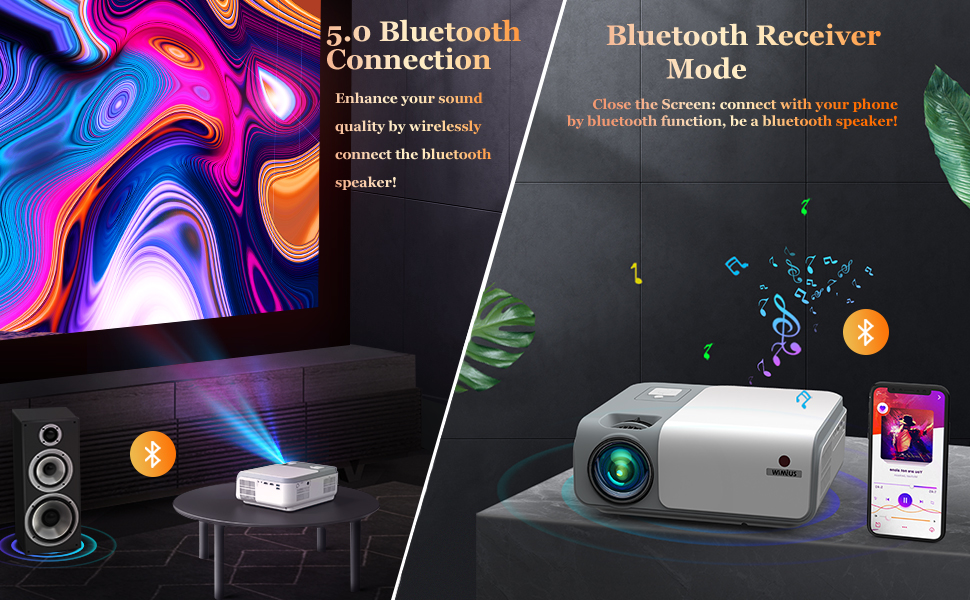
Figure 6: Visual representation of 4D keystone correction, showing how a distorted image is corrected.
5. Operating Instructions
5.1 Connecting Devices
The projector offers multiple ways to connect your devices:
- HDMI: Connect to devices like laptops, PC, TV Box, Xbox/PS3/PS4, or streaming sticks to the HDMI 1 or HDMI 2 ports.
- USB: Insert a USB drive for direct media playback.
- AV: Use the provided AV cable to connect older devices.
- Bluetooth: Connect external Bluetooth speakers for enhanced audio. The projector can also function as a Bluetooth speaker itself.
- Wireless Screen Mirroring (5G WiFi):
- iOS Cast: Mirror your iPhone or iPad screen.
- Miracast: Mirror Android devices or Windows 10 laptops.
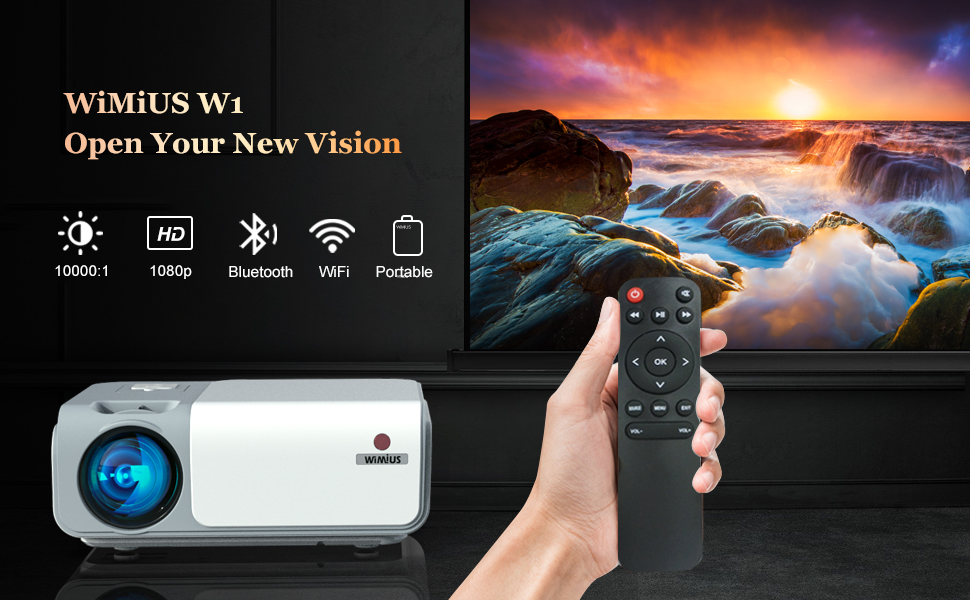
Figure 7: Wireless screen mirroring options including Airplay and Miracast.
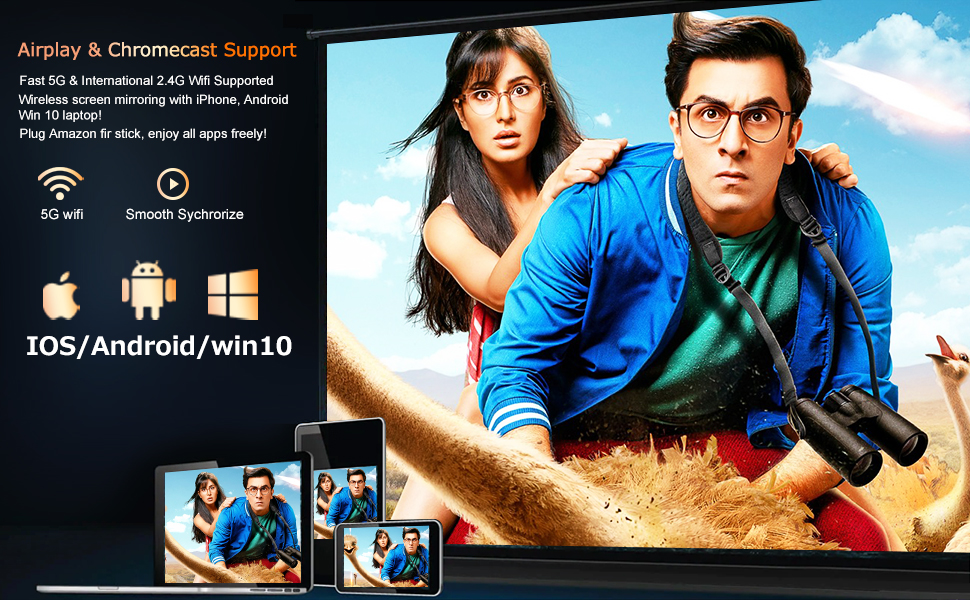
Figure 8: Bluetooth connectivity for external speakers and the projector's Bluetooth receiver mode.
5.2 Menu Navigation
Use the remote control or the top panel buttons to navigate the projector's menu. The main menu provides access to Movies, Music, Photos, Settings, and other features.
- Picture Mode: Adjust brightness, contrast, color, tint, and sharpness.
- Sound Mode: Select audio presets (e.g., Standard, Dynamic).
- Projection Zoom: Adjust the image size from 100% down to 50% without moving the projector.
- Projection Mode: Change settings for front, rear, ceiling, or desktop projection.
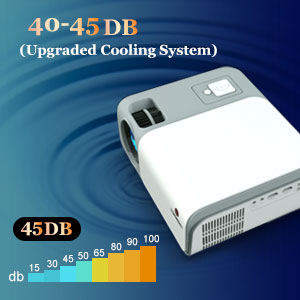
Figure 9: The zoom function allows for image size adjustment.
6. Maintenance
- Lens Cleaning: Use a soft, lint-free cloth to gently clean the projector lens. Avoid abrasive materials.
- Ventilation: Ensure the ventilation grilles are clear of obstructions to prevent overheating. The projector features an upgraded cooling system for optimal performance and reduced noise (40-45dB).
- Storage: When not in use, store the projector in its carrying case in a cool, dry place.
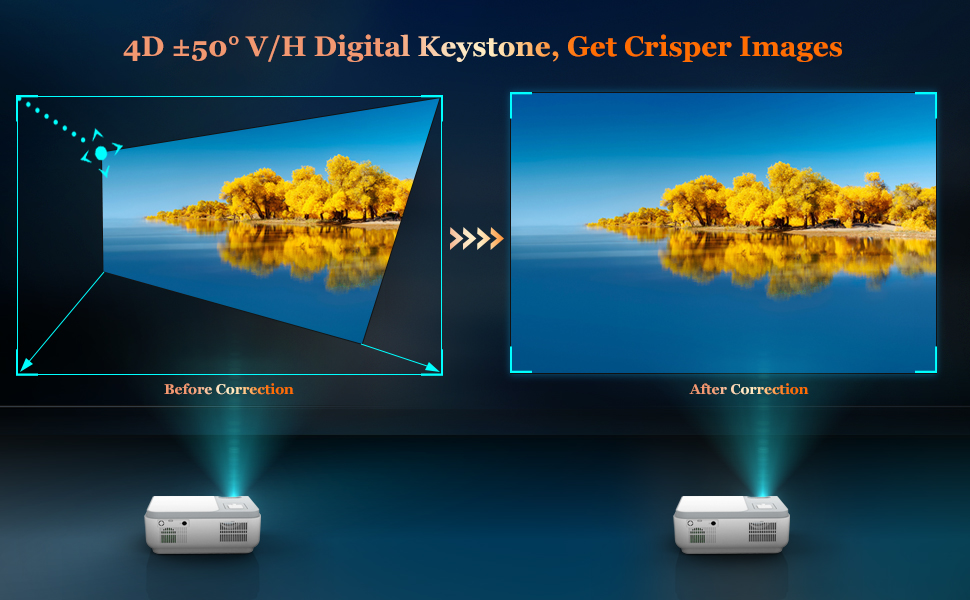
Figure 10: The projector's upgraded cooling system ensures quiet operation.
7. Troubleshooting
- No Image/Blurry Image:
- Check power connection and ensure the projector is on.
- Adjust focus and keystone correction wheels.
- Ensure the lens cap is removed.
- Verify the input source is correctly selected.
- No Sound/Low Sound:
- Adjust the volume on the projector and your connected device.
- Check audio cable connections (if using AV or external speakers).
- Ensure Bluetooth speakers are correctly paired if used.
- Wireless Mirroring Issues:
- Ensure both the projector and your device are connected to the same Wi-Fi network.
- Some streaming services may block mirroring due to copyright protection.
8. Specifications
| Feature | Detail |
|---|---|
| Brand | WiMiUS |
| Model Number | W1 |
| Display Type | LCD |
| Display Resolution Maximum | 1920 x 1080 (Native 1080P) |
| Brightness | 400 ANSI Lumens |
| Connectivity Technology | Bluetooth, USB, HDMI, AV, 5G WiFi |
| Keystone Correction | 4D ±50° V/H Digital Keystone |
| Zoom Function | 50% |
| Noise Level | 40-45dB (Upgraded Cooling System) |
| Item Weight | 6.03 pounds |
| Package Dimensions | 14.21 x 10.71 x 5.63 inches |
9. Warranty & Support
For warranty information or technical support, please refer to the contact details provided in your user manual or visit the official WiMiUS website.
10. Official Product Videos
Awesome experience and very much impressed with the quality
Video Description: A user demonstrates the projector's quality and expresses satisfaction with the product.
More user friendly, good picture quality and better sound options!
Video Description: A user highlights the projector's user-friendly interface, good picture quality, and improved sound options.
Outstanding budget projector that exceeds the competition
Video Description: A user reviews the projector, praising its performance as an outstanding budget option.
Impressive for the price
Video Description: A short clip showcasing the projector's performance, deemed impressive for its cost.
Image quality and fan noise demo.
Video Description: A demonstration of the projector's image quality and the level of fan noise during operation.
Wonderful Budget Projector
Video Description: A user review praising the projector as a wonderful budget-friendly option.
A good project for family use
Video Description: A short video highlighting the projector's suitability for family entertainment.
Very great projector!!
Video Description: A brief clip showcasing the projector's features and performance, with positive user feedback.


