
1. Introduction
Thank you for purchasing the Ledwood Drop 400 Wireless LED Speaker. This manual provides essential information for setting up, operating, and maintaining your speaker. Please read it carefully before use to ensure proper functionality and to maximize your listening experience.
2. Safety Information
- Do not expose the speaker to water, moisture, or extreme temperatures.
- Avoid dropping or subjecting the speaker to strong impacts.
- Do not attempt to disassemble or repair the speaker yourself. Contact qualified service personnel.
- Keep the speaker away from heat sources and direct sunlight.
- Use only the provided power adapter for charging.
- Clean the speaker with a soft, dry cloth. Do not use abrasive cleaners.
3. Package Contents
Please check that all items are present in the package:
- 1 x Ledwood Drop 400 Wireless LED Speaker
- 1 x Power Adapter
- 1 x 3.5mm AUX Input Cable
- 1 x Remote Control
- 1 x Wired Microphone
- 1 x User Manual (this document)
4. Product Overview
The Ledwood Drop 400 is a powerful wireless speaker featuring dynamic LED lighting and multiple connectivity options.
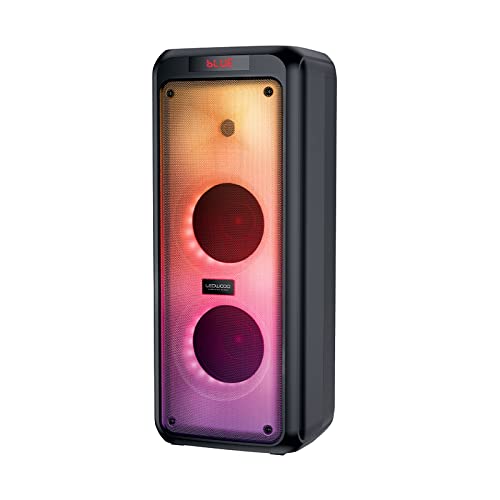
Figure 4.1: Front view of the Ledwood Drop 400 speaker, showcasing its LED light panel.
Control Panel and Ports

Figure 4.2: Top control panel with input ports and function buttons.
The top panel includes controls for power, volume, mode selection, playback, and inputs for USB, SD card, AUX, and two microphones. A digital display indicates the current mode or status.
5. Setup
5.1 Charging the Speaker
- Connect the provided power adapter to the DC IN port on the speaker.
- Plug the adapter into a standard wall outlet.
- The charging indicator will illuminate. The speaker is fully charged when the indicator changes color or turns off (refer to the speaker's display for specific indications).
- A full charge provides approximately 6 hours of playback time.
5.2 Powering On/Off
- To power on, press and hold the Power button on the control panel or remote control.
- To power off, press and hold the Power button again.
6. Operating Instructions
6.1 Bluetooth Pairing
- Power on the Ledwood Drop 400 speaker. It will automatically enter Bluetooth pairing mode, indicated by a flashing 'BLUE' on the display and an audible prompt.
- Enable Bluetooth on your smartphone, tablet, or other Bluetooth-enabled device.
- Search for available devices and select "Ledwood Drop 400" from the list.
- Once connected, the speaker will provide an audible confirmation, and 'BLUE' on the display will stop flashing.
- You can now play audio from your device through the speaker.
6.2 USB/SD Card Playback
- Insert a USB flash drive or an SD card (pre-loaded with MP3 audio files) into the respective port on the speaker's control panel.
- The speaker will automatically switch to USB or SD card mode and begin playing the audio files.
- Use the Play/Pause, Next Track, and Previous Track buttons on the speaker or remote control to manage playback.
6.3 AUX Input
- Connect one end of the supplied 3.5mm AUX cable to the AUX IN port on the speaker.
- Connect the other end to the headphone jack or audio output of your external audio device.
- Press the Mode button on the speaker or remote control until 'AUX' is displayed.
- Play audio from your external device. Volume can be controlled via both the speaker and the external device.
6.4 FM Radio
- Press the Mode button on the speaker or remote control until 'FM' is displayed.
- To auto-scan and save available FM stations, press and hold the Play/Pause button. The speaker will scan and store stations automatically.
- Use the Next Track and Previous Track buttons to navigate through the saved stations.
6.5 Microphone Use
- Connect the wired microphone (or another compatible microphone) to one of the MIC IN ports on the speaker.
- Adjust the microphone volume using the dedicated MIC VOL knob on the control panel.
- The microphone can be used in any audio mode (Bluetooth, USB, SD, AUX, FM).
6.6 LED Light Modes
The Ledwood Drop 400 features dynamic LED lighting with 4 different modes.
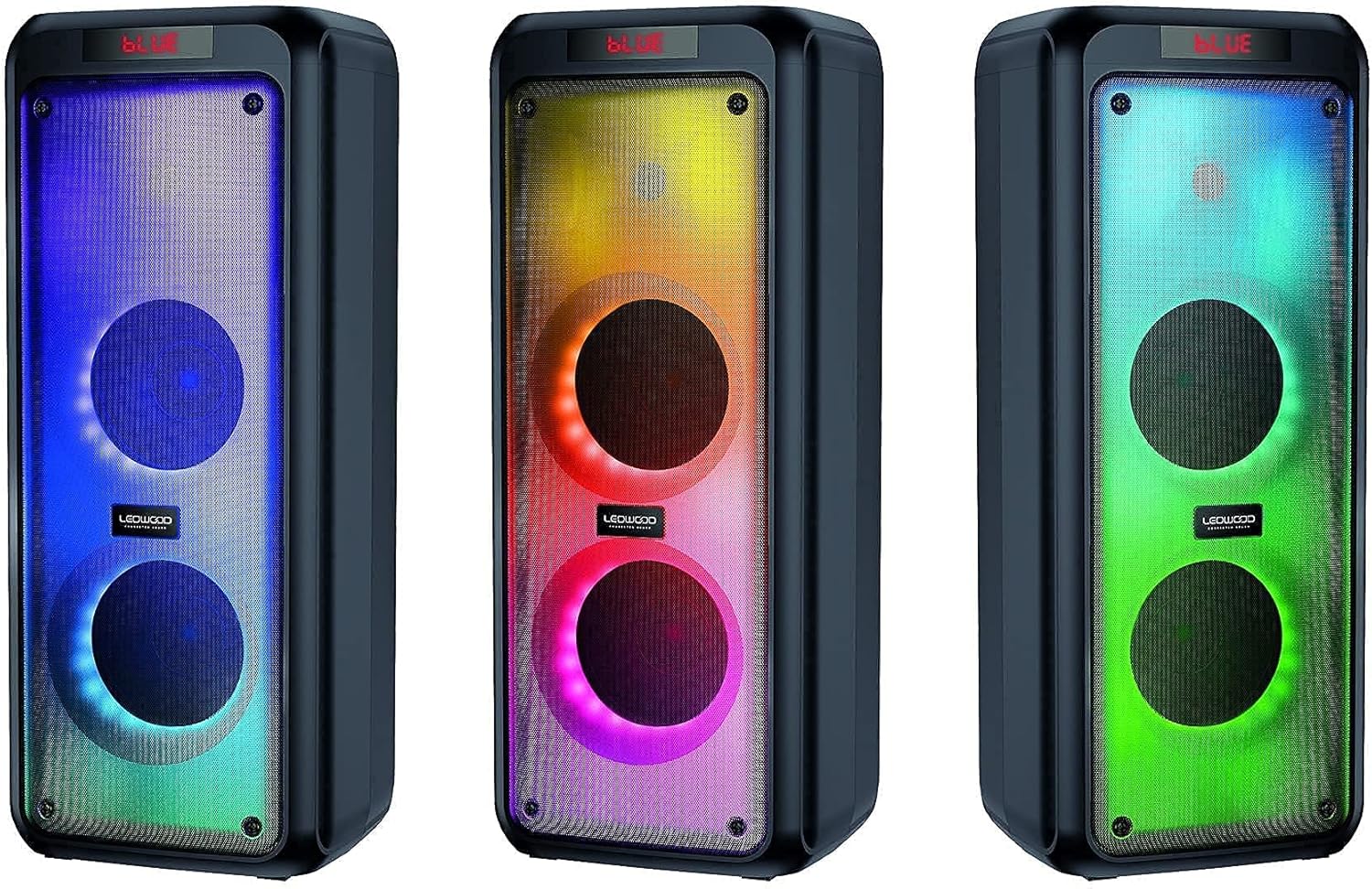
Figure 6.1: Examples of the speaker's LED light modes.
- Press the LED button on the control panel or remote control to cycle through the available light modes.
- Press the LED button again to turn off the lights.
6.7 True Wireless Stereo (TWS) Function
The TWS function allows you to pair two Ledwood Drop 400 speakers together for a stereo sound experience.
- Ensure both Ledwood Drop 400 speakers are powered on and in Bluetooth mode, but not connected to any device.
- On one of the speakers (this will be the primary speaker), press and hold the TWS button (if available) or a designated pairing button (refer to specific button labels on your speaker).
- The primary speaker will search for the secondary speaker. Once connected, both speakers will emit an audible confirmation.
- Now, connect your Bluetooth device to the primary speaker as described in section 6.1. Audio will play in stereo through both speakers.
7. Maintenance
7.1 Cleaning
- Always power off and unplug the speaker before cleaning.
- Use a soft, dry, lint-free cloth to wipe the exterior surfaces.
- Do not use liquid cleaners, aerosols, or solvents.
7.2 Storage
- Store the speaker in a cool, dry place away from direct sunlight and extreme temperatures.
- If storing for an extended period, charge the battery periodically (e.g., every 3 months) to maintain battery health.
8. Troubleshooting
| Problem | Possible Cause | Solution |
|---|---|---|
| Speaker does not power on. | Battery is depleted. Power adapter not connected. | Charge the speaker using the provided power adapter. Ensure the adapter is securely connected to both the speaker and a working power outlet. |
| No sound from speaker. | Volume too low. Incorrect mode selected. Device not connected. | Increase speaker volume and source device volume. Ensure the correct input mode (Bluetooth, AUX, USB, SD, FM) is selected. Re-pair Bluetooth device or check cable connections. |
| Bluetooth device cannot connect. | Speaker not in pairing mode. Device too far. Interference. | Ensure speaker is in Bluetooth pairing mode (flashing 'BLUE'). Move device closer to the speaker. Turn off other Bluetooth devices to reduce interference. Try restarting both devices. |
| FM radio reception is poor. | Weak signal. Speaker position. | Reposition the speaker to improve reception. Extend any external antenna if available. |
| Microphone not working. | Microphone not connected properly. MIC VOL too low. | Ensure microphone is fully inserted into the MIC IN port. Increase the MIC VOL knob. |
9. Specifications
- Brand: Ledwood
- Model: Drop 400
- Connectivity Technology: Bluetooth, USB
- Special Features: FM Radio, LED Light Effects
- Recommended Uses: For computer, For smartphone or tablet
- Compatible Devices: Laptop, Smartphone
- Color: Black
- Control Method: Remote Control
- Power Source: Electric Cable
- Average Battery Life: 6 hours
- Power Output: 400W (40W RMS)
- Dimensions: 24 x 25 x 64 cm (approximately)
- ASIN: B0972SSC4J
10. Warranty and Support
For warranty information or technical support, please refer to the warranty card included with your product or contact Ledwood customer service directly. Contact details can typically be found on the official Ledwood website or on the product packaging.


