
Introduction
This manual provides detailed instructions for the setup, operation, and maintenance of your Singing Machine Carpool Karaoke The Mic 2.0. Please read this manual thoroughly before using the product to ensure proper function and to maximize your experience.
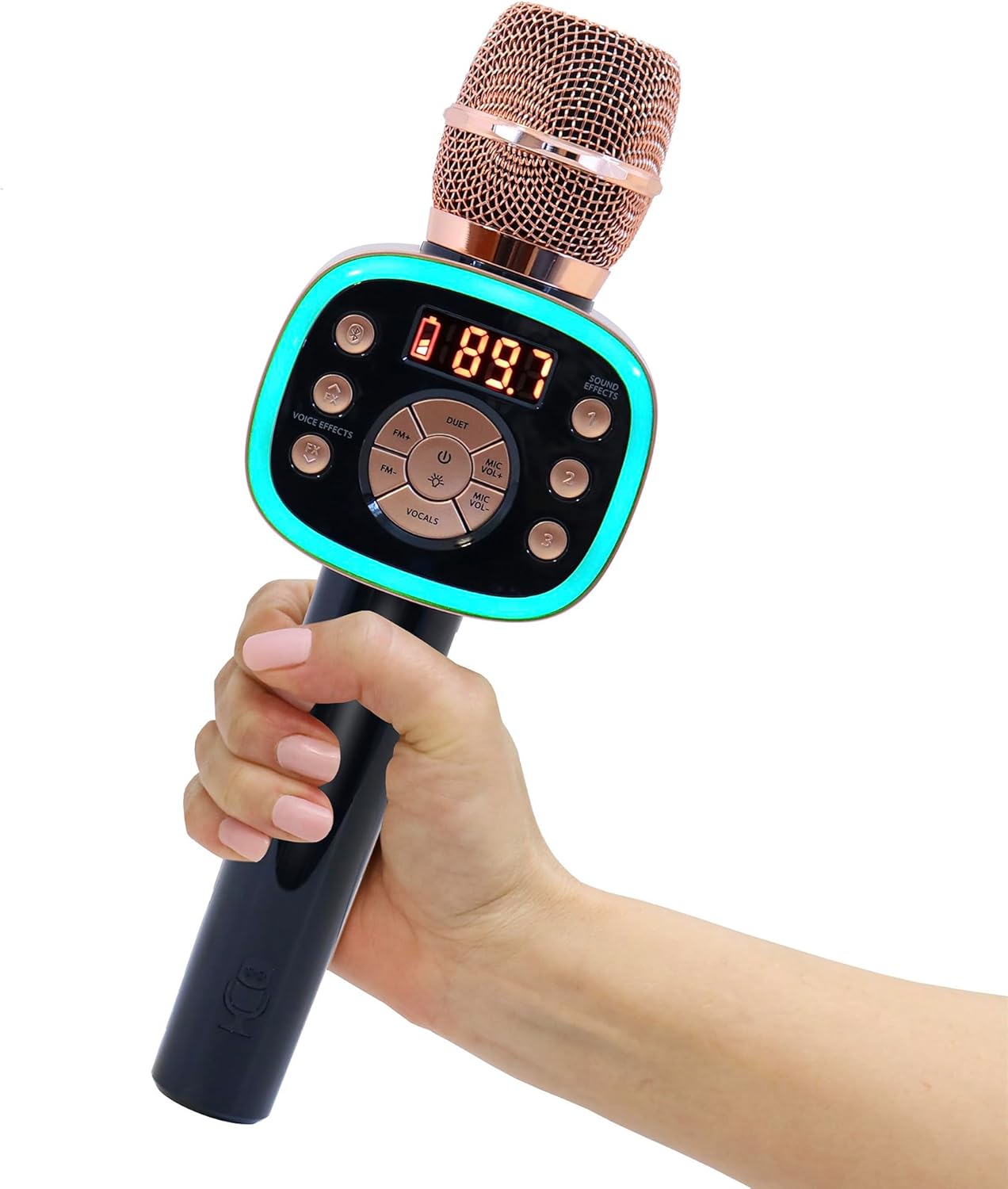
Image: The Carpool Karaoke The Mic 2.0 in Rose Gold, held by a hand, showcasing its design and illuminated controls.
Package Contents
Verify that all items are present in your package:
- Carpool Karaoke The Mic 2.0 Microphone (Model CPK565)
- Reusable Carrying Case
- Micro USB Charging Cable
- Extra-long AUX Cord
- 5 Karaoke Song Downloads (via Singing Machine app)
Product Features and Controls
The Carpool Karaoke The Mic 2.0 is designed for ease of use and portability. It features:
- Wireless Connectivity: Bluetooth for streaming music from devices.
- FM Tuner: Connects to your car's FM radio for audio output.
- Voice Changing Effects: Multiple built-in effects for vocal modification.
- Sound Effects: Integrated sound effects for added fun.
- Volume and Echo Controls: Adjustable settings for microphone and music.
- Music Synchronized Lights: LED lights that react to the music.
- Duets Option: Connect a second microphone for duet performances.
- Lead Vocal Cancellation: Reduces original song vocals for a better karaoke experience.
- Rechargeable Battery: Provides up to 6 hours of playtime.

Image: A diagram highlighting the key features and controls of the microphone, such as Bluetooth connectivity, FM tuner, voice effects, sound effects, lead vocal cancellation, and the duets option.
Setup
1. Charging the Microphone
Before first use, fully charge the microphone using the provided Micro USB charging cable. Connect the small end of the USB cable to the microphone's charging port and the larger end to a USB power source (e.g., computer, USB wall adapter). The battery indicator will show charging status.
2. Powering On/Off
Press and hold the Power button (usually marked with a circle and a vertical line) to turn the microphone on or off.
3. Connecting via Bluetooth
- Turn on the microphone. It will automatically enter Bluetooth pairing mode.
- On your mobile device, enable Bluetooth and search for available devices.
- Select "Carpool Karaoke Mic 2.0" from the list to pair.
- Once paired, you can stream music from your device through the microphone's speaker.
4. Connecting via FM Tuner (for car audio)
- Turn on the microphone.
- Tune your car's FM radio to an unused, clear frequency (one with static or no broadcast).
- On the microphone, press the FM button to activate FM transmission.
- Use the FM +/- buttons on the microphone to match the frequency of your car radio.
- Once matched, your voice and music from the microphone will play through your car's speakers.
5. Connecting via AUX Cord
For devices without Bluetooth or FM capabilities, use the provided AUX cord. Connect one end to the microphone's AUX input and the other end to your audio source's output.
Video: A demonstration on how to connect the Carpool Karaoke microphone to various devices, including Bluetooth and FM radio.
Operating Instructions
1. Adjusting Volume and Echo
Use the dedicated sliders or buttons on the microphone to adjust your microphone volume, music volume, and echo effect level. Experiment to find your preferred sound.
2. Using Voice Changing Effects
Press the 'Voice Effects' button to cycle through various built-in voice changing effects (e.g., Echo, Female, Male, Chipmunk, Robot, Radio). Select the effect you desire.
3. Using Sound Effects
The microphone includes 3 super fun sound effects. Press the 'Sound Effects' button to activate them.
4. Duets Function
To enable duet mode, ensure both microphones are powered on and follow the pairing instructions for connecting a second microphone. This allows two users to sing simultaneously.
Video: Instructions on how to connect a second Carpool Karaoke microphone for Duets mode, enhancing the interactive singing experience.
5. Vocal Removal Technology
Activate the 'Vocals' button to utilize the vocal removal technology, which reduces lead vocals from songs, allowing you to sing along more prominently.
6. Using with Karaoke Apps
The microphone is compatible with various music and karaoke apps. Connect your device via Bluetooth and use your preferred app to access a wide variety of karaoke music. The Singing Machine app offers additional features and song downloads.

Image: A user interacting with the Singing Machine app on a smartphone while holding the Carpool Karaoke microphone, demonstrating how to access music and features.
Maintenance
- Cleaning: Use a soft, dry cloth to clean the microphone. Do not use liquid cleaners or abrasive materials.
- Storage: Store the microphone in its reusable carrying case when not in use to protect it from dust and damage.
- Battery Care: To prolong battery life, avoid fully discharging the battery frequently. Charge it regularly, even if not in constant use.
Troubleshooting
| Problem | Possible Solution |
|---|---|
| Microphone does not turn on. | Ensure the battery is charged. Connect to power using the USB cable. |
| No sound from car speakers. | Verify FM frequency match between microphone and car radio. Ensure car radio volume is up. |
| Bluetooth device not pairing. | Ensure microphone is in pairing mode. Turn off and on Bluetooth on your device. Move closer to the microphone. |
| Voice effects not working. | Check microphone volume and ensure a voice effect is selected. |
Specifications
| Feature | Detail |
|---|---|
| Product Dimensions | 3.6 x 2.1 x 10.6 inches |
| Item Weight | 1.01 pounds |
| Item Model Number | CPK565RD |
| Batteries | 1 Lithium Ion battery (included) |
| Special Features | AM/FM Radio, Bluetooth, Rechargeable |
| Color | Rose Gold & Black |
| Manufacturer | Singing Machine |
Warranty and Support
For warranty information or technical support, please visit the official Singing Machine website or contact their customer service. Keep your purchase receipt as proof of purchase.
You can also visit the Singing Machine Store on Amazon for more information and products.


