
1. Introduction
This manual provides essential information for setting up, operating, and maintaining your Apple 2021 iPad Pro (12.9-inch, Wi-Fi, 128GB). The iPad Pro is powered by the Apple M1 chip, featuring a 12.9-inch Liquid Retina XDR display, advanced camera systems, and robust connectivity options. Please read this guide thoroughly to ensure optimal use of your device.
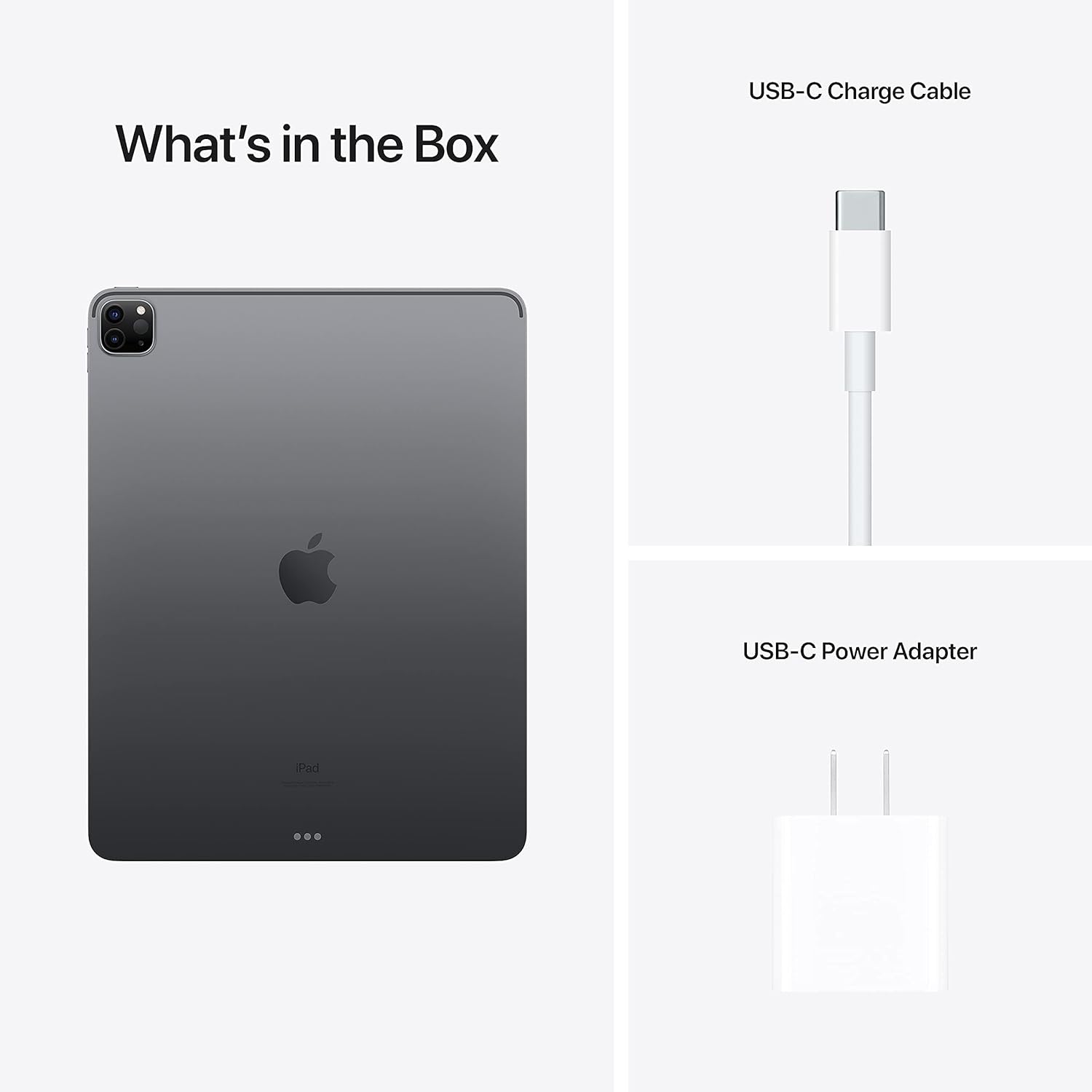
2. What's in the Box
Verify that the following items are included with your iPad Pro:
- Apple iPad Pro (12.9-inch, Wi-Fi, 128GB)
- USB Charging Cable
- USB-C Power Adapter (may be generic with renewed products)
3. Setup
3.1 Initial Charge
Before first use, ensure your iPad Pro is fully charged. Connect the USB-C charging cable to the iPad's USB-C port and the other end to the USB-C power adapter. Plug the adapter into a wall outlet. The battery icon on the screen will indicate charging status.
3.2 Power On and Initial Configuration
Press and hold the top button until the Apple logo appears. Follow the on-screen instructions to:
- Select your language and region.
- Connect to a Wi-Fi network.
- Set up Face ID.
- Create a passcode.
- Restore data from a backup (iCloud or computer) or set up as a new iPad.
- Sign in with your Apple ID or create a new one.
4. Operating Your iPad Pro
4.1 Display and Navigation
The 12.9-inch Liquid Retina XDR display offers ProMotion technology for smooth scrolling and responsiveness. Navigate using touch gestures: tap to select, swipe to scroll, pinch to zoom.

4.2 Performance with M1 Chip
The Apple M1 chip provides exceptional speed and power efficiency for demanding applications, multitasking, and graphic-intensive tasks.

4.3 Camera System
Your iPad Pro features a 12MP Wide camera, 10MP Ultra Wide camera, and a LiDAR Scanner on the rear, and a TrueDepth camera system with an Ultra Wide camera and Center Stage on the front.
- Rear Cameras: Capture high-quality photos and 4K videos. The LiDAR Scanner enhances augmented reality (AR) experiences and improves autofocus in low light.
- Front Camera with Center Stage: Automatically keeps you centered in the frame during video calls, even as you move around.

4.4 Connectivity
The iPad Pro supports ultrafast Wi-Fi for internet access and Bluetooth for connecting accessories like the Apple Pencil and Magic Keyboard. The USB-C port supports Thunderbolt for high-performance accessories and fast data transfer.
5. Maintenance
5.1 Cleaning
Use a soft, lint-free cloth to clean the screen and exterior. Avoid abrasive materials or harsh chemicals. For stubborn smudges, slightly dampen the cloth with water.
5.2 Battery Care
To maximize battery lifespan, avoid extreme temperatures. For long-term storage, charge the iPad to about 50% and power it off.
5.3 Software Updates
Regularly update iPadOS to ensure your device has the latest features, security enhancements, and performance improvements. Go to Settings > General > Software Update.
6. Troubleshooting
6.1 Device Not Powering On
Ensure the iPad Pro is charged. Connect it to a power source for at least 30 minutes. If it still doesn't turn on, perform a force restart: Press and quickly release the Volume Up button. Press and quickly release the Volume Down button. Then, press and hold the Top button until the Apple logo appears.
6.2 Wi-Fi Connectivity Issues
Check if Wi-Fi is enabled in Settings > Wi-Fi. Restart your Wi-Fi router. If the issue persists, try resetting network settings on your iPad (Settings > General > Transfer or Reset iPad > Reset > Reset Network Settings).
6.3 Charger Not Working
If the included charger or cable does not function, try using a different Apple-certified USB-C cable and power adapter. Ensure the charging port on the iPad is clean and free of debris.
7. Specifications
| Feature | Detail |
|---|---|
| Model | iPad Pro 12.9 5th gen |
| Display | 12.9-inch Liquid Retina XDR, 2732x2048 resolution at 264 ppi |
| Processor | Apple M1 chip |
| Storage | 128GB |
| RAM | 8 GB |
| Operating System | iPadOS |
| Rear Camera | 12MP Wide, 10MP Ultra Wide, LiDAR Scanner |
| Front Camera | TrueDepth with Ultra Wide and Center Stage |
| Wireless Connectivity | Wi-Fi (802.11a/b/g/n/ac, 802.11ax), Bluetooth |
| Ports | USB-C (Thunderbolt/USB 4) |
| Battery Life | Up to 10 hours (web surfing on Wi-Fi or video playback) |
| Dimensions (LxWxH) | 11.04 x 10 x 6 inches |
| Weight | 10.4 ounces |
8. Warranty and Support
As this is a renewed product, specific warranty terms may be provided by the seller. Please refer to your purchase documentation for details regarding the renewed product warranty.
For general product support, software assistance, and troubleshooting, you can visit the official Apple Support website: support.apple.com/ipad.
You can also find information on AppleCare+ for extended coverage options, if applicable to renewed devices.


