
1. Overview
The Ruckus Wireless ZoneFlex H500 is a high-performance 802.11ac dual-band multiservice wall switch, integrating a Wi-Fi access point with a 4-port Gigabit Ethernet switch. Designed for hospitality and multi-dwelling unit environments, it offers robust wired and wireless connectivity, Power over Ethernet (PoE) capabilities, and simplified network deployment. This device provides concurrent 2.4GHz and 5GHz Wi-Fi, ensuring optimal performance for a wide range of client devices.
Key Features
- 802.11ac 2x2:2 Stream Dual-Band: Concurrent 2.4GHz and 5GHz connectivity with BeamFlex+ for enhanced performance with modern mobile devices.
- Integrated Wi-Fi AP and Ethernet Wall Switch: Provides comprehensive in-room connectivity for various devices and applications.
- Robust Authentication Options: Supports 802.1x, MAC-based, captive portal, LDAP, RADIUS, Active Directory, and internal user database authentication.
- Gigabit Ethernet Uplink with PoE Input (802.3af/at): Simplifies installation by requiring a single Ethernet cable for both power and data.
- PoE Out Capability: Powers devices such as IP-based VoIP phones, reducing cable clutter and additional power adapters.

2. Package Contents
Verify that your package contains the following items:
- Ruckus Wireless ZoneFlex H500 Multiservice Wall Switch Unit
- Mounting Bracket
- Mounting Screws and Anchors
- Quick Start Guide (may be included or available online)
If any items are missing or damaged, please contact your vendor or Ruckus Wireless support.
3. Physical Description
3.1. Device Dimensions
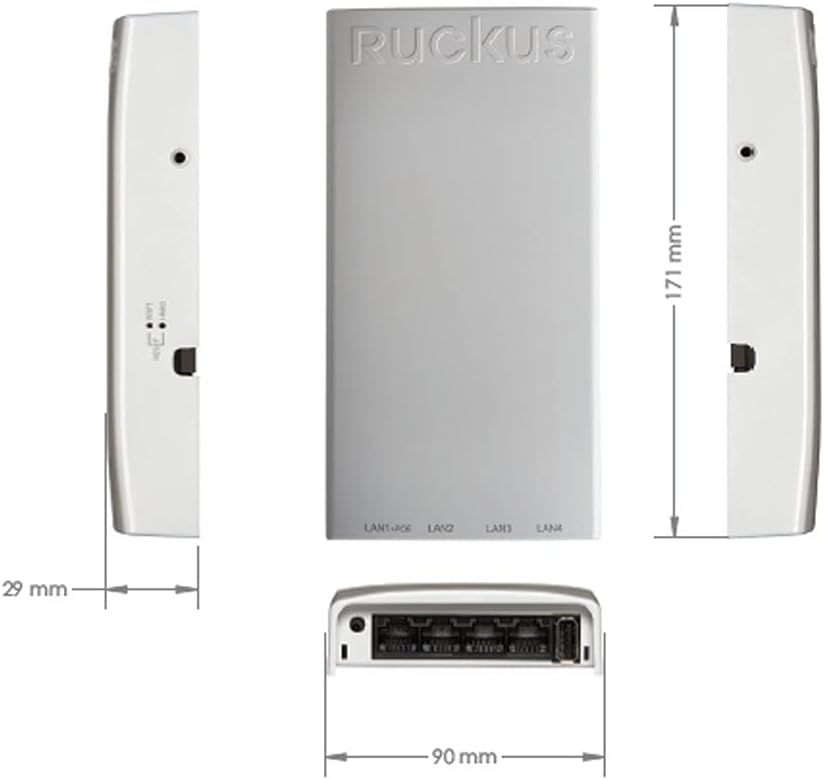
3.2. Front Panel
The front panel of the ZoneFlex H500 features multiple Ethernet ports and a USB port for connecting local devices.
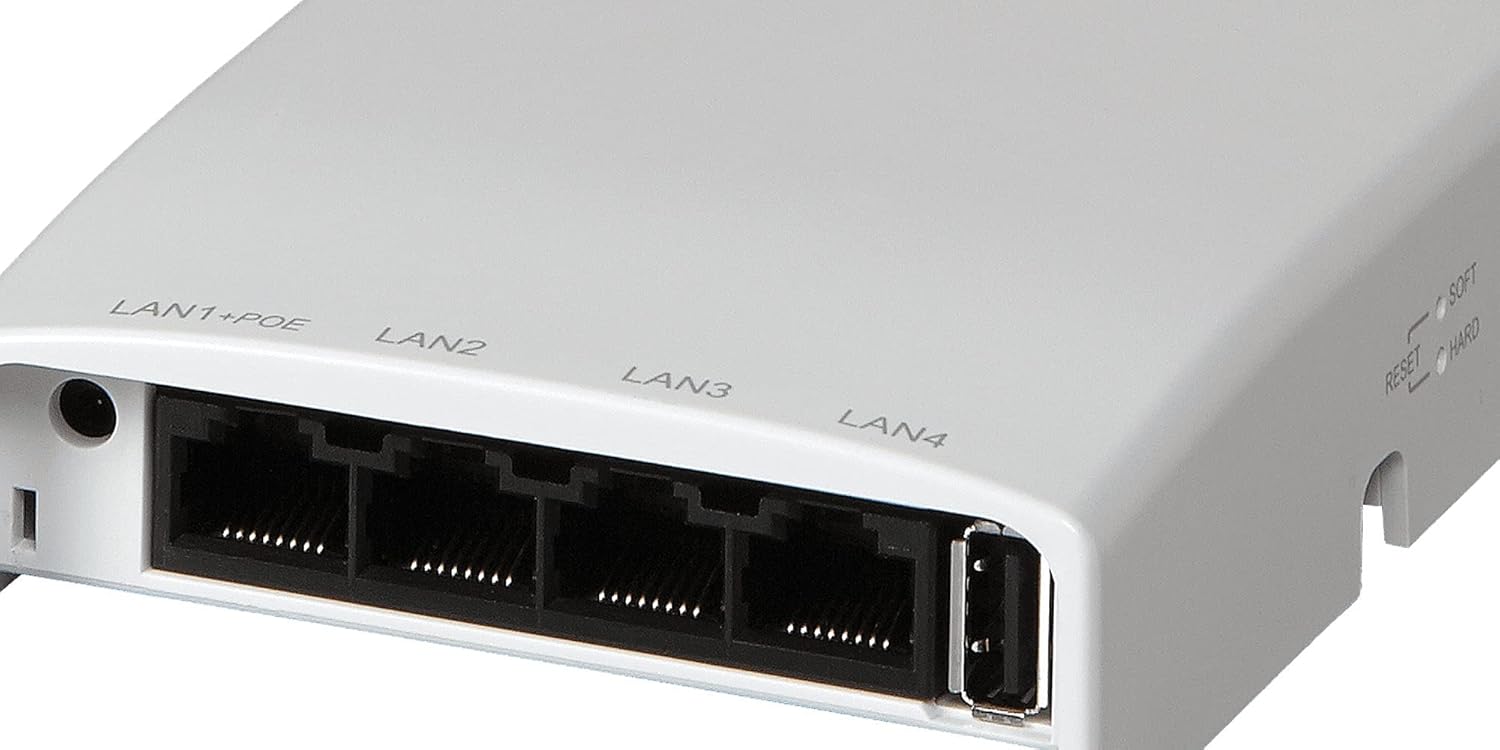
- LAN1+PoE: Gigabit Ethernet port with Power over Ethernet (PoE) output capability.
- LAN2, LAN3, LAN4: Standard Gigabit Ethernet ports for wired client devices.
- USB Port: For future use or specific accessory connections.
3.3. Rear Panel
The rear panel includes the primary uplink port and reset buttons.

- Gigabit PoE Uplink Port: Connects to the network infrastructure and receives PoE power (802.3af/at).
- Reset Buttons:
- Soft Reset: Initiates a reboot.
- Hard Reset: Restores factory default settings (requires holding for a specific duration).
3.4. LED Indicators
The device features LED indicators to show its operational status. Refer to the Quick Start Guide for detailed LED behavior descriptions.
4. Setup
Follow these steps to install and power on your Ruckus ZoneFlex H500.
4.1. Pre-installation Checklist
- Ensure you have a suitable wall outlet or junction box for mounting.
- Verify that your network switch or PoE injector provides 802.3af/at compliant PoE power.
- Have necessary tools: screwdriver, drill (if required for mounting).
4.2. Mounting the Device
- Secure the mounting bracket to the wall or junction box using the provided screws and anchors.
- Align the ZoneFlex H500 unit with the mounted bracket.
- Slide the unit onto the bracket until it clicks securely into place.
4.3. Connecting Cables
- Connect an Ethernet cable from your PoE-enabled network switch or injector to the Gigabit PoE Uplink Port on the rear of the H500. This cable provides both power and data.
- Connect wired client devices (e.g., computers, smart TVs) to the LAN2, LAN3, LAN4 ports on the front panel.
- If powering an IP phone or other PoE-compatible device, connect it to the LAN1+PoE port.

4.4. Powering On
Once the PoE uplink cable is connected, the ZoneFlex H500 will automatically power on. Observe the LED indicators for boot-up status.
5. Operation
After successful installation, the ZoneFlex H500 will begin broadcasting Wi-Fi networks and providing wired connectivity.
5.1. Indicator Lights
The LEDs on the device provide visual feedback on its status. Common states include:
- Power LED: Indicates power status. Solid green typically means normal operation.
- WLAN LEDs: Indicate Wi-Fi activity for 2.4GHz and 5GHz bands.
- Ethernet Port LEDs: Indicate link status and activity for each LAN port.
Refer to the official Ruckus documentation for a complete guide to LED patterns and their meanings.
5.2. Network Configuration
The ZoneFlex H500 can be managed either as a standalone access point or as part of a larger network managed by a Ruckus ZoneDirector or SmartZone controller.
- Standalone Mode: Access the device's web-based management interface by connecting a computer to one of its LAN ports and navigating to its default IP address (refer to the Quick Start Guide or Ruckus documentation for the default IP and login credentials).
- Managed Mode: If connected to a Ruckus controller, the H500 will automatically discover and register with the controller, receiving its configuration from there.
From the management interface, you can configure Wi-Fi SSIDs, security settings, VLANs, and other network parameters.
6. Maintenance
Regular maintenance ensures optimal performance and longevity of your ZoneFlex H500.
6.1. Firmware Updates
Periodically check the Ruckus Wireless support website for the latest firmware updates. Firmware updates often include performance improvements, security patches, and new features. Follow the instructions provided with the firmware package for a safe update process.
6.2. Cleaning
Keep the device clean and free from dust. Use a soft, dry cloth to wipe the exterior. Do not use liquid cleaners or aerosols directly on the device.
6.3. Reset Procedures
- Soft Reset (Reboot): Briefly press the 'Soft Reset' button on the rear panel. This will restart the device without losing configuration.
- Hard Reset (Factory Defaults): To restore the device to its factory default settings, press and hold the 'Hard Reset' button for approximately 10-15 seconds until the LEDs indicate a reset. Warning: This will erase all custom configurations.
7. Troubleshooting
This section provides solutions to common issues you might encounter.
7.1. No Power / Device Not Turning On
- Ensure the Ethernet cable connected to the Gigabit PoE Uplink Port is securely plugged in at both ends.
- Verify that the connected network switch or PoE injector is powered on and providing 802.3af/at compliant PoE.
- Test the Ethernet cable with another device or replace it.
7.2. No Wi-Fi Signal
- Check the WLAN LEDs on the device. If they are off, the Wi-Fi radios might be disabled or the device is not functioning correctly.
- Confirm that the Wi-Fi networks (SSIDs) are enabled and configured correctly via the management interface or controller.
- Ensure client devices are within range and have the correct Wi-Fi password.
7.3. No Wired Connectivity
- Check the Ethernet Port LEDs for the connected LAN ports. A solid green or amber light indicates a link.
- Ensure the Ethernet cables are securely connected to both the H500 and the client device.
- Verify that the client device's network settings (IP address, subnet mask) are correct or set to obtain automatically.
7.4. Slow Performance
- Check for network congestion or interference, especially on Wi-Fi channels.
- Ensure the device has the latest firmware.
- Verify the uplink connection speed and quality.
For more advanced troubleshooting, consult the comprehensive Ruckus Wireless documentation or contact technical support.
8. Specifications
The following table lists the technical specifications for the Ruckus Wireless ZoneFlex H500.
| Feature | Description |
|---|---|
| Model Name | Ruckus Wireless ZoneFlex H500 |
| Item Model Number | 901-H500-US00 |
| Wireless Standard | 802.11ac |
| Frequency Bands | Dual Band (2.4GHz and 5GHz concurrent) |
| Ethernet Ports | 1x Gigabit PoE Uplink, 3x Gigabit LAN, 1x Gigabit LAN with PoE Out |
| PoE Input | 802.3af/at compliant |
| PoE Output | Yes (on LAN1+PoE port) |
| Special Feature | WPS (Wi-Fi Protected Setup) |
| Product Dimensions | 7.8 x 2.5 x 4 inches (approx. 198 x 63.5 x 101.6 mm) |
| Item Weight | 12.8 ounces (approx. 363 grams) |
| Manufacturer | Ruckus Wireless |
9. Warranty and Support
9.1. Product Warranty
The Ruckus Wireless ZoneFlex H500 is covered by a manufacturer's warranty. For specific details regarding warranty terms, duration, and coverage, please refer to the warranty information provided with your original purchase or visit the official Ruckus Wireless website.
9.2. Technical Support
For technical assistance, additional documentation, or to report issues, please visit the official Ruckus Wireless support portal:
- Ruckus Wireless Support Website: https://support.ruckuswireless.com
Ensure you have your product model number (901-H500-US00) and serial number ready when contacting support.


