
Introduction
This manual provides essential instructions for setting up, operating, maintaining, and troubleshooting your Blackview Tab 10 Android Tablet. The Blackview Tab 10 features a 10.1-inch FHD+ display, an MTK8768 Octa-Core processor, 4GB RAM, 64GB internal storage, and runs on Android 11 (Doke OS_P 1.0). It supports dual SIM cards for 4G phone calls and data, Wi-Fi, and Bluetooth 5.0 connectivity.
Please read this manual thoroughly to ensure proper use and to maximize your tablet's performance and longevity.

Image: The Blackview Tab 10 tablet shown from the rear in three color options: gray, golden, and silvery, highlighting its sleek design.
Setup
Package Contents
Ensure all items are present in the package:
- Blackview Tab 10 Tablet PC
- USB Cable (Type-C)
- Power Adapter (9V 2A)
- User Manual
Charging the Battery
Before first use, fully charge the tablet. Connect the USB Type-C cable to the tablet's Type-C port and the other end to the provided power adapter. Plug the adapter into a power outlet. The charging indicator will show the charging status. The tablet supports 18W fast charging.
Inserting SIM and TF Cards
The Blackview Tab 10 supports dual Nano SIM cards or one Nano SIM card and one TF (microSD) card for expandable storage up to 128GB.
- Locate the SIM/TF card tray on the side of the tablet.
- Use the provided SIM ejector tool to open the tray.
- Carefully place the Nano SIM card(s) and/or TF card into the designated slots on the tray. Ensure the cards are correctly oriented.
- Gently push the tray back into the tablet until it clicks into place.
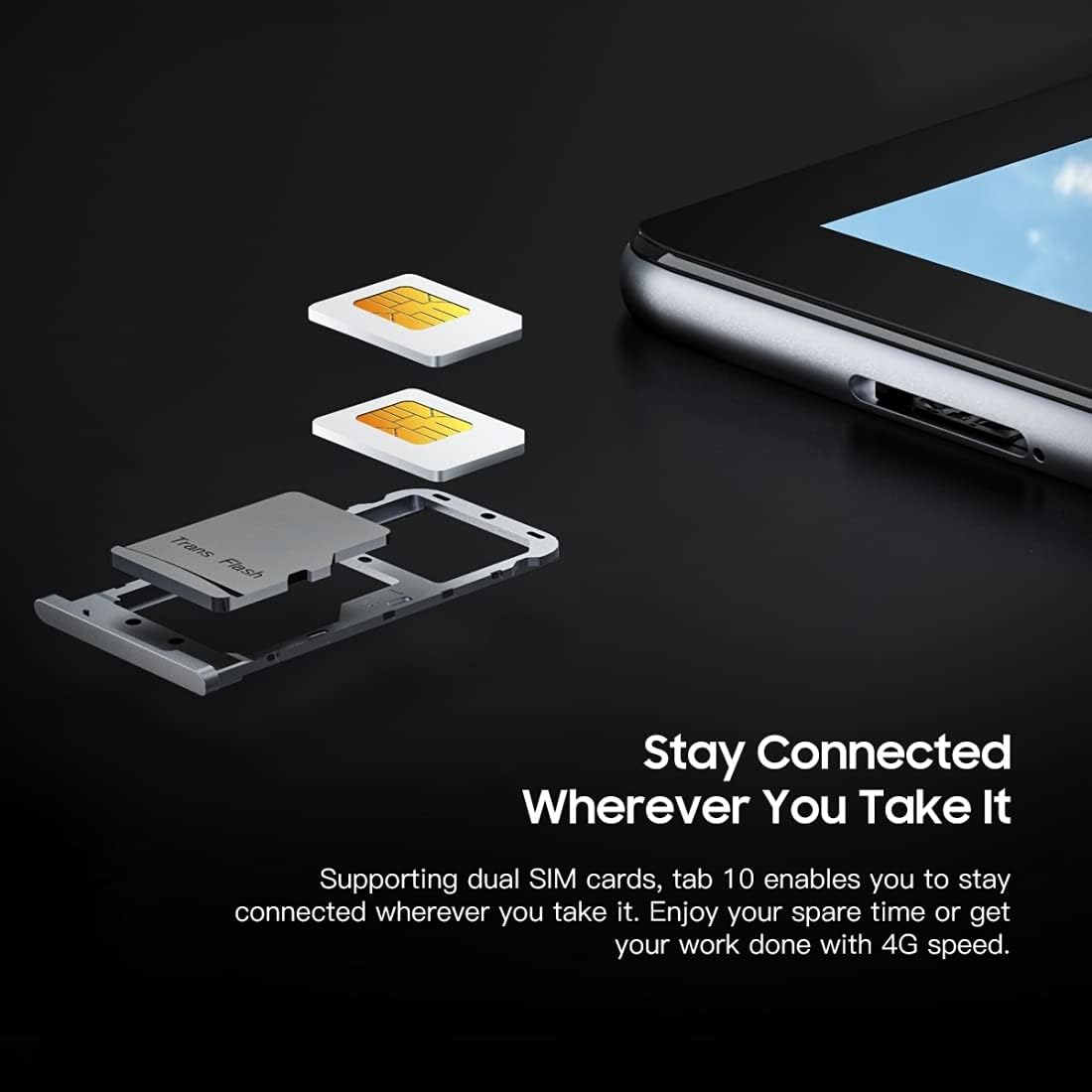
Image: A detailed view of the Blackview Tab 10's SIM card tray, showing how two Nano SIM cards are inserted, illustrating the dual SIM support.
Powering On/Off
- To Power On: Press and hold the Power button until the Blackview logo appears.
- To Power Off: Press and hold the Power button until the power options menu appears, then select "Power off".
- To Restart: Press and hold the Power button until the power options menu appears, then select "Restart".
Initial Setup
Upon first power-on, follow the on-screen prompts to complete the initial setup:
- Select your language.
- Connect to a Wi-Fi network.
- Sign in with your Google account or create a new one.
- Set up screen lock (PIN, pattern, password).
- Review and accept terms and conditions.
Operating Instructions
Basic Navigation
- Tap: Touch the screen once to open an app, select an item, or press a button.
- Touch and Hold: Press and hold an item to access more options or move it.
- Swipe: Drag your finger across the screen to scroll through pages or content.
- Pinch: Use two fingers to zoom in or out on images and web pages.
Connecting to Networks
- Wi-Fi: Go to Settings > Network & internet > Wi-Fi. Turn Wi-Fi on, select your desired network, and enter the password if required.
- Bluetooth: Go to Settings > Connected devices > Bluetooth. Turn Bluetooth on, then select a device from the list to pair.
- Mobile Data (4G): If a SIM card is inserted, go to Settings > Network & internet > Mobile network to enable mobile data and configure settings.
Using the Camera
The Blackview Tab 10 features a 13.0MP rear camera and a 5.0MP front camera.
- Open the Camera app.
- Tap the camera icon to switch between front and rear cameras.
- Tap the shutter button to take a photo or start/stop video recording.
- Explore various camera modes and settings within the app.

Image: The Blackview Tab 10 displaying its camera features, including an 8MP front camera and a 13MP rear camera, emphasizing its photographic capabilities.
Android 11 and Doke OS_P 1.0
Your tablet runs on Android 11 with Blackview's Doke OS_P 1.0 interface, offering enhanced privacy controls, improved notification management, and a more intuitive user experience. Explore the Settings menu to customize your device, manage apps, and optimize performance.

Image: The Blackview Tab 10 screen showing the Doke OS_P 1.0 interface based on Android 11, with various settings and app screens visible.
Maintenance
Cleaning the Device
- Use a soft, lint-free cloth to clean the screen and body of the tablet.
- For stubborn smudges, slightly dampen the cloth with water or a screen cleaner designed for electronics.
- Avoid using harsh chemicals, abrasive materials, or aerosol sprays directly on the tablet.
Battery Care
- Avoid exposing the tablet to extreme temperatures (hot or cold), as this can affect battery life.
- Do not leave the tablet charging for extended periods after it is fully charged.
- Use only the original charger and cable provided with the tablet.
Software Updates
Regularly check for and install software updates to ensure your tablet has the latest features, security patches, and performance improvements. Go to Settings > System > System update.
Troubleshooting
Device Not Turning On
- Ensure the battery is charged. Connect the tablet to the charger for at least 30 minutes.
- Press and hold the Power button for 10-15 seconds to force a restart.
Wi-Fi Connection Issues
- Restart your Wi-Fi router and the tablet.
- Forget the network in Wi-Fi settings and reconnect.
- Ensure you are within range of the Wi-Fi signal.
Slow Performance
- Close unused applications running in the background.
- Clear cache data for apps that are frequently used.
- Ensure sufficient storage space is available. Delete unnecessary files or apps.
- Consider a factory reset as a last resort (back up your data first).
App Crashes or Freezes
- Force close the app: Go to Settings > Apps & notifications, select the app, then tap Force stop.
- Clear the app's cache and data (this will reset the app).
- Uninstall and reinstall the app.
Specifications
| Model | Tab 10 |
| Screen Size | 10.1 inches |
| Display Resolution | 1920 x 1200 (FHD+) |
| Processor | MTK8768 Octa Core Cortex-A53 2.0GHz |
| RAM | 4GB |
| Internal Storage | 64GB |
| Expandable Storage | TF card up to 128GB (not included) |
| Operating System | Android 11 (Doke OS_P 1.0) |
| Rear Camera | 13.0MP with AF, LED flash |
| Front Camera | 5.0MP |
| Battery Capacity | 7480mAh |
| Charging | 9V 2A, 18W Fast Charging |
| Network Communication | 4G LTE, Wi-Fi (802.11a/b/g/n/ac), Bluetooth V5.0 |
| SIM Type | Dual Nano SIM |
| Interfaces | 1 x 3.5mm Earphone Port, 1 x Type-C, 1 x Magnetic Port |
| Dimensions (L x W x H) | 243 x 162 x 8.4mm (9.57 x 6.38 x 0.33 inches) |
| Weight | 523g (1.15 pounds) |

Image: An infographic showcasing the Blackview Tab 10's main features, including its 13MP rear camera, Octa-core processor, 7480mAh battery, 10.1-inch FHD display, 8.8mm slim body, and support for dual SIM cards.
Warranty and Support
The Blackview Tab 10 comes with a standard manufacturer's warranty. Please refer to the warranty card included in your package for specific terms and conditions, including warranty period and coverage details.
For technical support, service inquiries, or additional product information, please visit the official Blackview website or contact their customer service department. Keep your purchase receipt and product serial number handy when seeking support.
Official Blackview Store: Blackview Store on Amazon


