
Introduction
This manual provides essential information for the setup, operation, and maintenance of your LucidSound LS15P Wireless Gaming Headset. Designed for immersive gaming experiences, the LS15P offers wireless connectivity and clear audio performance. Please read this manual thoroughly to ensure proper use and longevity of your device.
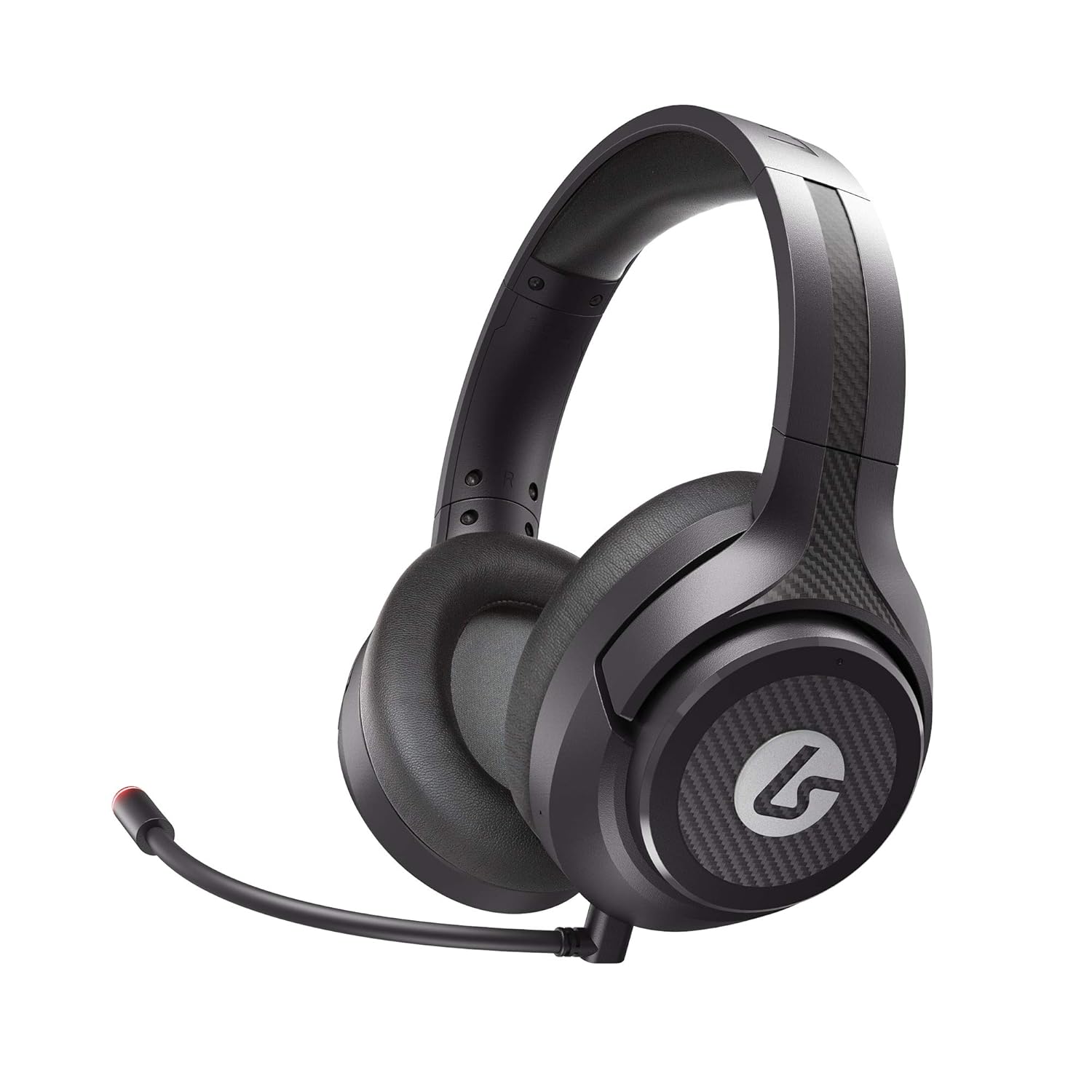
Image: The LucidSound LS15P Wireless Gaming Headset, featuring its over-ear design and a flexible boom microphone.
Package Contents
Before proceeding with setup, please ensure all components are present in the package:
- LucidSound LS15P Wireless Gaming Headset
- Micro-USB Charging Cable
- USB Wireless Transmitter
- Removable Boom Microphone (pre-attached or separate)

Image: Retail packaging for the LucidSound LS15P headset, highlighting key features and included accessories.
Setup
1. Charging the Headset
Before first use, fully charge the headset. Connect the Micro-USB Charging Cable to the headset's charging port and the other end to a USB power source (e.g., computer USB port, USB wall adapter). The LED indicator on the headset will show charging status and turn off or change color when fully charged.
2. Connecting to Xbox Series X|S, Xbox One, or PC (Wireless)
- Insert the USB Wireless Transmitter into an available USB port on your Xbox console or PC.
- Power on the LS15P headset by pressing and holding the Power button until the LED indicator illuminates.
- The headset and transmitter should automatically pair. A solid LED on both devices indicates a successful connection.
- Adjust audio settings on your console or PC to ensure the LS15P is selected as the default audio output and input device.
3. Connecting to Mobile (Wired)
The LS15P can be used with mobile devices via a wired connection. Connect a 3.5mm audio cable (not included) from the headset's 3.5mm port to your mobile device's audio jack. Note that wireless features and some controls may not function in wired mode.
Operating Instructions
Power On/Off
- To Power On: Press and hold the Power button for approximately 3 seconds.
- To Power Off: Press and hold the Power button for approximately 5 seconds until the LED indicator turns off.
Volume Control
The LS15P features intuitive on-earcup controls. Rotate the outer ring of the left earcup to adjust game volume. Rotate the outer ring of the right earcup to adjust chat volume or game/chat balance, depending on the platform.

Image: A top-down view of the LS15P headset, illustrating the design of the earcups and adjustable headband.

Image: A detailed view of the LucidSound LS15P headset's headband, featuring the embossed LucidSound logo.
Microphone Usage
- The headset comes with a removable boom microphone. Insert it into the designated port on the left earcup.
- To Mute/Unmute: Press the center button on the left earcup. The LED on the microphone tip will indicate mute status (e.g., red for muted).
- The headset also features an integrated microphone for basic communication when the boom mic is detached.

Image: Side profile of the LS15P headset, showing the adjustable boom microphone in position.
Battery Life
The LS15P provides up to 15 hours of battery life on a full charge. Battery status can often be monitored via the headset's LED indicator or through your connected device's interface.
Maintenance
Cleaning
- Use a soft, dry cloth to wipe down the headset's surfaces.
- For earcups, gently wipe with a slightly damp cloth and allow to air dry completely before use.
- Do not use harsh chemicals, solvents, or abrasive cleaners.
Storage
Store the headset in a cool, dry place away from direct sunlight and extreme temperatures. Avoid placing heavy objects on the headset to prevent damage.
Battery Care
To prolong battery life, avoid fully discharging the headset frequently. If storing for an extended period, charge the headset to approximately 50% before storage.
Troubleshooting
| Problem | Possible Cause | Solution |
|---|---|---|
| No audio from headset | Headset not powered on; Not paired; Volume too low; Incorrect audio output selected. | Ensure headset is powered on and charged. Verify successful pairing with USB transmitter. Increase headset volume. Check console/PC audio settings to ensure LS15P is selected. |
| Microphone not working | Microphone muted; Boom mic not fully inserted; Incorrect input device selected. | Press the mute button on the earcup to unmute. Ensure boom mic is securely inserted. Check console/PC audio input settings. |
| Headset not pairing | Transmitter not connected; Out of range; Interference. | Ensure USB transmitter is firmly connected. Move closer to the transmitter. Try connecting to a different USB port. Restart both headset and console/PC. |
| Short battery life | Battery degradation; Not fully charged. | Ensure headset is fully charged before use. Battery life may decrease over time with usage. |
Specifications
| Feature | Detail |
|---|---|
| Model | LS15P |
| Connectivity Technology | Wireless |
| Wireless Communication | Bluetooth (Note: Primary wireless is via USB transmitter for gaming) |
| Compatible Devices | Xbox Series X|S, Xbox One, Xbox, Mobile (wired) |
| Included Components | Micro-USB Charging Cable, USB Wireless Transmitter |
| Control Type | Volume Control, Touch (on-earcup) |
| Battery Life | Up to 15 Hours |
| Audio Driver Type | Dynamic Driver |
| Earpiece Shape | Over-ear (circumaural) |
| Manufacturer | LucidSound |
| Date First Available | June 1, 2021 |
Warranty and Support
Specific warranty details are not provided within this manual. For information regarding product warranty, technical support, or service, please refer to the official LucidSound website or contact their customer support directly. Keep your proof of purchase for any warranty claims.
You can visit the LucidSound Store on Amazon for more information: LucidSound Store


