
1. Introduction
Thank you for purchasing the Rapoo N300 Optical Wired Gaming Mouse. This manual provides detailed instructions for setting up, operating, and maintaining your new mouse. Please read this manual thoroughly before use to ensure optimal performance and longevity of the product.
2. Product Overview
2.1 Key Features
- High-Precision Optical Tracking: Equipped with a 2000 DPI tracking engine for accurate and responsive cursor control.
- 6 Buttons: Includes left, right, scroll wheel, DPI switch, and two side buttons for enhanced functionality.
- 2D Anti-Slip Scroll Wheel: Provides precise scrolling and tactile feedback.
- Ambidextrous Design: Ergonomically designed for comfortable use by both left and right-handed users.
- Wired USB Connectivity: Ensures a stable and lag-free connection.
2.2 Package Contents
- Rapoo N300 Optical Wired Gaming Mouse
- User Manual (this document)
2.3 Product Diagram

Figure 1: Top view of the Rapoo N300 mouse, showing the left and right click buttons, scroll wheel, and DPI switch button. The Rapoo logo is visible at the base.

Figure 2: Side view of the Rapoo N300 mouse, highlighting the two side buttons and the textured grip area for improved handling.
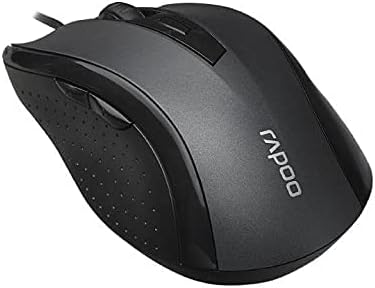
Figure 3: Angled view of the Rapoo N300 mouse, showcasing its ergonomic contour and the placement of the scroll wheel and side buttons.

Figure 4: Bottom view of the Rapoo N300 mouse, displaying the optical sensor, product model number (N300), interface type (USB), and regulatory compliance markings.
3. Setup Instructions
- Connect the Mouse: Locate an available USB port on your computer (desktop or laptop). Insert the USB connector of the Rapoo N300 mouse firmly into the USB port.
- Driver Installation: The Rapoo N300 mouse is a plug-and-play device. Your operating system (Windows XP, Windows 7, Linux, or newer versions) will automatically detect and install the necessary drivers. This process may take a few moments.
- Verification: Once the drivers are installed, the mouse cursor should become responsive. Move the mouse to confirm functionality.
No additional software installation is typically required for basic functionality.
4. Operating Instructions
4.1 Basic Functions
- Left Click: Primary action, selection, opening items.
- Right Click: Opens contextual menus.
- Scroll Wheel: Scrolls documents and web pages vertically. Can also be pressed for middle-click functionality (application-dependent).
4.2 DPI Adjustment
The Rapoo N300 features a dedicated DPI switch button, usually located behind the scroll wheel. Press this button to cycle through different DPI (Dots Per Inch) sensitivity settings. Each press will change the cursor speed, allowing you to adjust it to your preference for various tasks, from precise editing to fast-paced gaming.
4.3 Side Buttons
The two side buttons typically function as "Forward" and "Backward" in web browsers and file explorers. Their functionality may be customizable through operating system settings or third-party software, if available.
5. Maintenance
- Cleaning: Use a soft, dry cloth to wipe the surface of the mouse. For stubborn dirt, slightly dampen the cloth with water or a mild cleaning solution. Avoid using harsh chemicals or abrasive materials.
- Optical Sensor: Ensure the optical sensor on the bottom of the mouse remains clean and free of dust or debris for optimal tracking performance. Do not attempt to disassemble the mouse.
- Cable Care: Avoid sharp bends or excessive pulling on the USB cable to prevent damage.
6. Troubleshooting
| Problem | Possible Solution |
|---|---|
| Mouse not responding |
|
| Cursor movement is erratic or jumpy |
|
| DPI button not changing sensitivity |
|
7. Specifications
| Feature | Detail |
|---|---|
| Model | N300 |
| Tracking Engine | Optical |
| DPI | Up to 2000 DPI |
| Number of Buttons | 6 (Left, Right, Scroll Wheel, DPI, Side Button 1, Side Button 2) |
| Scroll Wheel | 2D Anti-Slip |
| Hand Orientation | Ambidextrous |
| Interface Type | Wired USB |
| Operating System Compatibility | Windows XP, Windows 7, Linux, and newer versions |
| Color | Black |
| Item Weight | Approximately 100g |
| Dimensions (Package) | 15.4 x 8.4 x 4.2 cm |
8. Warranty and Support
Rapoo products are designed for reliability and performance. For specific warranty information and support details, please refer to the warranty card included with your product or visit the official Rapoo website. Keep your purchase receipt as proof of purchase for warranty claims.
For technical assistance or further inquiries, please contact Rapoo customer support through their official channels.


