
1. Product Overview
The EPOMAKER SKYLOONG GK21S is a 21-key mechanical numpad designed for enhanced productivity and customization. It features hot-swappable switch sockets, PBT keycaps, RGB backlighting, and dual connectivity modes (Bluetooth 5.1 and wired Type-C USB).

Image: Top-down view of the EPOMAKER SKYLOONG GK21S Numpad, showcasing its 21 keys and compact design.

Image: Angled view of the EPOMAKER SKYLOONG GK21S Numpad, highlighting the keycap profile and overall aesthetic.
2. Package Contents
Verify that all items are present in the package:
- EPOMAKER SKYLOONG GK21S Numpad
- USB Type-C Cable
- Keycap Puller (may vary in style)
- Switch Puller (may vary in style)
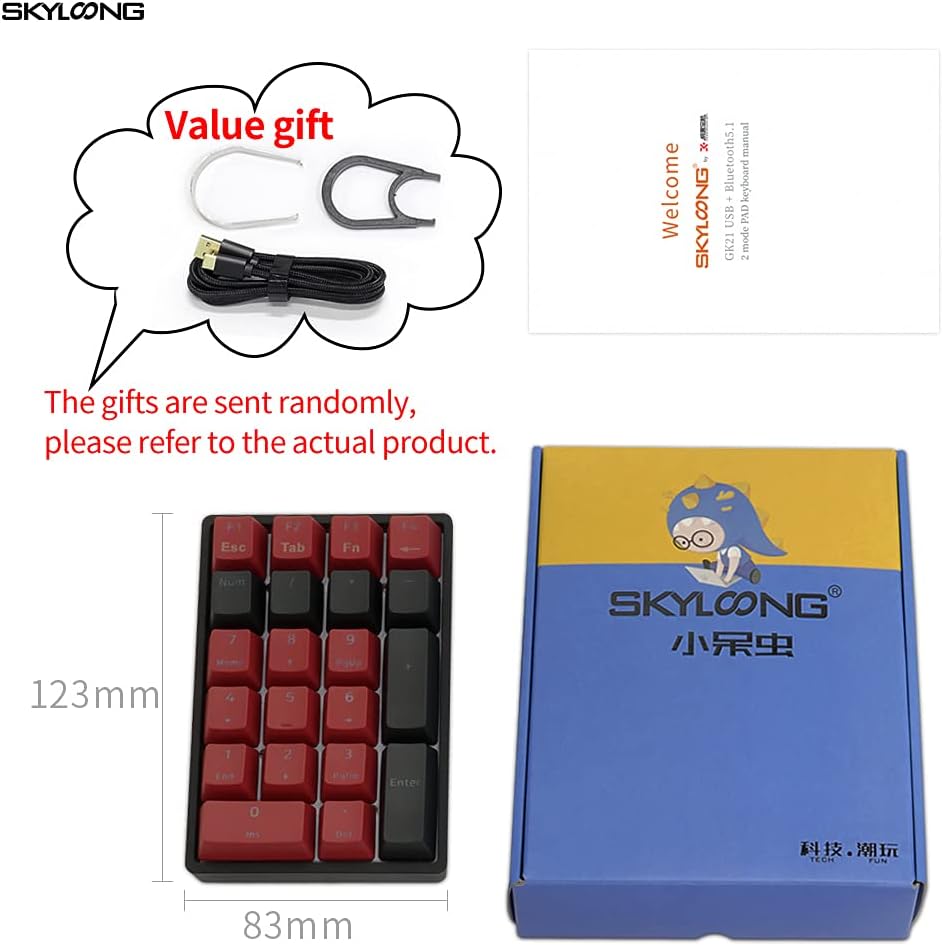
Image: Illustration of the GK21S Numpad packaging and included accessories such as the USB cable and tools.
3. Setup
3.1 Powering On/Off
To power on the numpad, press and hold Fn + Tab for approximately 3 seconds. Repeat this action to power off the numpad.
3.2 Wired Connection
- Locate the USB Type-C port on the side of the GK21S numpad.
- Connect one end of the provided USB Type-C cable to the numpad.
- Connect the other end of the USB cable to an available USB port on your computer or device.
- The numpad will be recognized automatically by your operating system.

Image: Close-up view of the USB Type-C interface on the side of the GK21S Numpad, with a cable being connected.
3.3 Bluetooth Wireless Connection
The GK21S supports Bluetooth 5.1 and can connect to up to three devices simultaneously.
- Ensure the numpad is powered on.
- Press Fn + 7, Fn + 8, or Fn + 9 to select a Bluetooth channel. The indicator light will flash, indicating it is ready for pairing.
- On your device (computer, laptop, tablet, or phone), enable Bluetooth and search for new devices.
- Select "GK21S" from the list of available devices to pair.
- Once paired, the indicator light will stop flashing.
- To switch between paired devices, press Fn + 7, Fn + 8, or Fn + 9 for the desired channel.
4. Operating Instructions
4.1 Basic Numpad Functions
The GK21S functions as a standard 21-key numpad. Keys include numbers 0-9, arithmetic operators (+, -, *, /), Enter, Del, Ins, Home, End, PgUp, PgDn, Esc, Tab, and Fn.
4.2 RGB Backlight Control
The numpad features 16.8 million colors RGB backlighting with various effects. You can cycle through preset lighting modes using function key combinations:
- Press Fn + 4 to cycle through RGB lighting modes.
- Press Fn + 5 to cycle through additional RGB lighting modes.
- Press Fn + 6 to cycle through further RGB lighting modes.
For advanced customization, including rhythm, sound lighting combinations, and downloading additional effects, connect the numpad via USB and use the official software. The software also allows for key-programming and macro-creation across three definable layers.
4.3 Checking Battery Level
To check the numpad's battery level, press Fn + Del. The Del key's backlight will indicate the current battery status.
5. Maintenance
5.1 Cleaning
To clean the numpad, power it off and disconnect it from your device. Use a soft, dry cloth to wipe the case. For keycaps, a slightly damp cloth or a specialized keyboard cleaning kit can be used. Avoid excessive moisture.
5.2 Keycap Replacement
The GK21S comes with durable OEM PBT double-shot keycaps. If you wish to replace them:
- Use the provided keycap puller to carefully remove the existing keycaps. Grip the keycap firmly and pull straight up.
- Align the new keycap with the switch stem and press down gently until it is securely seated.

Image: Diagram illustrating the double-shot construction of the OEM PBT keycaps and how light shines through the legends.
5.3 Switch Replacement (Hot-Swappable)
The GK21S features hot-swappable switch sockets, allowing you to change mechanical switches without soldering.
- Use the provided switch puller tool. Carefully grip the switch from the top and bottom clips.
- Gently pull the switch straight up to remove it from the PCB. Avoid bending the pins.
- Align the pins of the new switch with the holes on the PCB. Ensure the pins are straight.
- Press the new switch down firmly until it clicks into place. Do not force it if resistance is met; check pin alignment.
Note: Some switches, particularly the '0' key, may require more effort to remove due to stabilizer placement. Exercise caution to avoid bending switch pins.
6. Troubleshooting
6.1 Numpad Not Responding
- Wired Mode: Ensure the USB Type-C cable is securely connected to both the numpad and your device. Try a different USB port or cable.
- Bluetooth Mode: Check if the numpad is powered on. Re-pair the device if necessary. Ensure the numpad is within effective Bluetooth range (typically 6-10 meters).
- Battery: If in wireless mode, check the battery level (Fn + Del) and charge if low.
6.2 RGB Lighting Issues
- Ensure the numpad is powered on.
- Cycle through lighting modes using Fn + 4/5/6.
- If using custom settings, ensure the official software is installed and configured correctly.
6.3 Software Not Recognizing Numpad
- Ensure the numpad is connected via the USB Type-C cable.
- Download the latest version of the software from the official EPOMAKER website.
- Restart your computer and try again.
7. Specifications
| Brand | EPOMAKER |
| Model | SKYLOONG GK21S |
| Connectivity Technology | Bluetooth 5.1, USB Type-C |
| Number of Keys | 21 |
| Keycap Material | PBT (OEM Profile, Double-shot) |
| Backlight | RGB (16.8 Million Colors) |
| MCU | 32-bit M3 MCU with 8M Flash Memory |
| Compatible Devices | Laptop, Tablet, PC |
| Compatible Operating System | Windows (and other OS via Bluetooth/USB) |
| Hand Orientation | Ambidextrous |

Image: Diagram illustrating the internal hardware architecture of the GK21S Numpad, including the 32-bit M3 MCU, 8M Flash, Bluetooth 5.1 module, and RGB control chip.
8. Warranty and Support
For warranty information, technical support, or further assistance, please refer to the official EPOMAKER website or contact their customer service directly. Keep your purchase receipt for warranty claims.
Official EPOMAKER Website: www.epomaker.com


