
1. Introduction
The ezcap Ezcap321 is a USB 3.1 game capture card designed for recording and live streaming high-quality video. It supports 4K resolution at 30 frames per second (FPS) or 1080p at 120 FPS, and 1440p at 60 FPS. This device is compatible with various gaming consoles and computers, offering an HDMI loop-through function for zero-latency monitoring.

Figure 1.1: Top and bottom view of the ezcap Ezcap321 capture card showing all ports. The top side features HDMI IN and HDMI OUT ports for video signal passthrough. The bottom side includes a USB 3.1 port for connection to a computer and a 3.5mm Line In port for audio input.

Figure 1.2: The image displays the items included in the ezcap Ezcap321 package: the Ezcap321 capture card, a USB cable, and the user manual.
2. Setup
Follow these steps to set up your ezcap Ezcap321 game capture card:
- Connect HDMI Input: Connect your video source (e.g., gaming console, camera) to the HDMI IN port on the Ezcap321 using an HDMI cable.
- Connect HDMI Output (Optional): If you wish to monitor your video source on a separate display without latency, connect an HDMI cable from the HDMI OUT port on the Ezcap321 to your TV or monitor.
- Connect to Computer: Connect the Ezcap321 to your computer's USB 3.1 port using the provided USB cable. The device is plug-and-play and should be recognized automatically.
- Connect Audio Input (Optional): For external audio sources like a microphone, connect it to the LINE IN (3.5mm TRS) port on the Ezcap321.

Figure 2.1: This setup shows the ezcap Ezcap321 capturing and live streaming game video from a PlayStation console. The HDMI loop-through function allows the game to be displayed on a separate monitor without delay while simultaneously being sent to the computer for capture.

Figure 2.2: The ezcap Ezcap321 features a 3.5mm TRS Line In port, enabling the connection of external audio sources such as microphones for commentary or additional sound during recording or live streaming.
3. Operating Instructions
The Ezcap321 works with various streaming and recording software. We recommend using OBS Studio or the dedicated ezcaplink software.
3.1. Using OBS Studio
- Install OBS Studio: Download and install OBS Studio from its official website.
- Add Video Capture Device: In OBS Studio, click the '+' icon under 'Sources' and select 'Video Capture Device'.
- Select Ezcap321: In the properties window, select 'ezcap Game Link RAW' or similar as the device. Configure resolution, FPS, and audio input as needed.
- Add Audio Input: If using the 3.5mm Line In, add an 'Audio Input Capture' source and select the Ezcap321's audio input.
- Start Recording/Streaming: Once configured, you can start recording or live streaming through OBS Studio.
3.2. Using ezcaplink Software
The ezcaplink software provides a dedicated interface for recording and live streaming with your Ezcap321.
- Download ezcaplink: Obtain the ezcaplink software from the official ezcap website.
- Launch Software: Open the ezcaplink application. The Ezcap321 should be automatically detected.
- Configure Settings: Adjust video resolution, frame rate, and audio settings within the software interface.
- Initiate Action: Use the software's controls to start recording or begin a live stream.
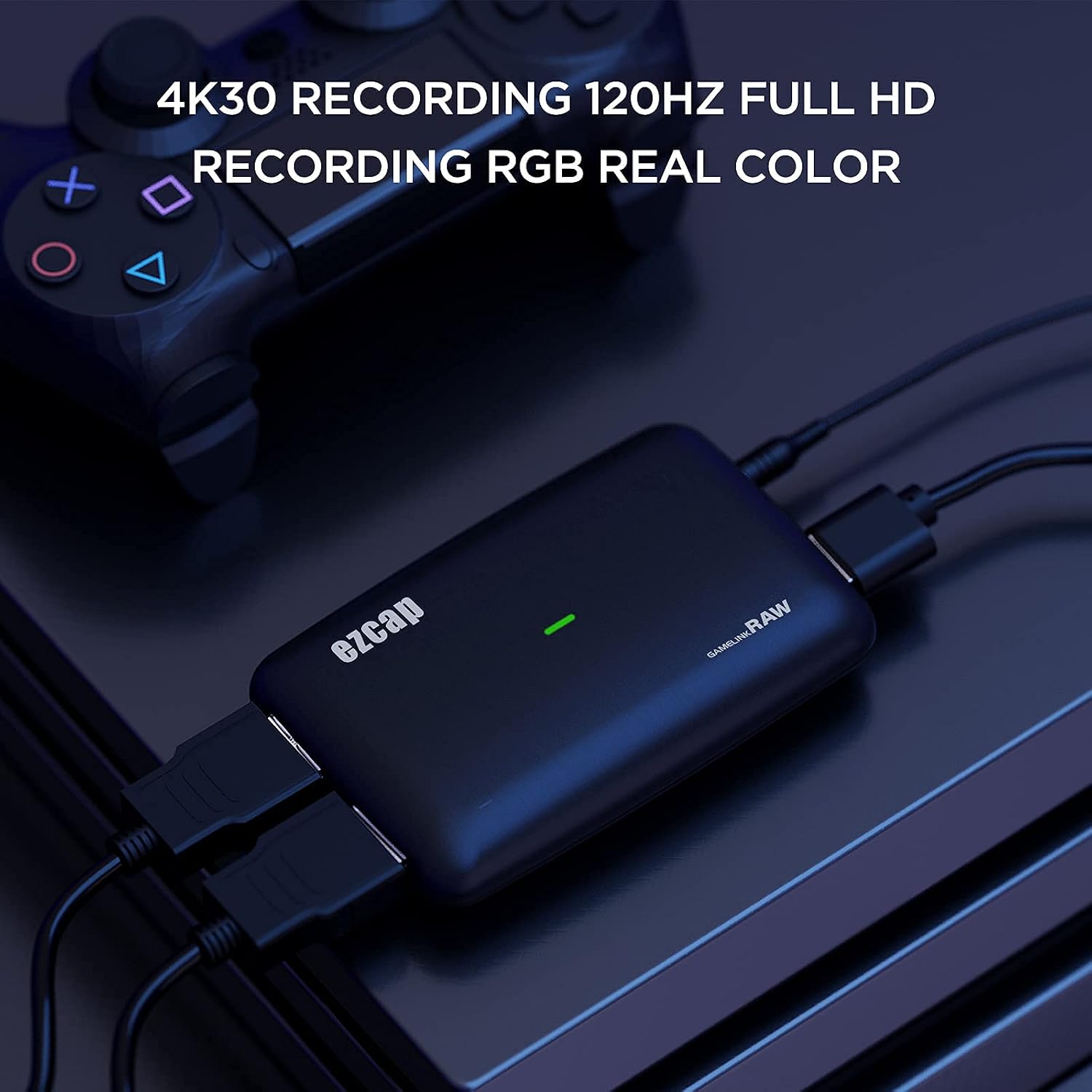
Figure 3.1: The ezcap Ezcap321 capture card is shown connected to a gaming console, illustrating its ability to record at 4K resolution at 30 frames per second (FPS) or Full HD 1080p at 120Hz, capturing RGB real color.

Figure 3.2: This image highlights the ezcap Ezcap321's USB 3.1 Gen1 high-speed connection, which ensures latency of less than 50 milliseconds, crucial for responsive gaming and streaming.

Figure 3.3: The ezcap Ezcap321 facilitates capturing and live streaming mobile games from a smartphone to a computer, allowing users to share their mobile gaming experience.

Figure 3.4: The ezcap Ezcap321 supports multiple video output formats including YUY2, NV12, and RGB, making it versatile for various video sources like DSLR cameras for educational or creative content.
3.3. Official Product Videos
Video 3.1: This video demonstrates the process of setting up and using the ezcap Ezcap321 for live streaming content through the ezcaplink software.
Video 3.2: A brief overview video showcasing the key features and capabilities of the ezcap Ezcap321 USB3.1 Game Capture Card, including its 4K30 recording ability.
Video 3.3: This video provides a step-by-step guide on how to record video using the ezcap Ezcap321 capture card with the ezcaplink software.
4. Maintenance
The ezcap Ezcap321 capture card requires minimal maintenance. Follow these guidelines to ensure its longevity:
- Cleaning: Use a soft, dry cloth to clean the exterior of the device. Avoid using liquid cleaners or abrasive materials.
- Storage: Store the device in a cool, dry place away from direct sunlight and extreme temperatures when not in use.
- Handling: Handle the device with care to prevent physical damage to the ports or casing.
5. Troubleshooting
If you encounter issues with your Ezcap321, refer to the following common solutions:
| Problem | Possible Solution |
|---|---|
| No video signal detected |
|
| No audio detected |
|
| Device not recognized by computer |
|
| High latency or dropped frames |
|
6. Specifications
| Feature | Detail |
|---|---|
| Brand | ezcap |
| Model Name | Ezcap321 |
| Hardware Interface | USB 3.0 |
| Video Capture Resolution | Up to 4K30, 1080p120, 1440p60 |
| Operating System Compatibility | Mac OS, Windows 10 |
| Recommended Uses | Video Recording, Live Streaming |
| AV Output Formats | YUY2, NV12, RGB |
| Compatible Devices | Gaming Consoles (PS5, PS4, Xbox One, Xbox 360, Switch), Camcorders, DSLR Cameras |
| Minimum System Requirements (Windows 10 Laptop) | Intel Core i7-7700HQ or above, NVIDIA GeForce GTX1050 Ti or above, 8 GB RAM |
| Minimum System Requirements (Mac OS - iMac 2019) | 3.2GHz 6-core Intel Core i7, Radeon Pro 555X with 2GB GDDR5, 16GB 2400MHz DDR4 memory |
| Built-In Media | Capture Card, Installation Guide |
| UPC | 190835039693 |
7. Warranty and Support
For warranty information and technical support, please refer to the documentation included in your product package or visit the official ezcap website. Keep your purchase receipt for warranty claims.


