1. Overview
The Uciefy Q5 Slim Rechargeable Wireless Mouse is designed for portability and quiet operation. It features 2.4G wireless connectivity, a silent click design, and a built-in rechargeable battery. This manual provides instructions for setup, operation, and maintenance.

Image: The Uciefy Q5 Slim Rechargeable Wireless Mouse, showcasing its sleek, ergonomic design in mint green.
2. What's in the Box
- 1 x Wireless Mouse
- 1 x USB Receiver (stored at the mouse bottom)
- 1 x Type C Adapter
- 1 x Charging Cable
- 1 x User Manual
3. Setup
3.1 Connecting via USB Receiver
- Locate the USB Nano receiver. It is stored in a compartment on the bottom of the mouse.
- Plug the USB Nano receiver into an available USB port on your PC or laptop.
- Turn on the mouse using the ON/OFF switch located on the bottom of the mouse. The mouse should connect automatically.
3.2 Connecting via Type-C Adapter
- Locate the USB Nano receiver and the Type-C adapter.
- Plug the USB Nano receiver into the Type-C adapter.
- Plug the Type-C adapter into an available Type-C port on your device.
- Turn on the mouse using the ON/OFF switch located on the bottom of the mouse. The mouse should connect automatically.

Image: The Uciefy Q5 mouse shown next to a smartphone, illustrating the USB and Type-C adapters for versatile connectivity.
4. Operating Instructions
4.1 Silent Click Feature
The Uciefy Q5 mouse is designed with special soundless left and right buttons. This feature minimizes clicking noise, providing a quiet working environment without disturbing others.

Image: The Uciefy Q5 mouse on a desk, highlighting its silent click capability for a quiet user experience.
4.2 DPI Adjustment
The mouse features adjustable DPI settings to control cursor sensitivity. You can switch between 1000, 1200, and 1600 DPI to suit your preference and task requirements. The DPI button is located on the top of the mouse, behind the scroll wheel.

Image: The Uciefy Q5 mouse displayed with indicators for its three adjustable DPI settings: 1000, 1200, and 1600.
5. Charging the Mouse
The Uciefy Q5 mouse has a built-in rechargeable battery. Use the provided charging cable to recharge the mouse. It is recommended to use a computer's USB interface for charging.
- Connect the charging cable to the mouse's charging port (located at the front).
- Connect the other end of the charging cable to a USB port on your computer.
- The battery indicator on the bottom of the mouse will show charging status.
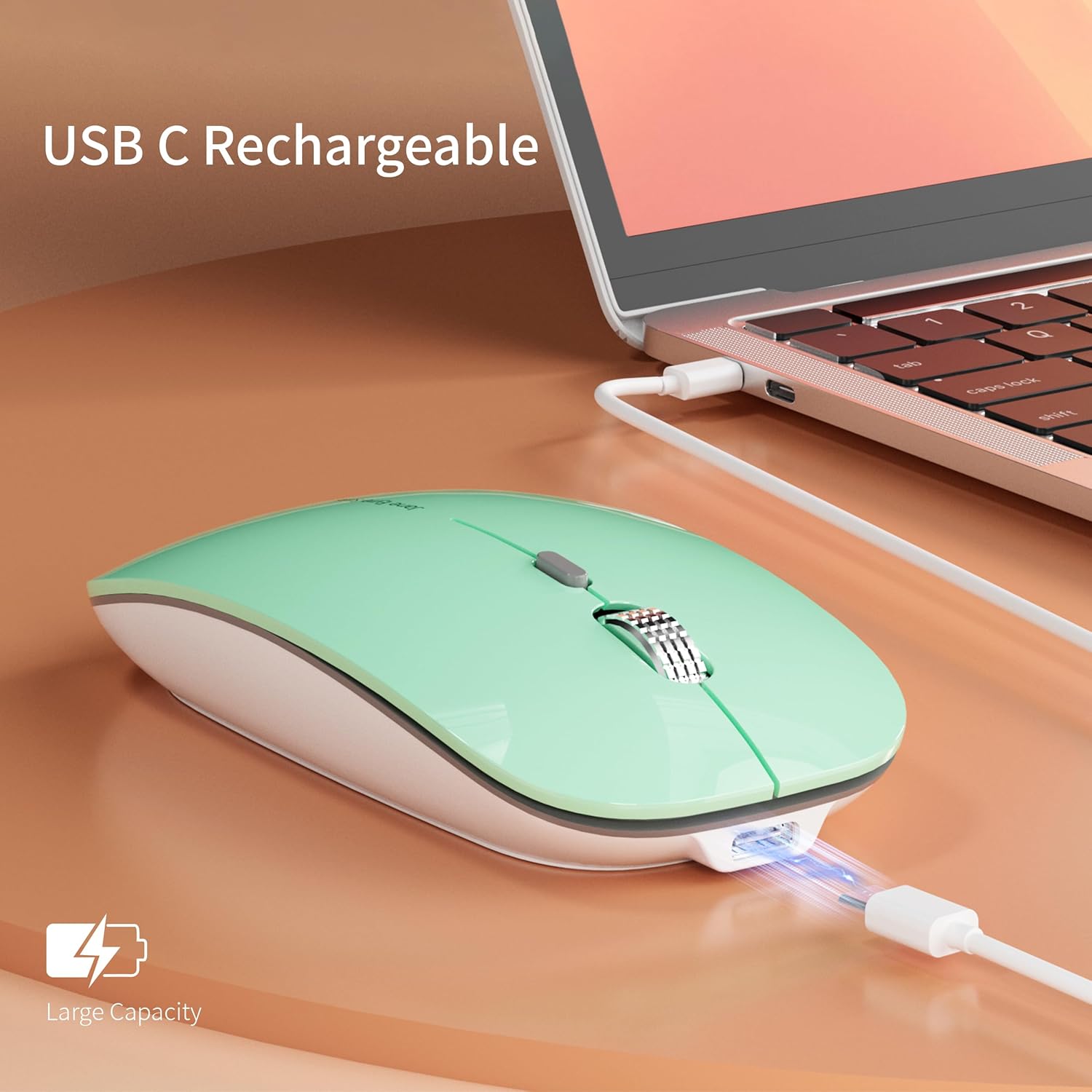
Image: The Uciefy Q5 mouse being charged via a USB cable connected to a laptop, indicating its rechargeable nature.
5.1 Battery Indicator
The bottom of the mouse features a battery indicator to show the remaining power level, allowing you to know when to recharge.

Image: The underside of the Uciefy Q5 mouse, showing the battery indicator lights and the storage compartment for the USB receiver.
6. Compatibility
The Uciefy Q5 Wireless Mouse is compatible with a wide range of operating systems, including:
- Windows 2000/XP/7/8/10/Vista
- Mac OS
7. Maintenance
To ensure optimal performance and longevity of your Uciefy Q5 mouse, follow these maintenance guidelines:
- Cleaning: Use a soft, dry cloth to wipe the mouse surface. For stubborn dirt, slightly dampen the cloth with water or a mild cleaning solution. Avoid harsh chemicals or abrasive materials.
- Storage: When not in use, store the mouse in a clean, dry place. If transporting, consider placing it in a protective sleeve or compartment to prevent damage.
- Avoid Liquids: Do not expose the mouse to excessive moisture or immerse it in liquids.
- Handle with Care: Avoid dropping the mouse or subjecting it to strong impacts.
8. Troubleshooting
If you encounter issues with your Uciefy Q5 mouse, refer to the following common solutions:
- Mouse not responding:
- Ensure the mouse is turned ON using the switch on the bottom.
- Check if the USB receiver is securely plugged into your computer's USB port (or Type-C adapter).
- Verify the mouse battery level. Recharge if necessary.
- Try plugging the USB receiver into a different USB port.
- Cursor lagging or skipping:
- Ensure the mouse is used on a clean, non-reflective surface.
- Move the mouse closer to the USB receiver to reduce potential interference.
- Check for other wireless devices that might be causing interference.
- Charging issues:
- Ensure the charging cable is properly connected to both the mouse and the power source.
- Use a computer's USB port for charging, as some wall adapters may not provide sufficient power.
- Try a different charging cable or USB port.
9. Specifications
| Product Dimensions | 4.4 x 2.25 x 0.1 inches |
| Item Weight | 2.45 ounces |
| Connectivity Technology | 2.4G Wireless (USB Receiver) |
| Special Features | Portable, Rechargeable, Silent Click, Adjustable DPI |
| Movement Detection Technology | Optical |
| DPI Settings | 1000, 1200, 1600 |
| Battery | Built-in Rechargeable (1 Product Specific battery included) |
10. Warranty and Support
For warranty information and customer support, please refer to the documentation included with your purchase or visit the official Uciefy brand store. You can find additional support and contact information there.
Uciefy Brand Store: https://www.amazon.com/stores/Uciefy/page/31C87CF5-0FC7-4F15-80DC-79E3FA2EB622


