
1. Introduction
This manual provides detailed instructions for the OMOTON KB066 Bluetooth Keyboard. Designed for seamless integration with various iOS devices, this ultra-slim wireless keyboard offers a comfortable and efficient typing experience. Please read this manual thoroughly before use to ensure proper setup and operation.
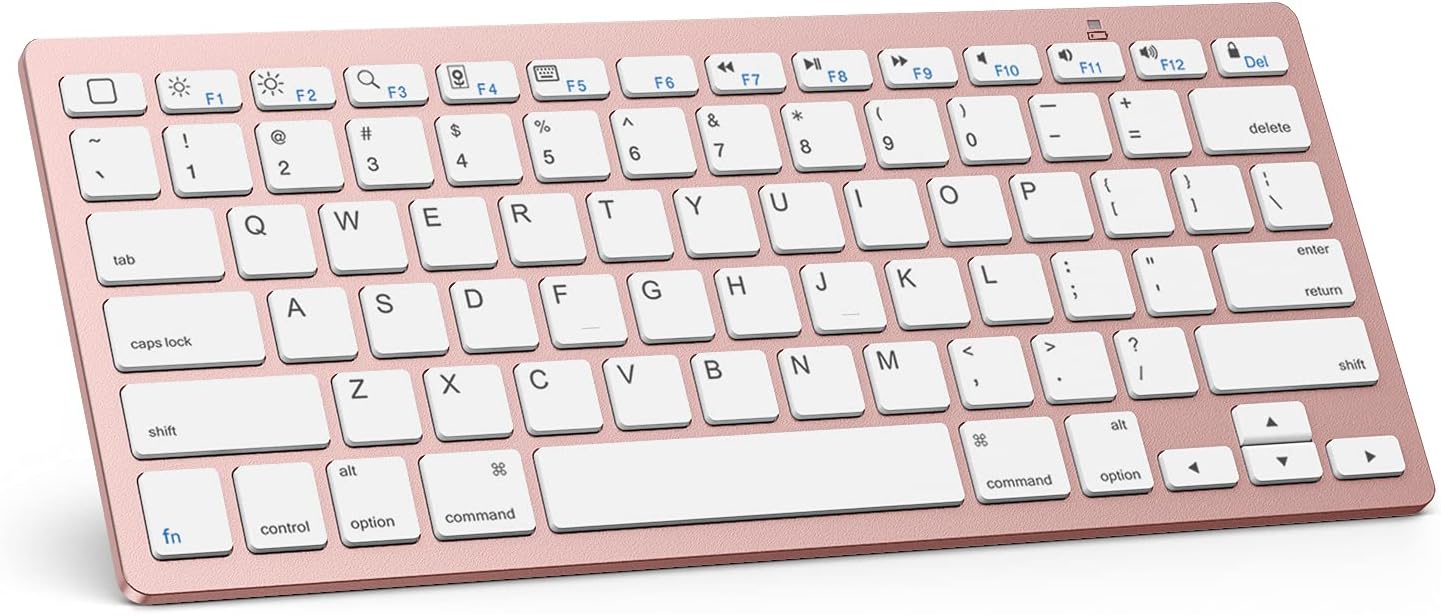
Image 1.1: The OMOTON KB066 Bluetooth Keyboard, showcasing its compact design and key layout.
2. Package Contents
- OMOTON KB066 Wireless Keyboard
3. Specifications
| Feature | Detail |
|---|---|
| Model Number | OMOTON KB066 |
| Product Dimensions | 11.22 x 4.72 x 0.24 inches (284.5 x 119.4 x 5.1 mm) |
| Item Weight | 11.3 ounces |
| Connectivity Technology | Bluetooth |
| Power Source | 2 x AAA Batteries (Not Included) |
| Operating Distance | Up to 10 meters (33 feet) |
| Keyboard Layout | QWERTY with Hot Keys |
| Special Features | Lightweight, Portable, Automatic Sleep Mode |

Image 3.1: Diagram illustrating the dimensions of the OMOTON KB066 Bluetooth Keyboard.
4. Setup Instructions
4.1 Battery Installation
- Locate the battery compartment on the back of the keyboard.
- Open the battery cover.
- Insert two AAA batteries (not included), ensuring correct polarity (+/-).
- Close the battery cover securely.
4.2 Bluetooth Pairing
- Turn on the keyboard by sliding the power switch to the 'ON' position. The power indicator light will briefly illuminate.
- Press the 'Connect' button on the back of the keyboard. The Bluetooth indicator light will begin to flash, indicating it is in pairing mode.
- On your iOS device (iPad, iPhone, etc.), go to Settings > Bluetooth.
- Ensure Bluetooth is enabled on your device.
- Your device will search for available Bluetooth devices. Select 'OMOTON Keyboard' or 'OMOTON KB066' from the list.
- Follow any on-screen prompts to complete the pairing process. Once successfully paired, the Bluetooth indicator light on the keyboard will turn off.

Image 4.1: Top and bottom view of the keyboard, highlighting the power switch, connection button, and battery slot.
5. Operating Instructions
5.1 Basic Typing
The OMOTON KB066 keyboard features a standard QWERTY layout. Simply open any text input application on your paired iOS device and begin typing.
5.2 Function Keys (Hot Keys)
The top row of keys provides quick access to various functions specific to iOS/iPadOS. These include:
- Fn + F1: Home Screen
- Fn + F2: Brightness Down
- Fn + F3: Brightness Up
- Fn + F4: Search
- Fn + F5: Show/Hide Keyboard
- Fn + F6: Previous Track
- Fn + F7: Play/Pause
- Fn + F8: Next Track
- Fn + F9: Mute
- Fn + F10: Volume Down
- Fn + F11: Volume Up
- Fn + F12: Lock Screen
- Del: Delete
Note: Function keys may not be fully compatible with other operating systems.

Image 5.1: Close-up view of the keyboard highlighting the optimized multimedia function keys.
5.3 Power Management
The keyboard features an energy-saving design with an automatic sleep mode. If inactive for a period, the keyboard will enter sleep mode to conserve battery life. To wake it up, simply press any key. The keyboard will automatically reconnect to your paired device.
6. Compatibility
The OMOTON KB066 Bluetooth Keyboard is broadly compatible with a range of Apple iOS devices, including:
- iPad 10th Generation
- iPad 10.2 (9th/8th/7th Generation)
- iPad Pro 13/12.9/11 inch
- iPad Air 13/11 inch
- iPad Air 10.9 inch (5th/4th Gen)
- iPad mini 6 / 5
- Other iOS devices (function keys may vary)
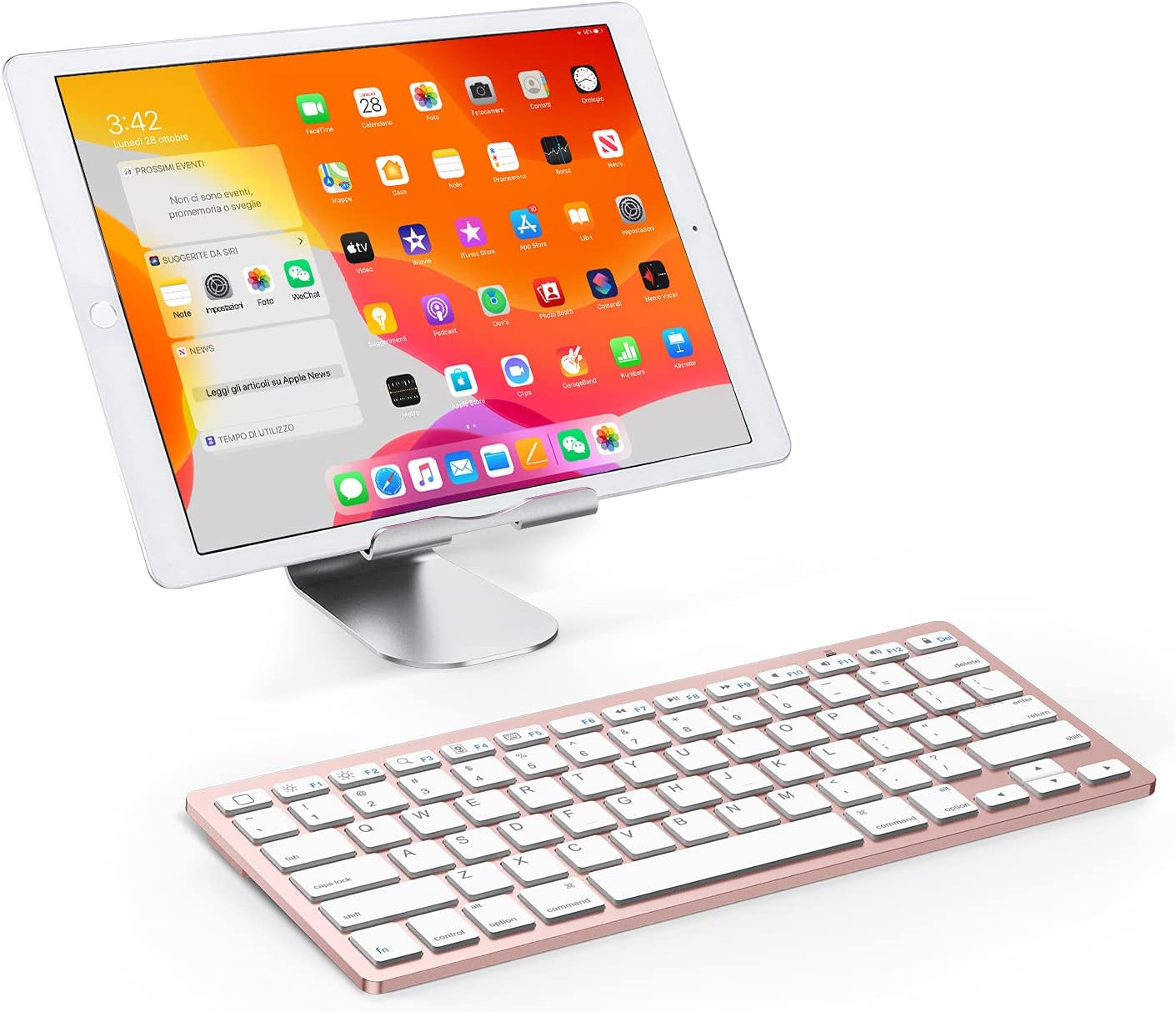
Image 6.1: The OMOTON KB066 keyboard positioned with an iPad on a stand, demonstrating its use with a tablet.
7. Troubleshooting
7.1 Keyboard Not Connecting
- Ensure the keyboard is powered on and has fresh batteries.
- Verify Bluetooth is enabled on your iOS device.
- Make sure the keyboard is within the 10-meter operating range of your device.
- If previously paired, try 'forgetting' the device in your iOS Bluetooth settings and re-pairing.
- Restart both the keyboard (turn off and on) and your iOS device.
7.2 Keys Not Responding
- Check battery levels. Low batteries can cause intermittent key responses.
- Ensure the keyboard is properly connected via Bluetooth.
- Clean any debris from around the keys.
7.3 Disconnections During Use
- This can sometimes occur if the keyboard enters sleep mode. Press any key to wake it up.
- Ensure there are no strong interfering signals (e.g., other Bluetooth devices, Wi-Fi routers) nearby.
- Check battery levels.
8. Maintenance
8.1 Cleaning
To clean the keyboard, gently wipe the surface with a soft, damp, lint-free cloth. Avoid using harsh chemicals or abrasive materials. Do not immerse the keyboard in water.
8.2 Storage
When not in use for extended periods, turn off the keyboard to conserve battery life. Store it in a cool, dry place away from direct sunlight and extreme temperatures.
9. Warranty and Support
OMOTON is committed to providing quality products and customer satisfaction. For any questions, concerns, or technical assistance regarding your OMOTON KB066 Bluetooth Keyboard, please contact OMOTON customer service. Refer to the product packaging or the official OMOTON website for contact information.


