
1. Introduction
Thank you for choosing the Hoco W27 Cat Ear Bluetooth Headphones. These headphones combine advanced Bluetooth 5.0 technology with a unique glowing cat ear design, offering a versatile audio experience. They support Bluetooth, TF card, and AUX playback modes, making them compatible with a wide range of mobile phones and tablets. This manual provides detailed instructions for setup, operation, maintenance, and troubleshooting to ensure you get the most out of your device.
2. Product Overview
Familiarize yourself with the components of your Hoco W27 headphones.
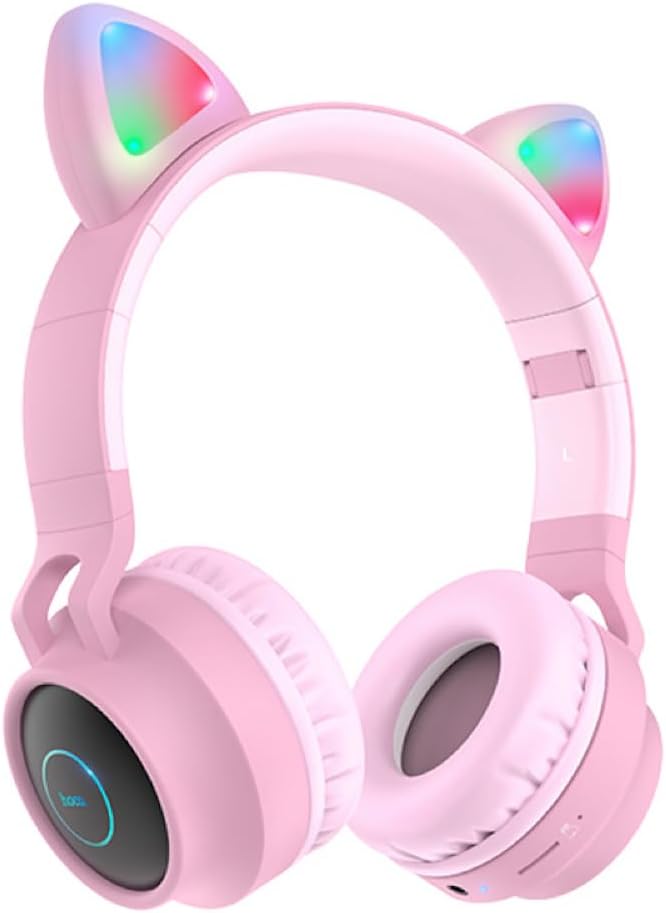
Figure 2.1: Front view of the Hoco W27 Cat Ear Bluetooth Headphones in pink, showcasing the glowing cat ears and over-ear design.

Figure 2.2: Side view of the Hoco W27 headphones, highlighting the control buttons on the left earcup, including volume, track control, and mode switch.

Figure 2.3: Top-down view of the Hoco W27 headphones, showing the adjustable headband and the placement of the control panel on the earcup.
3. Setup
3.1 Charging the Headphones
Before first use, fully charge the headphones. The built-in 300mAh battery requires approximately 2 hours for a full charge.
- Connect the charging cable (usually USB-C or Micro-USB, depending on model) to the charging port on the headphones.
- Connect the other end of the cable to a USB power source (e.g., computer USB port, wall adapter).
- The indicator light will show charging status (e.g., red light while charging, off or blue when fully charged).
3.2 Bluetooth Pairing
The Hoco W27 headphones feature Bluetooth 5.0 for stable and efficient wireless connection.
- Ensure the headphones are turned off.
- Press and hold the Power button until the indicator light flashes blue and red alternately, indicating pairing mode.
- On your device (smartphone, tablet, computer), enable Bluetooth and search for available devices.
- Select "Hoco W27" or a similar name from the list of found devices.
- Once connected, the indicator light will typically flash blue slowly or turn off, and you will hear a confirmation tone.
3.3 TF Card Mode
The headphones support TF (MicroSD) card playback.
- Insert a TF card with your desired audio files into the TF card slot on the headphones.
- The headphones should automatically switch to TF card playback mode. If not, press the Mode button to cycle through modes until TF card mode is active.
3.4 AUX Mode
For wired connection, use the AUX mode.
- Connect one end of a 3.5mm audio cable (not always included) to the AUX port on the headphones.
- Connect the other end to the audio output jack of your device.
- The headphones will automatically switch to AUX mode. Note that controls on the headphones may be limited in this mode, and playback is controlled by the connected device.
4. Operating Instructions
4.1 Power On/Off
- Power On: Press and hold the Power button for approximately 3 seconds until the indicator light turns on and you hear a power-on prompt.
- Power Off: Press and hold the Power button for approximately 3-5 seconds until the indicator light turns off and you hear a power-off prompt.
4.2 Music Playback
- Play/Pause: Press the Multi-function button (often the Power button or a dedicated Play/Pause button) once.
- Next Track: Press and hold the Volume Up (+) button or a dedicated Next Track button.
- Previous Track: Press and hold the Volume Down (-) button or a dedicated Previous Track button.
- Volume Up: Short press the Volume Up (+) button.
- Volume Down: Short press the Volume Down (-) button.
The headphones offer up to 5 hours of continuous music playback on a full charge.
4.3 Call Functions
- Answer/End Call: Press the Multi-function button once during an incoming call.
- Reject Call: Press and hold the Multi-function button for approximately 2 seconds during an incoming call.
- Redial Last Number: Double-press the Multi-function button when not on a call.
4.4 Mode Switching
Press the 'M' (Mode) button to cycle between Bluetooth, TF Card, and AUX playback modes.
4.5 Cat Ear Lights
The glowing cat ear design adds a unique aesthetic. The lights typically activate automatically when the headphones are powered on. Refer to the product packaging or specific model features for details on controlling the lights, if a dedicated button exists.
4.6 Voice Prompt Switch
To switch the voice prompt language or disable prompts:
- When the headphones are not connected to a device, double-click the 'M' (Mode) button. You will hear a beep, indicating a change in the voice prompt setting.
5. Maintenance
Proper care ensures the longevity of your headphones.
- Cleaning: Use a soft, dry, lint-free cloth to clean the surfaces of the headphones. Do not use abrasive cleaners, solvents, or spray directly onto the headphones.
- Storage: Store the headphones in a cool, dry place away from direct sunlight and extreme temperatures. If storing for an extended period, ensure they are partially charged.
- Battery Care: To preserve battery life, avoid fully discharging the headphones frequently. Charge them regularly, even if not in use for a long time.
- Avoid Moisture: Do not expose the headphones to water or excessive moisture.
6. Troubleshooting
If you encounter issues with your Hoco W27 headphones, try the following solutions:
| Problem | Possible Cause | Solution |
|---|---|---|
| Headphones do not power on. | Low battery. | Charge the headphones for at least 30 minutes. |
| Cannot pair via Bluetooth. | Headphones not in pairing mode; device Bluetooth off; too far from device. | Ensure headphones are in pairing mode (flashing red/blue). Turn device Bluetooth off and on. Move headphones closer to device. |
| No sound from headphones. | Volume too low; incorrect mode; loose AUX cable; corrupted TF card files. | Increase volume on headphones and device. Ensure correct mode (Bluetooth, TF, AUX). Re-insert AUX cable. Check TF card files. |
| Poor sound quality. | Interference; low battery; distance from device. | Move away from sources of interference. Charge headphones. Reduce distance between headphones and device. |
| Cat ear lights not working. | Headphones off; specific light control setting. | Ensure headphones are powered on. Check if there's a dedicated button for lights (refer to product specifics). |
7. Specifications
Key technical specifications for the Hoco W27 Cat Ear Bluetooth Headphones:
| Feature | Specification |
|---|---|
| Bluetooth Version | 5.0 (JL AC6925F chip) |
| Battery Capacity | 300mAh |
| Charging Time | Approximately 2 hours |
| Call / Music Time | Up to 5 hours |
| Standby Time | Up to 200 hours |
| Speaker Diameter | 40mm |
| Dimensions (L*W*H) | 203 x 175 x 80 mm (8 x 6.9 x 3.1 inches) |
| Weight | 182g (6.4 oz) |
| Supported Modes | Bluetooth, TF Card, AUX |
| Design Feature | Glowing cat ear shape |
| Ear Placement | Over Ear |
| Noise Control | None |
8. Safety Information
Please read and follow these safety guidelines for safe operation:
- Do not disassemble, repair, or modify the product. This may cause fire, electric shock, or complete damage to the product.
- Keep the headphones away from extreme temperatures, direct sunlight, and high humidity.
- Avoid exposing the headphones to water or other liquids.
- Do not use the headphones at excessively high volumes for prolonged periods, as this may cause hearing damage.
- Keep out of reach of children.
9. Warranty and Support
For warranty information and customer support, please refer to the documentation provided with your purchase or contact the retailer where you purchased the Hoco W27 headphones. Keep your proof of purchase for any warranty claims.