
Introduction
This manual provides detailed instructions for the installation, operation, and maintenance of your OOSSXX 4K 8MP PoE Wired Security Camera System. Please read this manual thoroughly before using the product to ensure proper setup and functionality. Keep this manual for future reference.
Product Features
Two-Way Audio
The system supports two-way audio communication, allowing you to speak and listen through the camera. This feature enables interaction with visitors or deter unwanted individuals. The system also supports simultaneous viewing by up to 4 users.

Image: The two-way audio function allows communication with individuals near the camera via a smartphone application.
130° Ultra-Wide Angle Lens
Equipped with a 130° wide-angle lens, the cameras capture a broad field of view, minimizing blind spots and providing comprehensive surveillance of your property. This allows for detailed monitoring of large areas.

Image: A visual comparison demonstrating the extensive coverage provided by the 130° ultra-wide-angle lens compared to a standard lens.
PIR & AI Dual Detection
The system utilizes advanced PIR (Passive Infrared) and AI (Artificial Intelligence) detection to accurately identify human movement. This dual detection method significantly reduces false alarms caused by environmental factors such as leaves, clouds, animals, or insects, providing more reliable alerts.
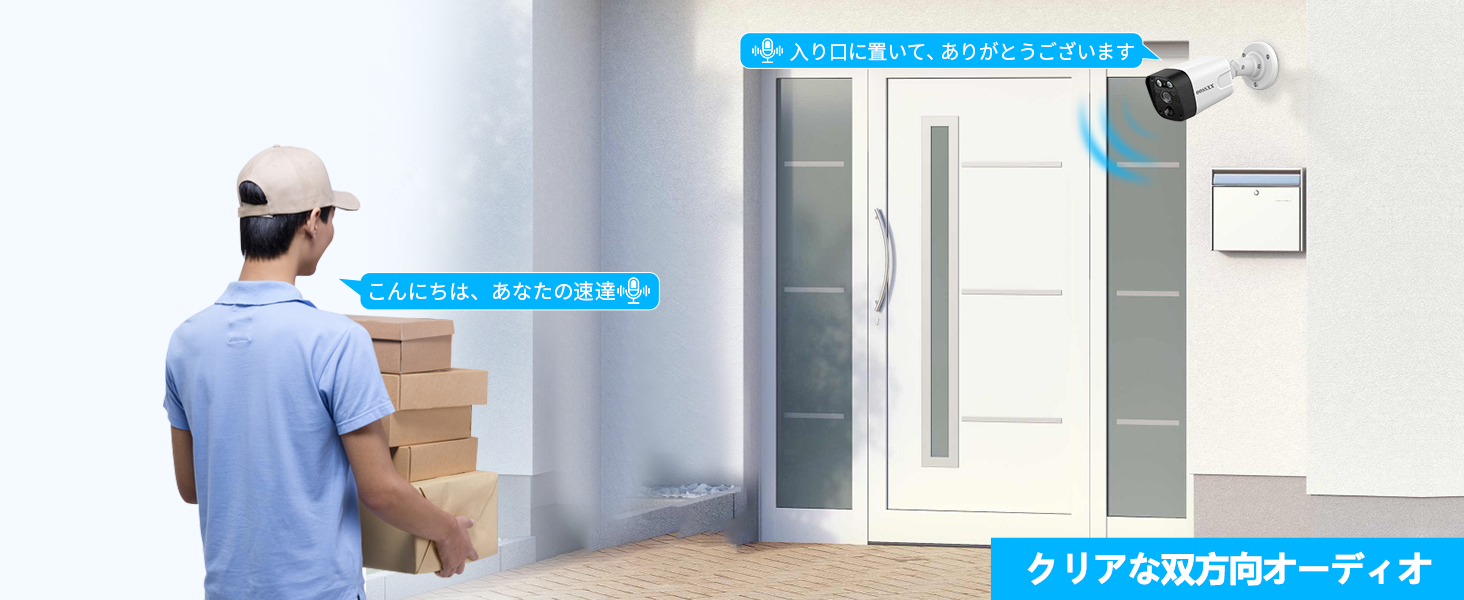
Image: An illustration showing the combined AI and PIR detection capabilities, focusing on human figures.
Plug & Play and Expandable
Installation is simplified with Plug & Play functionality. Cameras connect to the NVR using a single LAN cable, which also provides power (PoE). The system is expandable, supporting up to 8 cameras to meet your surveillance needs. Waterproof connectors on the LAN cables ensure outdoor reliability.
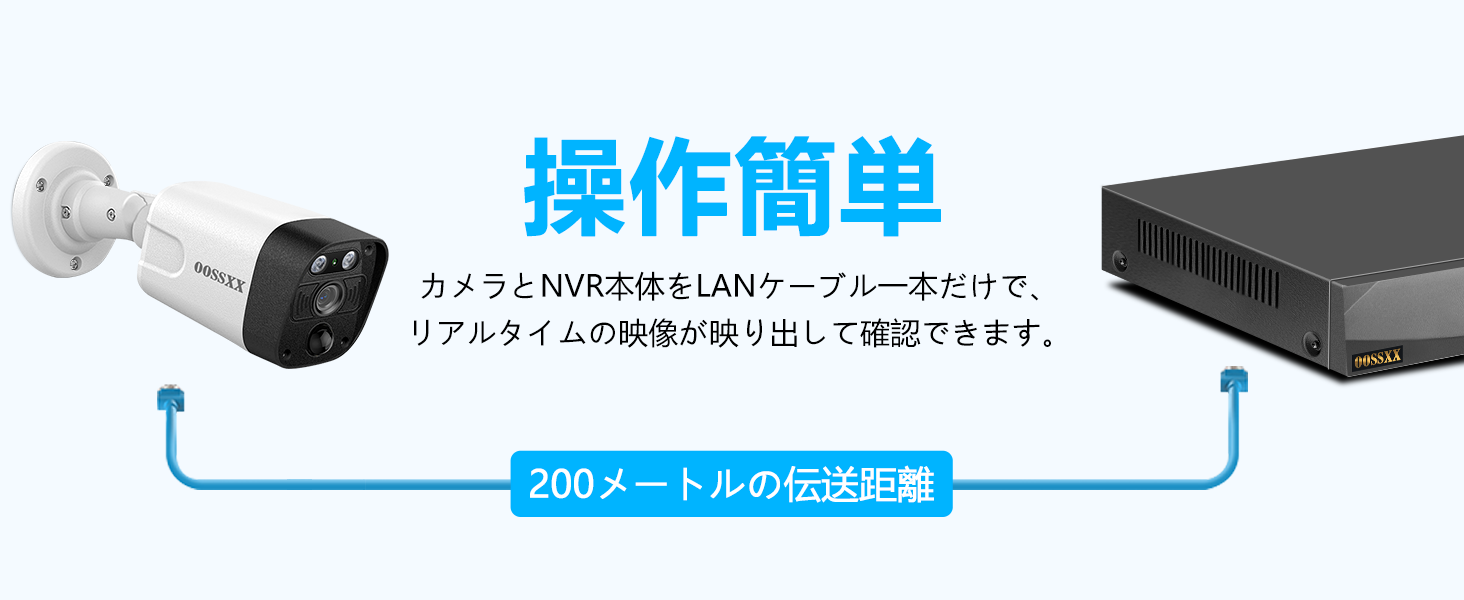
Image: The simple connection of a camera to the NVR using a single LAN cable for both data and power.
4K 8MP Ultra High Resolution
The cameras record in 4K (3264x2488) resolution, providing clear and detailed images for enhanced security. The IR-LED system automatically activates infrared mode in low-light conditions, allowing visibility up to 24 meters at night.

Image: An example of the high-definition 4K 8MP video quality, highlighting clear image details.
Free APP & No Monthly Fees
Access your camera system remotely via the free 'Honestview' or 'Eseecloud' app, available on iOS and Android devices. There are no monthly subscription fees required to use the app's features.

Image: Remote access to the camera system via a smartphone app, showing compatibility with various devices.
Durable and Weatherproof Design
The cameras feature a robust aluminum housing with an IP66 waterproof rating, ensuring reliable operation in various weather conditions and temperatures ranging from -20°C to 60°C. The waterproof connectors further enhance outdoor durability.
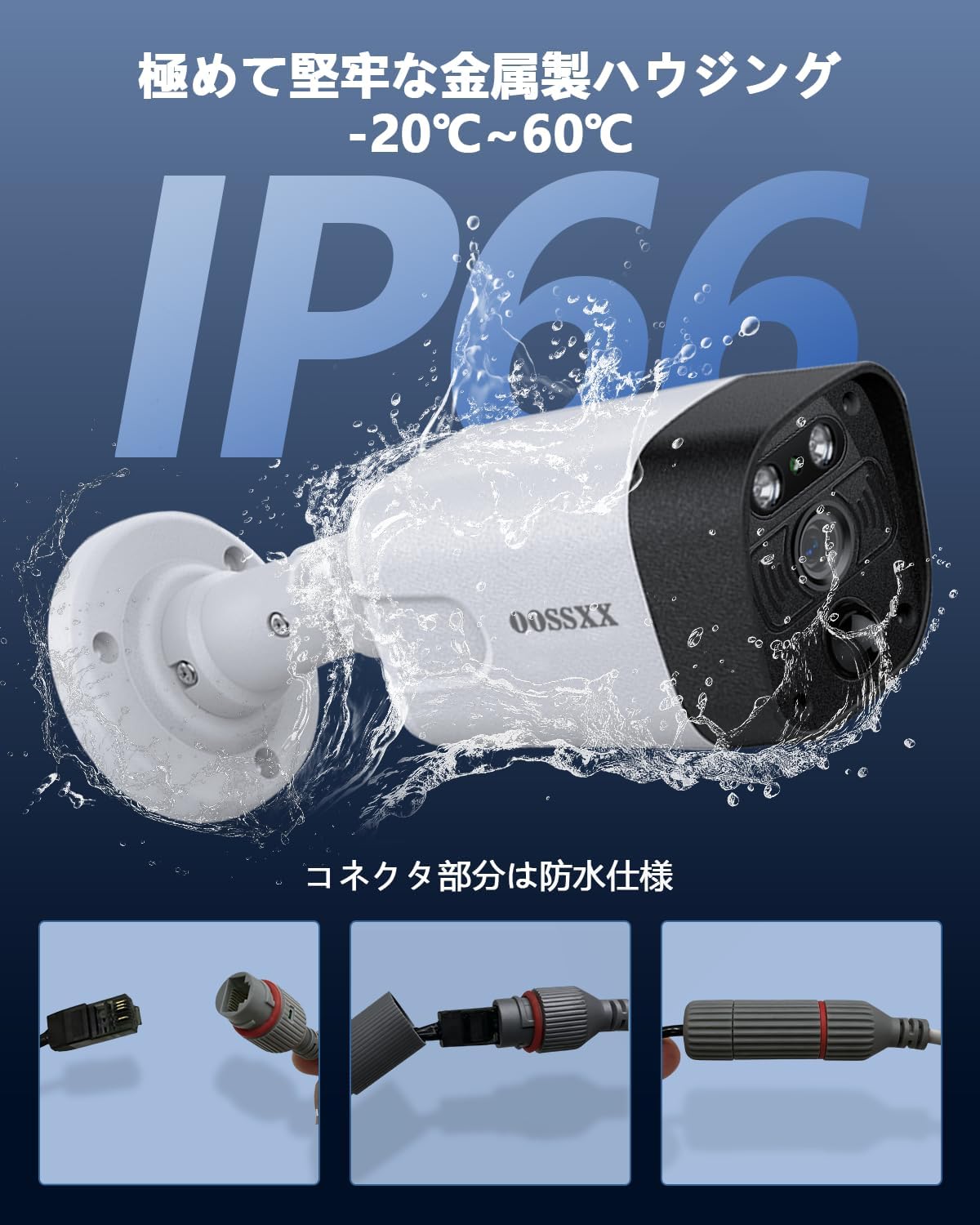
Image: The camera's IP66 waterproof rating and rugged metal construction, suitable for outdoor use.
H.265+ Video Compression
The system utilizes H.265+ video compression technology, which efficiently compresses video files without compromising quality. This allows for longer recording times and reduces storage space requirements compared to older compression standards like H.264.

Image: A visual representation of the efficiency of H.265+ video compression.
Package Contents
Please check the package contents upon receipt to ensure all items are present:
- 1x 4K 8MP 8-Channel Network Video Recorder (NVR) with 6TB HDD
- 4x 4K 8MP Cameras
- 4x 18.2-meter LAN cables for cameras
- 1x Instruction Manual
- 1x Warning Label
- 4x Camera Mounting Screw Packs
- 1x NVR Power Adapter (48V2A)
- 1x Remote Control
- 1x USB Mouse
- 1x 1-meter HDMI Cable
- 1x 1-meter LAN Cable
Setup Guide
Step 1: Unpack and Identify Components
Carefully remove all items from the packaging. Verify that all components listed in the 'Package Contents' section are present and undamaged.
Step 2: Connect Cameras to NVR
Connect each camera to an available PoE port on the NVR using the provided LAN cables. The PoE ports supply both power and data to the cameras. Ensure the waterproof connectors are properly sealed if installing outdoors.
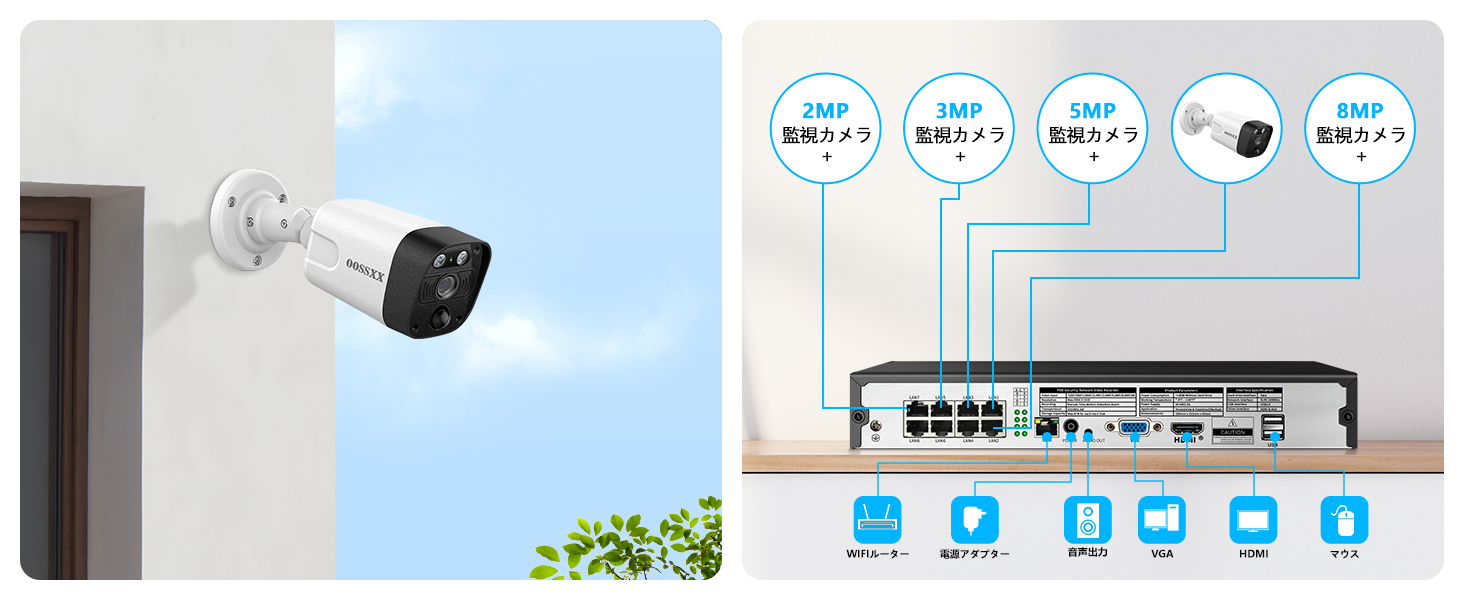
Image: An overview of the NVR's rear panel with connection points for cameras, monitor, and other peripherals.
Step 3: Connect NVR to Monitor and Power
- Connect the NVR to a monitor using the HDMI cable.
- Connect the USB mouse to a USB port on the NVR.
- Connect the NVR power adapter to the NVR and then to a power outlet. The system will power on automatically.
Step 4: Initial System Configuration
Follow the on-screen prompts on the connected monitor to complete the initial setup, including setting up a password, time zone, and network settings. The NVR should automatically detect and display the connected cameras.
Step 5: Mobile App Setup
- Download the 'Honestview' or 'Eseecloud' app from your smartphone's app store.
- Register an account and log in.
- Add your NVR device to the app by scanning the QR code displayed on the NVR's monitor or by manually entering the device ID.
- Once added, you can view live feeds, access recordings, and configure settings remotely.
Operating Instructions
Live View Access
On the NVR, use the USB mouse to navigate the interface and select 'Live View' to see real-time footage from all connected cameras. Through the mobile app, select your device to view live streams.
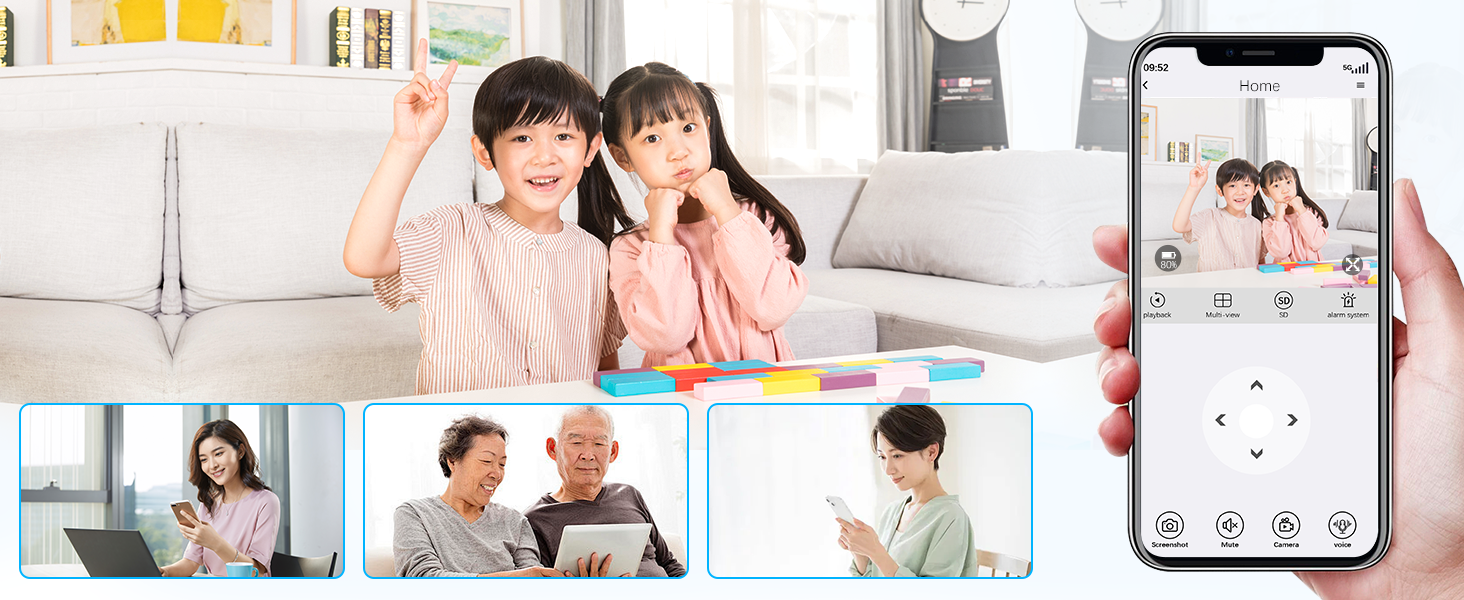
Image: Remote viewing of live camera feeds on a mobile device.
Two-Way Audio Function
To use two-way audio, open the mobile app, select the desired camera's live view, and tap the microphone icon to speak. Tap the speaker icon to listen to audio from the camera's location.
Motion Detection Settings
Access the NVR's menu or the mobile app settings to configure motion detection. You can define specific detection zones to monitor critical areas and adjust sensitivity levels to prevent unwanted alerts. The PIR & AI dual detection helps in reducing false alarms.

Image: Customizing motion detection areas to focus on specific regions of interest.
Recording Playback
On the NVR, select 'Playback' from the main menu to review recorded footage. You can search by date, time, and event type. Through the mobile app, navigate to the 'Events' or 'Playback' section to access cloud or local recordings.
Remote Access
Once the mobile app is configured, you can remotely monitor your property from anywhere with an internet connection. This includes live viewing, playback of recordings, and receiving real-time alerts.
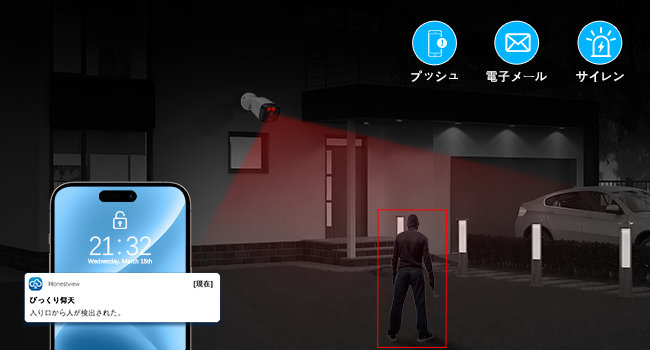
Image: An example of a real-time alert notification received on a smartphone.
Maintenance
- Cleaning: Regularly clean the camera lenses with a soft, damp cloth to ensure clear image quality. Do not use harsh chemicals.
- Firmware Updates: Check the OOSSXX official website or the mobile app periodically for firmware updates. Keeping your system updated ensures optimal performance and security.
- Storage Management: The NVR's 6TB HDD provides ample storage. Configure recording settings (e.g., continuous, motion-triggered) to manage storage efficiently. The system will automatically overwrite the oldest footage when the disk is full.
Troubleshooting
| Issue | Possible Cause | Solution |
|---|---|---|
| No image on monitor | Loose HDMI cable, NVR not powered, camera not connected. | Check HDMI connection, ensure NVR is powered, verify camera LAN connections. |
| No audio from camera | Microphone disabled, volume too low, network issue. | Enable microphone in settings, increase volume, check network stability. |
| Frequent false alarms | High sensitivity, detection zone too wide, environmental factors. | Adjust motion detection sensitivity, refine detection zones to exclude irrelevant areas. |
| Cannot connect to mobile app | Incorrect device ID, NVR not connected to internet, app version outdated. | Verify device ID, ensure NVR has internet access, update app to latest version. |
| Night vision unclear | Dirty lens, IR lights obstructed, insufficient ambient light. | Clean camera lens, ensure no obstructions blocking IR lights, consider adding external light if needed. |
Technical Specifications
| Feature | Specification |
|---|---|
| Brand | OOSSXX |
| Model Number | OSX-JPPOE10-W8004-6TB |
| Recommended Use | Home Security, Night Vision |
| Connectivity Technology | Wired (PoE) |
| Special Features | 130° Ultra-Wide Angle, 4K 8MP Resolution, Motion Sensor, Two-Way Audio, Free APP |
| Compatible Devices | Smartphones, Tablets, TVs, Desktops, Laptops |
| Power Source | AC/DC |
| Video Capture Resolution | 3264×2488 (8 Million Pixels) |
| Color | 4K 8MP PoE 4-Camera White (6TB HDD Built-in) |
| Number of Items | 1 Set |
| Product Material | Aluminum |
| Shape | Straight (Bullet Camera) |
| Waterproof Rating | IP66 |
| Management Method | Remote |
| Voltage | 110 Volts (AC) |
| Wattage | 60 W |
| Batteries Required | No |
| Frame Rate | 15 fps |
| Field of View | 130 Degrees |
| Product Dimensions | 39 x 28 x 19 cm |
| Product Weight | 6.1 Kilograms |
| Number of Channels | 8 |
| Video Capture Format | MPEG H (H.265+) |
| Night Vision Range | 20 Meters |
| Night Vision Type | 845nm 2 Infrared Dot Matrix Lamps Super Night Vision |
Warranty and Customer Support
OOSSXX is committed to providing high-quality products and excellent customer service. We conduct strict quality control throughout manufacturing and inspection processes.
Warranty
This product comes with a 12-month quality warranty from the date of purchase. Please retain your proof of purchase for warranty claims.

Image: Warranty information and contact details.
Customer Support
If you have any questions, concerns, or encounter any issues with your OOSSXX security camera system, please do not hesitate to contact our customer support team. We offer Japanese language support via email.
- Email: jp-info@oossxx.com (Response within 24 hours)
- Website: jp.oossxx.com
- LINE Service: https://lin.ee/K941p57

Image: QR code for quick access to OOSSXX LINE customer service.
Our service center in Japan is located at: Rose Avenue Inage Tendai 1F, 5-8-9 Tendai, Inage-ku, Chiba City, Chiba Prefecture.

