
1. Introduction
Thank you for purchasing the JIMTAB M18 PRO Native 1080P Video Projector. This manual provides essential information for setting up, operating, maintaining, and troubleshooting your projector to ensure optimal performance and longevity. Please read this manual thoroughly before using the product.

Figure 1: JIMTAB M18 PRO Video Projector
2. What's in the Box
Carefully unpack your JIMTAB M18 PRO projector and ensure all items are present:
- JIMTAB M18 PRO Video Projector
- Remote Control
- Power Cord
- HDMI Cable
- AV Cable
- User Manual (this document)
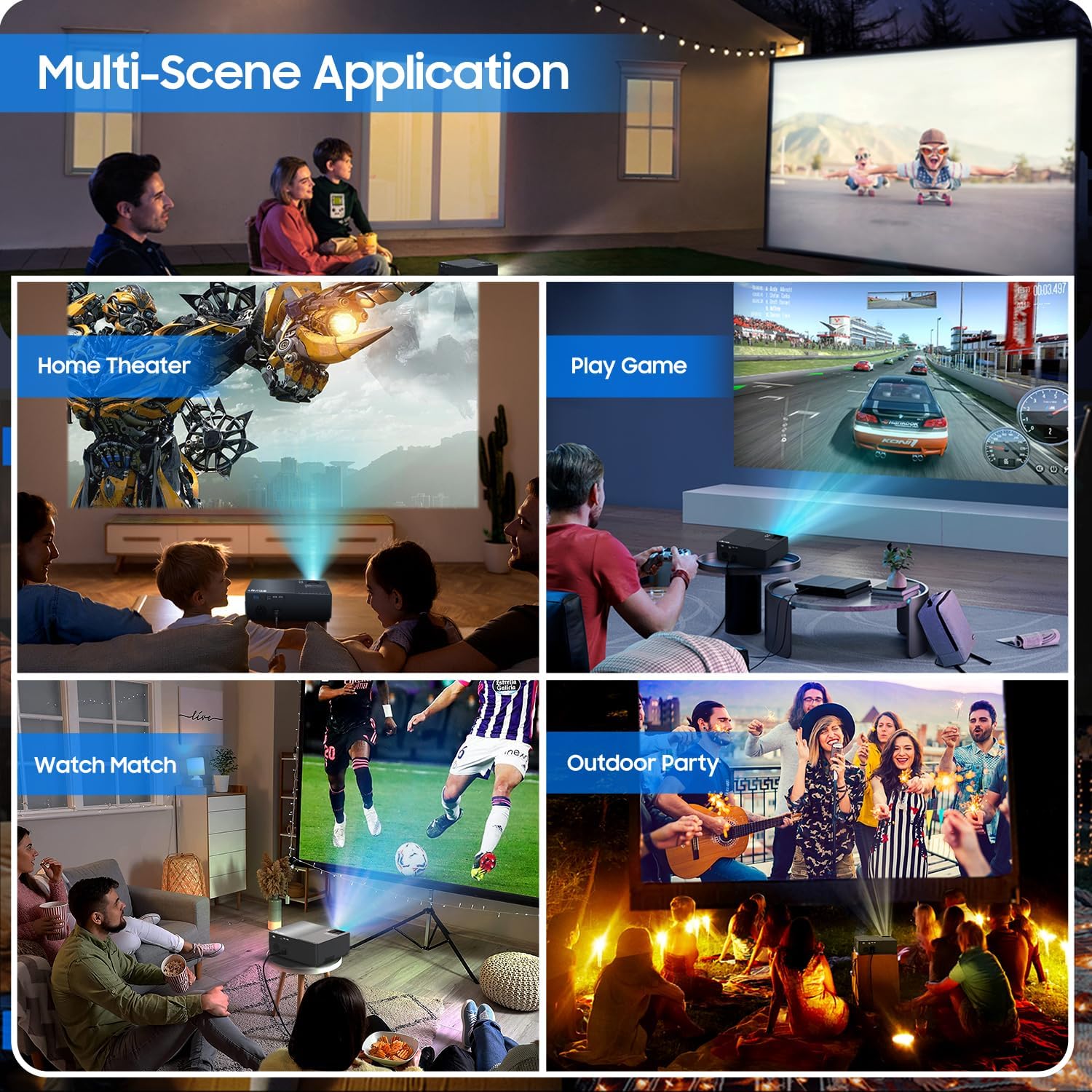
Figure 2: All included accessories and the projector
3. Product Features
- Native 1080P Resolution: Experience crisp and clear images with a true native resolution of 1920x1080 pixels and an 8000:1 contrast ratio. Supports 576i, 576p, 720i, 720p, 1080i, 1080p, 2k, and 4k input.
- High Brightness: Features 21000 lumens brightness for vibrant projections even in moderately lit environments.
- Dual-Band WiFi Screen Mirroring: Built-in 2.4G+5G WiFi allows for seamless wireless screen mirroring from your smartphone, tablet, or laptop (iOS, Android, Windows compatible).
- Built-in Dolby Sound Speakers: Equipped with 5W dual stereo speakers supporting Dolby Sound for an immersive audio experience. External speakers can also be connected.
- Large Screen Display: Project images from 50 inches up to 300 inches, offering a versatile viewing experience for various room sizes.
- Extensive Compatibility: Connects to a wide range of devices including Xbox, Laptops, iPhones, Android devices, USB devices, PS4, TV Sticks, and TV Boxes via AV, VGA, USB, and HDMI ports.

Figure 3: Enhanced image sharpness and richer color details
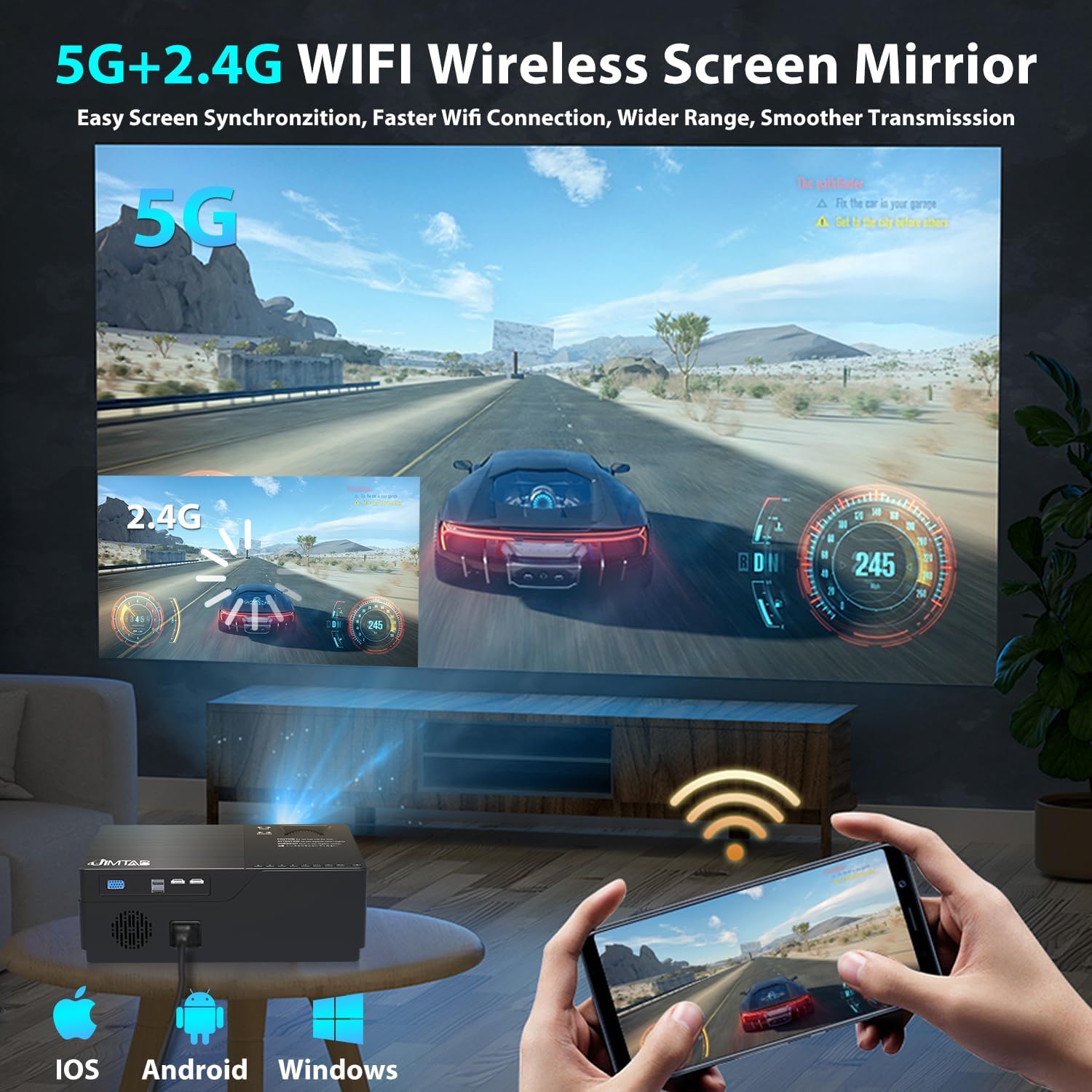
Figure 4: 5G+2.4G WiFi Wireless Screen Mirroring in action

Figure 5: Built-in 5W Dual Stereo Speaker supporting Dolby Sound

Figure 6: Projection sizes from 50 to 300 inches

Figure 7: Wide compatibility with multiple devices
4. Setup Guide
- Placement: Place the projector on a stable, flat surface or mount it on a tripod/ceiling. Ensure it is positioned directly in front of the projection screen or wall for best results. The optimal projection distance ranges from 5.5 feet to 30.2 feet.
- Power Connection: Connect the power cord to the projector's power input and then to a power outlet.
- Connect Source Device: Use the appropriate cable (HDMI, AV, VGA, USB) to connect your desired source device (laptop, game console, USB drive, etc.) to the projector.
- Power On: Press the power button on the projector or the remote control to turn on the device.
- Select Input Source: Use the 'Source' button on the projector or remote to select the correct input source corresponding to your connected device.
5. Operating Instructions
- Power On/Off: Press the power button once to turn on. Press and hold the power button for a few seconds to turn off.
- Menu Navigation: Use the arrow keys on the remote or projector panel to navigate through the on-screen menu. Press 'OK' or 'Enter' to confirm selections.
- Volume Control: Use the volume buttons on the remote control to adjust the audio output level.
6. Image Adjustment
- Focus Adjustment: Rotate the focus dial located near the lens until the projected image is sharp and clear.
- Keystone Correction:
- Manual Keystone: Use the manual keystone adjustment lever (usually on the side or top) to correct vertical distortion (±15°).
- Digital Keystone: Access the menu settings for digital keystone correction to adjust both vertical and horizontal distortion (up to ±50°), ensuring a perfectly rectangular image even if the projector is not perfectly aligned.
- Zoom Function: Adjust the image size from 75% to 100% via the menu settings without moving the projector.

Figure 8: Digital Horizontal & Vertical Keystone Adjustment
7. Maintenance
- Lens Cleaning: Use a soft, lint-free cloth specifically designed for optical lenses to gently wipe the projector lens. Avoid abrasive materials or harsh chemicals.
- Ventilation: Ensure the projector's ventilation ports are clear and unobstructed to prevent overheating. Regularly clean dust from the vents using a soft brush or compressed air.
- Storage: When not in use for extended periods, store the projector in a cool, dry place, ideally in its original packaging or a protective case.
- Lamp Life: The LED lamp in your M18 Pro projector is designed for tens of thousands of hours of use, minimizing the need for frequent lamp replacement.
8. Troubleshooting
| Problem | Possible Cause | Solution |
|---|---|---|
| No image or 'No Signal' | Incorrect input source selected; Loose cable connection; Source device not powered on. | Select correct input source; Check and secure all cable connections; Ensure source device is powered on. |
| Blurry image | Focus not adjusted; Keystone not corrected; Projector too close/far from screen. | Adjust focus dial; Use manual or digital keystone correction; Adjust projection distance. |
| Image appears dim | High ambient light; Projector settings. | Reduce ambient light (close curtains); Adjust brightness/contrast settings in the projector menu. |
| No sound | Volume too low; Muted; Incorrect audio output selected on source device. | Increase volume; Unmute; Check audio settings on source device. |
| Overheating warning | Blocked ventilation; Prolonged use. | Ensure vents are clear; Allow projector to cool down before restarting. |
9. Specifications
| Feature | Specification |
|---|---|
| Model Number | M18 Pro |
| Native Resolution | 1920 x 1080 (Full HD) |
| Brightness | 21000 Lumens |
| Contrast Ratio | 8000:1 |
| Projection Size | 50" - 300" |
| Projection Distance | 5.5 FT - 30.2 FT |
| Connectivity Technology | Wi-Fi (2.4G+5G), HDMI (x2), USB (x2), VGA, AV |
| Audio Output | Built-in 5W Dual Stereo Speaker (Dolby Sound) |
| Product Dimensions | 11.81 x 8.66 x 3.94 inches |
| Item Weight | 7.74 pounds |
10. Safety Information
- WARNING: Do not look directly at the projector lens when the lamp is on. The intense light can cause eye damage.
- Ensure the projector is placed on a stable surface to prevent it from falling.
- Do not block the ventilation openings, as this can lead to overheating and damage to the device.
- Keep the projector away from water or any liquids to avoid electric shock.
- Unplug the projector from the power outlet before cleaning or when not in use for a long period.
11. Warranty & Support
JIMTAB is committed to providing high-quality products and excellent customer service. For any questions, technical assistance, or warranty inquiries, please contact our dedicated support team. We offer 7x24 hours free customer support.
You can also find more information and support on our official social media channels:
- Facebook Official Homepage: ijimtab
- YouTube Official Homepage: Jimtab


