
Introduction
Thank you for choosing the Redragon K608 Valheim Mechanical Gaming Keyboard. This manual provides detailed instructions for setting up, operating, and maintaining your keyboard to ensure optimal performance and longevity. The K608 features tactile brown switches, LED rainbow backlighting, full-key rollover, and an ergonomic design suitable for both gaming and office use.
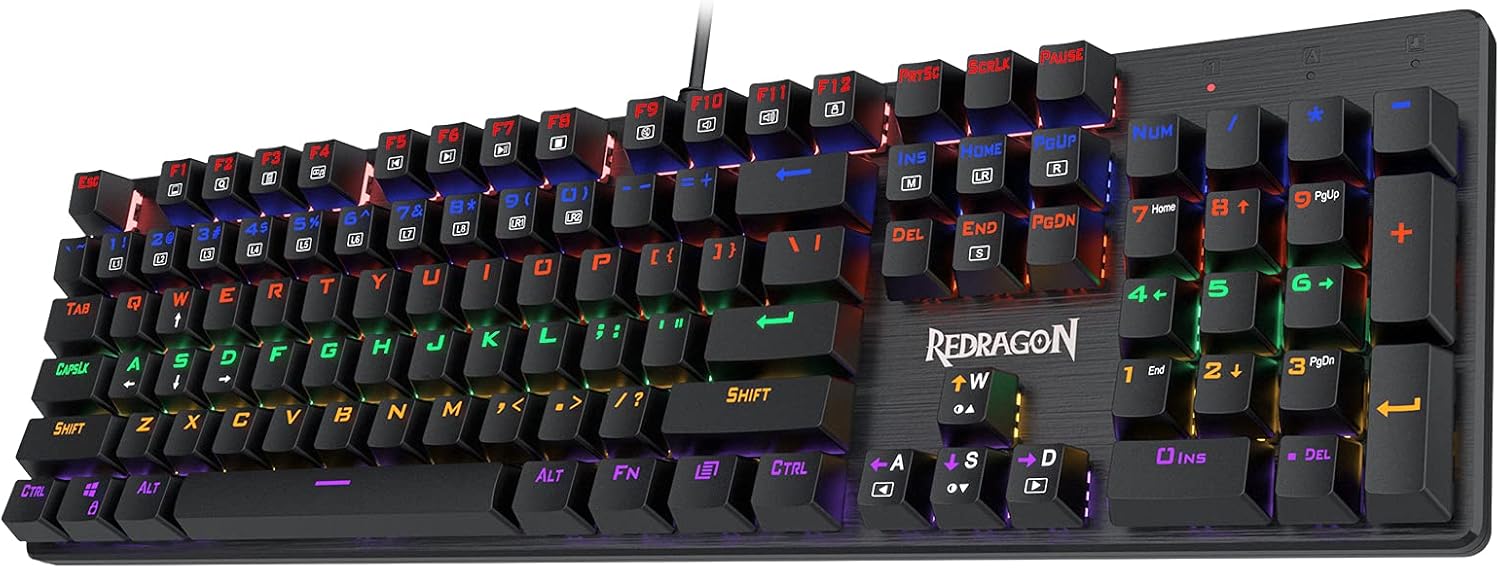
Figure 1: Redragon K608 Valheim Mechanical Gaming Keyboard Overview
Package Contents
Please verify that all items are present in the package:
- 1 x Redragon K608 Keyboard
- 1 x Keycap Puller
- 1 x User Manual
Specifications
| Feature | Detail |
|---|---|
| Model | K608 Valheim |
| Key Switches | Redragon Brown Mechanical Switches |
| Number of Keys | 104 Keys |
| Backlighting | LED Rainbow Backlit (RGB support) |
| Connectivity | Wired, USB 2.0 Connector |
| Anti-Ghosting | 100% NKRO (N-Key Rollover) |
| Multimedia Keys | 11 Dedicated Multimedia Keys |
| Dimensions (L x W x H) | 44 x 15 x 4.3 cm (17.2 x 4.9 x 1.2 in) |
| Weight | 839 g (727g from product description) |
| Operating System | Windows 10 (Compatible with Laptop) |
| Special Features | Adjustable Height, Double-shot Frosted Keycaps, Solid Smooth Brushed Plate, Neat Floated Design |

Figure 2: Redragon Dustproof Brown Switches, offering tactile feedback with low noise.
Setup
- Unpack the Keyboard: Carefully remove the Redragon K608 keyboard and all accessories from its packaging.
- Connect to Computer: Plug the USB connector of the keyboard into an available USB 2.0 port on your computer.
- Driver Installation: The keyboard is plug-and-play. Your operating system (e.g., Windows 10) will automatically detect and install the necessary drivers. No additional software installation is typically required for basic functionality.
- Adjust Height: Flip out the adjustable stands located on the underside of the keyboard to set your preferred typing angle.
Operating Instructions
Key Features
- Tactile Brown Switches: Designed for a balance of typing and gaming, providing a noticeable bump without a loud click.
- Full-Key Rollover (NKRO): Ensures every keystroke is registered accurately, even during rapid, simultaneous key presses, crucial for gaming.

Figure 3: Illustration of 100% NKRO (N-Key Rollover) ensuring all key presses are registered.
- Durable Construction: Features a solid smooth brushed plate for enhanced durability and a premium aesthetic.

Figure 4: The solid smooth brushed plate design of the Redragon K608 keyboard.
- Floated Key Design: The keycaps are designed to appear "floating" above the base, which not only provides a modern look but also simplifies cleaning.

Figure 5: The neat floated design of the keycaps, contributing to both aesthetics and ease of maintenance.
- Double-shot Frosted Keycaps: Ensures legends never fade, providing long-lasting clarity.

Figure 6: Double-shot frosted keycaps, designed for durability and clear, non-fading legends.
Backlight Modes
The Redragon K608 keyboard features 9 vibrant rainbow backlight modes. To cycle through these modes, press the FN + INS keys simultaneously.
The available modes include:
- Static
- Colliding
- Fade Drop
- Point to Surface
- Activating
- Scanning
- Flowing
- Breathing
- 2 Players

Figure 7: Visual representation of the 9 preset backlight modes, activated by FN + INS.
Gaming Modes
The keyboard offers 8 preset gaming lighting modes and 2 customizable backlit modes for dedicated use. These modes highlight specific key groups relevant to different game genres.

Figure 8: Overview of 8 dedicated gaming modes and options for 2 onboard self-defined modes.
Multimedia Keys
The Redragon K608 keyboard includes 11 dedicated multimedia keys for quick access to media controls and other functions. Refer to the keycap legends for specific functions such as volume control, play/pause, and track navigation.
Maintenance
Proper maintenance ensures the longevity and performance of your keyboard:
- Cleaning: Use a soft, dry cloth to wipe down the keyboard surface. For dust and debris between keycaps, use compressed air. The floated key design makes cleaning easier.
- Keycap Removal: Use the included keycap puller to carefully remove keycaps for deeper cleaning or switch replacement (if applicable and supported). Avoid excessive force.
- Avoid Liquids: Do not expose the keyboard to liquids. In case of spills, immediately unplug the keyboard and allow it to dry completely before reconnecting.
- Storage: When not in use for extended periods, store the keyboard in a clean, dry environment away from direct sunlight and extreme temperatures.
Troubleshooting
| Problem | Possible Cause | Solution |
|---|---|---|
| Keyboard not responding | Loose USB connection, faulty USB port, driver issue. |
|
| Backlight not working or flickering | Backlight turned off, software glitch, power issue. |
|
| Certain keys not registering | Debris under keycap, faulty switch. |
|
Warranty and Support
Redragon products are designed for durability and performance. For information regarding product warranty, please refer to the warranty card included with your purchase or visit the official Redragon website.
If you encounter any issues not covered in this manual or require further assistance, please contact Redragon customer support through their official website or the contact information provided on your product packaging.
Official Redragon Website: www.redragonzone.com (Note: This is a general placeholder link, please refer to actual Redragon support channels.)


