
hohem hohem iSteady X2 -Black
hohem iSteady X2 Gimbal Stabilizer User Manual
Model: hohem iSteady X2 -Black | Brand: hohem
Introduction
The hohem iSteady X2 is a 3-axis gimbal stabilizer designed for smartphones, offering exceptional balance and stability for capturing smooth, professional-quality video footage. Its foldable and portable design makes it an ideal companion for various activities, from vlogging and live streaming to travel and outdoor adventures. This manual provides comprehensive instructions for setting up, operating, and maintaining your iSteady X2 gimbal to ensure optimal performance and creative flexibility.
What's in the Box
Upon unboxing your hohem iSteady X2, please verify that all the following components are included:
- Gimbal Stabilizer
- Remote Control
- Mini Tripod
- Storage Pouch
- Power Cable (USB-C)

Figure 1: Contents of the hohem iSteady X2 package, showing the gimbal, remote control, mini tripod, power cable, and storage pouch.
Product Overview
The hohem iSteady X2 features a compact and foldable design, making it highly portable. It integrates a 3-axis stabilization system to ensure smooth footage. Key components include the phone clamp, three motorized axes (pan, tilt, roll), a control panel with joystick and buttons, a handle, and a 1/4-inch screw hole for attaching the mini tripod or other accessories. The device also includes a built-in battery and a USB-C port for charging and reverse charging.

Figure 2: The iSteady X2's foldable design allows it to be easily carried in a pocket, highlighting its portability.
Setup
1. Charging the Gimbal
Before first use, fully charge the iSteady X2. Connect the provided USB-C power cable to the gimbal's charging port and a USB power adapter (not included). The indicator lights will show charging status. A full charge provides up to 10 hours of operation. The gimbal also supports reverse charging, allowing it to act as a power bank for your smartphone.

Figure 3: The iSteady X2 can charge your smartphone, extending your recording time.
2. Mounting Your Smartphone
Gently pull open the phone clamp and securely place your smartphone in the center. Ensure the phone is firmly seated and balanced. For optimal performance, remove any bulky phone cases that might interfere with balancing or gimbal movement.
3. Balancing the Gimbal
While the iSteady X2 features auto-balance, a proper initial manual balance improves performance and battery life. After mounting your phone, adjust its position within the clamp until it remains level when the gimbal is powered off. This minimizes strain on the motors.
4. App Installation and Connection
Download the "hohem Pro" app from your smartphone's app store (iOS App Store or Google Play Store). Enable Bluetooth on your phone, then open the hohem Pro app. The app will guide you through connecting to your iSteady X2 via Bluetooth. This connection is essential for accessing advanced features and firmware updates.
Operating Instructions
1. Power On/Off
To power on the gimbal, press and hold the power button for a few seconds until the indicator lights illuminate. To power off, press and hold the power button again until the lights turn off.
2. Gimbal Modes
The iSteady X2 offers multiple following modes to suit different shooting scenarios:
- Pan & Tilt Follow: The gimbal follows your pan (horizontal) and tilt (vertical) movements.
- Pan Follow: The gimbal only follows your pan (horizontal) movements, keeping the tilt and roll axes locked.
- All Follow: All three axes (pan, tilt, roll) follow your movements, providing dynamic shots.
- Lock Mode: All three axes are locked, keeping the camera pointing in a fixed direction regardless of gimbal movement.

Figure 4: The 3-axis stabilization significantly reduces shakiness, resulting in smooth video.
3. Remote Control Operation
The included wireless remote control allows for convenient operation from a distance of up to 32.8 feet (10 meters). It supports one-click shooting, direction control, and zoom control, ideal for group photos or capturing hard-to-reach angles.

Figure 5: The remote control enables flexible shooting from a distance.
4. Smart Tracking and Gesture Control
Utilizing advanced Face Tracking 4.0 technology, the gimbal can automatically keep subjects in focus and well-framed. Simply select the subject within the hohem Pro app. Gesture control allows for hands-free photo taking or video recording by performing specific hand gestures in front of the camera.

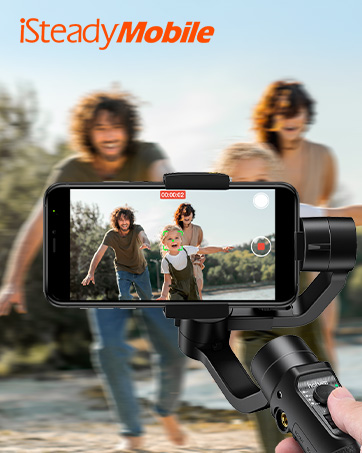
Figure 6: The gimbal's smart tracking capabilities can follow both human faces and objects.
5. Creative Shooting Templates
The hohem Pro app provides 7 one-tap movie templates to add creative flair to your videos:
- Inception: Creates a spinning camera effect.
- Dolly Zoom: Achieves a "Vertigo effect" by zooming while moving.
- Timelapse: Compresses long periods into short videos.
- Panoramas: Stitches multiple photos into a wide panoramic image.
- CloneMe: Allows you to appear multiple times in one shot.
- Additional templates may be available within the app.

Figure 7: Explore various creative shooting modes through the hohem Pro app.
6. Switching Landscape and Portrait
Easily switch between landscape and portrait orientations with a single tap on the gimbal or within the hohem Pro app, adapting to your content needs for platforms like YouTube or TikTok.
Maintenance
To ensure the longevity and optimal performance of your hohem iSteady X2, follow these maintenance guidelines:
- Cleaning: Use a soft, dry cloth to wipe the gimbal. Avoid using liquid cleaners or solvents, as they may damage the device.
- Storage: When not in use, fold the gimbal and store it in the provided storage pouch to protect it from dust and scratches. Store in a cool, dry place away from direct sunlight and extreme temperatures.
- Battery Care: For long-term storage, ensure the battery is charged to about 50-60%. Recharge it every 3 months to prevent deep discharge.
- Avoid Overloading: Do not mount phones heavier than the specified maximum payload (0.62 lbs / 9.92 ounces) to prevent motor strain.
Troubleshooting
If you encounter issues with your hohem iSteady X2, refer to the following common problems and solutions:
| Problem | Possible Cause | Solution |
|---|---|---|
| Gimbal not powering on. | Low battery; Power button not held long enough. | Charge the gimbal fully. Press and hold the power button for 3-5 seconds. |
| Gimbal vibrates or shakes. | Phone not balanced; Overloaded; Firmware issue. | Ensure phone is centered and balanced. Check phone weight. Update firmware via hohem Pro app. |
| Bluetooth connection fails. | Bluetooth off; App issue; Gimbal not discoverable. | Ensure Bluetooth is on. Restart app and gimbal. Forget device in phone's Bluetooth settings and re-pair. |
| Tracking feature not working. | Poor lighting; Subject too far/close; App settings. | Ensure adequate lighting. Keep subject within optimal range. Check tracking settings in hohem Pro app. |
| Gimbal loses tracking/position intermittently. | Calibration needed; Environmental interference; Software glitch. | Perform a gimbal calibration through the hohem Pro app. Ensure no strong magnetic fields nearby. Restart the gimbal and app. |
Specifications
| Feature | Detail |
|---|---|
| Product Dimensions | 7.04 x 3.11 x 1.54 inches (Folded) |
| Item Weight | 9.1 ounces (0.57 lbs) |
| Maximum Weight Recommendation | 9.92 ounces (0.62 lbs) |
| Model Number | hohem iSteady X2 -Black |
| Batteries | 1 Lithium Ion battery (included) |
| Battery Life | Up to 10 hours |
| Color | Black |
| Compatible Devices | Google Pixel 5/5XL/4/4XL, Huawei P50pro/P40pro/P40/P30/Mate 50/30, iPhone 14 Pro Max/13 Pro/13/12 Mini/SE2/11 Pro Max/XS MAX, Samsung Galaxy S22+/20+/S10/Galaxy Fold/Note20 (and similar sized smartphones) |
| UPC | 195221000226 |
Warranty and Support
For detailed warranty information and further support, please refer to the official hohem website or the full User Manual PDF available online. You can access the PDF version of this manual for more in-depth instructions and diagrams:
For technical assistance or customer service inquiries, please visit the official hohem support channels.
Related documentshohem iSteady X2 -Black


Ask a question about this manual
Ask about setup, troubleshooting, compatibility, parts, safety, or missing instructions. Manuals+ will review the question and use this page’s manual context to help answer it.