
1. Introduction
This manual provides essential information for setting up, operating, and maintaining your 2021 Apple 12.9-inch iPad Pro. Featuring the powerful M1 chip, a Liquid Retina XDR display, and advanced cameras, this device is designed for high performance and versatility. Please read this guide thoroughly to ensure optimal use of your iPad Pro.
2. What's in the Box

Image: The contents of the iPad Pro packaging, including the iPad Pro, a USB-C charging cable, and a USB-C power adapter.
Upon unboxing your Apple 12.9-inch iPad Pro, you should find the following items:
- iPad Pro (12.9-inch, Wi-Fi, 256GB, Space Gray)
- USB-C Charge Cable (1 meter)
- 18W USB-C Power Adapter
3. Product Overview
The 2021 Apple 12.9-inch iPad Pro is a powerful and versatile tablet designed for professional tasks, creative work, and entertainment. It features a stunning display, advanced camera system, and robust performance powered by the Apple M1 chip.

Image: A Space Gray 12.9-inch iPad Pro shown from the front and a slight angle, highlighting its large screen and sleek profile.
Key Features:
- Apple M1 chip: Delivers significant performance improvements for demanding applications and multitasking.
- 12.9-inch Liquid Retina XDR display: Features ProMotion technology, True Tone, and P3 wide color for exceptional visual quality, extreme brightness, and contrast.
- TrueDepth camera system: Includes an Ultra Wide front camera with Center Stage, which keeps you perfectly framed during video calls.
- Advanced Rear Cameras: Equipped with a 12MP Wide camera, 10MP Ultra Wide camera, and a LiDAR Scanner for enhanced photography and immersive Augmented Reality (AR) experiences.
- Ultrafast Wi-Fi: Ensures fast and reliable internet connectivity.
- All-day battery life: Provides extended usage on a single charge.
- Thunderbolt port: Offers high-speed connectivity for external storage, displays, and docks.
- Face ID: Secure authentication for unlocking your device and making purchases.
- Audio: Four speaker audio and five studio-quality microphones for superior sound.
- Accessory Support: Compatible with Apple Pencil (2nd generation), Magic Keyboard, and Smart Keyboard Folio (accessories sold separately).
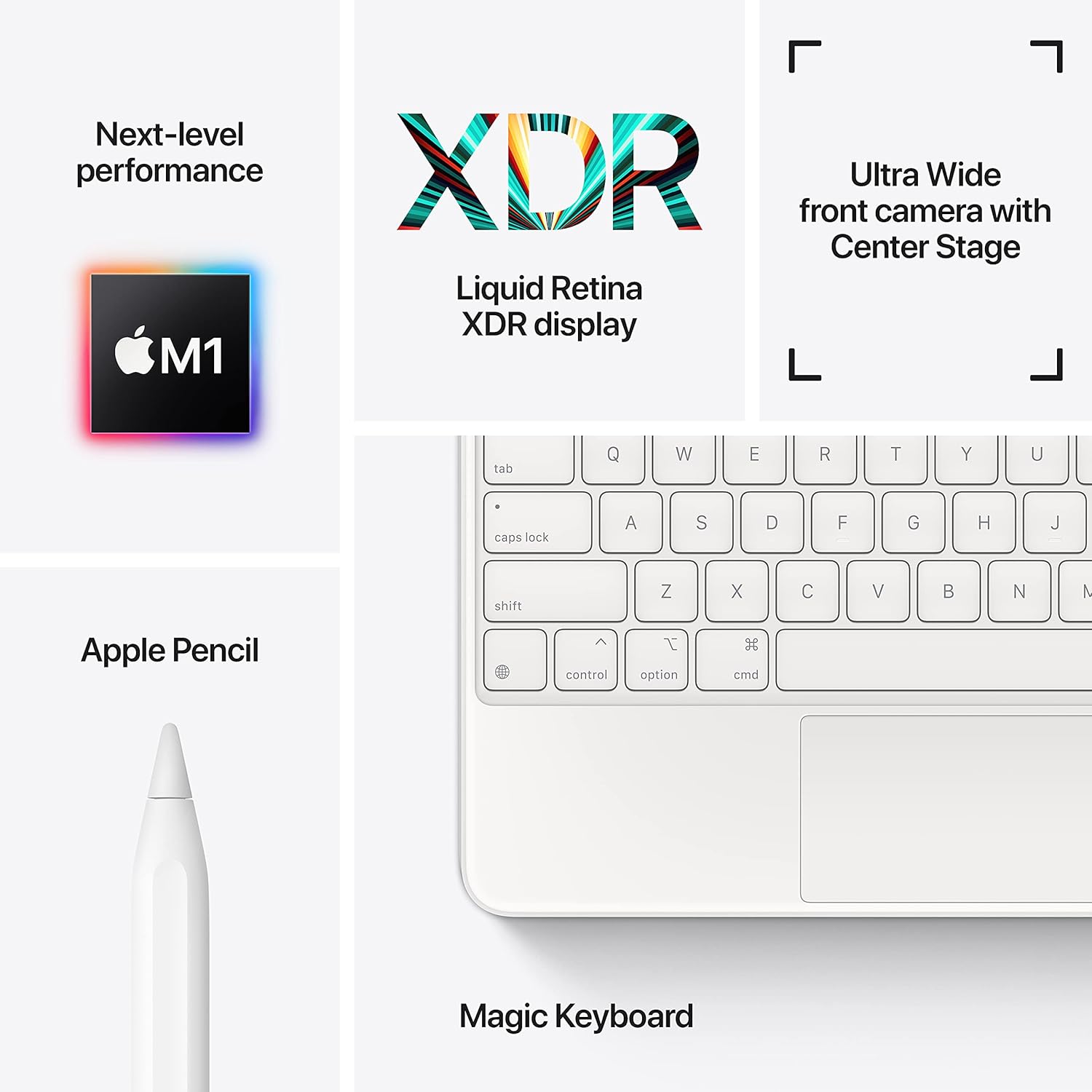
Image: A visual breakdown of the iPad Pro's core technologies, including the M1 chip, XDR display, Center Stage camera, and compatible accessories like Apple Pencil and Magic Keyboard.

Image: A user engaged in video editing on the iPad Pro, demonstrating its use with the Magic Keyboard and Apple Pencil in an outdoor setting.
4. Setup
4.1 Initial Power On
- Press and hold the Top button until the Apple logo appears.
- Follow the on-screen instructions to select your language and region.
4.2 Connect to Wi-Fi
- During setup, select your Wi-Fi network from the list.
- Enter the password if prompted and tap Join.
4.3 Set Up Face ID
Face ID allows you to securely unlock your iPad Pro, authorize purchases, and sign in to apps using facial recognition.
- During initial setup, or later via Settings > Face ID & Passcode, tap Set Up Face ID.
- Follow the on-screen instructions to position your face within the frame and complete two scans of your face.
4.4 Apple ID
Sign in with your Apple ID to access services like the App Store, iCloud, iMessage, and FaceTime. If you don't have one, you can create one during setup or later in Settings.
5. Operating Instructions
5.1 Basic Gestures
- Tap: Select an item or activate a button.
- Swipe: Scroll through content or navigate between screens.
- Pinch: Zoom in or out on photos and web pages.
- Home Gesture: Swipe up from the bottom edge of the screen to return to the Home Screen.
- App Switcher: Swipe up from the bottom edge and pause in the middle of the screen to view open apps.
5.2 Connecting Accessories
The iPad Pro supports various accessories to enhance functionality.
- Magic Keyboard: Attach your iPad Pro to the Magic Keyboard magnetically. The keyboard connects automatically and provides a trackpad and backlit keys.
- Apple Pencil (2nd Generation): Attach the Apple Pencil magnetically to the side of your iPad Pro to pair and charge it. Use it for drawing, note-taking, and navigation.
5.3 Charging the iPad Pro
To charge your iPad Pro:
- Connect one end of the USB-C Charge Cable to the USB-C port on your iPad Pro.
- Connect the other end of the cable to the 18W USB-C Power Adapter.
- Plug the power adapter into a wall outlet.
The battery icon in the status bar will indicate charging status.
6. Maintenance
6.1 Cleaning Your iPad Pro
- Use a soft, lint-free cloth to clean the screen and exterior.
- Avoid using abrasive materials, aerosols, solvents, or ammonia-based cleaners.
- For stubborn smudges, lightly dampen the cloth with water.
6.2 Battery Care
- To maximize battery lifespan, avoid exposing your iPad Pro to extreme temperatures.
- For long-term storage, charge the battery to about 50% and power off the device.
6.3 Software Updates
Keep your iPad Pro's software up to date to ensure optimal performance and security.
- Go to Settings > General > Software Update.
- If an update is available, tap Download and Install.
7. Troubleshooting
7.1 Device Not Responding
If your iPad Pro is unresponsive, perform a force restart:
- Press and quickly release the Volume Up button.
- Press and quickly release the Volume Down button.
- Press and hold the Top button until the Apple logo appears.
7.2 Wi-Fi Connection Issues
- Ensure Wi-Fi is enabled in Settings > Wi-Fi.
- Restart your Wi-Fi router.
- Forget the network and reconnect: Go to Settings > Wi-Fi, tap the information icon next to your network, then tap Forget This Network. Rejoin the network.
7.3 Accessories Not Connecting
- Magic Keyboard: Ensure the iPad Pro is correctly aligned and magnetically attached to the Smart Connector on the keyboard.
- Apple Pencil (2nd Gen): Ensure the Apple Pencil is magnetically attached to the flat edge of your iPad Pro for pairing and charging. Check battery level in the Widgets view.
8. Specifications
| Model Name | iPad Pro |
| Item Model Number | MHNH3LL/A |
| Product Dimensions | 11.04 x 8.46 x 0.25 inches (280.6 x 214.9 x 6.4 mm) |
| Item Weight | 1.5 pounds (682 grams) Wi-Fi model |
| Screen Size | 12.9 Inches |
| Display | Liquid Retina XDR display with ProMotion technology and True Tone |
| Display Resolution Maximum | 2732-by-2048-pixel resolution at 264 pixels per inch (ppi) |
| Chip | Apple M1 chip (8-core CPU, 8-core GPU, 16-core Neural Engine) |
| Memory Storage Capacity | 256GB (as per current product variant) |
| Camera and Video (Rear) | 12MP Wide, 10MP Ultra Wide cameras with Smart HDR and 4K video |
| Front Camera | 12MP Ultra Wide TrueDepth front camera with Portrait mode, Portrait Lighting, and Smart HDR 3 |
| Battery Life | Up to 10 hours of surfing the web on Wi-Fi, watching video, or listening to music |
| Connector | USB-C (Thunderbolt/USB 4) |
| Date First Available | April 30, 2021 |
9. Warranty and Support
Your Apple 12.9-inch iPad Pro comes with a one-year limited warranty from Apple. This warranty covers manufacturing defects but does not cover accidental damage or unauthorized modifications. For detailed warranty information, please refer to the Apple website or the documentation included with your product.
For technical support, service, and additional resources, visit the official Apple Support website: support.apple.com/ipad. You can also contact Apple Support directly through their website or by phone.


