
SDRD
SDRD SD-306 Portable Karaoke Machine User Manual
Model: SD-306
Introduction
Thank you for purchasing the SDRD SD-306 Portable Karaoke Machine. This device combines a powerful Bluetooth speaker with two wireless microphones, offering a versatile solution for karaoke, music playback, and public speaking. Please read this manual carefully before use to ensure proper operation and to maximize your enjoyment of the product.
Safety Information
- Do not expose the device to water or excessive moisture.
- Avoid extreme temperatures and direct sunlight.
- Do not disassemble or attempt to repair the device yourself. Refer all servicing to qualified personnel.
- Keep out of reach of children.
- Use only the provided charging cable and adapter.
Package Contents
- SDRD SD-306 Karaoke Speaker Unit
- 2 x Wireless Microphones
- USB Charging Cable
- User Manual
Product Overview

Image: The SDRD SD-306 main speaker unit with two wireless microphones docked on top.

Image: Top view of the karaoke machine, highlighting the slot for a smartphone or tablet and the microphone controls.
Main Unit Controls (Top Panel)
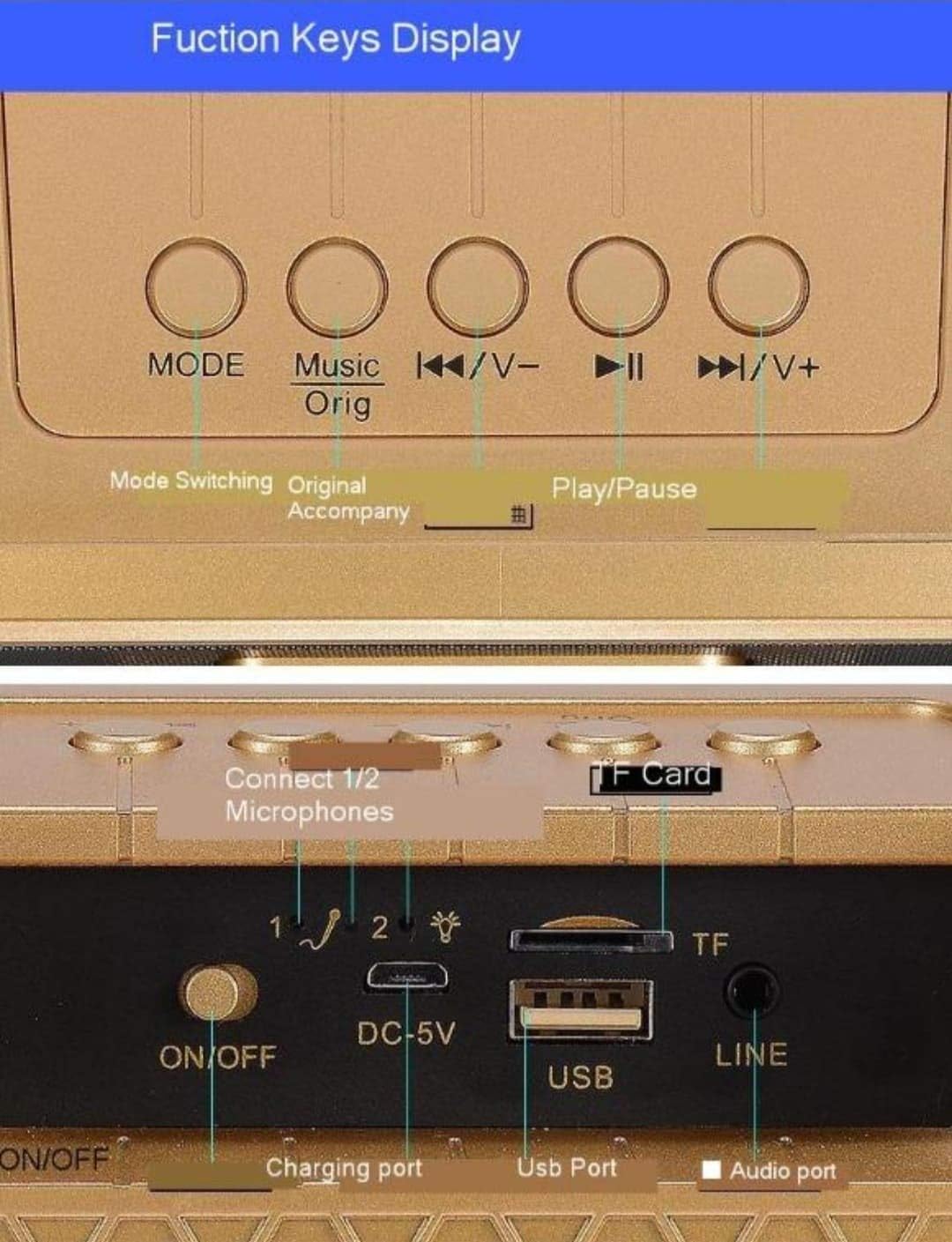
Image: Detailed view of the main unit's top panel buttons, including Mode, Music Original, Previous/Volume Down, Play/Pause, and Next/Volume Up.
- MODE: Short press to switch between input modes (Bluetooth, USB, TF Card, AUX, FM Radio).
- Music Orig: Short press to cancel the original vocal track of a song (karaoke mode).
- ◀◀/V-: Short press for previous track; long press to decrease volume.
- ►►/V+: Short press for next track; long press to increase volume.
- ►██: Play/Pause button.
- EQ Mode: Short press to cycle through six different EQ effects.
Main Unit Ports (Rear Panel)

Image: Detailed view of the main unit's rear panel, showing the ON/OFF switch, DC-5V charging port, USB port, TF Card slot, and LINE (AUX) input.
- ON/OFF: Power switch for the main unit.
- DC-5V: Charging port for the main unit.
- USB: USB port for playing music from a USB flash drive.
- TF Card: Slot for playing music from a TF (Micro SD) card.
- LINE (AUX): 3.5mm audio input for connecting external audio devices.
- Connect 1/2 Microphones: Indicators for microphone connection status.
Microphone Controls
- Reverberation Intensity Regulation: Adjusts the echo effect.
- Human Voice Volume Regulation: Controls the microphone's vocal volume.
- Power on/off: Turns the microphone on or off.
- Funny: Activates voice changing effects.
- Boos: Activates a cheering sound effect.
- Applause: Activates an applause sound effect.
- Laughter: Activates a laughter sound effect.
Setup
1. Charging the Device
Before first use, fully charge the main unit and both microphones. Connect the USB charging cable to the DC-5V port on the main unit and to a standard 5V USB power adapter (not included). The microphones also have charging ports; use their respective cables if separate. An indicator light will show charging status and turn off when fully charged.
2. Powering On
Flip the ON/OFF switch on the rear of the main unit to the 'ON' position. The unit will power on and indicate its current mode.
For each microphone, slide its power switch to the 'ON' position. The microphones will automatically attempt to pair with the main unit.
3. Microphone Pairing
The wireless microphones are designed to automatically pair with the main unit upon power-on. If pairing fails, ensure both the main unit and microphones are charged and within range. Power cycle both devices if necessary.
Operating Instructions
1. Bluetooth Connection

Image: Diagram illustrating the wireless Bluetooth connection process between a smartphone and the karaoke machine, showing a 10-meter transmission distance.
- Ensure the main unit is powered on and in Bluetooth mode (press MODE button until 'Bluetooth' is announced or indicated).
- On your smartphone or tablet, enable Bluetooth and search for available devices.
- Select "SDRD SD-306" from the list of devices.
- Once connected, you can play music from your device through the karaoke machine.
2. Playing Music from Other Sources
- USB/TF Card: Insert a USB flash drive or TF card into the respective port. The unit will automatically switch to the corresponding mode and begin playing music. Use the ◀◀/V- and ►►/V+ buttons to navigate tracks.
- AUX Input: Connect an external audio device (e.g., MP3 player, computer) to the LINE (AUX) port using a 3.5mm audio cable. Press the MODE button until AUX mode is selected.
- FM Radio: Press the MODE button to switch to FM Radio mode. The unit will automatically scan and tune into available radio stations.
3. Karaoke Function
- Original Sound Cancellation: While playing a song, short press the "Music Orig" button on the main unit to reduce or cancel the original vocal track, allowing you to sing along. Press again to restore the original vocal.
- EQ Effects: Short press the "EQ Mode" button on the main unit to cycle through various sound equalization effects, enhancing your listening or singing experience.
- Microphone Volume: Use the "Human Voice Volume Regulation" control on the microphone to adjust your vocal volume.
- Echo/Reverb: Adjust the "Reverberation Intensity Regulation" control on the microphone to add or reduce echo effect to your voice.
- Special Effects: Use the "Funny", "Boos", "Applause", and "Laughter" buttons on the microphone to add sound effects during your performance.
Maintenance
- Clean the device with a soft, dry cloth. Do not use abrasive cleaners or solvents.
- Store the device in a cool, dry place when not in use.
- Avoid dropping the unit or microphones, as this can cause internal damage.
Troubleshooting
| Problem | Possible Cause | Solution |
|---|---|---|
| No power | Battery drained; Power switch off | Charge the unit/microphones; Turn on the power switch. |
| No sound from speaker | Volume too low; Incorrect mode; Device not connected | Increase volume; Select correct input mode (Bluetooth, USB, AUX); Ensure device is paired/connected. |
| Microphone not working | Microphone off; Battery drained; Not paired | Turn on microphone; Charge microphone; Power cycle microphone and main unit to re-pair. |
| Bluetooth connection unstable | Too far from device; Interference | Move closer to the speaker (within 10m); Avoid obstacles or other wireless devices. |
| Sound cutting off (especially high notes) | Microphone signal interference; Low battery | Ensure microphones are fully charged; Reduce distance between microphones and speaker; Check for other wireless interference. |
Specifications
| Feature | Detail |
|---|---|
| Brand | SDRD |
| Model | SD-306 |
| Product Dimensions | 10 x 10 x 10 cm |
| Item Weight | 450 g |
| Connectivity Technology | Bluetooth, USB, AUX, Micro SD (TF Card) |
| Color | Black |
| Compatible Devices | Radio, Smartphone |
| Microphones Included | 2 Wireless Microphones |
Warranty and Support
This product comes with a standard manufacturer's warranty. For specific warranty terms and conditions, please refer to the documentation provided with your purchase or contact your retailer. For technical support or service inquiries, please contact the SDRD customer service department through the contact information provided on the product packaging or the official SDRD website.
Ask a question about this manual
Ask about setup, troubleshooting, compatibility, parts, safety, or missing instructions. Manuals+ will review the question and use this page’s manual context to help answer it.