
Dixell P12
Dixell P12 OBD2 Trip Computer User Manual
Model: P12 | Brand: Dixell
1. Introduction
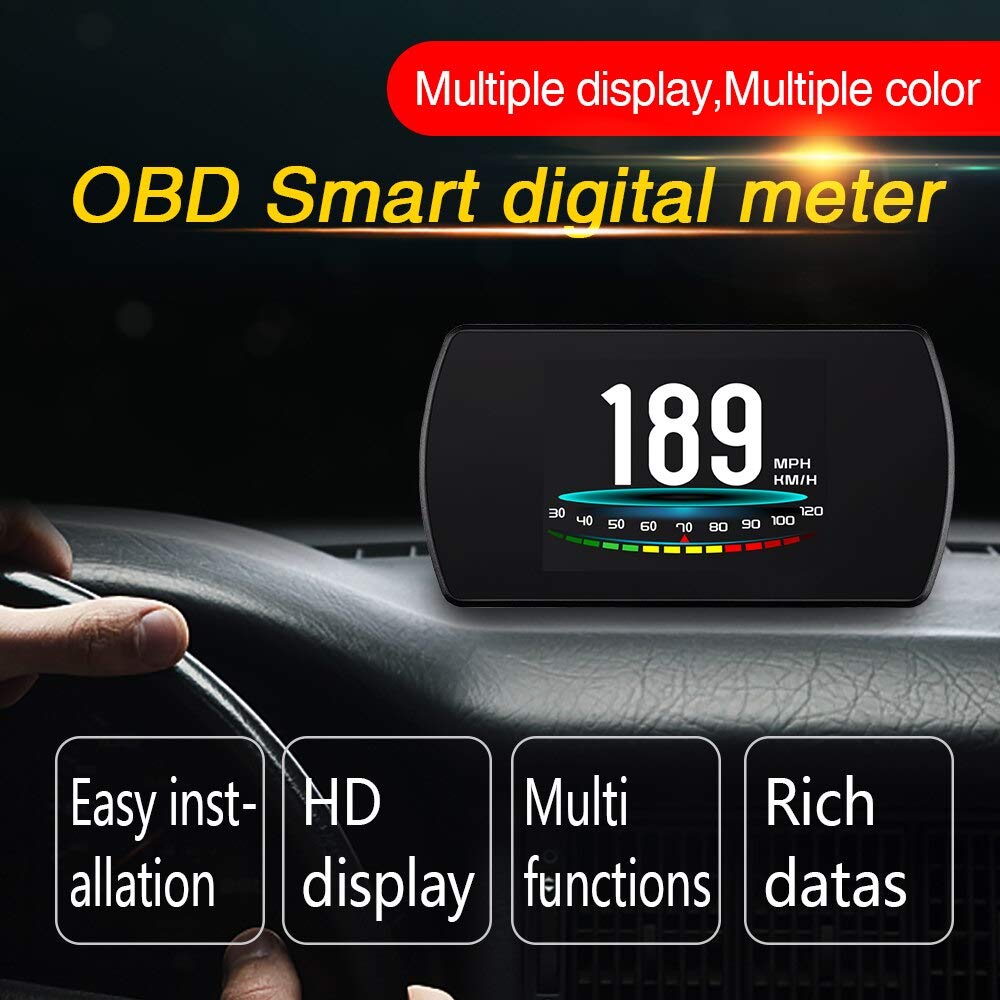
The Dixell P12 OBD2 Trip Computer is a 4.3-inch Head-Up Display (HUD) designed to enhance your driving experience by projecting essential vehicle data directly into your line of sight. This device connects to your car's OBD2 interface via a cable, displaying critical information such as vehicle speed, engine RPM, water temperature, and fuel consumption. By keeping your eyes on the road, it helps to avoid the dangers associated with looking down at the dashboard. The P12 HUD is a plug-and-play device compatible with cars featuring OBD2 and EUOBD ports and does not alter any car ECU data.
Key features include a TFT LCD multi-color smart display, multi-language support, and the ability to switch between multi-function and simple display modes. It also offers advanced functions like accelerating competitive mode, brake performance tests, and the ability to read and clear diagnostic fault codes. The rich content display includes vehicle speed, engine RPM, water temperature, voltage, instantaneous fuel consumption, average fuel consumption, total driving distance, driving time, and various alarms for low voltage, high water temperature, and over speed. It supports free switching between kilometers and miles.

A clear view of the Dixell P12 Head-Up Display, showcasing its vibrant multi-color TFT screen. It prominently displays vehicle speed (KM/H), water temperature (°C), and engine RPM, providing essential driving information at a glance.
2. Setup and Installation
Before installation, ensure your vehicle is compatible with the OBDII or EU OBD agreement. Most cars manufactured after 2008 are compatible. You can verify compatibility by checking for an "OBDII CERTIFIED" sticker under the engine hood.
- Locate the OBD2 Port: Find the 16-pin diagnostic link in your vehicle. This port is typically located under the dashboard on the driver's side, near the steering wheel.
- Connect the Cable: Connect the provided OBDII connecting line to the vehicle's 16-pin diagnostic link and then to the P12 HUD unit.
- Position the HUD: Place the HUD unit on your dashboard in a position that allows for clear visibility of the display without obstructing your view of the road. You may use the included anti-slip mat to secure the device.
- Apply Reflective Film (Optional): If the display appears blurry or has a double image on your windshield, apply the included reflective film to the windshield where the HUD projects. Clean the windshield thoroughly before applying.
- Power On: Once connected, start your vehicle. The HUD will power on automatically and begin its initial scan to detect the vehicle protocol.
This image illustrates the Dixell P12 Head-Up Display unit positioned on a vehicle's dashboard, providing a clear view of driving data without obstructing the driver's view of the road. The device is connected via the OBD2 port.
3. Operation
3.1 Key Functions and Setting Button
The P12 HUD features a single setting button for navigation and control:
- Short Press In:
- Switches the display mode.
- Confirms menu selections when inside the menu.
- Push Left:
- Switches functions in the left display area.
- Changes function settings when inside the menu.
- Push Right:
- Switches functions in the right display area.
- Changes function settings when inside the menu.
- Long Press In (5 seconds): Exits the menu and saves settings after configuration.
3.2 Display Modes and Contents
The P12 HUD offers multiple display modes, allowing you to customize the information presented. You can switch between a multi-function display mode, showing various parameters simultaneously, or a simple function display mode for a cleaner view. The device automatically detects the vehicle protocol upon the first scan.
Rich Contents Displayed:
- Vehicle Speed (KM/H or Miles)
- Engine RPM
- Water Temperature
- Voltage
- Instantaneous Fuel Consumption
- Average Fuel Consumption
- Total Driving Distance Measurement
- Driving Time
- Low Voltage Alarm
- High Water Temperature Alarm
- Over Speed Alarm
- Engine Fault Code Alarm
3.3 Driving Performance Tests
The P12 HUD includes features for evaluating driving performance:
- Speedup Test: Displays current speed, distance covered, time taken for 400 meters, and time taken to reach 100 KM/H.
- Brake Test: Shows the speed at which braking began, the braking distance, and the time taken to stop.

This image demonstrates the Dixell P12 HUD's ability to display a comprehensive set of vehicle data simultaneously, including speed, engine RPM (Tacho), fuel consumption (L/100km), trip time, distance traveled, coolant temperature, voltage, and Manifold Absolute Pressure (MAP).

This image shows the Dixell P12 HUD in a real working environment, mounted on a car dashboard, providing a clear view of the display from the driver's perspective.
4. Maintenance
To ensure the longevity and optimal performance of your Dixell P12 HUD, follow these simple maintenance guidelines:
- Cleaning: Use a soft, dry, lint-free cloth to clean the display screen and the device casing. Avoid using abrasive cleaners, solvents, or chemical sprays, as these can damage the surface.
- Storage: When not in use for extended periods, store the device in a cool, dry place away from direct sunlight and extreme temperatures.
- Handling: Handle the device with care. Avoid dropping it or subjecting it to strong impacts, which can damage internal components.
- Cable Care: Ensure the OBD cable is not pinched or excessively bent, as this can lead to internal wire damage.
5. Troubleshooting
This section provides solutions to common issues you might encounter with your P12 HUD.
5.1 Diagnostic Fault Codes
The P12 HUD is equipped with a powerful error code detection system. If an engine fault code is detected, the device will display the information in text form. You can use the setting button to navigate and clear these fault codes directly from the HUD.
5.2 Common Issues and Solutions
- No Display / Device Not Powering On:
- Ensure the OBD2 cable is securely connected to both the vehicle's OBD2 port and the HUD unit.
- Verify that your vehicle's ignition is on.
- Check if your vehicle's OBD2 port is functional (you can test with another OBD2 device if available).
- Confirm your vehicle is OBDII or EU OBD compliant.
- Inaccurate Readings:
- Ensure the correct vehicle protocol was detected during the initial scan.
- Check the unit settings (e.g., KM/H vs. Miles) to ensure they match your preference.
- If speed or RPM readings are inconsistent, it might be due to vehicle-specific OBD data variations. Consult the user manual for advanced calibration options if available, or contact support.
- Double Image on Windshield:
- This is common on some windshields due to their layered construction. Apply the included reflective film to the area of the windshield where the HUD projects.
- Adjust the angle of the HUD unit to minimize the double image effect.
- HUD Freezes or Resets:
- Disconnect the HUD from the OBD2 port, wait a few seconds, and then reconnect it.
- Ensure the vehicle's battery voltage is stable (the HUD has a low voltage alarm).
6. Specifications
| Feature | Detail |
|---|---|
| Product Name | P12 OBD2 Trip Computer |
| Screen Size | 4.3 Inches |
| Dimensions (L*W*H) | 109mm * 55mm * 7.79mm |
| Rated Power / Operating Voltage | 9-16V |
| Output Frequency | 50Hz |
| Material | Plastic, Aluminum, or Stainless Steel |
| Compatibility | Cars with OBD2 and EUOBD port |
| Language Support | Multi-language |
| Certificates | CE/ROHS/FCC/ISO9001 |
| ASIN | B0925Z9N2L |
| UPC | 791974134838 |
| Manufacturer | Dixell |
| Date First Available | April 10 2021 |
7. Warranty Information
This Dixell P12 OBD2 Trip Computer is covered by a standard return policy. Customers are eligible for a refund or replacement within 30 days of purchase, subject to the terms and conditions of the retailer. Please retain your proof of purchase for any warranty or return claims. For specific details regarding extended warranties or guarantees, please refer to the product listing on the platform where it was purchased.
8. Customer Support
Should you encounter any issues or have questions regarding your Dixell P12 OBD2 Trip Computer that are not covered in this manual, please contact customer support through the platform where you purchased the product. Provide your order details and a clear description of the issue to receive prompt assistance. You may also visit the official Dixell website for additional resources or frequently asked questions.
Ask a question about this manual
Ask about setup, troubleshooting, compatibility, parts, safety, or missing instructions. Manuals+ will review the question and use this page’s manual context to help answer it.