
MageGee V620
MageGee V620 Wireless Keyboard and Mouse Combo User Manual
Model: V620
Introduction
Thank you for purchasing the MageGee V620 Wireless Keyboard and Mouse Combo. This manual provides detailed instructions on how to set up, operate, maintain, and troubleshoot your new wireless peripheral set. Please read this manual carefully before use to ensure optimal performance and longevity of your product.

Image: The MageGee V620 wireless keyboard and mouse combo, featuring a full-size keyboard with an integrated phone holder and a compact, ergonomic mouse. A smartphone is shown placed in the keyboard's holder.
Package Contents
- MageGee V620 Wireless Keyboard
- MageGee Wireless Mouse
- USB Receiver (stored in the mouse battery compartment)
- User Manual (this document)
- AA Battery (for mouse, pre-installed or included)
Setup
Follow these steps to set up your MageGee V620 Wireless Keyboard and Mouse Combo:
- Install Batteries:
- Mouse: Open the battery compartment cover on the bottom of the mouse. Insert the provided AA battery, ensuring correct polarity (+/-). Close the cover.
- Keyboard: The keyboard typically uses AAA batteries (not explicitly mentioned in JSON, but common for wireless keyboards). Open the battery compartment on the bottom of the keyboard and insert the required batteries (usually 2x AAA, not included based on JSON).
- Locate USB Receiver: The USB receiver for both the keyboard and mouse is usually stored inside the mouse's battery compartment for safekeeping during transport. Carefully remove it.
- Connect USB Receiver: Plug the USB receiver into an available USB port on your computer (desktop, laptop, PC).
- Power On:
- Mouse: Turn on the power switch located on the bottom of the mouse.
- Keyboard: Ensure the keyboard is powered on (some keyboards have a power switch, others activate upon key press).
- Automatic Connection: The keyboard and mouse should automatically connect to your computer within a few seconds. No additional drivers are typically required for Windows, macOS, or Linux systems.

Image: Illustration demonstrating the 2.4GHz wireless connection of the MageGee V620 combo. A USB receiver is shown plugged into a laptop, wirelessly connecting to both the keyboard and mouse, indicating a range of 33 feet.
Operating Instructions
Keyboard Features
- Full-Size Layout: Includes a numeric keypad for efficient data entry.
- Quiet Crater-Switch Keys: Designed for responsive and quiet typing, reducing noise during use.
- Integrated Phone Holder: A convenient slot at the top of the keyboard allows you to prop up your smartphone or tablet for easy viewing.
- Media Shortcut Keys: Access common functions quickly with dedicated media keys (e.g., volume control, play/pause).
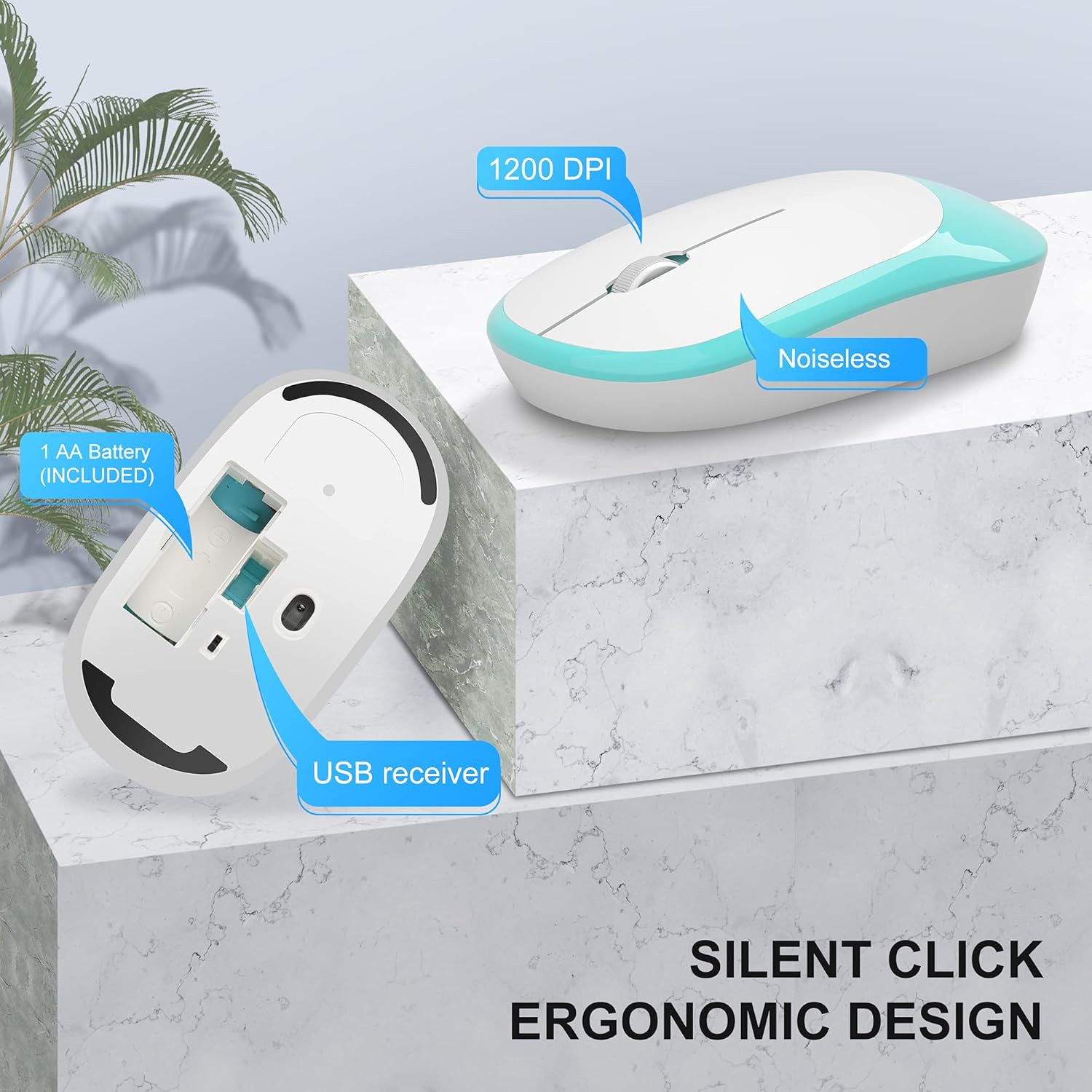
Image: The MageGee V620 wireless keyboard, with highlighted sections indicating the integrated phone holder and the location of 6 media shortcut keys.

Image: A close-up view of the MageGee V620 keyboard keys, emphasizing the responsive and quiet crater-switch design. Icons below indicate anti-scratch, comfortable touch, soft click, and crater switch features.
Mouse Features
- Ergonomic Design: Shaped for comfortable use over extended periods.
- Silent Click: Reduces click noise, ideal for quiet environments.
- 1200 DPI: Provides precise and smooth cursor control.
- USB Receiver Storage: The USB receiver can be conveniently stored inside the mouse when not in use, preventing loss.
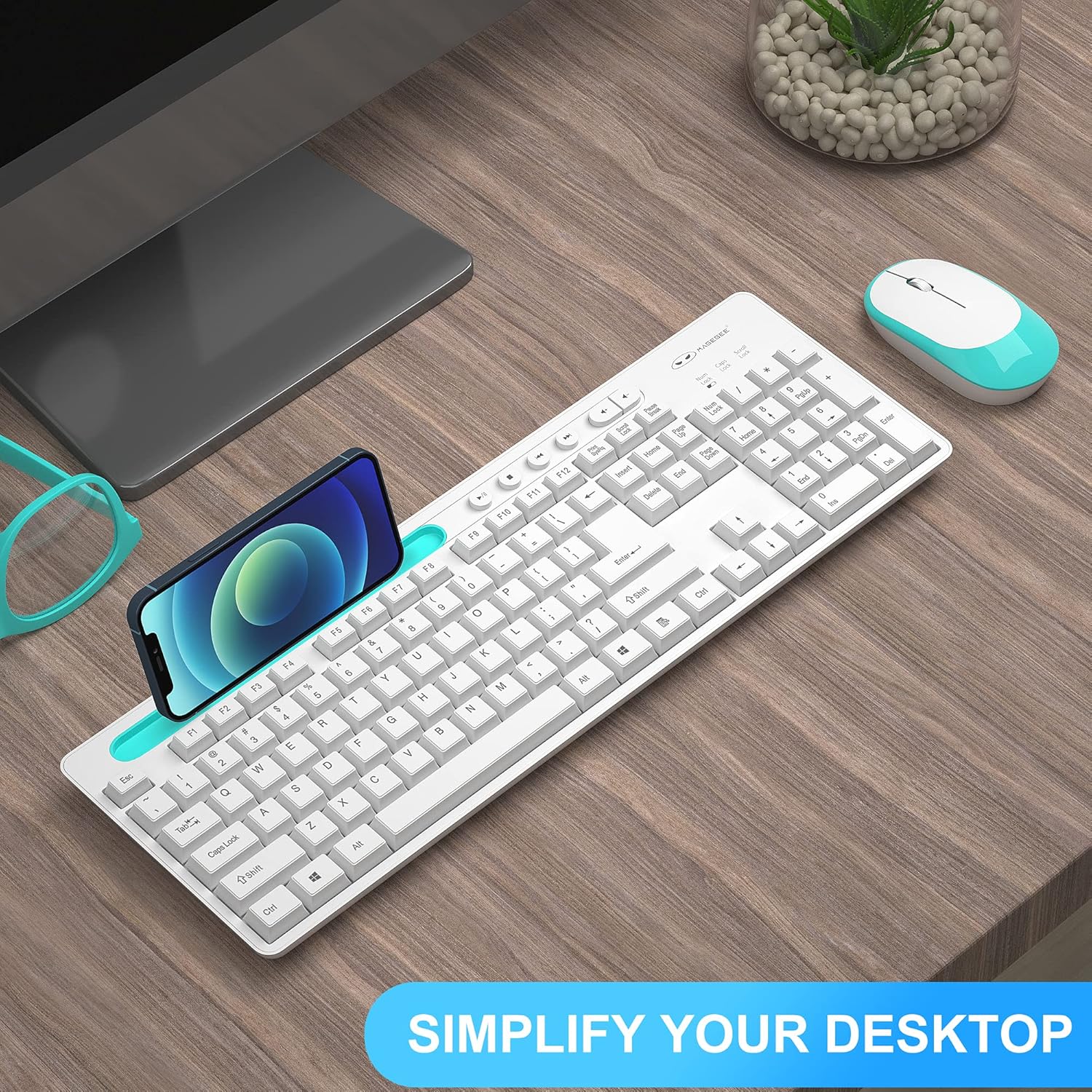
Image: A detailed view of the MageGee V620 wireless mouse, pointing out its silent click feature, ergonomic design, 1200 DPI sensitivity, and the location of the AA battery compartment and USB receiver storage.
Maintenance
- Cleaning: Use a soft, dry cloth to wipe down the keyboard and mouse. For stubborn dirt, a slightly damp cloth with mild soap can be used, ensuring no liquid enters the device. Do not use harsh chemicals or abrasive cleaners.
- Battery Replacement:
- When the keyboard or mouse becomes unresponsive or experiences lag, it may be time to replace the batteries.
- Refer to the "Setup" section for instructions on opening battery compartments and inserting new batteries.
- Dispose of old batteries responsibly according to local regulations.
- Storage: When not in use for extended periods, turn off the mouse to conserve battery life. Store the USB receiver inside the mouse's compartment to prevent loss.
Troubleshooting
If you encounter issues with your MageGee V620 combo, try the following solutions:
- No Connection / Unresponsive:
- Ensure the USB receiver is securely plugged into a working USB port on your computer.
- Check if the mouse and keyboard are powered on.
- Replace the batteries in both the keyboard and mouse.
- Try plugging the USB receiver into a different USB port.
- Move the keyboard and mouse closer to the USB receiver to rule out range issues.
- Restart your computer.
- Lagging or Intermittent Connection:
- Ensure there are no large metal objects or other electronic devices (like Wi-Fi routers, other wireless devices) between the keyboard/mouse and the receiver that might cause interference.
- Try using a USB extension cable to position the receiver closer to the keyboard and mouse, away from potential interference sources.
- Check battery levels.
- Keys Not Working / Mouse Cursor Not Moving:
- Clean any debris from around the affected keys or the mouse sensor.
- Ensure the Num Lock or Caps Lock indicators are functioning correctly (for keyboard).
- Re-establish connection by unplugging and re-plugging the USB receiver.
Specifications
| Feature | Detail |
|---|---|
| Brand | MageGee |
| Model | V620 |
| Connectivity Technology | 2.4GHz Wireless (USB Receiver) |
| Compatible Devices | Gaming Console, Laptop, Personal Computer (Windows, PC) |
| Special Feature | Ergonomic Design, Quiet Keys, Phone Holder |
| Mouse DPI | 1200 DPI |
| Keyboard Description | Full-size with Number Pad |
| Item Weight | 1.44 pounds (approx. 0.65 kg) |
| Package Dimensions | 17.48 x 8.62 x 1.5 inches (approx. 44.4 x 21.9 x 3.8 cm) |

Image: Technical drawing showing the dimensions of the MageGee V620 wireless keyboard: approximately 440mm (length), 145mm (width), and 27mm (height).

Image: Technical drawing showing the dimensions of the MageGee V620 wireless mouse: approximately 108mm (length), 60mm (width), and 26mm (height).
Warranty and Support
MageGee products are designed for reliability and performance. For warranty information or technical support, please refer to the contact details provided with your purchase or visit the official MageGee website. Keep your purchase receipt as proof of purchase for warranty claims.
For further assistance, you may contact MageGee customer service through their official channels. You can often find support information on the MageGee Store on Amazon.
Ask a question about this manual
Ask about setup, troubleshooting, compatibility, parts, safety, or missing instructions. Manuals+ will review the question and use this page’s manual context to help answer it.