
1. Introduction
This manual provides detailed instructions for the assembly, operation, and maintenance of your Montech X3 Mesh White ATX Mid-Tower PC Gaming Case. Designed for optimal airflow and visual appeal, this case offers a robust foundation for your gaming system. Please read these instructions carefully before beginning installation.
2. Key Features
- High Airflow Design: Equipped with three 140mm fixed RGB fans in the front, two 120mm fixed RGB fans on top, and one 120mm fixed RGB fan in the rear for efficient cooling.
- Panoramic Tempered Glass: Features full tempered glass front and side panels to showcase your internal components and RGB lighting.
- Side Swivel Panel: The unique side swivel tempered glass side panel design allows for easy access and improved safety with a zero drill-hole construction.
- Integrated RGB Lighting: All six pre-installed fans feature fixed RGB lighting, controllable via a dedicated LED button on the I/O panel. Note: Lighting is fixed, not addressable.
3. Specifications
| Category | Detail |
|---|---|
| Model Name | X3 Mesh White |
| Motherboard Compatibility | ATX / Micro ATX / Mini ITX |
| Case Type | Mid Tower |
| Material | Tempered Glass |
| Drive Bays | 2.5" x 2 / 3.5" x 2 (or 2.5" x 2) |
| Fan Support (Front) | 120mm x 3 or 140mm x 3 |
| Fan Support (Rear) | 120mm x 1 |
| Fan Support (Top) | 120mm x 2 |
| Pre-installed Fans | Front: 140mm x 3 (Fixed RGB), Rear: 120mm x 1 (Fixed RGB), Top: 120mm x 2 (Fixed RGB) |
| VGA Clearance | 305mm |
| CPU Cooler Height | 160mm |
| Power Supply Mounting | Bottom Mount |
| Cooling Method | Air, Water |
| Item Weight | 13.8 pounds |
| Product Dimensions (LxWxH) | 14.57 x 8.27 x 18.9 inches |
4. Setup and Installation
4.1 Internal Layout and Component Support
The Montech X3 Mesh case is designed to accommodate various components, providing sufficient internal space for a clean build.
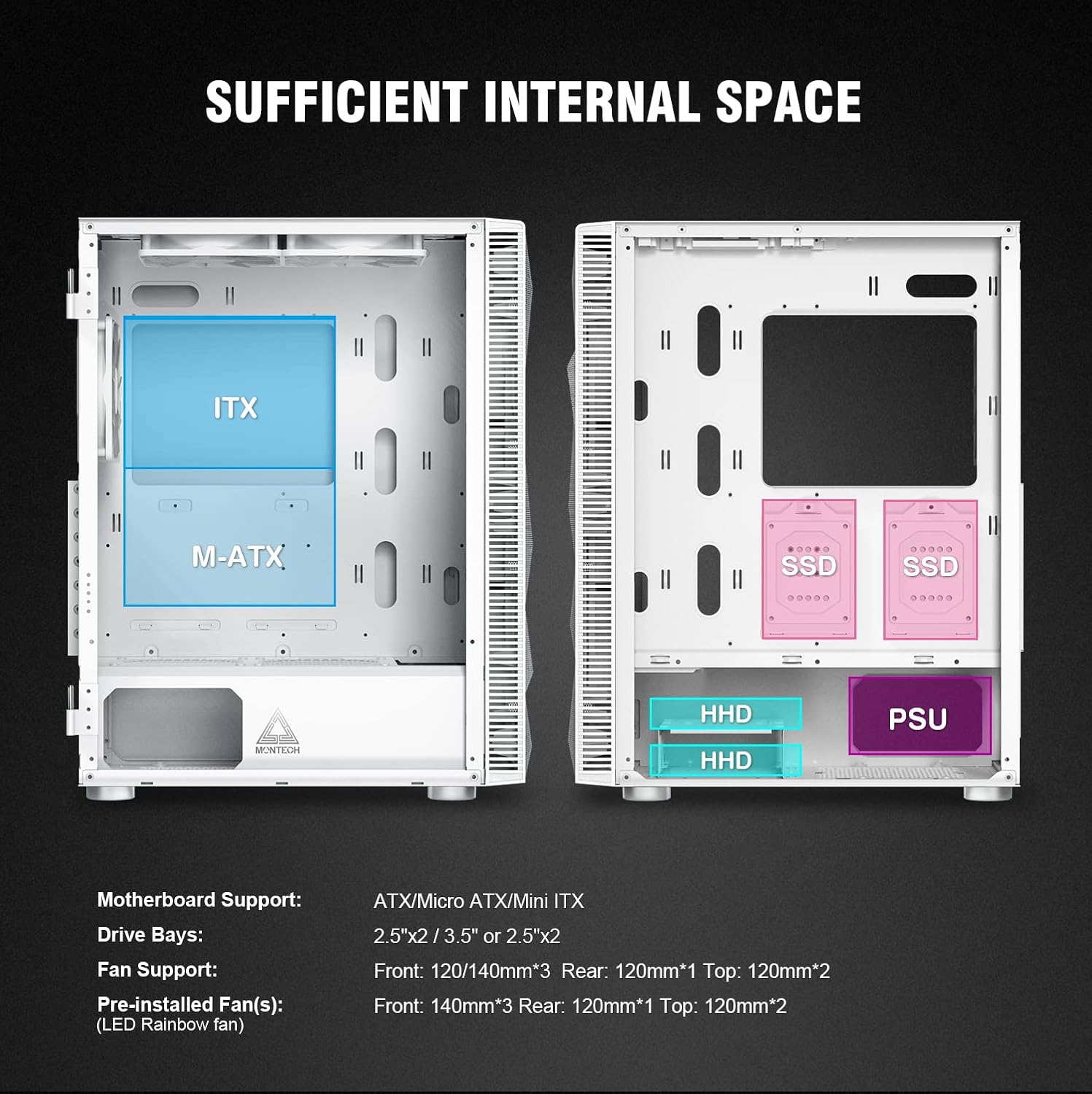
Figure 1: Diagram illustrating motherboard support (ATX, M-ATX, ITX), drive bays for SSDs and HDDs, and power supply unit (PSU) placement.
4.2 Motherboard Installation
The case supports ATX, Micro ATX, and Mini ITX motherboards. Ensure the correct standoffs are in place for your motherboard size before securing it.
4.3 Drive Installation
The case includes dedicated bays for storage devices:
- Two 2.5-inch drive bays (for SSDs).
- Two 3.5-inch drive bays (for HDDs), which can also accommodate 2.5-inch drives.
4.4 Power Supply Unit (PSU) Installation
The PSU mounts at the bottom of the case. Ensure proper cable routing for a tidy build.
4.5 Fan Configuration and Airflow
The Montech X3 Mesh is designed for high airflow to keep components cool. It comes with six fixed RGB fans pre-installed:
- Front: Three 140mm fans (intake)
- Top: Two 120mm fans (exhaust)
- Rear: One 120mm fan (exhaust)
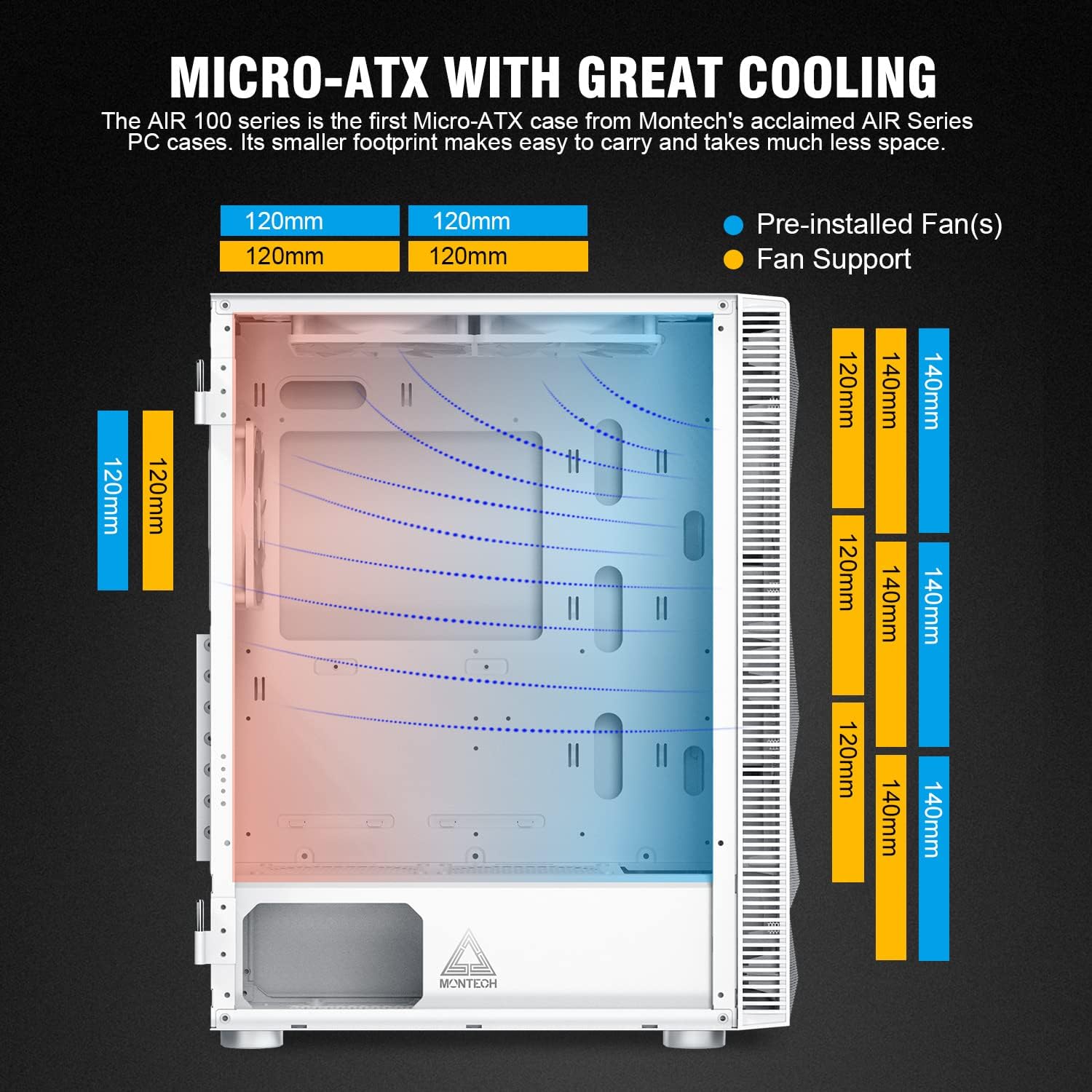
Figure 2: Illustration of optimal airflow paths within the case, with cool air entering from the front and bottom, and hot air exiting from the top and rear.
4.6 Cable Management
The case provides various cutouts and space behind the motherboard tray for effective cable management, contributing to a cleaner aesthetic and improved airflow.
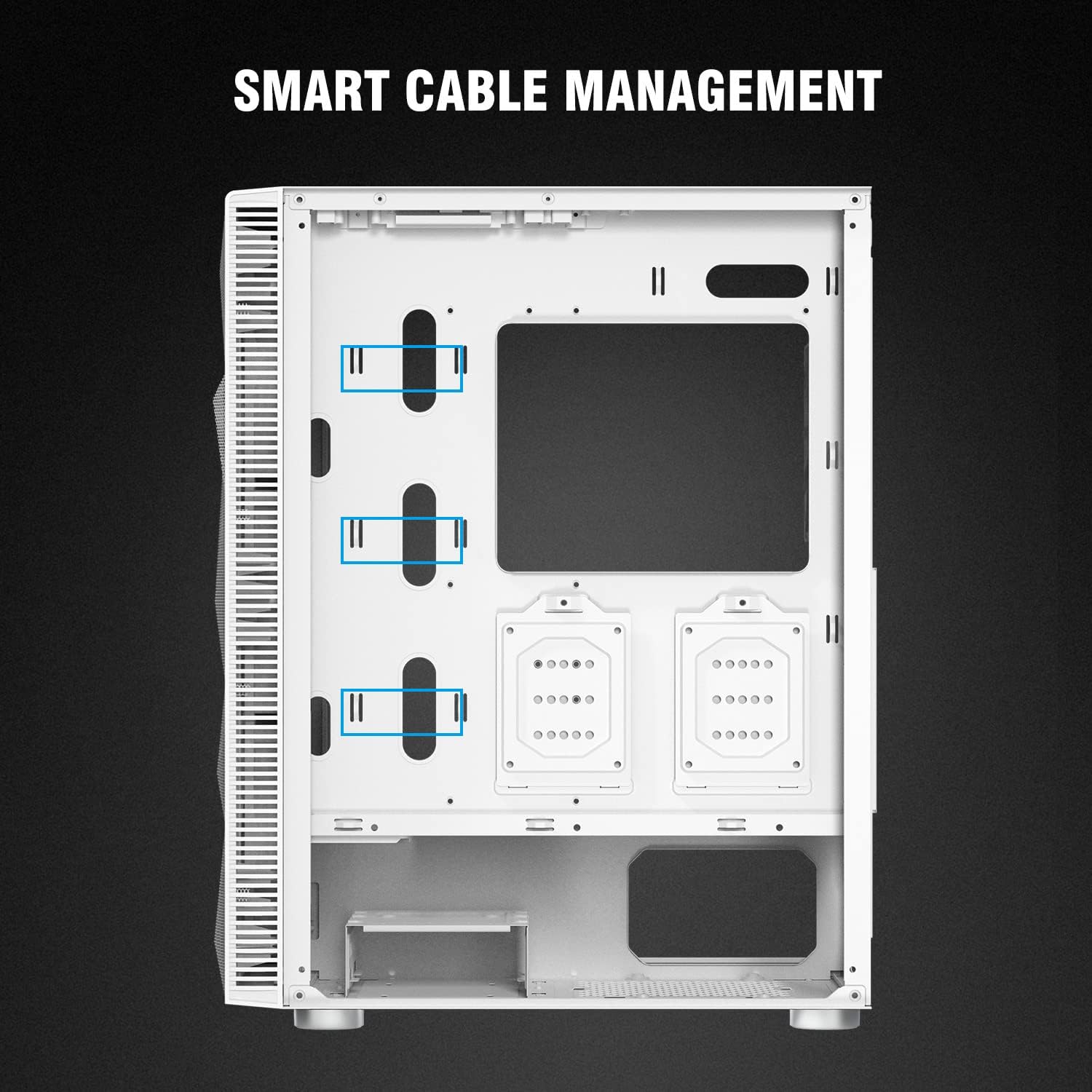
Figure 3: Rear interior view highlighting cable routing options and tie-down points for organized wiring.
5. Operating Instructions
5.1 Front I/O Panel
The top I/O panel provides convenient access to essential ports and controls:

Figure 4: Detailed view of the top I/O panel, indicating the Power button, HD Audio jacks, two USB 2.0 ports, Reset button, two USB 3.0 ports, and the LED control button.
- Power Button: To power on/off the system.
- HD Audio Jacks: Separate ports for microphone and headphones.
- USB 2.0 Ports (x2): For connecting peripherals.
- Reset Button: To restart the system.
- USB 3.0 Ports (x2): For high-speed data transfer.
- LED Button: Press to cycle through or turn off the fixed RGB lighting effects of the pre-installed fans.
6. Maintenance
6.1 Cleaning Dust Filters
The Montech X3 Mesh includes removable magnetic dust filters on the top and bottom (for the PSU intake) to prevent dust buildup. Regularly remove and clean these filters to maintain optimal airflow and system performance.

Figure 5: Underside of the case, highlighting the removable dust filter for the power supply intake.
6.2 Cleaning Interior and Exterior
Use a soft, dry cloth to clean the exterior surfaces. For the interior, use compressed air to remove dust from components and fan blades. When cleaning the tempered glass panels, use a glass cleaner and a microfiber cloth to avoid streaks.
7. Troubleshooting
7.1 Fan Noise
If you experience excessive fan noise, consider the following:
- Ensure all fan screws are tightened securely.
- Clean dust from fan blades and filters, as accumulation can increase noise.
- Verify that no cables are obstructing fan rotation.
- While the pre-installed fans provide good airflow, they are fixed RGB and may not offer advanced speed control. For quieter operation, consider replacing them with aftermarket PWM-controlled fans.
7.2 Cable Management Challenges
Some users may find the space for cable routing behind the motherboard tray to be adequate but potentially tight for very thick cable bundles. Utilize the provided tie-down points and Velcro straps to organize cables effectively. Plan your cable runs before installing all components.
7.3 Power Supply Cable Length
Depending on your power supply unit and motherboard layout, some CPU power cables might be taut when routed to the top-left of the motherboard. Ensure your PSU cables are long enough or consider using cable extensions if necessary to avoid strain on connectors.
8. Warranty and Support
For warranty information, technical support, or further assistance, please refer to the official Montech website or contact their customer service directly. Keep your proof of purchase for warranty claims.


