
iTOMA CKS503U
iTOMA CKS708 Alarm Clock Radio User Manual
Model: CKS503U
Introduction
This manual provides comprehensive instructions for the setup, operation, and maintenance of your iTOMA CKS708 Alarm Clock Radio. Please read this manual thoroughly before using the device to ensure proper functionality and to maximize your user experience.
The iTOMA CKS708 is a versatile device combining a digital alarm clock, FM radio, Bluetooth speaker, and a night light. It features a large LED display with dimmer control and a USB charging port for mobile devices.
Product Overview
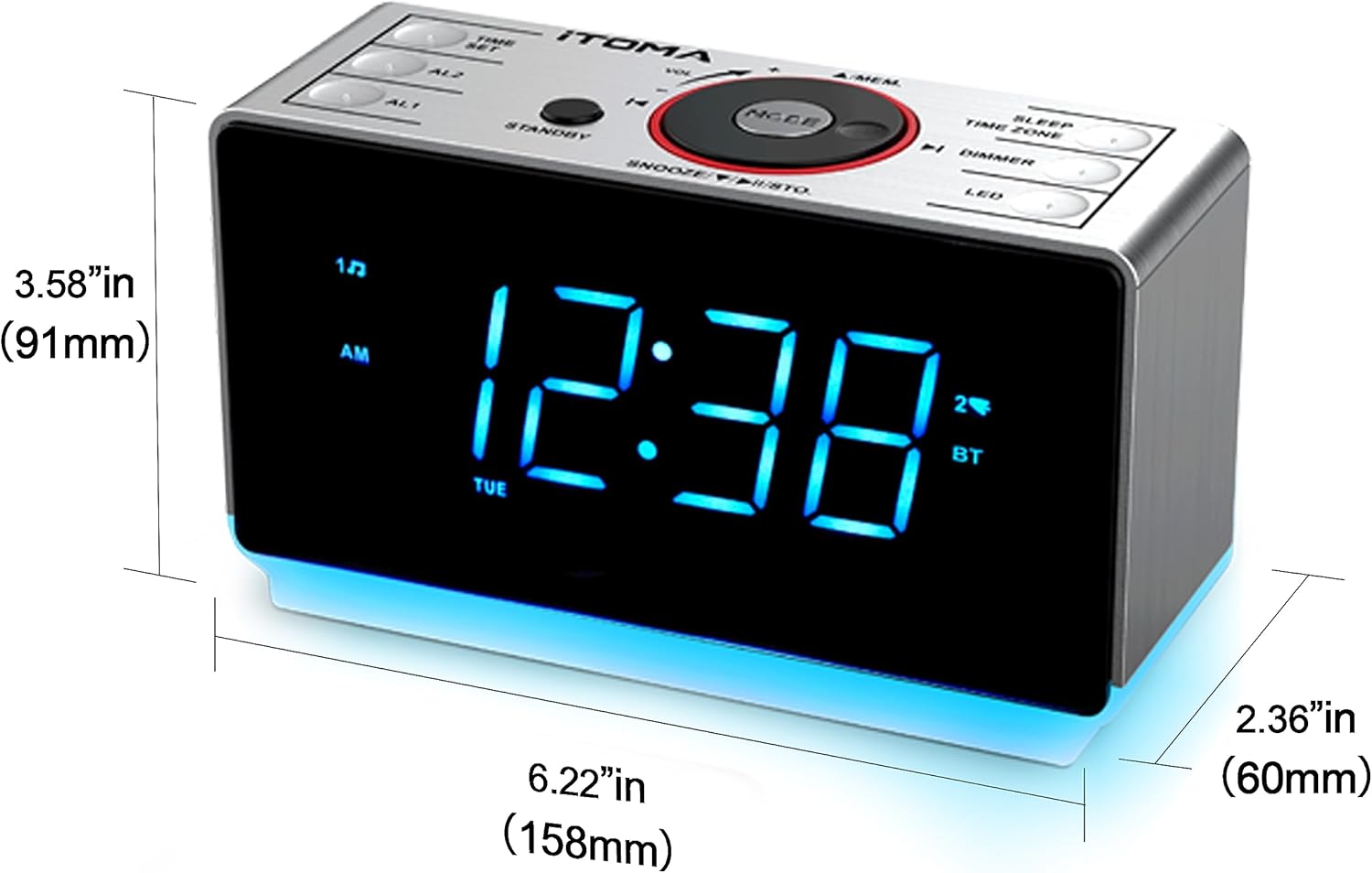
Familiarize yourself with the main components and controls of your iTOMA CKS708.


Setup Guide
1. Power Connection
Connect the provided AC adapter to the DC IN jack on the back of the unit and then plug it into a standard wall outlet.
2. Backup Battery Installation
For power outage protection, install a CR2032 lithium battery (included) into the battery compartment on the bottom of the unit. This battery preserves time and alarm settings during a power interruption.
Note: The backup battery does not power the display or alarm functions during a power outage; it only maintains settings.
3. Setting the Time
- Press and hold the TIME SET button. The hour digits will flash.
- Use the VOL + / - buttons to adjust the hour. Press TIME SET again to confirm.
- The minute digits will flash. Use the VOL + / - buttons to adjust the minutes. Press TIME SET again to confirm.
- The year digits will flash. Adjust with VOL + / - and confirm with TIME SET.
- Repeat for month and day settings.
- Press TIME SET one last time to exit time setting mode.
4. FM Antenna Connection
Extend the external FM wire antenna for optimal radio reception. Position it away from other electronic devices for clearer sound.
Operating Instructions
1. Alarm Settings (AL1 / AL2)
The unit features two independent alarms (AL1 and AL2).
- Press and hold the AL1 or AL2 button. The alarm hour digits will flash.
- Use VOL + / - to set the desired alarm hour, then press the respective alarm button again.
- Repeat for alarm minutes.
- Select the alarm source (Buzzer, FM Radio, or Bluetooth) using VOL + / -. Confirm with the alarm button.
- Select the alarm volume using VOL + / -. Confirm with the alarm button.
- Select the alarm frequency (Everyday, Weekdays, Weekends) using VOL + / -. Confirm with the alarm button.
- Press the alarm button one last time to save and exit.
2. FM Radio Operation
- Press the MODE button to switch to FM Radio mode.
- Press and hold the MODE button to auto-scan and save available FM stations.
- Use the PREV / NEXT buttons to navigate through saved preset stations.
- Adjust volume using the VOL + / - buttons.
3. Bluetooth Speaker Function
- Press the MODE button to switch to Bluetooth mode. The display will show "BT" and flash, indicating pairing mode.
- On your mobile device, enable Bluetooth and search for "iTOMA CKS708". Select it to pair.
- Once paired, the "BT" indicator will stop flashing. You can now play audio from your device through the clock radio.
- Use the PREV / NEXT buttons to skip tracks and the VOL + / - buttons to adjust volume.
4. Dimmer Control
Press the DIMMER button repeatedly to cycle through display brightness levels: High (L-3), Medium (L-2), Low (L-1), and Auto (AU). In Auto mode, the display brightness adjusts based on ambient light.
5. Night Light
Press the NIGHT LIGHT button to turn the integrated night light ON or OFF.
6. USB Charging Output
Connect your mobile device's USB charging cable to the USB charging port (5V/1A) on the back of the unit to charge your device.
7. Sleep Timer
Press the SLEEP button repeatedly to set a sleep timer (e.g., 15, 30, 60, 90 minutes). The unit will automatically turn off after the selected duration.
8. Snooze Function
When an alarm sounds, press the large SNOOZE button (center knob) to temporarily silence the alarm for 9 minutes. The alarm will sound again after the snooze period.
Maintenance
- Cleaning: Use a soft, dry cloth to clean the unit. Do not use abrasive cleaners or solvents.
- Battery Replacement: Replace the CR2032 backup battery annually or when the display shows incorrect time after a power interruption.
- Storage: If storing the unit for an extended period, disconnect it from power and remove the backup battery.
Troubleshooting
| Problem | Possible Cause | Solution |
|---|---|---|
| Unit does not power on. | Power adapter not connected or outlet is faulty. | Ensure the AC adapter is securely plugged into the unit and a working wall outlet. |
| Alarm does not sound. | Alarm is not activated, set incorrectly, or volume is too low. | Verify alarm settings (time, source, volume, frequency) and ensure the alarm icon is displayed. |
| Poor FM radio reception. | Antenna not extended or interference. | Fully extend the FM wire antenna and reposition it for better reception. Move away from other electronic devices. |
| Bluetooth pairing fails. | Device is too far, Bluetooth is off, or already paired with another device. | Ensure Bluetooth is enabled on your device and it is within range. Disconnect from other Bluetooth devices. |
| Time/settings lost after power outage. | Backup battery is dead or not installed. | Install a new CR2032 backup battery. |
Specifications
- Model: CKS503U
- Power Source: Corded Electric
- Backup Battery: 1 x CR2032 (included)
- Display Type: LED (Ice Blue)
- USB Charging Output: 5V/1A
- Product Dimensions (Approx.): 158mm (6.22") Width x 91mm (3.58") Height x 60mm (2.36") Depth
- Weight: 620 g (approx.)
- Special Features: Alarm Clock Radio, Bluetooth Speaker, FM Radio, Dual Alarm, Snooze, Large LED Display, Dimmer Control, USB Charging Output, Night Light
Warranty and Support
For warranty information and technical support, please refer to the official iTOMA website or contact your retailer. Keep your purchase receipt as proof of purchase.
A digital version of the user guide may be available for download: iTOMA CKS708 User Guide (PDF)
Related documentsCKS503U


Ask a question about this manual
Ask about setup, troubleshooting, compatibility, parts, safety, or missing instructions. Manuals+ will review the question and use this page’s manual context to help answer it.