
Ipega Bluetooth 3.0 Wireless Game Controller
Ipega Bluetooth 3.0 Wireless Game Controller User Manual
Model: Bluetooth 3.0 Wireless Game Controller
1. Introduction
Thank you for choosing the Ipega Bluetooth 3.0 Wireless Game Controller. This device is designed to enhance your gaming experience across multiple platforms, including Android, iOS, and PC. This manual provides detailed instructions on how to set up, operate, and maintain your controller to ensure optimal performance.
2. Product Overview
2.1 Key Features
- Wireless Connectivity: Bluetooth 3.0 for stable connection within 6-8 meters.
- Multi-Platform Support: Compatible with Android (3.2+), iOS (4.3+), and PC (WinXP/Win7/Win8).
- Integrated Phone Holder: Retractable support accommodates smartphones up to 6 inches.
- Long Battery Life: Built-in 380mAh lithium battery provides up to 16 hours of continuous play on a single charge.
- Driver-Free Operation: No additional drivers required; simply pair via Bluetooth.
- Multimedia Function Keys: Includes 5 dedicated multimedia keys for enhanced control.
- Power Saving Mode: Automatically enters power-saving mode when not connected.
2.2 Package Contents
- Ipega Bluetooth 3.0 Wireless Game Controller
- USB Charging Cable
- User Manual (this document)

Front view of the Ipega Bluetooth Wireless Game Controller in its compact, closed state, showcasing the dual analog sticks, D-pad, action buttons, and central control buttons.
3. Setup
3.1 Charging the Controller
Before first use, fully charge the controller. Connect the provided USB charging cable to the controller's charging port and the other end to a USB power source (e.g., computer USB port, USB wall adapter). The charging indicator light will illuminate during charging and turn off when fully charged.
3.2 Bluetooth Pairing
The controller supports various pairing modes for different operating systems. Ensure your device's Bluetooth is enabled before proceeding.
- Android Mode: Press and hold the 'X' button + 'HOME' button simultaneously until the indicator light flashes rapidly. Search for 'Ipega Gamepad' on your Android device's Bluetooth settings and connect.
- iOS Mode: Press and hold the 'B' button + 'HOME' button simultaneously until the indicator light flashes rapidly. Search for 'Ipega Gamepad' on your iOS device's Bluetooth settings and connect.
- PC Mode: Connect the controller to your PC using the USB cable. For wireless connection, ensure your PC has Bluetooth capabilities. Press and hold the 'A' button + 'HOME' button simultaneously until the indicator light flashes rapidly. Search for 'Ipega Gamepad' on your PC's Bluetooth settings and connect.
Once successfully paired, the indicator light will remain solid. The controller will automatically attempt to reconnect to the last paired device upon power-on.
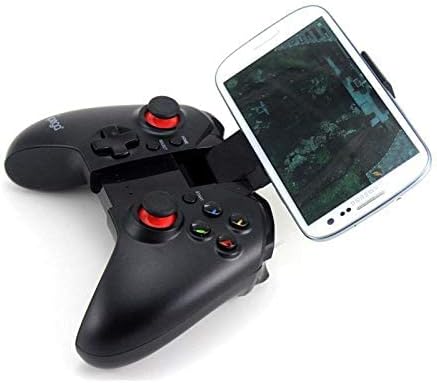
The Ipega Game Controller extended with a smartphone securely mounted in the integrated holder, ready for mobile gaming.
4. Operating the Controller
4.1 Attaching Your Smartphone
Gently extend the retractable holder located in the center of the controller. Carefully place your smartphone (up to 6 inches) into the holder, ensuring it is securely seated. The holder is designed to provide a stable grip during gameplay.

Side profile of the Ipega Game Controller, illustrating the retractable phone holder mechanism with a smartphone inserted.

An angled perspective of the Ipega Game Controller, showing a smartphone held firmly in its adjustable mount, highlighting the ergonomic design.
4.2 Game Compatibility
The controller is compatible with various game application platforms and emulators. For optimal performance, ensure your game supports external controllers. Some popular platforms mentioned include micro game hall, chicken simulator, KO gaming City, and grape game hall.
4.3 Multimedia Functions
The controller features 5 dedicated multimedia function keys. These keys typically control media playback functions such as play/pause, volume up/down, and track skip, depending on the connected device and application.

The Ipega Bluetooth Wireless Game Controller fully extended, revealing its internal structure and the mechanism for holding a smartphone, without a phone attached.
5. Maintenance
- Cleaning: Use a soft, dry cloth to clean the controller. Avoid using harsh chemicals or abrasive materials.
- Storage: Store the controller in a cool, dry place away from direct sunlight and extreme temperatures.
- Battery Care: To prolong battery life, avoid fully discharging the battery frequently. Charge the controller regularly, even if not in use for extended periods.
6. Troubleshooting
- Controller not connecting: Ensure the controller is charged and in the correct pairing mode for your device. Turn off and on your device's Bluetooth, then try pairing again.
- Lag or disconnections: Ensure you are within the 6-8 meter operating range. Reduce interference from other wireless devices.
- Buttons not responding: Check if the controller is properly connected. Restart the controller and your device.
- Battery not charging: Verify the USB cable is securely connected to both the controller and the power source. Try a different USB port or cable.
7. Specifications
| Connectivity | Bluetooth 3.0 |
| Operating Range | 6-8 meters |
| Battery | Built-in 380mAh Lithium-ion |
| Battery Life | Up to 16 hours (continuous use) |
| Supported OS | Android 3.2+, iOS 4.3+, WinXP/Win7/Win8 |
| Max Phone Size | 6 inches |
| Item Weight | 11 g |
8. Warranty and Support
This product is covered by a standard manufacturer's warranty. For specific warranty terms and conditions, please refer to the documentation provided at the time of purchase or contact your retailer. For technical support or further assistance, please visit the official Ipega website or contact their customer service.
Related documentsBluetooth 3.0 Wireless Game Controller


Ask a question about this manual
Ask about setup, troubleshooting, compatibility, parts, safety, or missing instructions. Manuals+ will review the question and use this page’s manual context to help answer it.