
1. Introduction
This manual provides detailed instructions for setting up, configuring, and maintaining your Totolink N600R 600Mbps Wireless N Broadband Router. The N600R is designed to provide high-speed wireless connectivity for home and small office environments, supporting the IEEE 802.11n/g/b standards for 2.4GHz Wireless LAN with data rates up to 600Mbps.
2. Product Overview
2.1 Key Features
- Up to 600Mbps Wireless N speed for fast data transfer.
- Advanced MIMO technology for enhanced throughput and wireless coverage.
- One Turbo slide switch for quick Wi-Fi coverage extension.
- Supports multiple broadband functions: DHCP, Static IP, PPPoE, PPTP, and L2TP.
- Comprehensive security protocols: 64/128-bit WEP, WPA, WPA2, and WPA-Mixed.
- Easy and fast secure network connection using WPS (Wi-Fi Protected Setup).
- Supports IP, Port, MAC, URL filtering, and Port Forwarding.
- QoS (Quality of Service) for bandwidth control based on IP.
- Multi-SSID feature for creating multiple wireless networks.
- Universal repeater and WDS function for extending Wi-Fi range.
- Parental Control features for managing internet access.
2.2 Package Contents
- Totolink N600R Wireless N Broadband Router
- Power Adapter
- Ethernet Cable
- Quick Installation Guide (refer to this manual for detailed instructions)
2.3 Router Components

Figure 1: Front View. This image displays the front of the Totolink N600R router, featuring its sleek white casing and four prominent external antennas, two on each side, designed for optimal wireless signal coverage.

Figure 2: Top View. This image shows the top surface of the Totolink N600R router, highlighting the Totolink brand logo centrally placed on its white, curved chassis.

Figure 3: Rear View. This image illustrates the rear panel of the Totolink N600R router, clearly showing the yellow WAN port, four orange LAN ports, and the power input jack, along with ventilation slots.
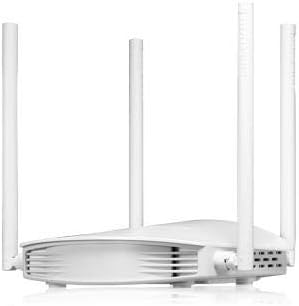
Figure 4: Side View. This image presents a side profile of the Totolink N600R router, emphasizing its curved design and the arrangement of its external antennas.
3. Setup Guide
3.1 Physical Connection
- Power Connection: Connect the provided power adapter to the router's power input jack and then plug it into a power outlet.
- WAN Connection: Connect one end of an Ethernet cable to the WAN port (usually labeled and colored differently, e.g., yellow) on the router and the other end to your modem or internet service provider's (ISP) device.
- LAN Connection (Optional): For wired devices, connect one end of an Ethernet cable to any of the LAN ports (usually orange) on the router and the other end to your computer or other network device.
- Power On: Wait for the router to power on and for the indicator lights to stabilize, indicating a successful connection.
3.2 Initial Configuration (Web Interface)
- Connect to the Router:
- Wired: Ensure your computer is connected to one of the router's LAN ports.
- Wireless: Connect your wireless device (laptop, smartphone) to the router's default Wi-Fi network. The default SSID (network name) and password are typically printed on a label on the bottom of the router.
- Access Web Browser: Open a web browser (e.g., Chrome, Firefox, Edge) on your connected device.
- Enter IP Address: In the address bar, type the default IP address of the router, which is usually 192.168.1.1 or 192.168.0.1, and press Enter.
- Login: A login window will appear. Enter the default username and password. These are commonly admin for both username and password, or they may be printed on the router's label.
- Follow Setup Wizard: Upon successful login, you will likely be guided through a Quick Setup Wizard to configure your internet connection type (DHCP, Static IP, PPPoE, etc.) and basic wireless settings (SSID, password).
- Change Default Credentials: For security, it is highly recommended to change the default login password for the router's web interface.
4. Operating Instructions
Once the initial setup is complete, you can further customize your network settings through the router's web interface.
4.1 Wireless Settings
- SSID (Network Name): Navigate to the Wireless Settings section to change your Wi-Fi network name.
- Security Mode: Select a strong security mode like WPA2-PSK (AES) for optimal security.
- Wireless Password: Set a strong, unique password for your Wi-Fi network.
- Turbo Switch: Utilize the physical Turbo slide switch on the router to quickly extend Wi-Fi coverage when needed.
- Multi-SSID: Create separate wireless networks for guests or specific devices by configuring multiple SSIDs.
4.2 Network Security
- WPS (Wi-Fi Protected Setup): Use the WPS button on the router or the WPS function in the web interface to quickly connect WPS-compatible devices without entering the password manually.
- Firewall: The router includes a built-in firewall. Configure IP, Port, MAC, and URL filtering to control network access.
- Port Forwarding: Set up port forwarding rules if you need to access specific services or devices on your local network from the internet (e.g., gaming servers, security cameras).
4.3 Advanced Features
- QoS (Quality of Service): Prioritize network traffic for specific applications or devices to ensure smooth performance for critical tasks like video streaming or online gaming. This is typically based on IP addresses.
- Parental Control: Manage and restrict internet access for specific devices or users based on time schedules or website filtering.
- Universal Repeater / WDS: Extend your existing Wi-Fi network's coverage by configuring the N600R as a universal repeater or using WDS (Wireless Distribution System) with other compatible routers.
5. Maintenance
- Firmware Updates: Regularly check the Totolink official website for firmware updates. Updating the firmware can improve performance, add new features, and enhance security.
- Rebooting: If you experience network issues, try rebooting the router by unplugging the power adapter for 10 seconds and then plugging it back in.
- Factory Reset: In case of severe configuration issues, you can perform a factory reset. This will revert all settings to their default values. Refer to the router's physical reset button or the web interface for this option.
- Placement: Place the router in a central location, away from obstructions and interference sources (e.g., microwaves, cordless phones) for optimal wireless coverage.
6. Troubleshooting
6.1 No Internet Access
- Check if the WAN port cable is securely connected to both the router and the modem.
- Verify that your modem is working correctly and has an active internet connection.
- Reboot both the modem and the router.
- Ensure your internet connection settings (DHCP, PPPoE, etc.) are correctly configured in the router's web interface.
6.2 Weak Wi-Fi Signal or Disconnections
- Relocate the router to a more central position, away from walls and large metal objects.
- Check for interference from other electronic devices.
- Ensure the router's antennas are positioned vertically for optimal signal.
- Try changing the wireless channel in the router's settings to avoid interference from neighboring networks.
- Consider using the Turbo switch to extend coverage.
6.3 Cannot Access Router's Web Interface
- Ensure your device is connected to the router (wired or wireless).
- Verify that you are using the correct IP address (e.g., 192.168.1.1).
- Clear your browser's cache and cookies, or try a different browser.
- If you forgot the login password, you may need to perform a factory reset.
7. Specifications
| Feature | Detail |
|---|---|
| Brand Name | Totolink |
| Model Name | N600R |
| Connectivity Technology | Wi-Fi |
| Frequency Band Class | Single-Band (2.4GHz) |
| Wireless Speed | Up to 600Mbps |
| Security Protocol | WEP, WPA, WPA2, WPA-Mixed |
| Special Features | QoS, WPS, Turbo Switch, Parental Control, Multi-SSID, Universal Repeater, WDS |
| Compatible Devices | Laptop, Personal Computer, Smart Television, Tablet |
| Recommended Uses | Home, Small Office, Family |
| Included Components | Router |
| Package Dimensions | 22.4 x 14.4 x 6.7 cm |
| Weight | 456 g |
8. Warranty and Support
For warranty information, technical support, or further assistance, please refer to the warranty card included with your product or visit the official Totolink website. You can also find updated drivers and firmware on their support pages.
Totolink Official Website: www.totolink.net


