
Introduction
This manual provides essential instructions for the setup, operation, maintenance, and troubleshooting of your Dell Precision 7910 / T7910 Tower workstation. Designed for demanding professional applications, this system features dual Intel Xeon E5-2695 V4 processors, 512GB DDR4 REG memory, an Nvidia Quadro K2000 graphics card, and substantial storage capacity. Please read this manual thoroughly to ensure proper use and longevity of your workstation.
Setup
1. Unpacking and Placement
- Carefully remove the workstation from its packaging. Retain all packaging materials for future transport.
- Place the workstation on a stable, flat surface with adequate ventilation. Ensure there is sufficient space around the unit for airflow.
- Avoid placing the workstation near heat sources or in direct sunlight.
2. Connecting Peripherals
Connect your monitor, keyboard, mouse, and other necessary peripherals to the appropriate ports on the rear of the workstation.

Figure 1: Rear panel of the Dell Precision 7910 / T7910 Tower, illustrating the available connectivity ports including USB, Ethernet, audio, and video outputs.
- Monitor: Connect your display cable (e.g., DisplayPort, DVI, HDMI) to the Nvidia Quadro K2000 graphics card output ports.
- Keyboard and Mouse: Connect to any available USB ports.
- Network: Connect an Ethernet cable to the network port for wired internet access.
- Power: Connect the power cord to the workstation's power supply unit and then to a grounded electrical outlet.
3. Initial Power-On
- Press the power button located on the front of the workstation.
- Follow the on-screen instructions to complete the initial setup of the Windows 10 operating system.
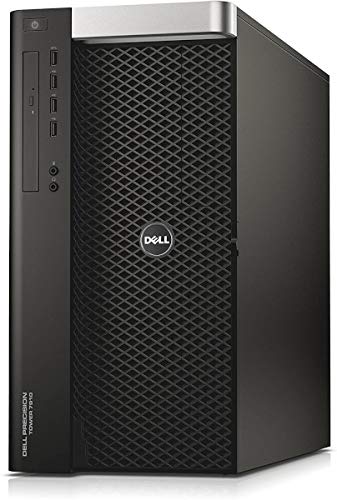
Figure 2: Front view of the Dell Precision 7910 / T7910 Tower, showing the power button and front panel access.
Operating Instructions
Power On/Off
- To Power On: Press the power button on the front panel.
- To Shut Down: Click the Start button in Windows 10, then select Power > Shut down.
- To Restart: Click the Start button in Windows 10, then select Power > Restart.
- Sleep Mode: Click the Start button in Windows 10, then select Power > Sleep.
Operating System
Your workstation comes with Windows 10 pre-installed. Ensure that the operating system is regularly updated to maintain security and performance. For detailed instructions on using Windows 10, refer to Microsoft's official documentation.
Workstation Capabilities
The Dell Precision 7910 / T7910 Tower is designed for high-performance computing tasks, including:
- Complex data analysis and scientific simulations.
- 3D rendering, CAD, and content creation.
- Virtualization and server applications.
- Multi-tasking with demanding software.
Maintenance
Cleaning
- Regularly clean the exterior of the workstation with a soft, dry cloth.
- Use compressed air to clear dust from ventilation grilles and internal components periodically. Ensure the system is powered off and unplugged before cleaning internal parts.
- Avoid using liquid cleaners directly on components.
Software Updates
- Keep your Windows 10 operating system updated through Windows Update.
- Regularly update drivers for your graphics card (Nvidia Quadro K2000) and other hardware components from the Dell support website or component manufacturer websites.
Hardware Checks and Upgrades
Periodically inspect internal components for dust buildup or loose connections. The Dell Precision 7910 / T7910 Tower is designed for easy access to internal components for maintenance or upgrades.

Figure 3: Internal view of the Dell Precision 7910 / T7910 Tower, highlighting the dual CPU heatsinks, RAM slots, and expansion card areas for maintenance and upgrades.
- Ensure all cables are securely connected.
- Monitor fan noise; excessive noise may indicate dust buildup or a failing fan.
- When performing hardware upgrades (e.g., adding more RAM or storage), always refer to Dell's official service manual for the Precision 7910 / T7910 for detailed instructions and safety precautions.
Troubleshooting
This section addresses common issues you might encounter with your workstation. For more complex problems, consult Dell's official support resources.
No Power
- Verify the power cord is securely connected to both the workstation and the electrical outlet.
- Ensure the power outlet is functional by testing it with another device.
- Check the power supply unit (PSU) switch, if present, is in the 'On' position.
No Display on Monitor
- Confirm the monitor is powered on and its video cable is securely connected to the graphics card ports on the workstation.
- Ensure the correct input source is selected on your monitor.
- If using multiple monitors, test with a single monitor.
System Slowdown or Unresponsiveness
- Check Task Manager (Ctrl+Shift+Esc) to identify any applications consuming excessive CPU, memory, or disk resources.
- Ensure sufficient free space on your primary drive.
- Run a full system scan for malware or viruses.
- Verify that all drivers and the operating system are up to date.
Specifications
Below are the key technical specifications for the Dell Precision 7910 / T7910 Tower workstation:
| Feature | Specification |
|---|---|
| System Model | Dell Precision 7910 / T7910 Tower |
| Processors | 2x Intel Xeon E5-2695 V4 (18-Core, 2.1 GHz each) |
| Memory (RAM) | 512GB DDR4 REG |
| Graphics Card | Nvidia Quadro K2000 2GB |
| Storage | 4.96TB (Dual 480GB SSD & 2TB 12Gb/s SAS) |
| Power Supply | 1300W PSU |
| Operating System | Windows 10 |
| Optical Drive | DVD |
| Connectivity | USB, HDMI, Bluetooth (via dongle if included) |
| Dimensions (Item) | 22 x 22 x 12 inches |
| Processor Socket | LGA 2011-3 |
| Total USB Ports | 8 |
Warranty and Support
Warranty Information
This Dell Precision 7910 / T7910 Tower workstation comes with a 90-day warranty. This warranty covers defects in materials and workmanship under normal use. Please retain your proof of purchase for warranty claims.
For specific terms and conditions of the warranty, please refer to the documentation provided at the time of purchase or contact the seller directly.
Technical Support
If you encounter issues that cannot be resolved using the troubleshooting steps in this manual, please contact the seller or Dell support for assistance. When contacting support, have your workstation's model number and serial number ready.
- Dell Support Website: www.dell.com/support (for general drivers, manuals, and diagnostics)
- Seller Contact: Refer to your purchase documentation for seller contact information.


