
1. Introduction
This manual provides detailed instructions for the installation, operation, and maintenance of your ieGeek K301 Car Radio. Please read this manual thoroughly before using the product to ensure proper function and safety.
Key Features
- FM/AM Stereo Radio with RDS: Supports reception of FM/AM stereo radio and can store up to 30 radio stations. RDS functions provide automatic traffic announcements for enhanced road safety.
- Bluetooth 5.0 Connectivity: Offers stable and reliable Bluetooth connection for hands-free calls and music streaming from iOS/Android devices.
- Media Playback: Supports MP3/WMA/WAV audio formats via USB drive and micro SD card.
- AUX-IN Input: Front-facing AUX IN port for connecting external audio devices.
- USB Charging: Independent 5V-2A USB charging interface for quick mobile phone charging.
- Clock Display: Independent clock display window for easy time viewing.
- Power-Off Memory: Retains settings and last played station/track after power-off.
- Enhanced Audio: Integrated 4x55W amplification for clear audio. Features Extra Bass and customizable sound profiles.

2. Package Contents
Verify that all items are present in the package:
- 1x ieGeek K301 Car Radio
- 1x User Manual
- 1x Remote Control
- 2x Power Cables
- 2x Removal Keys
3. Installation
Proper installation is crucial for optimal performance. If you are unsure about any steps, consult a professional car audio installer.
3.1 Wiring Diagram
Refer to the following diagram for correct wiring connections. Ensure all connections are secure to prevent malfunctions.

- Power Connection: Connect the yellow wire directly to the car battery's positive terminal (constant 12V) to ensure memory retention for settings and radio stations. The red wire should connect to the ignition switch (switched 12V). The black wire is for ground.
- Speaker Connections: Connect the speaker wires according to the diagram, ensuring correct polarity for each speaker.
- Antenna Connection: Connect your car's antenna cable to the radio. An adapter may be required for certain vehicle models.
3.2 Mounting the Unit
- Insert the metal mounting sleeve into the dashboard opening. Bend the tabs to secure it.
- Connect all necessary wiring harnesses to the rear of the car radio.
- Carefully slide the car radio into the mounting sleeve until it clicks into place.
- Use the provided removal keys to extract the unit if needed for future maintenance or replacement.
4. Operating Instructions
4.1 Basic Controls

- Power/Volume Knob (VOL): Press to turn on/off. Rotate to adjust volume.
- MODE Button: Press to cycle through available modes (FM, AM, USB, SD, AUX, Bluetooth).
- BAND/AMS Button: In radio mode, press to switch between FM1/FM2/FM3/AM1/AM2 bands. Long press to automatically scan and store stations.
- SEL/RDS Knob: Press to access audio settings (Bass, Treble, Balance, Fader, EQ). Rotate to adjust values. Long press for RDS functions (if available).
- Preset Buttons (1-6): In radio mode, short press to select a stored station. Long press to store the current station.
- Forward/Backward Buttons (◀◀/▶▶): In media playback, short press for previous/next track. Long press for fast rewind/forward. In radio mode, short press for manual tuning, long press for auto-seek.
4.2 Radio Operation (FM/AM/RDS)

- Press the MODE button until "FM" or "AM" is displayed.
- Press BAND/AMS to select the desired frequency band (FM1, FM2, FM3, AM1, AM2).
- Use the ◀◀/▶▶ buttons to tune to a station. Long press for automatic station seeking.
- To store a station, tune to the desired frequency, then long press one of the Preset Buttons (1-6) until the display flashes.
- RDS Function: If available in your region, the radio will display station information. Long press the SEL/RDS knob to activate/deactivate RDS features like traffic announcements.
4.3 USB/SD Card Playback
- Insert a USB drive into the USB port or an SD card into the SD card slot. The unit will automatically switch to USB/SD mode and begin playback.
- If it does not switch automatically, press the MODE button to select "USB" or "SD".
- Use the ◀◀/▶▶ buttons to navigate tracks.
- The 1/▶▶ button can be used for play/pause.
- The 3/RPT button can be used for repeat functions.
4.4 AUX-IN Connection

- Connect your external audio device (e.g., smartphone, MP3 player) to the front AUX IN port using a 3.5mm audio cable.
- Press the MODE button until "AUX" is displayed.
- Control playback and volume from your external device.
4.5 Bluetooth Operation

- Pairing:
- Press the MODE button until "BT" (Bluetooth) is displayed.
- On your mobile device, enable Bluetooth and search for available devices.
- Select "K301" from the list. If prompted for a password, enter "0000".
- Once paired, the display will show "BT ON" or a similar confirmation.
- Bluetooth Audio Streaming:
- After successful pairing, open your music player on your mobile device.
- Audio will stream through the car radio. Use the ◀◀/▶▶ buttons on the radio to control tracks.
- Hands-Free Calling:
- When a call comes in, the radio will display the caller's number (if available).
- Press the VOL knob to answer a call. Press again to end a call.
- Use the built-in microphone for communication.
4.6 USB Charging
The dedicated USB port provides 5V-2A output for charging mobile devices. Simply connect your device using a compatible USB cable.
4.7 Clock Display and Setting

The unit features an independent clock display. To set the time:
- With the unit powered on, long press the DISP button (if available, or a combination with MODE/VOL). If no specific DISP button, the clock is usually set via the MODE button or a long press on the VOL knob in some modes.
- Use the ◀◀/▶▶ buttons or VOL knob to adjust hours and minutes.
- Press the VOL knob again to confirm.
4.8 Remote Control
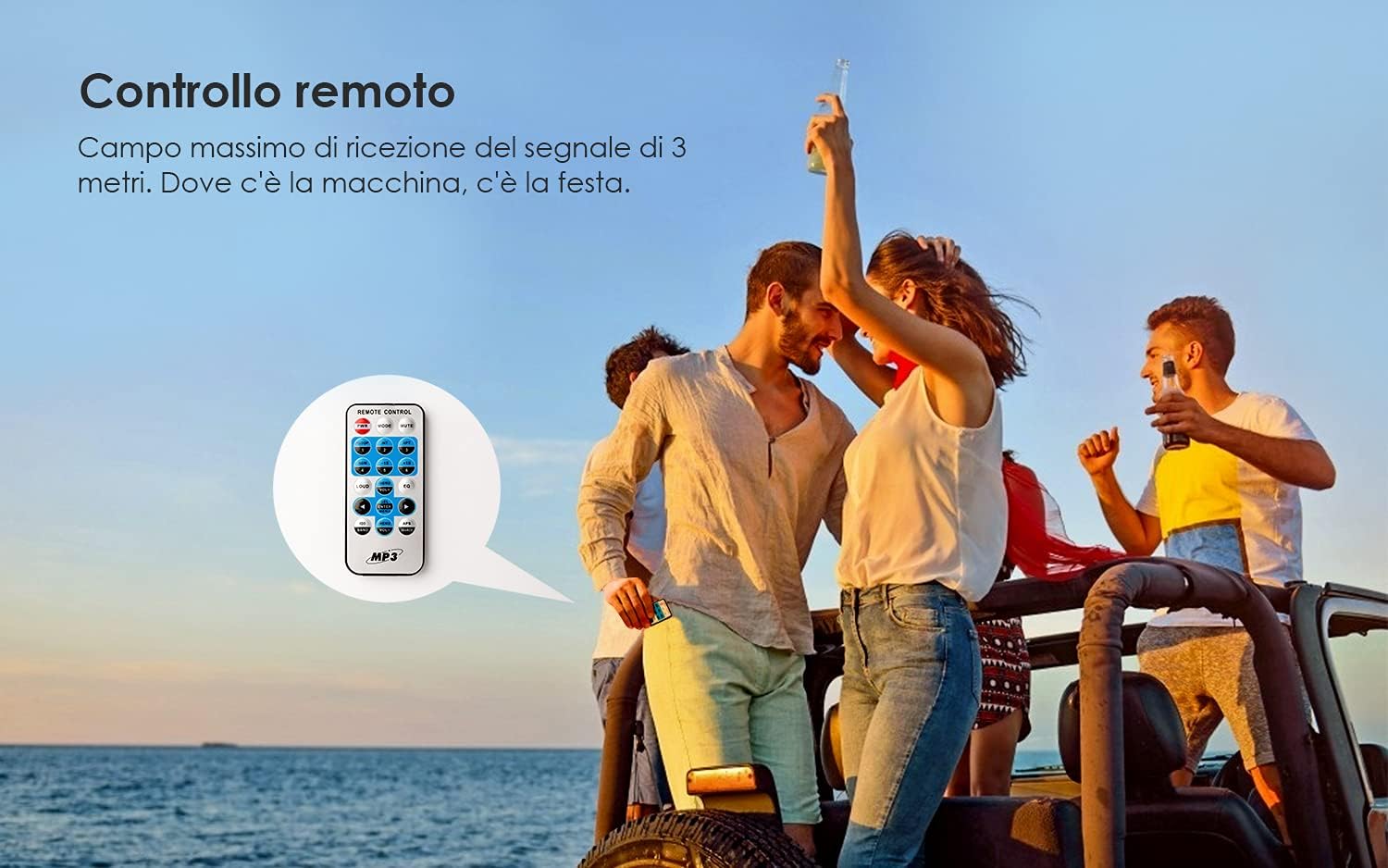
The included remote control allows for convenient operation of the car radio from a distance. Point the remote control towards the unit's IR receiver. Functions include power, mode selection, volume adjustment, track/station navigation, and preset selection.
5. Maintenance
- Cleaning: Use a soft, dry cloth to clean the front panel. Do not use abrasive cleaners or solvents.
- Fuse Replacement: If the unit does not power on, check the 15A fuse located at the rear of the unit. Replace it with a fuse of the same rating if blown.
6. Troubleshooting
| Problem | Possible Cause | Solution |
|---|---|---|
| Unit has no power. | Blown fuse; incorrect power wiring. | Check and replace the 15A fuse. Verify power cable connections (red, yellow, black). |
| Settings/stations are lost after turning off the car. | Yellow (memory) wire not connected to constant 12V. | Ensure the yellow power cable is connected directly to a constant 12V source from the car battery. |
| Poor radio reception. | Antenna not connected properly; weak signal area. | Check antenna connection. Ensure an antenna adapter is used if necessary. Try a different location. |
| Bluetooth connection issues. | Device not in pairing mode; incorrect pairing process. | Ensure the radio is in BT mode. Re-enable Bluetooth on your mobile device and re-attempt pairing. |
| Poor microphone quality during calls. | Background noise (e.g., AC fan); microphone interference. | Reduce background noise. Avoid placing mobile phone too close to the unit during calls. |
| Screen difficult to read in bright sunlight. | High ambient light; no contrast adjustment. | This is a characteristic of the display type. No user adjustment for contrast is available. |
| Caller ID shows number, not name. | Unit limitation. | The unit displays the caller's number only. Name display is not supported. |
7. Specifications
| Feature | Detail |
|---|---|
| Operating Voltage | 9-30 V |
| Fuse | 15A |
| Speaker Impedance | 4Ω |
| Maximum Output Power | 60 W (4x15W RMS) |
| FM Frequency Range | 87.5 - 107.9 MHz |
| AM Frequency Range | 522 - 1620 MHz |
| Connectivity | Bluetooth 5.0, USB Type A, AUX-IN, Micro SD |
| Total USB Ports | 2 (1x Data/Media, 1x Charging) |
| Compatible Audio Formats | MP3, WMA, WAV |
| Compatible Devices | Speakers, Android, iOS devices |
| Audio Output Mode | Stereo |
| Surround Sound Channel Configuration | 4.0 |
| Item Weight | 772 Grams |
| Model Number | K301 |
| ASIN | B0912HPZT2 |
8. Warranty and Support
For warranty information and technical support, please refer to the documentation provided with your purchase or visit the official ieGeek website. Keep your proof of purchase for warranty claims.
For further assistance, you may contact ieGeek customer service through their official channels. The brand store can be found here.
