
OnePlus GM1917
OnePlus 7 Pro Dual SIM Smartphone Instruction Manual (Model GM1917)
Your comprehensive guide to the OnePlus 7 Pro
1. Introduction
The OnePlus 7 Pro (Model GM1917) is a high-performance smartphone designed to deliver a smooth and immersive user experience. It features a 6.67-inch Fluid AMOLED display with a 90 Hz refresh rate and QHD+ resolution, offering exceptional clarity and fluidity. The device is equipped with a versatile camera system, including a 48 MP main camera, an ultra-wide-angle lens, and 3x optical zoom, enhanced by smart scene recognition and Nightscape 2.0 technology. This manual provides essential information for setting up, operating, and maintaining your OnePlus 7 Pro.

Figure 1: Front view of the OnePlus 7 Pro smartphone.
2. Initial Setup
2.1. Package Contents
Before proceeding, ensure all items are present in your package:
- OnePlus 7 Pro Smartphone (Model GM1917)
- Power Adapter
- USB Type-C Cable
- SIM Ejector Tool
- Quick Start Guide
- Safety Information
2.2. Inserting SIM Cards
- Locate the SIM card tray on the side of your device.
- Insert the SIM ejector tool into the small hole on the tray and press firmly until the tray ejects.
- Place your Nano-SIM cards into the tray with the gold contacts facing down. The OnePlus 7 Pro supports Dual SIM functionality.
- Carefully reinsert the tray into the device.
2.3. Powering On and Initial Configuration
- Press and hold the Power button (located on the right side) until the OnePlus logo appears.
- Follow the on-screen prompts to select your language, connect to a Wi-Fi network, and set up your Google account.
- You will be guided through setting up security features such as fingerprint unlock and face unlock.
3. Operating Your OnePlus 7 Pro
3.1. Display Features
The OnePlus 7 Pro features a 6.67-inch Fluid AMOLED display with a QHD+ resolution (2560 x 1440 pixels) and a 90 Hz refresh rate. This combination provides incredibly smooth scrolling, fluid animations, and vibrant colors. Adjust display settings such as brightness, color mode, and refresh rate (if applicable) in the Settings menu under 'Display'.
3.2. Performance and Storage
Powered by a Qualcomm Snapdragon 855 processor and 6GB of RAM, the OnePlus 7 Pro delivers robust performance for multitasking, gaming, and demanding applications. The device comes with 128GB of internal storage, providing ample space for apps, photos, and videos.
3.3. Navigation
Your device offers various navigation options, including traditional on-screen navigation buttons or gesture navigation. These can be customized in the Settings menu under 'Buttons & gestures'.
4. Camera System
The OnePlus 7 Pro is equipped with a triple rear camera setup and a unique pop-up front camera.
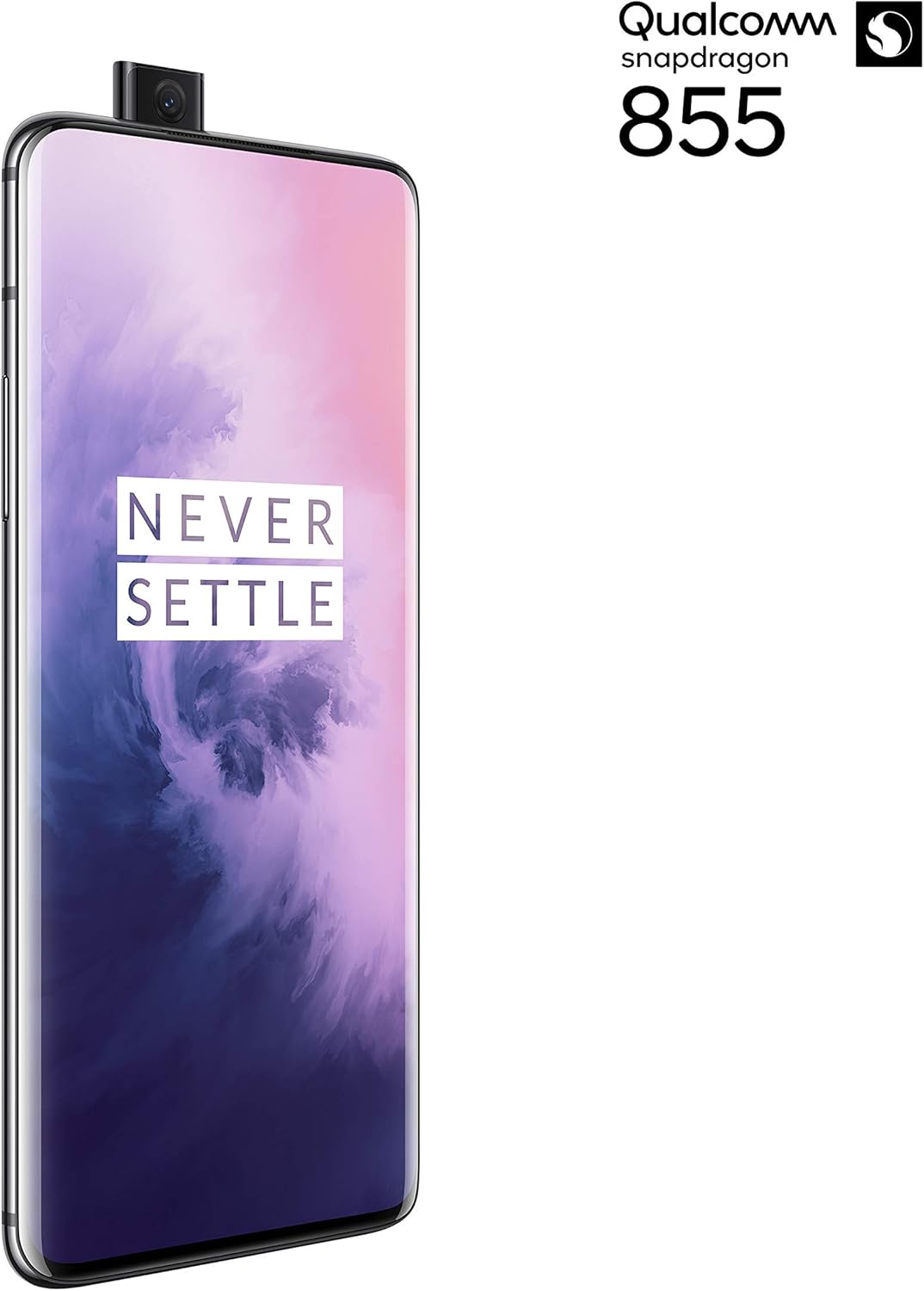
Figure 2: Front view of the OnePlus 7 Pro with its pop-up selfie camera.
4.1. Rear Cameras
- Main Camera: 48 MP sensor for high-resolution photos.
- Ultra-Wide Angle Lens: Captures a broader field of view, ideal for landscapes and group shots.
- Telephoto Lens: Offers 3x optical zoom for clear, detailed shots from a distance.
4.2. Front Camera
The device features a motorized pop-up front camera, ensuring an uninterrupted full-screen display. This camera is designed for high-quality selfies and video calls.
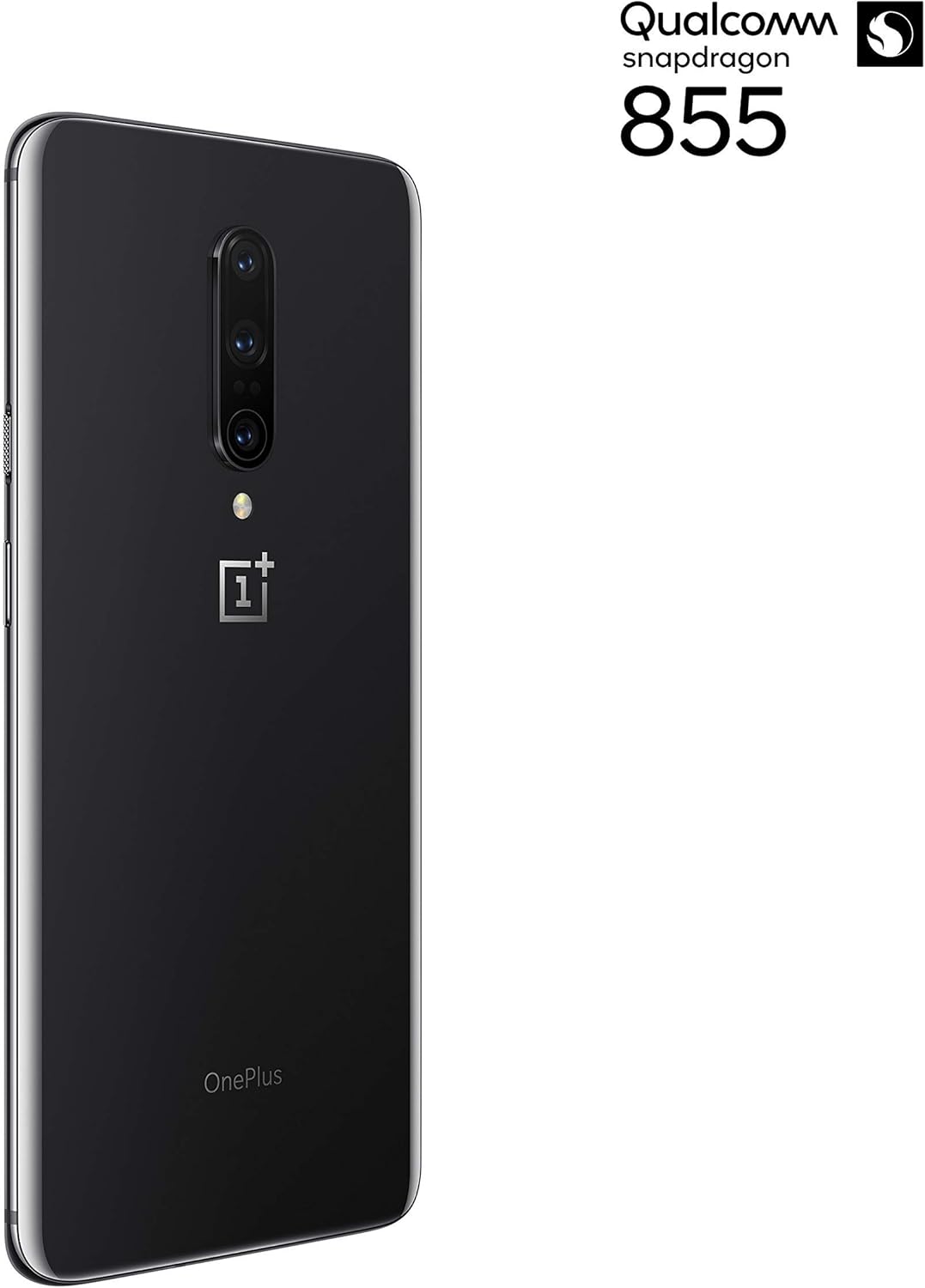
Figure 3: Rear view of the OnePlus 7 Pro highlighting the triple camera module.
4.3. Camera Modes
Explore various camera modes to enhance your photography:
- Photo: Standard mode for everyday shots.
- Portrait: Creates a depth-of-field effect, blurring the background.
- Nightscape 2.0: Optimizes photos taken in low-light conditions for brighter and clearer results.
- Pro Mode: Offers manual control over settings like ISO, shutter speed, and white balance.
- Video: Records high-quality videos.
5. Battery and Charging
The OnePlus 7 Pro is equipped with a 4000 mAh battery, designed to provide extended usage. It supports Warp Charge technology for rapid charging.
5.1. Charging Your Device
To charge your device, connect the provided USB Type-C cable to the phone's charging port and the power adapter. Plug the adapter into a wall outlet. For optimal charging speed, use only the official OnePlus Warp Charge adapter and cable.
5.2. Battery Optimization
To maximize battery life, consider the following:
- Adjust screen brightness.
- Enable Battery Saver mode when needed.
- Close unused applications running in the background.
- Limit background data usage for certain apps.
6. Technical Specifications
| Feature | Specification |
|---|---|
| Model Number | GM1917 |
| Display | 6.67-inch Fluid AMOLED, QHD+ (2560 x 1440), 90 Hz |
| Processor | Qualcomm Snapdragon 855 |
| RAM | 6 GB |
| Internal Storage | 128 GB |
| Rear Camera | 48 MP Main, Ultra-Wide, 3x Optical Zoom Telephoto |
| Front Camera | Pop-up Selfie Camera |
| Battery Capacity | 4000 mAh |
| Operating System | Android |
| Connectivity | Wi-Fi, 4G LTE (AT&T, Verizon, T-Mobile compatible) |
| SIM Type | Dual Nano-SIM |
7. Troubleshooting
If you encounter issues with your OnePlus 7 Pro, try the following steps:
- Device Unresponsive: Press and hold the Power button for approximately 10 seconds to force restart the device.
- App Issues: Clear the cache and data for the problematic app in Settings > Apps > [App Name] > Storage. If the issue persists, uninstall and reinstall the app.
- Network Connectivity: Toggle Airplane Mode on and off. Restart your device. Check your SIM card insertion.
- Battery Drain: Review 'Battery Usage' in Settings to identify apps consuming excessive power. Reduce screen brightness and disable unnecessary features.
- Software Glitches: Ensure your device's software is up to date via Settings > System > System updates.
- Factory Reset: As a last resort, you can perform a factory reset (Settings > System > Reset options > Erase all data). Warning: This will erase all data on your device. Back up important information before proceeding.
8. Care and Maintenance
To ensure the longevity and optimal performance of your OnePlus 7 Pro:
- Keep the device clean using a soft, lint-free cloth. Avoid harsh chemicals.
- Protect the screen with a screen protector and use a protective case.
- Avoid exposing the device to extreme temperatures, direct sunlight, or moisture.
- Regularly back up your data to a cloud service or external storage.
- Install software updates to benefit from the latest features and security enhancements.
9. Warranty and Support
For information regarding warranty coverage, technical support, or service, please refer to the documentation provided with your purchase or visit the official OnePlus support website. As this is a renewed product, specific warranty terms may vary; please consult your seller for details on their renewed product warranty and return policy.
Related documentsGM1917


Ask a question about this manual
Ask about setup, troubleshooting, compatibility, parts, safety, or missing instructions. Manuals+ will review the question and use this page’s manual context to help answer it.