
Introduction
The Seagate Expansion Portable Hard Drive provides an easy-to-use solution for instantly adding storage to your computer. This portable hard drive is designed for simple drag-and-drop file saving and offers automatic recognition with both Windows and Mac computers. It features a sleek, compact design, making it ideal for carrying your photos, movies, music, and other important files on the go. The device connects via USB 3.0, ensuring fast data transfer speeds and power directly from the USB port.
What's Included
Verify that all items are present in the package:
- Seagate Expansion portable hard drive
- 18-inch (45.72cm) USB 3.0 cable
- Quick start guide
- Limited Warranty: APAC - 3 years
- Rescue Data Recovery Services information
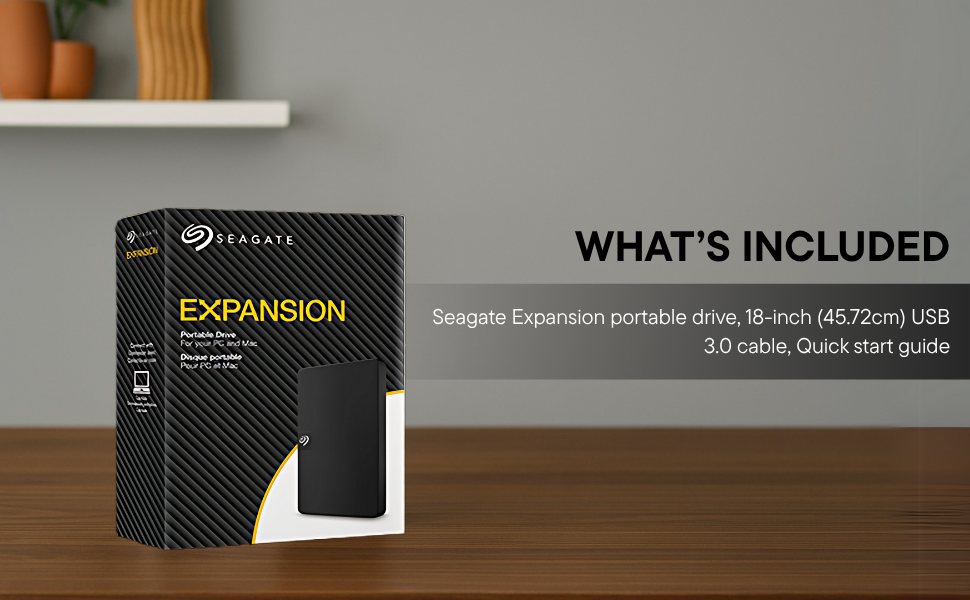
Image: Contents of the Seagate Expansion portable hard drive package, including the drive, USB cable, and documentation.
Setup
- Connect the USB Cable: Plug the small end of the included USB 3.0 cable into the Seagate Expansion portable hard drive.
- Connect to Computer: Plug the larger end of the USB 3.0 cable into an available USB port on your computer. The drive is USB 3.0 powered, so no external power adapter is needed.
- Automatic Recognition: The drive will be automatically recognized by your Windows or Mac operating system. No software installation is typically required for basic functionality.
- For Mac Users (Time Machine): If you intend to use the drive with Apple Time Machine for backups, reformatting the drive is required. Refer to your Mac's documentation for instructions on how to reformat and set up Time Machine.

Image: A Seagate Expansion portable hard drive connected to a laptop via a USB cable, demonstrating the plug-and-play setup.

Image: A hand holding the Seagate Expansion drive, with Windows and Mac compatibility logos displayed next to it.
Operating Instructions
Once connected, the Seagate Expansion drive functions like any other external storage device on your computer.
- Accessing the Drive: On Windows, the drive will appear under 'This PC' or 'My Computer'. On Mac, it will appear on the desktop or in Finder under 'Locations'.
- Saving Files: To save files, simply drag and drop them from your computer's internal storage to the Seagate Expansion drive's icon or open folder. You can also use the 'Copy' and 'Paste' functions.
- Organizing Files: Create folders on the drive to organize your data efficiently.
- Safely Ejecting: Always safely eject the drive before disconnecting it to prevent data corruption. On Windows, right-click the drive icon in the system tray and select 'Eject'. On Mac, drag the drive icon to the Trash or click the Eject button next to the drive in Finder.

Image: A hand demonstrating the drag-and-drop method to transfer files from a laptop to the Seagate Expansion portable hard drive.
Maintenance
Proper maintenance ensures the longevity and optimal performance of your Seagate Expansion drive.
- Physical Care: Handle the drive with care. Avoid dropping it or exposing it to extreme temperatures, moisture, or strong magnetic fields.
- Cleaning: Use a soft, dry, lint-free cloth to clean the exterior of the drive. Do not use liquid cleaners or solvents.
- Data Backup: While the drive is designed for storage, it is always recommended to maintain backups of critical data on multiple devices or cloud services.
- Firmware Updates: Periodically check the Seagate support website for any available firmware updates for your model to ensure optimal performance and compatibility.
Troubleshooting
If you encounter issues with your Seagate Expansion drive, consider the following steps:
- Drive Not Detected:
- Ensure the USB cable is securely connected to both the drive and the computer.
- Try connecting the drive to a different USB port on your computer.
- Test the drive with a different USB cable, if available.
- Restart your computer.
- Slow Performance:
- Ensure you are using a USB 3.0 port for optimal speeds. USB 2.0 ports will result in slower transfers.
- Close any unnecessary applications running in the background.
- Check your computer's disk management or disk utility to ensure the drive is healthy.
- Accessing Files: If you cannot access files, ensure the drive is properly mounted and not in use by another application.
For more detailed troubleshooting, please refer to the official Seagate Troubleshooting Guide (PDF).
Specifications
| Model Number | STKM1000400 |
| Digital Storage Capacity | 1 TB |
| Hard Disk Interface | USB 2.0/3.0 |
| Connectivity Technology | USB |
| Brand | Seagate |
| Special Feature | Data Recovery Service, Portable |
| Hard Disk Form Factor | 2.5 Inches |
| Hard Disk Description | Mechanical Hard Disk |
| Compatible Devices | Desktop, Laptop |
| Installation Type | External Hard Drive |
| Colour | Black |
| Hard Disk Rotational Speed | 5400 RPM |
| Read Speed | 120 Megabytes Per Second |
| Item Dimensions L x W x Thickness | 11.7L x 8W x 1.5Th Centimeters |
| Item Weight | 0.4 Pounds |
| Enclosure Material | Plastic |
Warranty and Support
Your Seagate Expansion portable hard drive comes with comprehensive support and warranty coverage.
- Limited Warranty: The product includes a 3-year limited warranty. This covers device replacement or repair for manufacturing defects.
- Rescue Data Recovery Services: For added peace of mind, your purchase includes 3 years of Rescue Data Recovery Services. This service covers data loss due to accidents, mechanical errors, or natural disasters, providing a chance to recover your valuable data.

Image: The 'Rescue Services' logo, indicating the inclusion of 3 years of data recovery services.
Contact Information
For warranty claims, technical support, or inquiries regarding Rescue Data Recovery Services, please contact Seagate Customer Care:
- Seagate Technology (Thailand) Limited. India Customer Care No: 18003092525
Please have your product model number (STKM1000400) and proof of purchase ready when contacting support.


