
Guermok GM-VCC01
Guermok Video Capture Card User Manual
Model: GM-VCC01 | Brand: Guermok
Introduction
The Guermok Video Capture Card is a versatile device designed for high-speed transmission, enabling seamless online capture, real-time recording, online meetings, and live gaming. With support for up to 4K input and 1080P 60FPS output, it provides a superior visual experience. Its plug-and-play design ensures ease of use across a wide range of operating systems and software.
What's in the Box
- 1x HD Audio Capture Card
- 1x USB 3.0 to USB C Adapter
- 1x User Manual (this document)
Setup Guide
Connecting Your Device
The Guermok Video Capture Card offers a simple plug-and-play experience, requiring no additional drivers or external power supply. Follow these steps to connect your devices:
- Connect the HDMI input of the capture card to your source device (e.g., game console, camera, TV box) using an HDMI cable (not included).
- Connect the USB-C output of the capture card to your computer (laptop, desktop, all-in-one PC) or iPad using the integrated USB-C cable. If your computer only has USB-A ports, use the provided USB 3.0 to USB C adapter.
- Ensure all cables are properly connected and functioning.

Figure 1: Connection diagram showing the capture card connecting various input sources (phone, game player, TV box, video camera, webcam) to different output devices (laptop, desktop, all-in-one PC).
Software Configuration (OBS Studio Example)
The capture card is compatible with various software like OBS Studio, Potplayer/VLC, ZOOM, etc. Here's a general guide for OBS Studio:
- Download and install OBS Studio if you haven't already.
- Launch OBS Studio.
- In the 'Sources' box, click the '+' icon to add a new source.
- Select 'Video Capture Device'.
- Choose 'Create new' and give it a name, then click 'OK'.
- In the 'Properties' window, select 'Guermok USB3 Video' from the 'Device' dropdown.
- Configure resolution and FPS type (e.g., 1920x1080@60Hz for optimal performance).
- For audio, ensure 'Audio Output Mode' is set to 'Output desktop audio (WaveOut)' or 'DirectSound' and select the appropriate audio device.
- Click 'OK' to close the properties window.
- Important: Restart OBS Studio after audio setup is complete to ensure sound output.
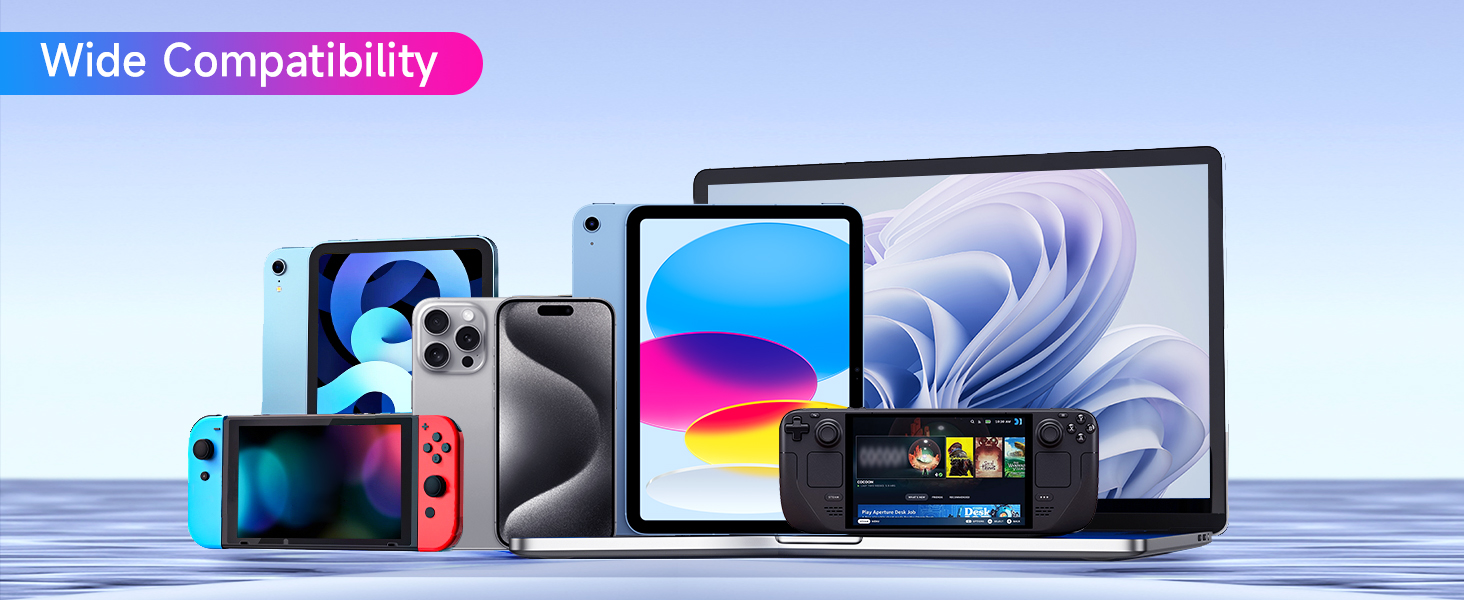
Figure 2: Visual guide for adding a video capture device in OBS Studio.
Operating the Capture Card
The Guermok Video Capture Card allows for real-time preview and recording without lag, supporting input resolutions up to 4K@30Hz and output resolutions up to 1920x1080@60Hz.
Key Features:
- 1080P 60FPS Output: Delivers crisp and vibrant visuals for streaming and recording.
- Ultra Low Latency: Designed with strong heat dissipation to minimize lag during live gaming or streaming.
- Wide Compatibility: Works with Windows, Mac OS, Linux, Android, and various devices including Xbox One, PS3/PS4/PS5, Nintendo Switch, cameras, and more.

Figure 3: The capture card enables real-time preview and recording, as shown with a camera connected to a laptop displaying the live feed of a dog and child.
Usage Scenarios:
- Live Gaming: Capture and stream gameplay from consoles like PS5/4, Xbox, or Switch.
- Video Conferencing: Share content from external sources during online meetings.
- Video Recording: Record high-quality video directly to your computer's hard drive.
- Online Teaching: Integrate external video feeds for educational purposes.
- Live Broadcast: Stream to platforms like Facebook, YouTube, or Twitch.

Figure 4: Examples of suitable recording occasions including video conferences, live broadcasts, video teaching, and home theater setups.
Maintenance
To ensure the longevity and optimal performance of your Guermok Video Capture Card, follow these general maintenance guidelines:
- Keep the device in a dry environment and avoid exposure to moisture or extreme temperatures.
- Clean the device with a soft, dry cloth. Do not use liquid cleaners or aerosols.
- Avoid dropping or subjecting the device to strong impacts.
- Store the device and its adapter in a safe place when not in use.
Troubleshooting
Common Issues and Solutions:
- No Sound Output: After completing audio setup in OBS Studio or similar software, you need to restart the software for the changes to take effect.
- Device Recognized as USB 2.0 Instead of USB 3.0: When using the USB-C adapter, try flipping the capture card and reconnecting it to the USB-C port. This can help it be recognized as USB 3.0.
- Device Not Recognized by Windows:
- Check Device Manager: Press Win + X, select Device Manager.
- Look for 'Unknown devices' under 'Universal Serial Bus Controller' or a USB device with a yellow exclamation mark.
- Right-click and 'Uninstall Device'.
- Unplug the Capture Card, restart your PC, then plug the device in again.
- Screen Sharing Issues (Blue Screen/Lag): Ensure you are using a USB 3.0 port and the device's original charging cable for optimal performance. Insufficient power can cause the device to fail or disconnect.
- No Signal: Ensure the input and output ports are connected to the correct devices. Incorrect connections may result in no signal. If using a converter, ensure it supports signal output functionality.
- No Video Captured: Ensure your signal output device (e.g., camera) supports signal output or has the signal output setting enabled.
- Minor Delay: There may be a slight delay in the capture, but it is within an acceptable millisecond range and does not affect video quality. Ensure your system is within the compatibility range. Some products may require disabling HDCP settings.
General Troubleshooting Steps:
- Replace the data cable.
- Replace the computer or operating environment.
- Replace the USB port.
- Update the computer USB driver.
Specifications
| Feature | Detail |
|---|---|
| Brand | Guermok |
| Series | GM-VCC01 |
| Item Model Number | GM-VCC01 |
| Hardware Interface | USB 3.0 |
| Video Capture Resolution | 1080p, 4K (Input up to 4K@30Hz, Output up to 1080P@60Hz) |
| Operating System Compatibility | Windows 7/8/10, Mac OS or above, Linux, Android |
| Recommended Uses | Video Recording, Live Streaming, Gaming, Video Conferencing |
| Item Weight | 1.06 ounces |
| Color | Silver |
Warranty and Support
For detailed warranty information or technical support, please refer to the official Guermok website or contact Guermok customer service directly. Keep your purchase receipt for warranty claims.
While this manual provides comprehensive instructions, additional user guides and safety information may be available in PDF format on the product's Amazon page or the manufacturer's website.
Related documentsGM-VCC01


Ask a question about this manual
Ask about setup, troubleshooting, compatibility, parts, safety, or missing instructions. Manuals+ will review the question and use this page’s manual context to help answer it.