
Introduction
Thank you for choosing the Konnek Stein QC21 1080P HD Indoor Security Camera. This manual provides detailed instructions for setting up, operating, and maintaining your camera. Please read this manual thoroughly before use to ensure proper functionality and safety. Keep this manual for future reference.
Package Contents
Verify that all items are present in your package:
- Konnek Stein QC21 Camera Body
- Power Adapter
- USB Cable
- Mounting Bracket (for wall/ceiling installation)
- Screws and Wall Plugs
- User Manual (this document)
Product Overview
The Konnek Stein QC21 is a 1080P HD indoor security camera designed for comprehensive monitoring. It features 360-degree coverage, two-way audio, motion detection, and night vision capabilities.
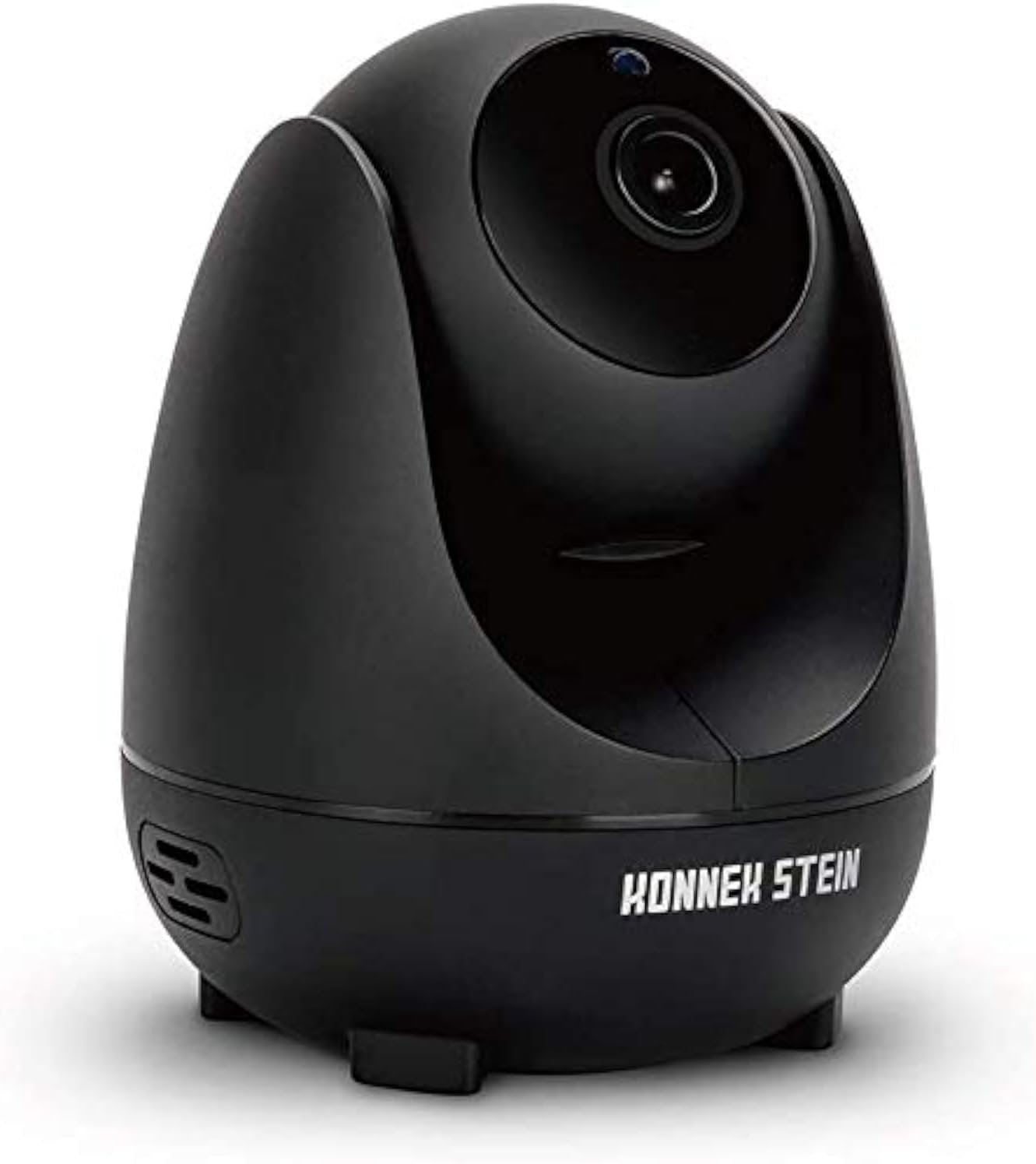
Image: Front view of the Konnek Stein QC21 indoor security camera, showcasing its dome-shaped design and lens.
Key Features:
- 1080P Full HD Resolution: Provides clear and detailed video footage.
- 360-Degree Monitoring: Achieved through 355° horizontal and 110° vertical rotation.
- Two-Way Audio: Allows for real-time communication through the camera.
- Smart Motion Detection: Alerts you to detected movement.
- IR Night Vision: Automatic switching to infrared night vision in low-light conditions.
- Multiple Storage Options: Supports local storage via SD card and cloud storage.
- Multi-Terminal & Multi-User Sharing: View on various devices and share access with others.
Setup Guide
1. App Installation
The Konnek Stein QC21 camera uses the ENKLOV App. Download it from your device's app store:
- For Android devices: Search "ENKLOV" on Google Play Store.
- For iOS devices: Search "ENKLOV" on Apple App Store.
- Alternatively, scan the QR code provided in the quick start guide (if applicable) to download the app.
After installation, create an account and log in.
2. Powering On the Camera
- Connect the USB cable to the camera's power port.
- Plug the power adapter into a standard electrical outlet.
- The camera will power on and initiate its self-test sequence. Wait for the indicator light to flash, indicating it's ready for connection.
3. Wi-Fi Connection
The camera supports 2.4GHz Wi-Fi networks only. 5GHz networks are not supported.
- Open the ENKLOV App on your smartphone.
- Tap the "Add Device" or "+" icon.
- Follow the on-screen instructions to select your Wi-Fi network and enter the password.
- The app will generate a QR code. Position your phone screen in front of the camera lens (approximately 15-20 cm away) until you hear a confirmation sound from the camera.
- Once connected, the camera's indicator light will turn solid, and you will see the camera feed in the app.
4. Mounting Options
The camera can be placed on a flat surface or mounted on a wall or ceiling.
- Tabletop Placement: Simply place the camera on a stable, flat surface.
- Wall/Ceiling Mounting:
- Attach the mounting bracket to the desired location using the provided screws and wall plugs.
- Securely attach the camera to the mounting bracket.
- In the app settings, you may need to enable "Image Flip" if mounting upside down on a ceiling to correct the video orientation.
Operating Instructions
1. Live View and Pan/Tilt Control
Once connected, open the ENKLOV App and select your camera to view the live feed. Use the on-screen controls to pan (horizontal) and tilt (vertical) the camera lens to achieve a 360-degree view of your space.
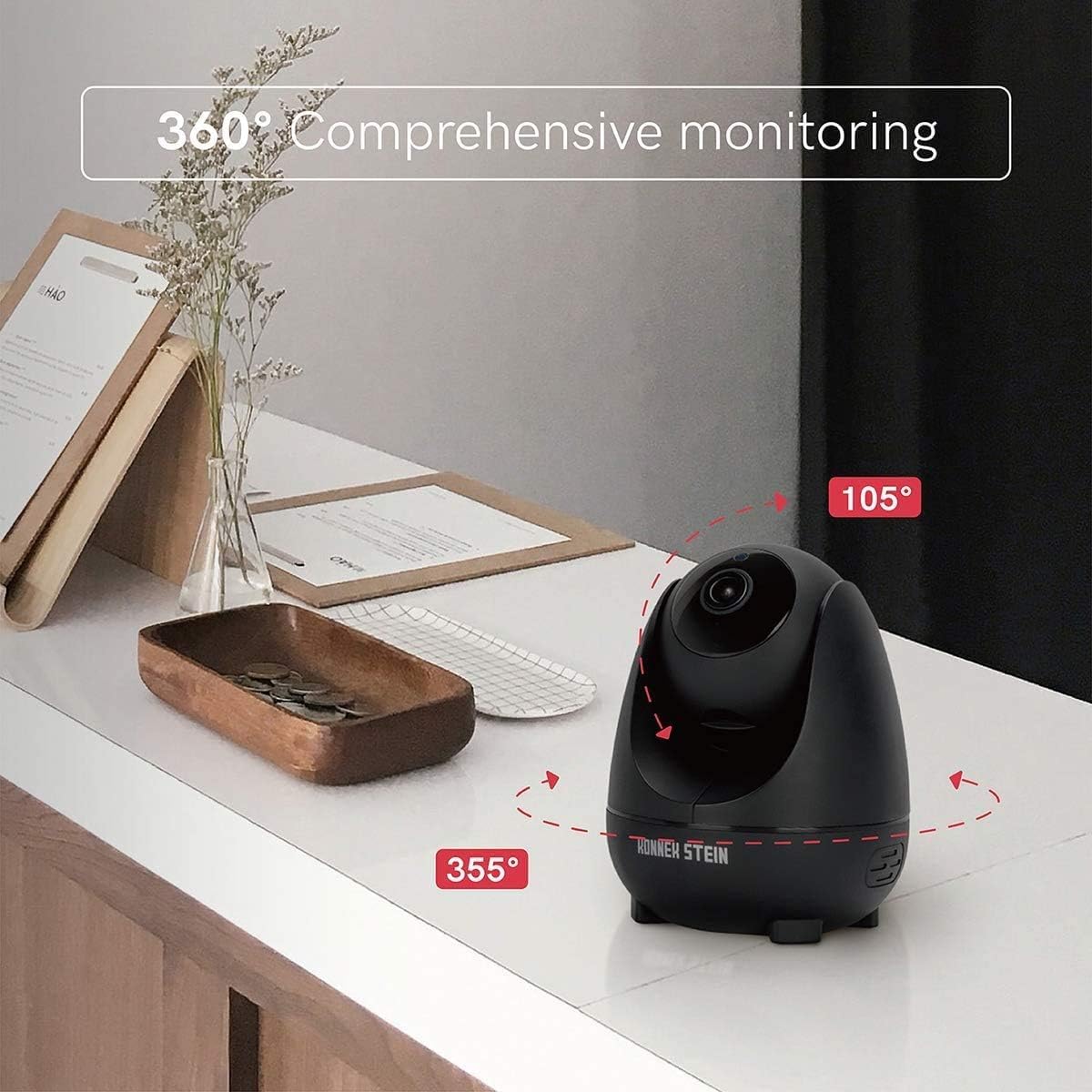
Image: Diagram illustrating the 355-degree horizontal and 105-degree vertical rotation capabilities of the Konnek Stein QC21 camera, providing comprehensive monitoring.
2. Two-Way Audio
The camera features a built-in microphone and speaker for two-way communication.
- In the live view interface of the app, tap the microphone icon to speak through the camera.
- Tap the speaker icon to listen to audio from the camera's environment.

Image: Illustration of the two-way audio function, showing a person speaking into a phone and a child hearing the message through the camera.
3. Smart Motion Detection
Enable motion detection to receive alerts on your smartphone when movement is detected.
- Navigate to the camera settings within the ENKLOV App.
- Locate and enable "Motion Detection" or "Alarm Settings."
- Adjust sensitivity levels and set detection zones as needed.
- You will receive push notifications on your phone when motion is detected.

Image: A smartphone displaying a "Motion Detection 1 New notice" alert, with the camera shown detecting movement in the background.
4. Night Vision
The camera automatically switches to infrared night vision mode in low-light conditions, providing clear black and white video footage.

Image: A split image showing the camera's view in daylight (full color) and in night mode (infrared black and white).
5. Recording and Storage
The Konnek Stein QC21 supports two primary storage methods:
- Micro SD Card Storage: Insert a Micro SD card (not included) into the camera's designated slot for local recording. The camera will automatically record based on your settings (e.g., continuous recording, motion-triggered recording).
- Cloud Storage: The camera offers optional cloud storage services for secure off-site backup of your recordings. Refer to the ENKLOV App for subscription details and activation.
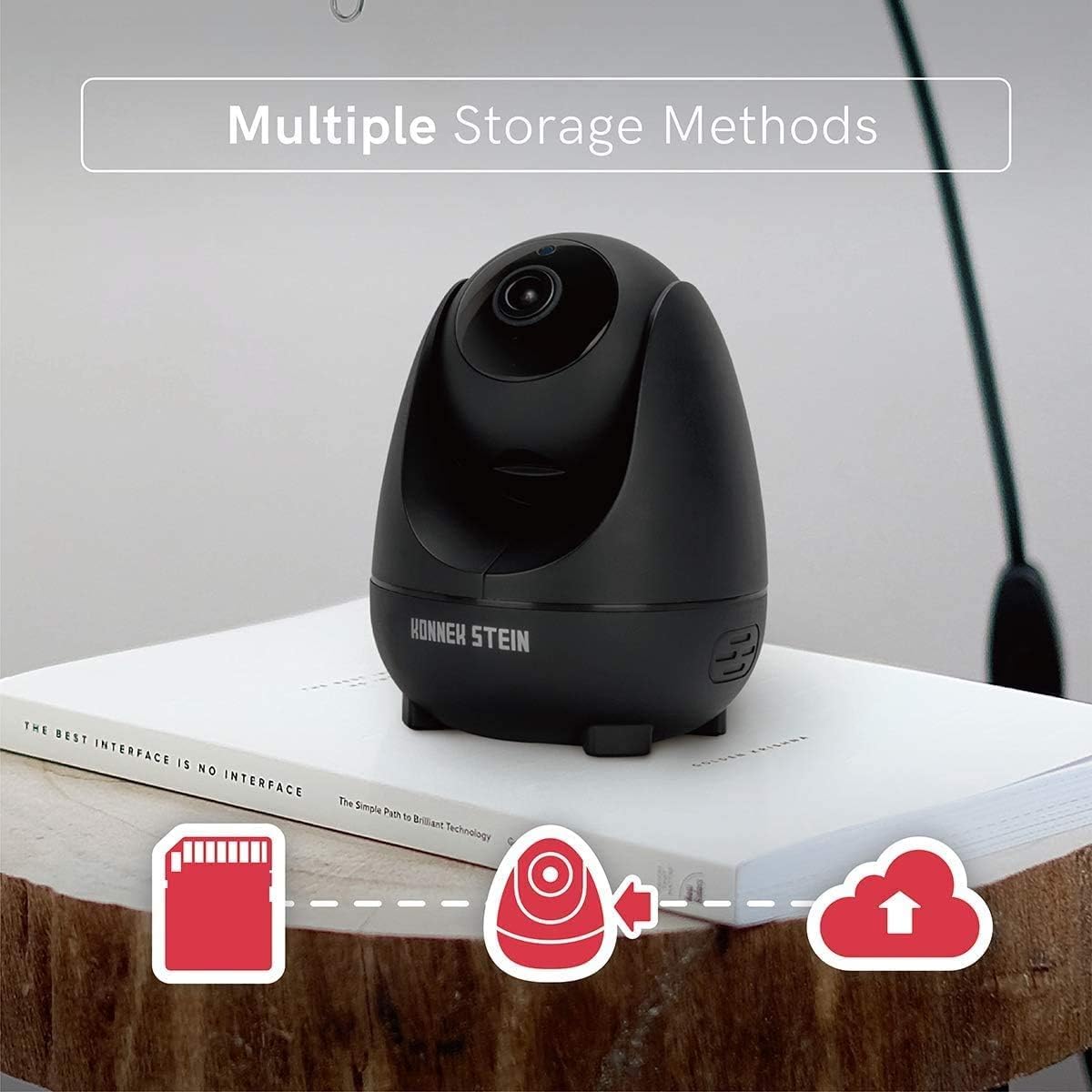
Image: Icons representing Micro SD card storage, local device storage, and cloud storage options for the camera.
6. Multi-Terminal & Multi-User Sharing
The ENKLOV App allows viewing on multiple devices (Android, iOS, Windows, MAC) and sharing access with other users.
- Multi-Terminal View: Install the ENKLOV App on your preferred devices and log in with your account to access the camera feed.
- Multi-User Sharing: In the app, navigate to the camera settings and find the "Share Device" option. You can invite other users to view your camera feed by entering their account details.

Image: Diagram showing compatibility with iOS, Android, and Windows, and an icon representing multi-user sharing, with a smartphone displaying the camera's live feed.
Troubleshooting
| Problem | Possible Solution |
|---|---|
| Camera fails to connect to Wi-Fi. |
|
| No live video feed in the app. |
|
| Motion detection alerts are not received. |
|
| Two-way audio is not working. |
|
Specifications
| Model Name | QC21 |
| Video Resolution | 1080P Full HD |
| Viewing Angle | 360 Degrees (355° Horizontal, 110° Vertical) |
| Frame Rate | 25 frames per second |
| Night Vision | Infrared (9*940nm IR LED) |
| Audio | Two-Way Audio |
| Connectivity | Wi-Fi (2.4GHz only) |
| Storage Options | Micro SD Card (up to 128GB, not included), Cloud Storage |
| Power Source | Corded Electric (10W) |
| Mounting Type | Wall Mount, Tabletop |
| Dimensions (L x W x H) | 9.1 x 9.1 x 11.5 cm |
| Weight | 430 g |
| Compatible Devices | Smartphone (Android, iOS), PC |
Maintenance
- Cleaning: Use a soft, dry cloth to clean the camera lens and body. Avoid using harsh chemicals or abrasive cleaners.
- Firmware Updates: Regularly check the ENKLOV App for available firmware updates to ensure optimal performance and security. Follow the in-app instructions for updating.
- Placement: Ensure the camera is placed in a stable location, away from direct sunlight, heat sources, and moisture.
- Network Stability: A stable Wi-Fi connection is crucial for consistent performance. Ensure your router is functioning correctly and the camera is within good signal range.
Warranty and Support
Konnek Stein products are designed for reliability and performance. For warranty information, please refer to the warranty card included with your product or contact Konnek Stein customer support.
If you encounter any issues not covered in this manual, please visit the official Konnek Stein website or contact their customer service for assistance.
- Online Support: Visit the Konnek Stein official website for FAQs, troubleshooting guides, and contact information.
- Email Support: For specific inquiries, please refer to the contact section on the official website.
- Phone Support: Contact numbers may be available on the official Konnek Stein website for direct assistance.


