
1. Introduction
This manual provides detailed instructions for the installation, operation, and maintenance of your EONON GA2185J 10.1-inch Android Car Navigation System. Please read this manual thoroughly before using the product to ensure proper and safe operation. Keep this manual for future reference.
2. Safety Information
- Professional Installation Recommended: Due to the complexity of car electrical systems, professional installation is highly recommended to prevent damage to the unit or your vehicle.
- Driving Safety: Do not operate the system in a way that distracts you from driving. Always prioritize road safety.
- Power Supply: Ensure the unit is connected to a 12V DC power supply with negative grounding. Incorrect voltage can cause damage.
- Temperature: Avoid exposing the unit to extreme temperatures or direct sunlight for prolonged periods.
- Moisture: Keep the unit away from water and excessive moisture.
- Ventilation: Ensure adequate ventilation around the unit to prevent overheating.
3. Package Contents
Verify that all items listed below are included in your package:

Image: Included Accessories. This image displays all components that come with the EONON GA2185J unit, neatly arranged and numbered for easy identification.
- GPS Antenna (3m) x1
- Power Cable x1
- AV Cable x2
- Microphone (3m) x1
- USB Cable (1m) x2
- Wi-Fi Antenna (1.5m) x1
- 15A Fuse x1
- Disassembly Tool x1
- Mounting Screws x4
- Instruction Manual x1
4. Product Overview
The EONON GA2185J is a 10.1-inch Android 10 car navigation system designed to provide a comprehensive multimedia and navigation experience in your vehicle.

Image: EONON GA2185J Main Unit. This image shows the front of the car navigation system, highlighting its memory specifications.
Key Features:
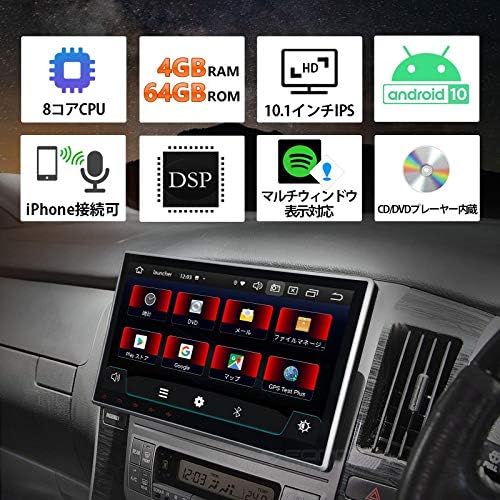
Image: Feature Overview. This infographic summarizes the main technical specifications and functionalities of the device.
- Operating System: Android 10
- Processor: 8-core CPU
- Memory: 4GB RAM + 64GB ROM
- Display: 10.1-inch IPS Touchscreen
- Connectivity: Built-in Wi-Fi, Built-in Bluetooth, USB
- Audio Features: DSP (Digital Sound Processor), Equalizer, Subwoofer output, RCA outputs
- Radio: FM Tuner, AM Tuner, RDS
- Smartphone Integration: iPhone connectivity (Mirroring)
- Multitasking: Multi-window display support
- Media Playback: CD/DVD Player built-in

Image: Processor Details. This image highlights the powerful 8-core processor and memory configuration of the system.
Performance:

Image: Fast Boot Time. This image demonstrates the system's quick startup, powering on in approximately 1 second.
The system is designed for a fast and smooth user experience, supporting numerous applications and improving data transfer speeds for efficient multitasking.
5. Setup and Installation
Pre-Installation Check:
- Before installation, carefully check the size and shape of your vehicle's console panel to ensure compatibility.
- If the product size does not match your console, please contact the service center directly for assistance.
Physical Installation:
The unit features an adjustable screen, allowing for a gap of up to approximately 35mm between the LCD panel and the main unit for optimal viewing angles.

Image: Adjustable Screen Angle. This diagram illustrates how the screen can be tilted to achieve the best viewing position.
- Carefully remove your existing car stereo or panel.
- Connect the necessary wiring harnesses (power, speakers, accessories) to the GA2185J unit.
- Mount the unit securely into the dashboard using the provided mounting screws.
- Adjust the screen angle as needed for optimal visibility.
- Reinstall any removed panels or trim.
Wiring Connections:
Refer to the wiring diagram provided with your unit for specific connections. Key connections include:
- Power Cable: Connect to vehicle's 12V DC power supply (constant, accessory, ground).
- Speaker Wires: Connect to your vehicle's speakers.
- GPS Antenna: Connect the GPS antenna and place it in a location with a clear view of the sky.
- Wi-Fi Antenna: Connect the Wi-Fi antenna for optimal wireless signal reception.
- USB Cables: Connect USB devices for media playback or smartphone charging.
- AV Cables: Use for connecting external audio/video sources or outputting video to external displays.
- Microphone: Connect the external microphone for hands-free calling and voice commands.
6. Operating Instructions
Basic Operation:
- Power On/Off: Press and hold the power button (if available) or turn on your vehicle's ignition.
- Touchscreen: Navigate the interface by tapping, swiping, and pinching on the 10.1-inch IPS touchscreen.
- Volume Control: Adjust volume using the on-screen controls or steering wheel controls (if connected).
Android 10 System:
Your device runs on Android 10, offering a familiar and intuitive user interface. It supports a wide range of applications and provides a smooth, responsive experience.

Image: Android 10 Interface. This image demonstrates the Android 10 operating system running on the device, showcasing its multimedia capabilities.
Bluetooth Connectivity:
Pair your smartphone or other Bluetooth devices to the unit for hands-free calling and audio streaming.
- Go to the Bluetooth settings on the unit.
- Enable Bluetooth on your smartphone and search for available devices.
- Select 'EONON GA2185J' (or similar name) from the list and confirm pairing.
Wi-Fi Connection:
Connect to a Wi-Fi network to access online features, download apps, and browse the internet.
- Navigate to the Wi-Fi settings menu.
- Select your desired Wi-Fi network and enter the password if required.
GPS Navigation:
Utilize pre-installed or downloaded navigation applications for turn-by-turn directions and real-time traffic information.
- Ensure the GPS antenna is properly installed and has a clear signal.
- Open your preferred navigation app and enter your destination.
Multi-Window Display:
The multi-window feature allows you to split the screen and use two applications simultaneously, enhancing multitasking capabilities.

Image: Multi-Window Display. This image illustrates the ability to run two applications side-by-side on the screen, such as navigation and music.
Smartphone Mirroring (iPhone Connectivity):
Connect your iPhone to the unit to mirror its display and access apps, navigation, calls, and music through the car stereo's interface. This feature is designed with driving safety in mind.

Image: iPhone Connectivity. This image shows an iPhone connected to the car stereo, demonstrating the mirroring functionality for seamless integration.
Audio Settings:
Utilize the built-in DSP, equalizer, and subwoofer output to customize your audio experience.
- Access the audio settings menu to adjust sound profiles, bass, treble, and balance.
- The DSP allows for fine-tuning of sound characteristics.
- Connect an external subwoofer to the dedicated output for enhanced bass.
7. Maintenance
- Cleaning the Screen: Use a soft, lint-free cloth to gently wipe the touchscreen. Avoid abrasive cleaners or solvents.
- Software Updates: Periodically check for software updates to ensure optimal performance and access to new features. Updates can usually be found on the manufacturer's website or through the system's settings.
- General Care: Keep the unit free from dust and debris. Avoid placing heavy objects on the unit.
8. Troubleshooting
If you encounter issues with your EONON GA2185J, refer to the following common problems and solutions:
| Problem | Possible Cause | Solution |
|---|---|---|
| Unit does not power on. | Incorrect wiring, blown fuse, vehicle power issue. | Check power cable connections. Inspect the 15A fuse. Verify vehicle's power supply. |
| No sound. | Speaker wires disconnected, volume too low, audio settings incorrect. | Check speaker connections. Increase volume. Verify audio output settings. |
| GPS signal is weak or inaccurate. | GPS antenna improperly placed or faulty. | Ensure GPS antenna has a clear view of the sky. Check antenna connection. |
| Bluetooth connection issues. | Device not in pairing mode, interference, incorrect pairing process. | Ensure both devices are in pairing mode. Delete previous pairings and try again. Move closer to the unit. |
| System freezes or becomes unresponsive. | Software glitch, too many apps running, overheating. | Perform a soft reset (refer to manual for reset button location, usually a small pinhole). Close unnecessary applications. Ensure proper ventilation. |
If the problem persists after trying these solutions, please contact customer support.
9. Specifications
| Feature | Specification |
|---|---|
| Screen Size | 10.1 inches |
| Operating System | Android 10 |
| Processor | 8-core |
| RAM | 4GB |
| ROM | 64GB |
| Connectivity | Bluetooth, USB, Wi-Fi |
| Other Functions | AM Tuner, Bluetooth Built-in, DSP, FM Tuner, RCA, RDS, Wi-Fi Built-in, Equalizer, Subwoofer, Touchscreen |
| Compatible Devices | Smartphones, PCs |
| Connector Type | 3.5mm Jack, RCA |
| Audio Output Mode | Surround, Stereo |
| Control Method | App, Touch, Remote |
| Product Weight | 2.3 kg |
| Package Dimensions | 34.8 x 32 x 23.88 cm |
10. Warranty and Support
For warranty information, technical support, or service inquiries, please refer to the warranty card included with your product or contact the seller/manufacturer directly. Keep your purchase receipt as proof of purchase.


