
Introduction
This manual provides a comprehensive guide for the Apple iPhone 12, designed to help users understand and effectively utilize their device. It covers essential setup procedures, core operating functions, advanced features of iOS 14, and practical troubleshooting tips. Whether you are a new iPhone user or looking to explore the full capabilities of your iPhone 12, this guide offers clear, step-by-step instructions.
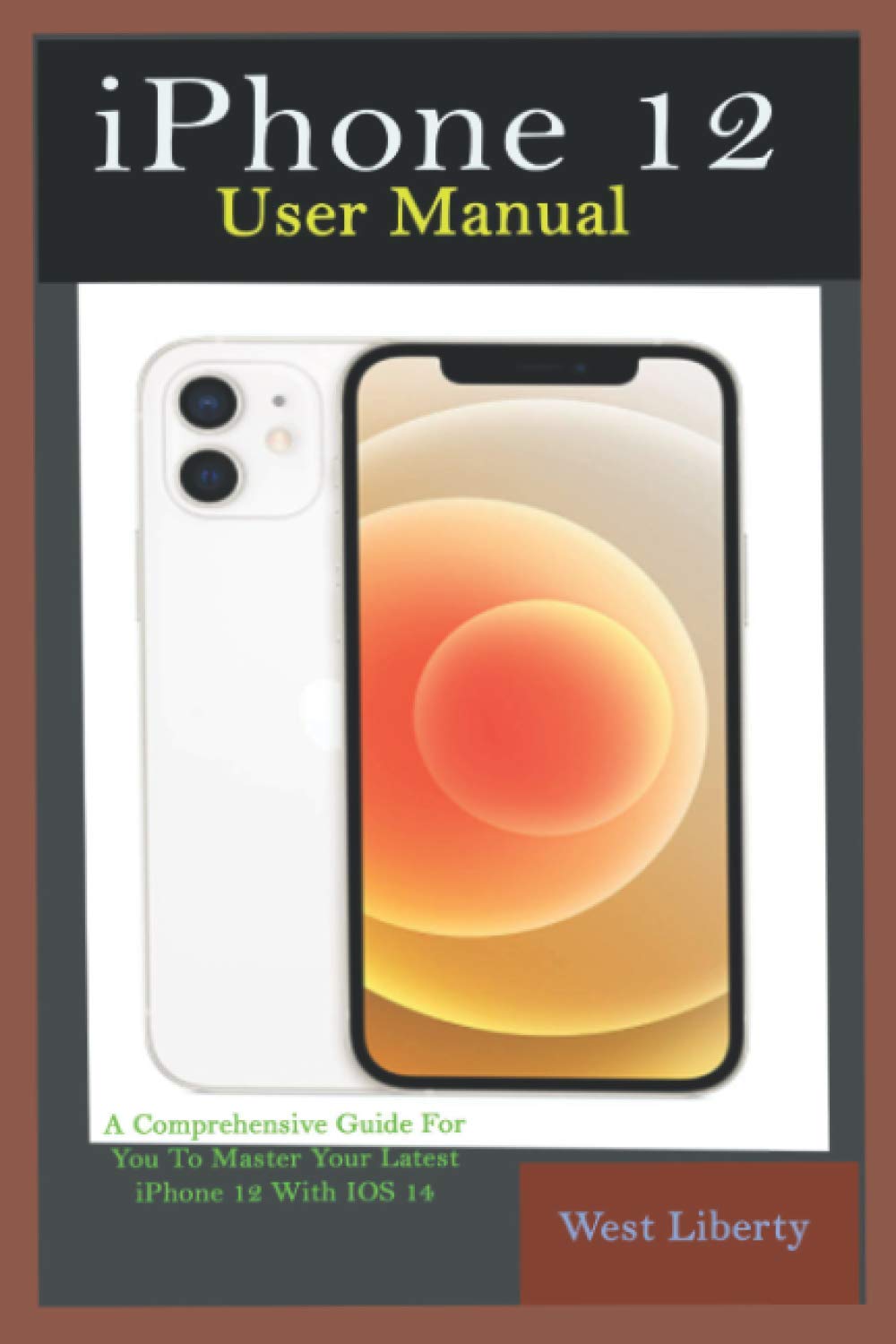
Image 1: Front cover of the physical user manual book for iPhone 12. The cover features the title 'ABOUT THE BOOK' and 'This Book Reveals The Full Potentials of Your iPhone 12 and the Secret Features to Unlock And Use To Master The Latest IOS 14'.
Setup
This section guides you through the initial setup process of your iPhone 12, ensuring your device is ready for use.
Initial Device Activation
- Power On: Press and hold the side button until the Apple logo appears.
- Follow On-Screen Prompts: Select your language, region, and connect to a Wi-Fi network.
- Data & Privacy: Review the Data & Privacy information.
Apple ID and iCloud Configuration
- Sign In with Apple ID: Enter your existing Apple ID and password. If you don't have one, you can create a new Apple ID.
- Change Apple ID Settings: Access and modify your Apple ID preferences via the Settings app.
- iCloud Settings: Configure iCloud to back up your data, sync photos, contacts, and more. Explore iCloud Drive for file management.
Software Updates and Basic Settings
- Updating Software: Regularly check for and install the latest iOS updates (e.g., iOS 14.3.4) to ensure optimal performance and security. Go to Settings > General > Software Update.
- Change Alert Styles: Customize how notifications appear for various apps in Settings > Notifications.
Operating Your iPhone 12
Learn how to use the core functions and advanced features of your iPhone 12.
Calls and Contacts
- Making Calls: Use the Phone app to dial numbers or select contacts.
- Receiving Calls: Answer or decline incoming calls.
- Setting Ringtone: Customize your ringtone in Settings > Sounds & Haptics.
Messaging and Keyboard
- About Keyboard: Explore keyboard features, including QuickType, dictation, and emoji.
- Speaking Their Language: Utilize translation features or third-party keyboard apps.
Internet and Apps
- Online World: Browse the internet using Safari.
- About Apps: Discover, download, and manage applications from the App Store.
- Change The App Store Settings: Adjust preferences for app downloads and updates.
- Buying Items: Make secure purchases within apps and online.
- Turn On Ask To Buy For Kids On iPhone: Manage family purchases and approvals.
Camera and Photos
- Take A Look At Your Photos: Access and organize your photos in the Photos app.
- Record Video Slowly: Utilize Slo-Mo mode for slow-motion video capture.
- Select Slo-Mo Mode: Open the Camera app and swipe to 'Slo-Mo'.
- Adjust The Slow-Motion Portion Of The Video: Edit the start and end points of the slow-motion effect.
- See Capture A Live Photo: Learn how to take and view Live Photos.
- Add Effects To Live Photo: Apply various effects to your Live Photos.
- Share And Print Photos: Share images via messages, email, or social media, and print directly from your device.
Personalization and Features
- Night Shift: Adjust display colors to warmer tones for evening viewing.
- Screen Time: Monitor and manage device usage for yourself and family members.
- Determine The Boundaries Of Communication: Set limits on communication during Screen Time.
- Set Up A Family Share On The iPhone: Share purchases, subscriptions, and iCloud storage with family.
- How To Improve Voice Memo Recordings?: Tips for enhancing audio quality in Voice Memos.
- How To Remove Voice Memo Enhancement?: Revert Voice Memo recordings to their original state.
- Personalize Your News: Customize your news feed in the Apple News app.
- Relaxing With Your Device: Explore features like Focus modes and Do Not Disturb.
- Cycle Factor Management / Set Your First Sleep Schedule: Utilize the Health app for sleep tracking and scheduling.
Location Services and Wallet
- Set A Label For Your Location: Customize names for frequently visited locations.
- Share Your Location With A Friend: Use Messages or Find My app to share your whereabouts.
- Respond To The Request To Share The Place: Manage incoming location sharing requests.
- See A Friend's Place: View shared locations of friends.
- Contact A Friend / Find Directions To A Friend: Easily navigate to contacts' locations.
- Set A Friend's Place Tag: Label friends' locations for easy reference.
- Wallet: Add and manage credit/debit cards, transit cards, and loyalty cards.
- Add A Pass / Rearrange The Passages: Organize your digital passes within the Wallet app.
Maintenance
Proper maintenance ensures the longevity and optimal performance of your iPhone 12.
Software Updates
Regularly update your iPhone's operating system (iOS) to benefit from the latest security patches, bug fixes, and new features. Go to Settings > General > Software Update to check for and install available updates.
Cleaning Your Device
To clean your iPhone, use a soft, lint-free cloth. Avoid abrasive materials, aerosols, solvents, or ammonia-based cleaners. For stubborn smudges, a slightly damp cloth with water is usually sufficient. Always power off your device before cleaning.
Battery Care
To maximize battery lifespan, avoid extreme temperatures. Optimize battery settings by enabling Low Power Mode when needed and checking battery usage in Settings > Battery.
Troubleshooting
This section addresses common issues and provides solutions for your iPhone 12.
Security and Data Management
- How To Protect Your Phone From Viruses?: Install apps only from the App Store, avoid suspicious links, and keep iOS updated.
- Ascertain If Your iPhone Has A Virus: Look for unusual behavior, excessive data usage, or unexpected pop-ups.
- What Causes The Problem?: Typically, malware on iPhones is rare due to Apple's security measures, but phishing or compromised apps can pose risks.
- Clear The History And Data Of The Website: In Safari, go to Settings > Safari > Clear History and Website Data.
Device Restoration
- Restore iPhone From Backup: If experiencing issues, you can restore your iPhone from an iCloud or computer backup.
- Restore Your iPhone As A New Device: For persistent problems, you may need to erase all content and settings and set up your iPhone as new.
MagSafe Chargers for iPhone
Ensure proper alignment of your MagSafe charger for efficient wireless charging. If charging issues occur, check for obstructions or try a different power adapter.

Image 2: Back cover of the physical user manual book for iPhone 12. It displays the ISBN 9798711664901 barcode and the text 'ABOUT THE BOOK' with a summary of the book's content.
Specifications
| Feature | Detail |
|---|---|
| ASIN | B08WZCVBPT |
| Publisher | Independently published |
| Publication date | February 20, 2021 |
| Language | English |
| Print length | 228 pages |
| ISBN-13 | 979-8711664901 |
| Item Weight | 11 ounces |
| Dimensions | 6 x 0.52 x 9 inches |
Warranty and Support
The Apple iPhone 12 typically comes with a standard limited warranty from Apple. For detailed warranty information, please refer to Apple's official website or the documentation included with your device. For technical support, software assistance, or hardware service, visit the official Apple Support website or contact Apple customer service directly. You can also find helpful resources and community forums on the Apple Support page.


