1. Important Safety Information
Please read this manual carefully before using the Neewer RGB190 video light. Keep this manual for future reference.
- Do not expose the device to water or high humidity.
- Avoid direct eye exposure to the LED light.
- Do not disassemble or modify the product. Repairs should only be performed by authorized personnel.
- Use only the specified battery type (NP-F550) and charger.
- Keep out of reach of children.
2. Package Contents
Verify that all items listed below are included in your package:
- RGB190 LED Video Light
- NP-F550 Li-ion Battery (2600mAh)
- Battery Charger
- Micro USB Charging Cable
- White Diffuser
- Cold Shoe Mount Adapter
- User Manual

3. Product Overview
3.1 Components and Controls
The Neewer RGB190 features a compact design with an intuitive control panel and display.

- Power On/Off/Standby Button: Press and hold to power on or off. Short press for standby.
- Mode Button (M): Short press to cycle through HSI, CCT, and Scene modes.
- Adjust / SET Dial: Rotate to adjust values (e.g., brightness, hue, color temperature). Press to confirm selection or switch between parameters.
- Power Input Port: For external AC power adapter (12-15V, not included).
- Battery Compartment: Houses the NP-F series battery.
- LCD Panel: Displays current settings such as mode, brightness, color temperature, hue, saturation, and battery level.
3.2 Dimensions and Specifications

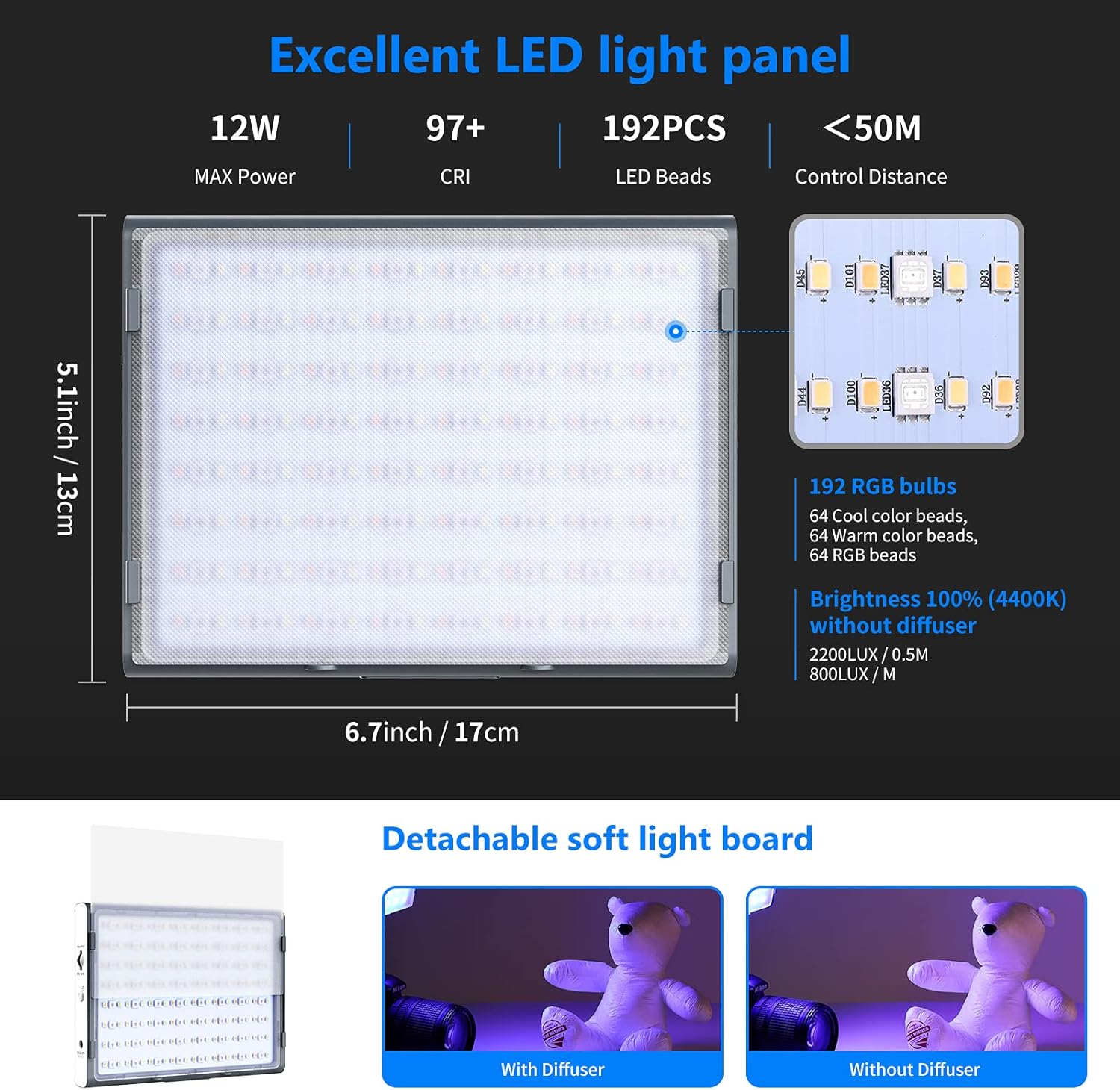
- Dimensions: 6.7"L x 1.3"W x 5.1"H (17cm x 3.3cm x 13cm)
- Weight: Approximately 1.7 pounds (0.7 kg)
- Max Power: 12W
- CRI: 97+
- LED Beads: 192 (64 Cool, 64 Warm, 64 RGB)
- Control Distance: Up to 50 meters (via App)
4. Setup
4.1 Battery Installation
- Ensure the light is powered off.
- Open the battery compartment cover on the back of the light.
- Insert the NP-F550 battery, aligning the contacts correctly.
- Close the battery compartment cover securely.
4.2 Mounting the Light
The RGB190 can be mounted on various photographic equipment using the cold shoe mount adapter.

- Attach the cold shoe mount adapter to the 1/4" screw hole at the bottom of the RGB190 light.
- Secure the cold shoe mount adapter onto your camera's hot shoe, a stabilizer, or a tripod.
- Adjust the angle of the light using the adapter's tilt mechanism.
5. Operating Instructions
5.1 Powering On/Off
Press and hold the Power On/Off button for approximately 2 seconds to turn the light on or off. A short press will put the light into standby mode.
5.2 Mode Selection and Adjustment
Short press the 'M' (Mode) button to switch between the available lighting modes: HSI, CCT, and Scene.

HSI Mode (Hue-Saturation-Intensity)
- In HSI mode, rotate the Adjust/SET dial to change the Hue (0-360°).
- Press the Adjust/SET dial to switch to Saturation adjustment (0-100%). Rotate the dial to change saturation.
- Press the Adjust/SET dial again to switch to Brightness adjustment (0-100%). Rotate the dial to change brightness.
CCT Mode (Color Temperature)
- In CCT mode, rotate the Adjust/SET dial to change the Color Temperature (3200K-5600K).
- Press the Adjust/SET dial to switch to Brightness adjustment (0-100%). Rotate the dial to change brightness.
Scene Mode
The RGB190 offers 9 pre-programmed scene effects to enhance your creative lighting.
- In Scene mode, rotate the Adjust/SET dial to cycle through the 9 scene effects: Lightning 1, Lightning 2, Display Screen, Party, Fireworks, Candlelight, Squad Car, Ambulance, Fire Engine.
- Some scenes may have adjustable parameters (e.g., speed or intensity) which can be changed by pressing the Adjust/SET dial and then rotating it.
5.3 App Control
The Neewer RGB190 can be controlled wirelessly via the Neewer app (Android 4.3 / iOS 11.1 or above).

- Download the 'Neewer' app from your device's app store (Apple App Store or Google Play Store).
- Ensure Bluetooth is enabled on your mobile device.
- Open the Neewer app and select 'NEEEWER-RGB190' from the device list to connect.
- Once connected, you can adjust color temperature, brightness, hue (0-360°), and saturation (0-100%) directly from the app.
- The app also includes an RGB wheel for quick color selection, allows saving two presets, and supports controlling up to eight lights simultaneously.
6. Battery and Power Options
The RGB190 offers flexible power options for both indoor and outdoor use.

- Battery Power: The light is powered by the supplied 2600mAh NP-F550 Li-ion battery. This battery is removable and interchangeable with other NP-F series batteries (NP-F550/NP-F750/NP-F970).
- AC Power: For continuous indoor use, the light can be powered by an AC adapter (12-15V, not included) connected to the power input port.
- Charging: Use the provided battery charger and Micro USB charging cable to recharge the NP-F550 battery.
7. Maintenance
- Clean the light panel and body with a soft, dry cloth. Do not use abrasive cleaners or solvents.
- Store the light in a cool, dry place away from direct sunlight and extreme temperatures.
- Remove the battery if the light will not be used for an extended period.
8. Troubleshooting
8.1 Light Not Turning On
- Check if the battery is correctly installed and charged.
- If using an AC adapter, ensure it is properly connected and providing power.
- Press and hold the power button for 2 seconds to ensure it's not in standby mode.
8.2 App Connection Issues
- Ensure Bluetooth is enabled on your mobile device and the light.
- Make sure the light is within the 50-meter control range.
- Restart the Neewer app and try reconnecting.
- Ensure your app version is up to date.
8.3 Inconsistent Light Output
- Check the battery level; low battery can affect performance.
- Ensure no obstructions are blocking the light panel.
- Verify settings in HSI or CCT mode are as desired.
9. Warranty and Support
Neewer products are designed for reliability and performance. For warranty information or technical support, please refer to the official Neewer website or contact their customer service directly. Keep your purchase receipt as proof of purchase for warranty claims.


